How to Convert JSON to XPS Format on Mac? Quick Ways

Amelia James
March 23rd, 2026
User-Query:
I have multiple JSON files that I need to convert into XPS format for reporting and documentation purposes. I’m looking for a reliable tool that supports bulk conversion, maintains proper formatting and structure, and ensures no data or metadata is lost during the process. Additionally, it would be helpful if the tool offers a preview feature to verify the output before final conversion.
Summary: In a diversified IT landscape, data integrity is an important foundation. The complex JSON structures are indecipherable to the non-technical stakeholders. Hence, it is best to convert JSON to XPS as it is supported by enterprise-grade printing systems. The XPS format creates a non-editable snapshot of the raw JSON data. Continue to read the blog and look at why users perform JSON to XPS file conversion. Along with this, we will learn about a professional tool, the JSON File Converter, which converts data in bulk with zero data loss.
Advantages of Converting JSON Files to XPS Format
Large businesses convert JSON files to XPS when they need a presentation-ready format of their structured data. The following are the advantages that this file conversion offers:
- Unlike the raw JSON file data, XPS preserves the original layout, fonts, and structure.
- The XPS format offers better readability by converting structured data into a visually organized document.
- XPS is primarily designed for printing purposes. One can easily convert the JSON content into XPS and print the data without changing the formatting.
- Users can add digital signatures and permissions to protect important content in the XPS file.
- With the XPS format, users can easily share and store their data for the long term. Over the period of time, they maintain the data integrity.
How to Effectively Convert JSON to XPS Format in Bulk?
Now that you’ve looked at the several advantages of converting JSON to XPS format, let’s move further. In the following section, we’ll learn about a professional approach using a tool to convert the JSON content into XPS. There is no manual method to convert the JSON content into an XPS format.
Bulk Convert JSON to XPS Format Via a Professional Tool
The MacSonik JSON Converter provides a comprehensive approach to converting JSON files easily into XPS files. Users can convert many files simultaneously without losing any of the document’s original data. The converter convert JSON to BMP and various output formats, so users have flexibility with what format they would prefer to have based on what they need. Also, the built-in preview feature is one of the most significant innovations of this converter.
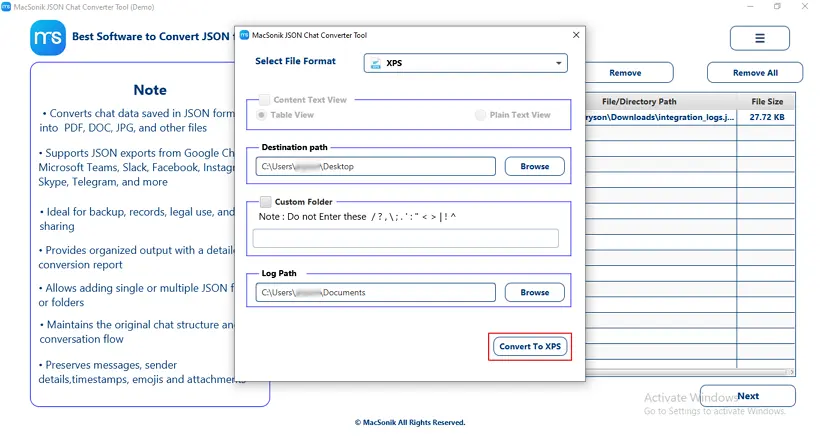
Quick steps to transfer JSON files to XPS:
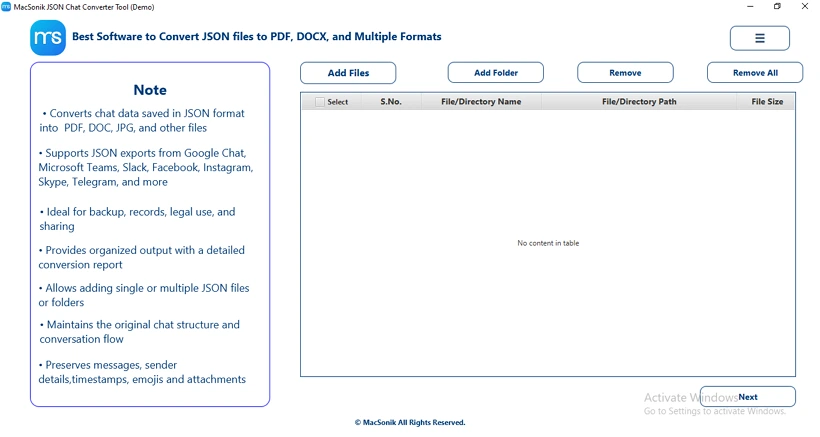
- Download, install, and run the tool on your desktop.
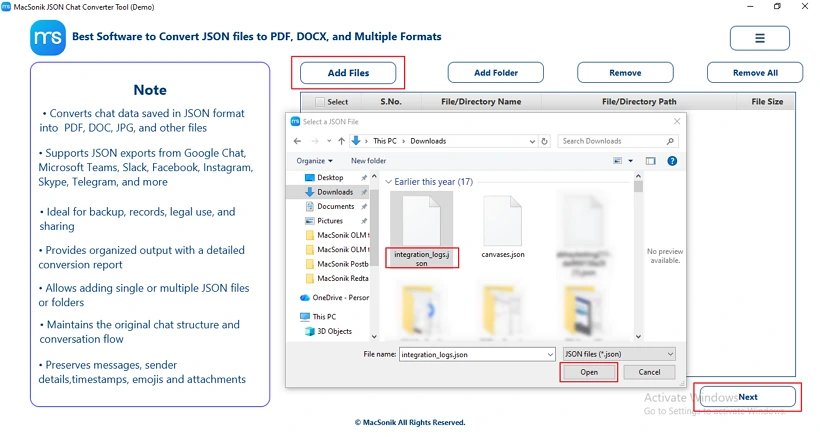
- Then, choose the Add File option to add the desired JSON file and hit Next.
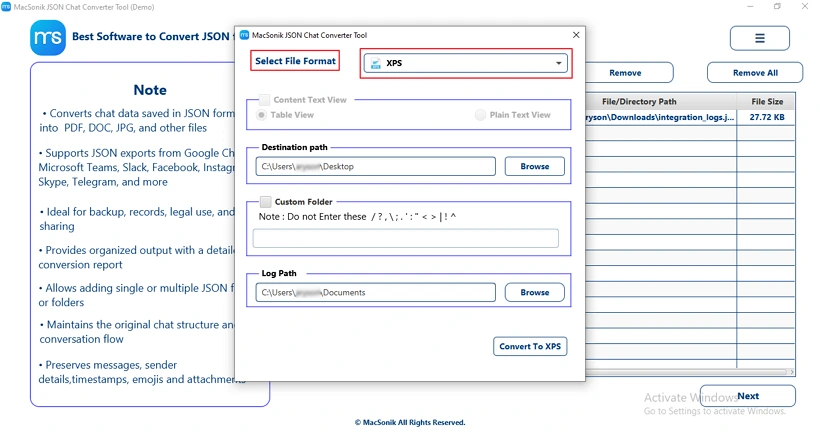
- In the Select File Format section, pick XPS as the saving output format.
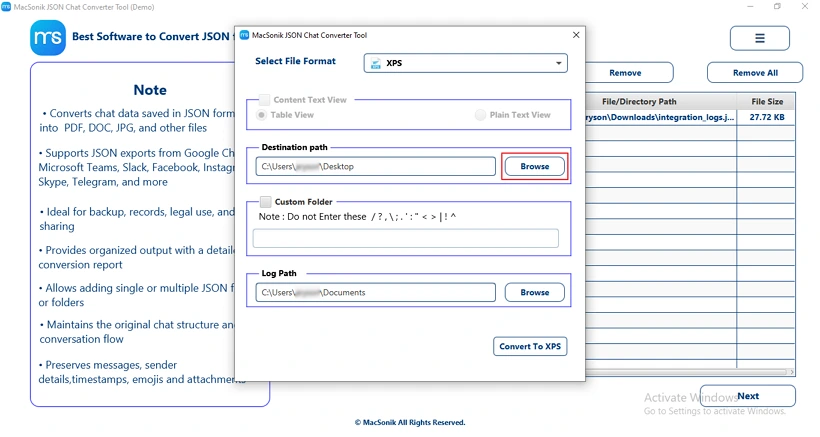
- After that, press the Browse button to pick where you want to save the file.
- At last, click Convert to XPS to create a XPS file document of the JSON data.
Advanced Features of MacSonik JSON Converter
- Effortlessly converts chat-based JSON content into various documents and image formats.
- Transforms raw JSON data into a clean and human-readable format.
- Supports conversion of bulk JSON files in a single operation.
- Retains messages, sender details, timestamps, emojis, and attachments.
- Fully compatible with Windows, macOS, and Linux.
A data analyst in a finance company needed to share transaction data stored in JSON files with non-technical stakeholders. Since JSON was difficult to read, they used MacSonik JSON Converter to convert multiple files into XPS format. This helped them create well-structured, secure, and print-ready documents while preserving the original data.
Conclusion
Many small and large businesses tend to convert JSON to XPS format to make the data printer-friendly. In this article, we have explored a professional approach. A manual approach only exists for Windows OS and not for macOS. It does not guarantee authentic conversion and may lose the data. Alternatively, with the help of a professional JSON Converter, one can quickly bulk convert the JSON files into XPS format.
Frequently Asked Questions
Ans- Yes, you can convert JSON files directly to XPS using professional tools like MacSonik JSON Converter. Alternatively, you can use a manual method on Windows by opening the JSON file and printing it via Microsoft Print to XPS.
Ans- In Windows, format the JSON properly before using the Microsoft Print to XPS to maintain a clean layout. Alternatively, use a reliable tool like MacSonik JSON Converter to convert JSON to XPS while preserving formatting and metadata.
Ans- The best approach is to use a professional tool, the MacSonik JSON Converter, for accurate, bulk conversion with preserved formatting and metadata. For small tasks, you can manually convert JSON by formatting it and using the Microsoft Print to XPS option on Windows OS.
Ans- Users convert the JSON files to XPS to make structured data more readable, shareable, and suitable for printing in a fixed layout. It also helps create secure, non-editable documents for reporting or presentation purposes.
About The Author:
Amelia is the mistress of the webmail clients like Office 365, Gmail, Yahoo, Hotmail, and Opera Mail. Her research on downloading emails from webmail is outstanding. She has given the solution to download emails from webmail clients to a Mac device with all the mailbox items. She’s been into webmail solutions since 2010. In her free time, she reads books and writes technical blogs.
Related Post
