Exclusive Features of the MacSonik ICS Converter

Save ICS File into various File Format

Save ICS File into various File Format

The MacSonik ICS Conversion Tool enables users to convert ICS files into PDF, PST, EML, MSG, CSV, JPG, HTML, MHTML, DOCX, and DOCM. This utility supports image and document file formats which helps access ICS data across multiple platforms and applications.

Migrate ICS to Multiple Email Clients

Migrate ICS to Multiple Email Clients

The ICS Migrator Tool facilitates the direct migration of ICS files into top email services including G Suite or Google Workspace, Gmail, and Office 365. This solution simplifies the import process without data disruption and reduces manual intervention during the migration.

Smart Preview Feature

Smart Preview Feature

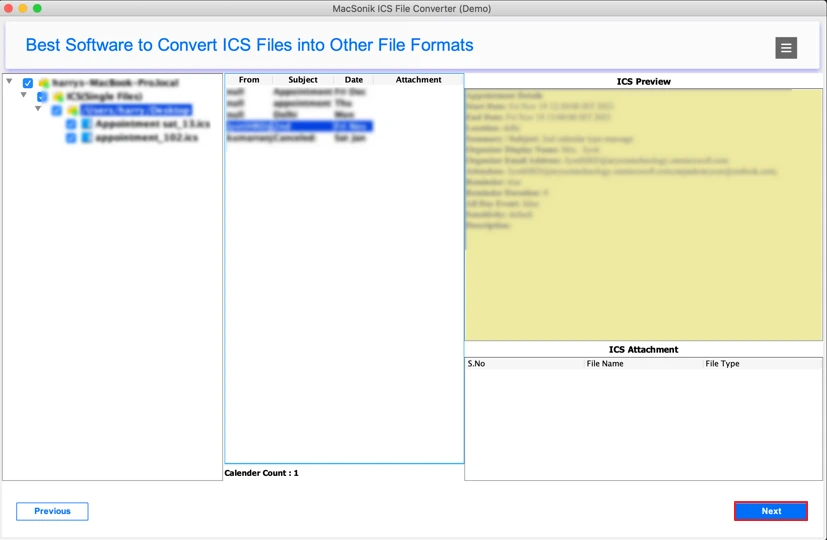
An advanced ICS Converter for Mac Wizard offers a suite of functionalities, including an integrated preview feature. It enables users to access and view unlimited ICS files and attached data in the preview panel. Users can then efficiently manage and process calendar events and related files.

Skip Duplicate Events

Skip Duplicate Events

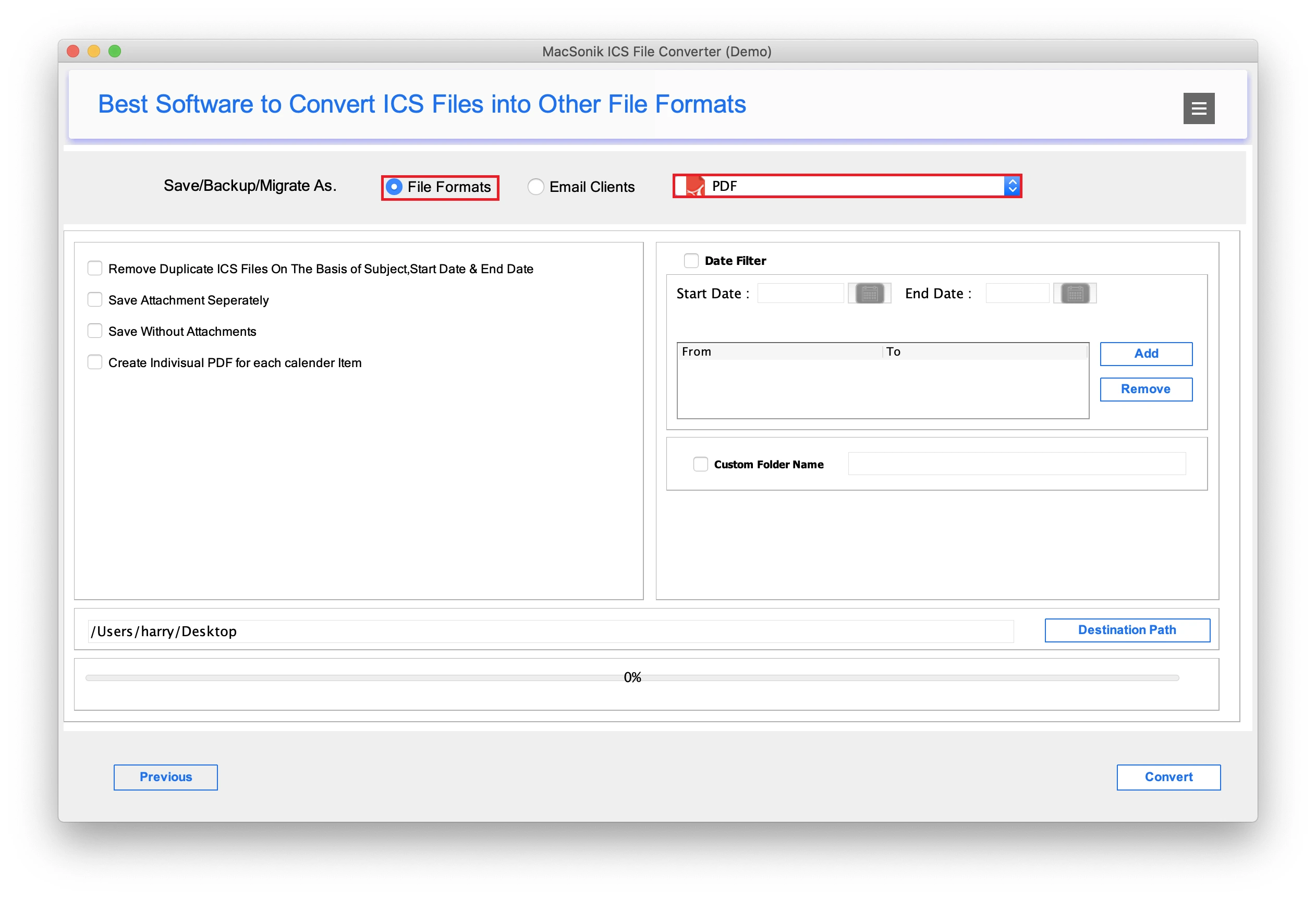
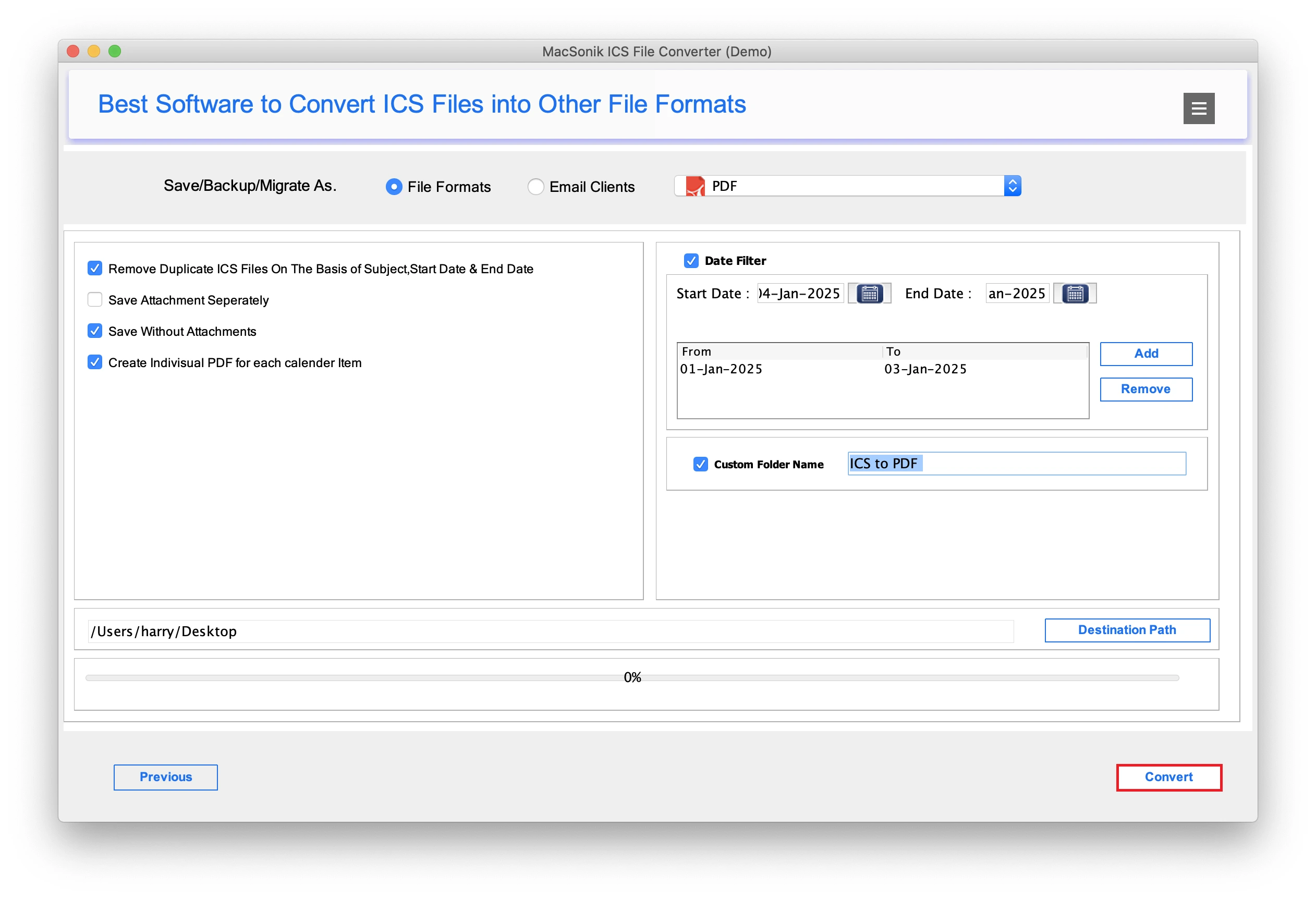
This utility provides an efficient solution for managing multiple calendar schedules. It also supports eliminating duplicate events across bulk ICS files, and identifying and removing duplicate entries based on criteria such as Subject, Start Date, and End Date, all while maintaining data integrity.

Manage ICS Files Attachments

Manage ICS Files Attachments

The MacSonik ICS Exporter Tool is a robust software to manage ICS files and their associated attachments easily and efficiently. It allows users to convert ICS files without including attachments while providing an option to store the attachments in a separate directory or folder.

Previews OST Emails Feature

Convert Specific Schedule

The software enables users to convert data within a specified time range. To use this feature, users can define the accurate start and end dates. Additionally, the tool enables adding multiple date ranges and then the software will automatically process and convert data corresponding to the selected date ranges.

Save Each Event individually as a PDF

Save Each Event individually as a PDF

This reliable utility offers various features to simplify the process. It allows users to save calendar schedules or events in either a single PDF file or individual PDF files while maintaining data integrity.

Convert ICS to CSV

Convert ICS to CSV

With this versatile software, users can convert ICS files into various file formats. When saving ICS files as CSV, the software offers two options: General CSV and Google CSV, ensuring a seamless process with no errors or risks.

Comparison of Free and Full Versions

Product Features Free Version Full Version
Save ICS as PST, PDF, etc. 10 ICS File Per Folder
Transfer ICS File to G Suite, Office 365, and Gmail 10 ICS File Per Folder
Multiple ICS File Conversion 10 ICS File Per Folder
Save Selective Event Single Date Range
Save ICS Files without Attachments
Save Attachments Separately
Create a PDF for each event
Exclude Similar Schedule
Download and Purchase Download Buy Now

System Specifications

processor-img

System Requirement

Operating System: macOS 10.13 High Sierra, macOS 11 Big Sur, macOS 12 Monterey, macOS 13 Ventura, macOS Sonoma, and later versions macOS (10.15 "Catalina").

Processor: Apple Silicon M1, M2, M3, M4, and newer Apple Silicon processors (including M5)

Ram: Minimum 4 GB (8 GB Recommended)


processor-img

About Software

Version: 25.12

License Tyes: Home | Corporate | Technical


processor-img

Additional Information

To run this tool smoothly on Mac, follow the below-mentioned steps:

  1. Launch Mac OS.
  2. Go to the Finder Bar >> Go menu.
  3. Select the Applications option.
  4. Choose System Preferences.
  5. Click on the Security & Privacy.
  6. Here, select the Firewall tab, and choose to Turn Off the firewall.

If Yes! Please disable your antivirus temporarily or allow access from its setting so that the software can carry out its function.

It is advised to avoid the source file from any shared drives or networks (NAS, SAN, LAN, and WAN) as it should be on the same working machine.

Frequently Asked Questions

Ans: Follow the detailed mentioned steps to complete the process using this advanced software.

  1. Download and start the ICS File Converter Tool on your system.
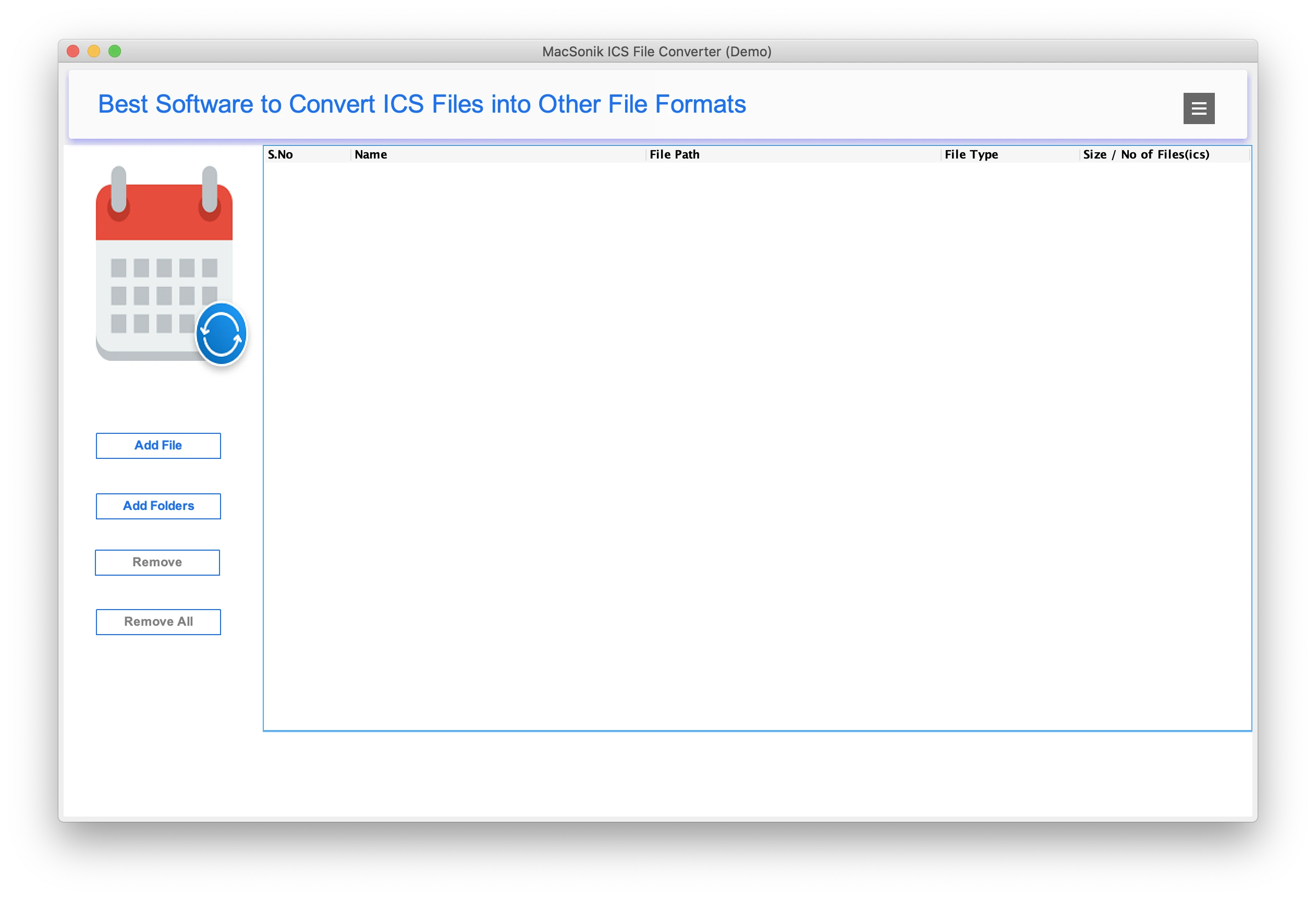
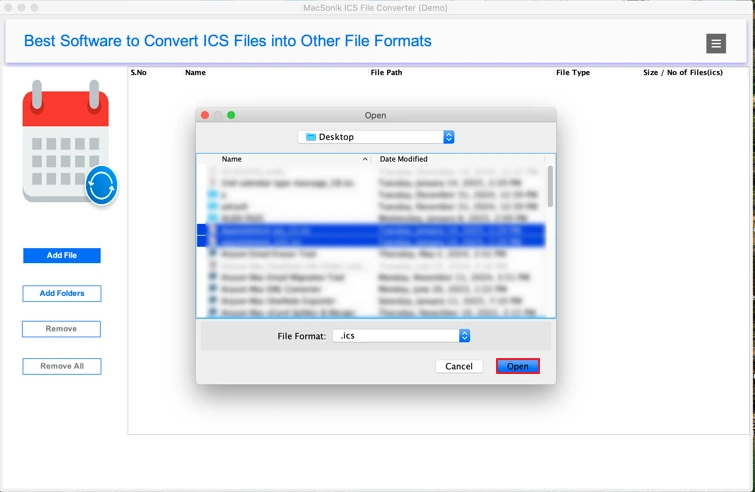
  2. Click Select Files/Select Folder to add the required ICS files. Hit Open.
  3. Open and view the ICS file content and tick the items for conversion. Tap Next.
  4. Choose PDF as the destination path from the drop-down menu.
  5. Set the path to store the resultant PDF file in your system.
  6. Lastly, press the Convert tab to begin the conversion process.

Ans: Yes, this top-notch utility lets you convert or transfer bulk ICS files simultaneously.

Ans: This software has strong security measures that prevent data disruption and ensure risk-free output.

Ans: You can save ICS files as PDF, PST, EML, MSG, CSV, JPG, HTML, MHTML, DOCX, and DOCM file formats.

Ans: This software is available and works effectively on all versions of MacOS.

Ans: Yes, this wizard facilitates a date range filter that enables users to move or export selective time frame ICS files.

Ans: When an application requests access that is broader than a single user’s data, Admin consent is required, For instance, access that includes organization-wide or multiple-user resources. In these instances, only a Microsoft 365 administrator can grant the login because this ensures compliance while securing data access throughout the tenant.

Ans: Yes. It is compulsory to enable user sign-in for Modern Authentication. To generate the authentication token, it is necessary to enable the sign-in access for Modern Authentication. If it is disabled, the application will not to be able to access the user data. Therefore, before using Modern Authentication, make sure the user sign-in is enabled for accessing the data.

avatar

Still have questions?

Can’t find the answer you’re looking for? Please chat with our friendly team.

Get in Touch

Explore Client Experiences with MacSonik!

Read about the experiences of a few MacSonik clients who have used these well-versed tools.

100%
Secure Software
24× 7
Technical Support
5M+
Downloads
30 Days
Money Back Guarantee