Table of Contents
Best Way to Perform Cross Tenant Microsoft 365 Migration
“Our organization is planning a cross tenant Microsoft 365 migration due to a merger. We need to move mailboxes, OneDrive, SharePoint, and other Microsoft 365 data securely with minimal downtime. What is the best way to perform a cross-tenant migration?”
Asked by Michael Roberts (IT Manager)
Cross tenant email migration M365 has become increasingly common as organizations merge, acquire new businesses, or consolidate multiple Microsoft 365 environments. Moving users and business data from one Microsoft 365 tenant to another requires planning to avoid data loss and productivity disruptions. Whether you're an MSP or SMB, choosing the right migration approach is key to a successful IT transition. This guide explains the proven practices to perform a secure cross-tenant migration using the MacSonik Microsoft 365 Tenant-to-Tenant Migration Software.
Understanding Cross Tenant Microsoft 365 Migration
A cross-tenant migration is the process of transferring Microsoft 365 workloads from one tenant (source tenant) to another (destination tenant). It includes:
 Exchange Online Mailboxes
Migrate complete Exchange Online mailboxes, including emails, folders, metadata, and mailbox settings, while preserving the original structure and ensuring uninterrupted access after migration.
 OneDrive for Businesses
Move OneDrive files, folders, and documents [libraries & sites] while maintaining the original directory structure, file properties, and sharing settings wherever supported.
 SharePoint Online Documents
Migrate SharePoint Online sites, document [libraries and sites], folders, and files with their metadata intact to ensure business documents remain organized and accessible.
 Shared Mailboxes
Transfer shared mailboxes securely without affecting shared email content, or folder organization, enabling teams to continue collaborating seamlessly.
 Calendars & Contacts
Migrate calendars, recurring events, appointments, reminders, and personal or organizational contacts while preserving schedules, time zones, names, email addresses, phone numbers, and other essential details.
 Folder Hierarchy
Maintain the complete mailbox folder structure, including Inbox, Sent Items, Drafts, Archive, custom folders, and nested subfolders, ensuring users experience a familiar mailbox organization after migration.
 Email Attachments
Ensure all email attachments, including documents, images, PDFs, spreadsheets, and presentations, are migrated along with their respective emails without modification.
 User Metadata
Preserve important mailbox properties such as sender and recipient details, timestamps, read/unread status, message flags, categories, and other email attributes to maintain data authenticity.
Why Do Businesses Perform Microsoft 365 Tenant to Tenant Migration?
Company Mergers and Acquisitions
When two or more organizations merge or one company acquires another, cross-tenant migration consolidates Microsoft 365 users, mailboxes, and collaboration data into a single tenant for streamlined management.
MSP-Managed Migration Services
Managed Service Providers (MSPs) perform cross-tenant migrations for multiple clients, helping businesses securely migrate Microsoft 365 data while minimizing disruption, reducing administrative effort, and ensuring a smooth transition.
Business Restructuring
Organizations undergoing internal restructuring can migrate users and workloads to a new Microsoft 365 tenant, ensuring data remains organized and aligned with the updated business structure.
Corporate Rebranding
Businesses changing their name or brand identity often migrate to a new Microsoft 365 tenant that reflects their updated domain and organizational branding while preserving existing mailbox data.
Domain Name Changes
When transitioning to a new email domain, cross-tenant migration enables organizations to move mailboxes, contacts, calendars, and other Microsoft 365 data without disrupting user access.
Tenant Consolidation
Companies managing multiple Microsoft 365 tenants can consolidate them into a single environment to simplify administration, reduce licensing complexity, and improve collaboration across teams.
Divestitures
During the sale or separation of a business unit, cross-tenant migration helps transfer users and business data to a new Microsoft 365 tenant while maintaining data integrity and business continuity.
IT Modernization Projects
Organizations upgrading their IT infrastructure or adopting a new Microsoft 365 environment can use cross-tenant migration to securely move workloads to a modern, centralized tenant with minimal downtime.
Strategic Challenges of Merging Microsoft 365 Tenants
Authentication Issues
Incorrect administrator credentials, expired authentication tokens, or insufficient Microsoft 365 permissions can prevent successful connections between the source and destination tenants.
Extended Business Downtime
Poor planning, migration errors, or unexpected technical issues can increase migration time, affecting employee productivity and delaying access to Microsoft 365 services.
Incorrect Mailbox Mapping
Improper user or mailbox mapping may result in emails being migrated to the wrong accounts or migration failures, requiring additional validation and correction.
Microsoft Throttling Limits
Microsoft 365 applies throttling policies to protect service performance, which can temporarily slow down or pause migration jobs involving large amounts of data.
Large Mailbox Migration Delays
Migrating oversized mailboxes with thousands of emails and attachments can take significantly longer, especially when system resources are limited.
OneDrive Synchronization Issues
Large files, permission conflicts, or interrupted synchronization can cause certain OneDrive data to be skipped or delayed during migration.
SharePoint Document Inconsistencies
Differences in site structure or unsupported content may lead to incomplete migration of SharePoint documents, libraries, or metadata.
Calendar Synchronization Failures
Recurring meetings, reminders, or calendar events may not migrate correctly if synchronization settings are not properly configured.
Prerequisites for Cross Tenant Microsoft 365 Migration
Before migrating between Microsoft 365 tenants, ensure both the source and destination environments are properly configured to prevent errors and interruptions.
Source Tenant Requirements
- Active Microsoft 365 tenant with Global Administrator access.
- Exchange Online mailboxes ready for migration.
- Required Microsoft 365 licenses assigned to users.
- Multi-Factor Authentication (MFA) settings verified.
- Mailbox health checked for corruption or synchronization issues.
- Inactive or obsolete accounts identified and excluded if necessary.
Destination Tenant Requirements
- Active Microsoft 365 tenant with Global Administrator privileges.
- User accounts created for all migration users.
- Appropriate Microsoft 365 licenses assigned.
- Sufficient storage available for migrated data.
- Exchange Online, OneDrive, and SharePoint services provisioned.
Network & Permission Requirements
- Stable, high-speed internet connection.
- OAuth 2.0 authentication enabled.
- Microsoft Graph API permissions granted.
- Firewall and proxy settings allow Microsoft 365 endpoints.
- Time synchronization configured correctly on both environments.
Enterprise Cross-Tenant Microsoft 365 Migration Checklist
Use this checklist to ensure a smooth and successful cross tenant mailbox migration:
| Before Migration | During Migration | After Migration |
|---|---|---|
| Assess source and destination tenants. | Authenticate both tenants using OAuth 2.0. | Verify mailbox counts. |
| Verify Global Administrator credentials. | Select required workloads (Exchange Online, OneDrive, SharePoint, etc.). | Validate folder hierarchy. |
| Assign Microsoft 365 licenses. | Apply mailbox or date-range filters if needed. | Confirm attachments migrated successfully. |
| Create a complete mailbox backup. | Monitor migration progress. | Check calendars and contacts. |
| Configure destination users. | Review migration logs regularly. | Verify OneDrive files and folders. |
| Verify Microsoft Graph API | Resolve any authentication or permission errors immediately. | Review SharePoint document libraries. |
| Check mailbox sizes and storage limits. | Pause and resume migration if network interruptions occur. | Generate and archive migration reports. |
| Remove inactive or unnecessary accounts. | --- | Inform end users to verify their data. |
| Prepare mailbox mapping. | --- | Keep the source tenant active until verification is complete. |
Drawbacks of Manual Tenant-to-Tenant Migrations
Microsoft also provides guidance for planning and executing cross-tenant migrations through its fasttrack cross-tenant migration approach. This helps organizations understand the requirements and process involved in moving Microsoft 365 workloads between tenants.
- Complex configuration
- Manual mailbox mapping
- Limited automation
- Longer migration times
- Higher administrative effort
- Limited reporting
- Difficult management for multiple tenants
These challenges are particularly significant for MSPs handling multiple customer migrations.
Effortless Enterprise Migration via Cross Tenant Microsoft 365 Migration
The MacSonik Office 365 T2T Migration Tool offers a reliable solution for organizations performing cross-tenant Microsoft 365 migrations. It simplifies complex migration tasks while preserving mailbox integrity and reducing business downtime. Furthermore, this software has the ability to export Microsoft 365 shared mailbox to PST with zero data leakage.
Enterprise-Grade Security During Cross-Tenant Migration
MacSonik follows Microsoft-recommended security practices to ensure your migration is performed safely and securely.
OAuth 2.0 Authentication
Authenticate both Microsoft 365 tenants using OAuth 2.0, eliminating the need to store or transmit user passwords while providing secure delegated access.
Microsoft Graph API Integration
The migration process uses Microsoft Graph API to communicate directly with Microsoft 365 services, ensuring reliable, secure, and compliant data transfers.
End-to-End Secure Data Transfer
All mailbox data is transferred through encrypted communication channels, helping protect emails, documents, and attachments from unauthorized access during migration.
No Modification of Source Data
The migration process copies data to the destination tenant without altering or deleting information from the source tenant, allowing administrators to validate the migration before making any changes.
Metadata & Folder Integrity
Emails, attachments, folder hierarchy, timestamps, read/unread status, and other mailbox properties are preserved to maintain data consistency and user experience.
Detailed Audit & Migration Reports
Comprehensive migration logs and reports provide complete visibility into migrated, skipped, and failed items, making it easier to verify migration success and support compliance requirements.
Supports Incremental (Delta) Migration
The Skip Previously Migrated feature transfers only new or modified data during subsequent migration runs, reducing duplication and minimizing migration time.
Supports both Windows and macOS
Run the migration tool on both Windows and macOS with a consistent interface, enabling IT administrators, MSPs, and business users to manage Microsoft 365 tenant-to-tenant migrations.
Step-by-Step Migration Process
Start by installing the MacSonik Microsoft 365 Tenant to Tenant Migration and click Copy Mailboxes.
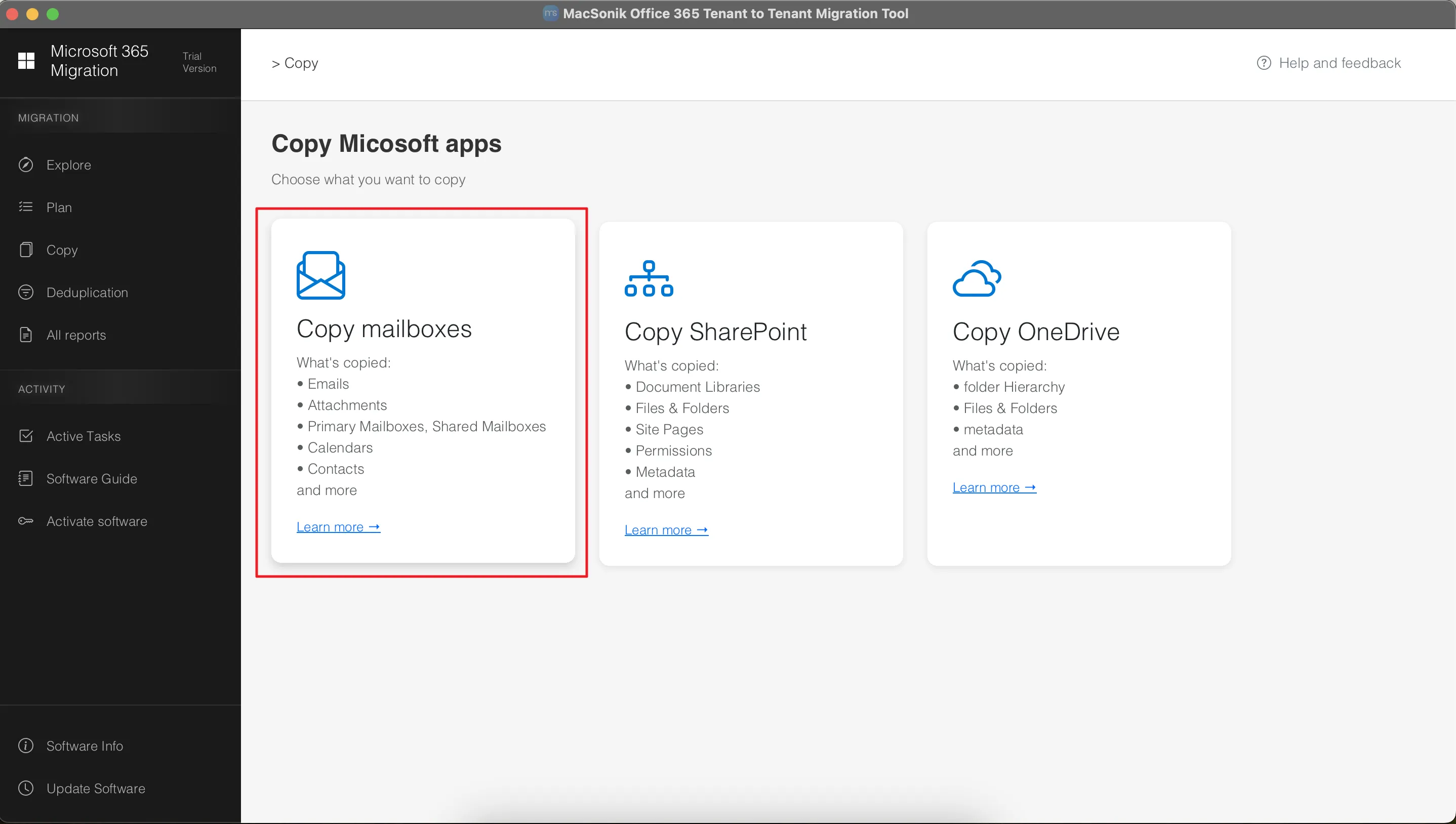
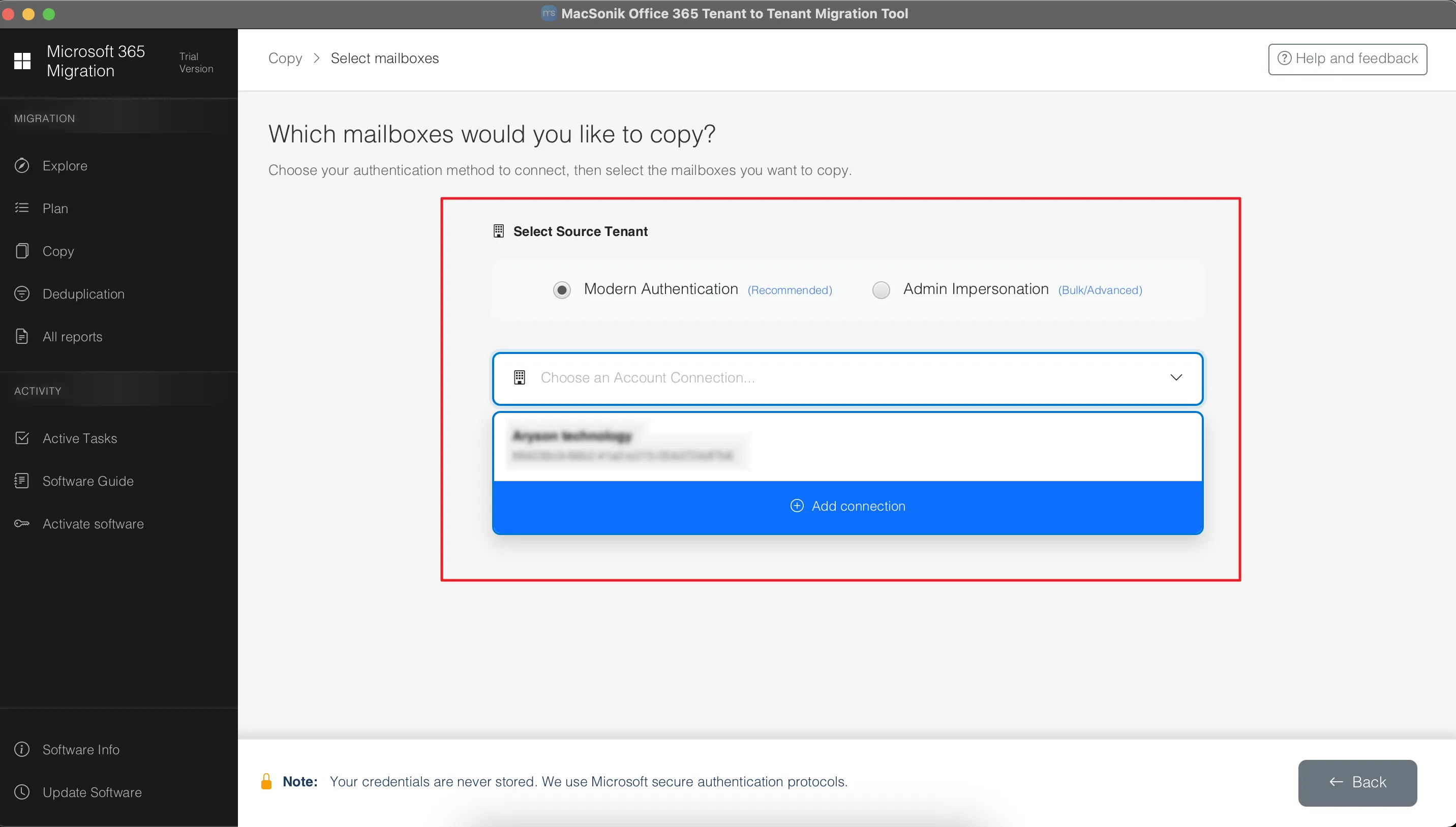
Sign in with the source tenant using the valid account credentials.
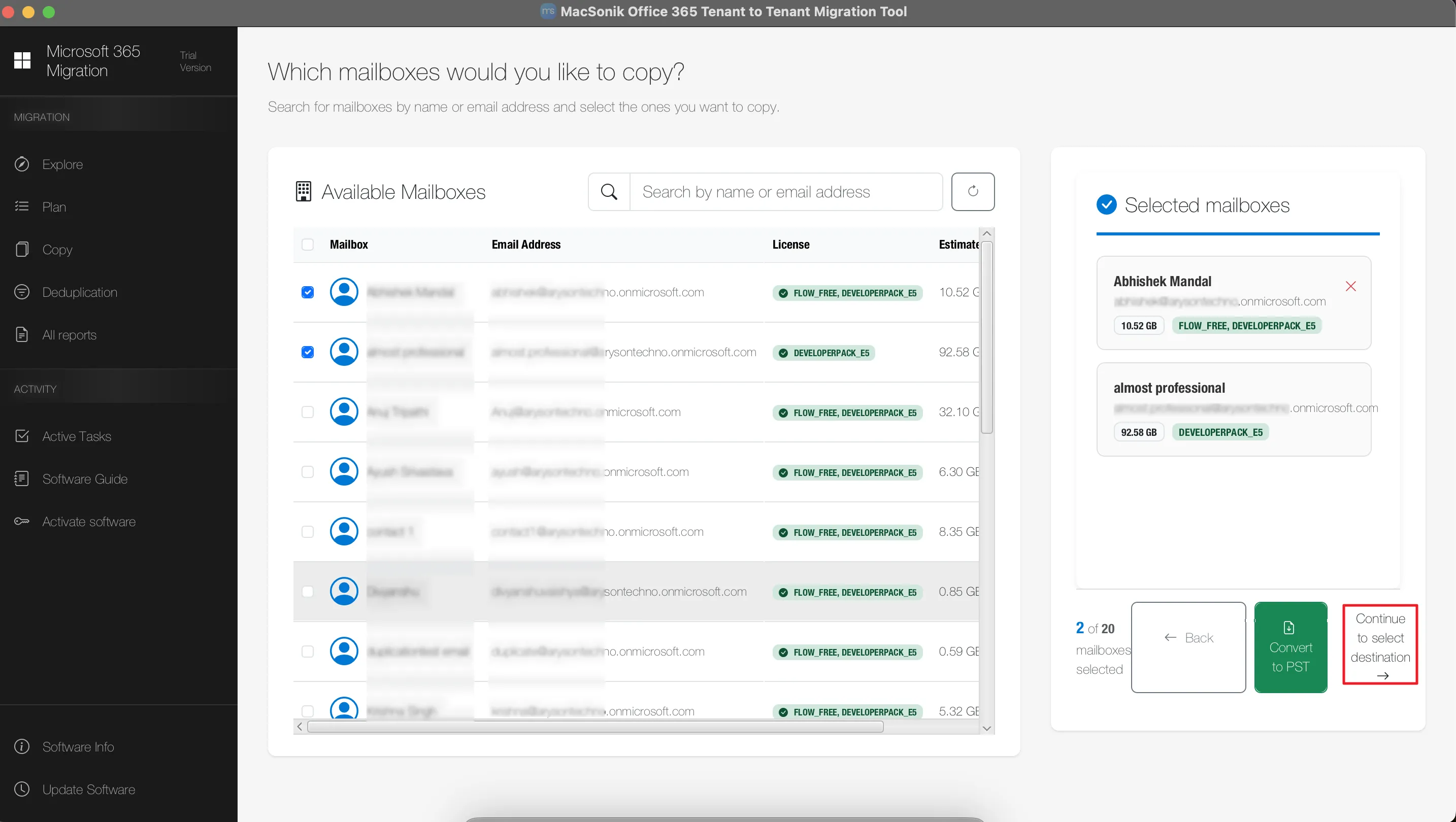
Select the mailboxes and click Continue to select the destination.
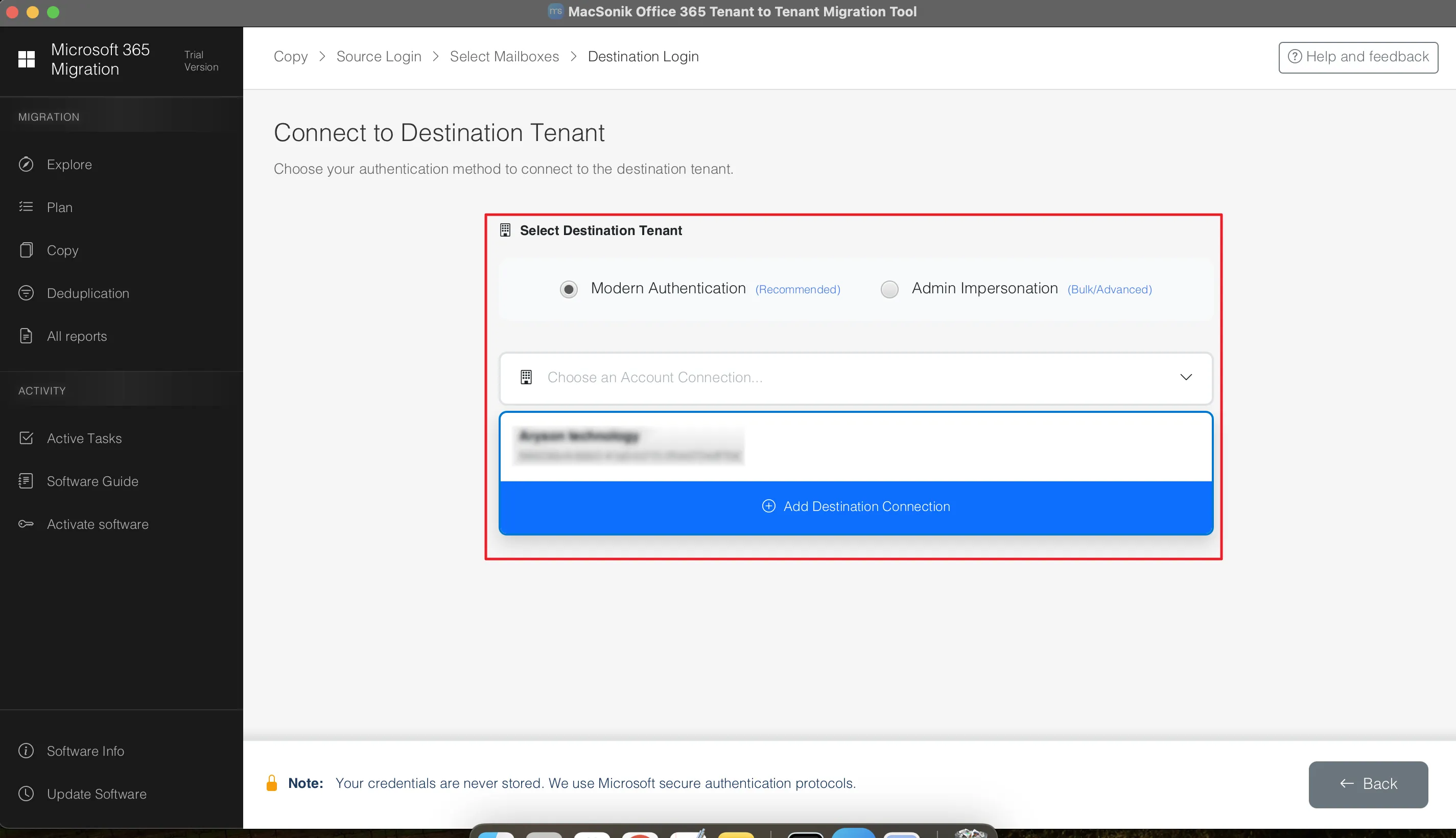
After that, connect to the destination tenant with valid credentials.
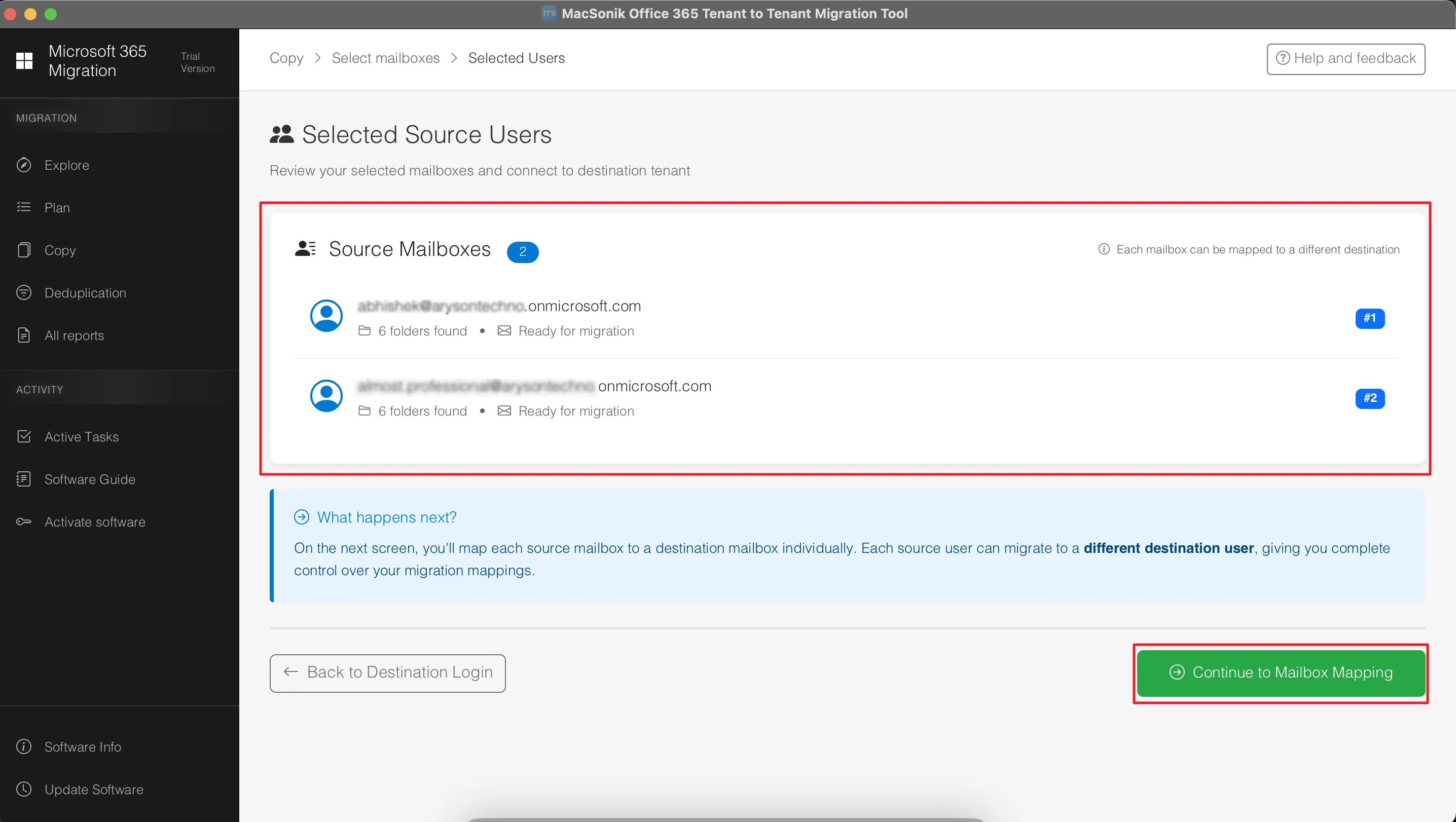
The user can view the selected source mailboxes before proceeding.
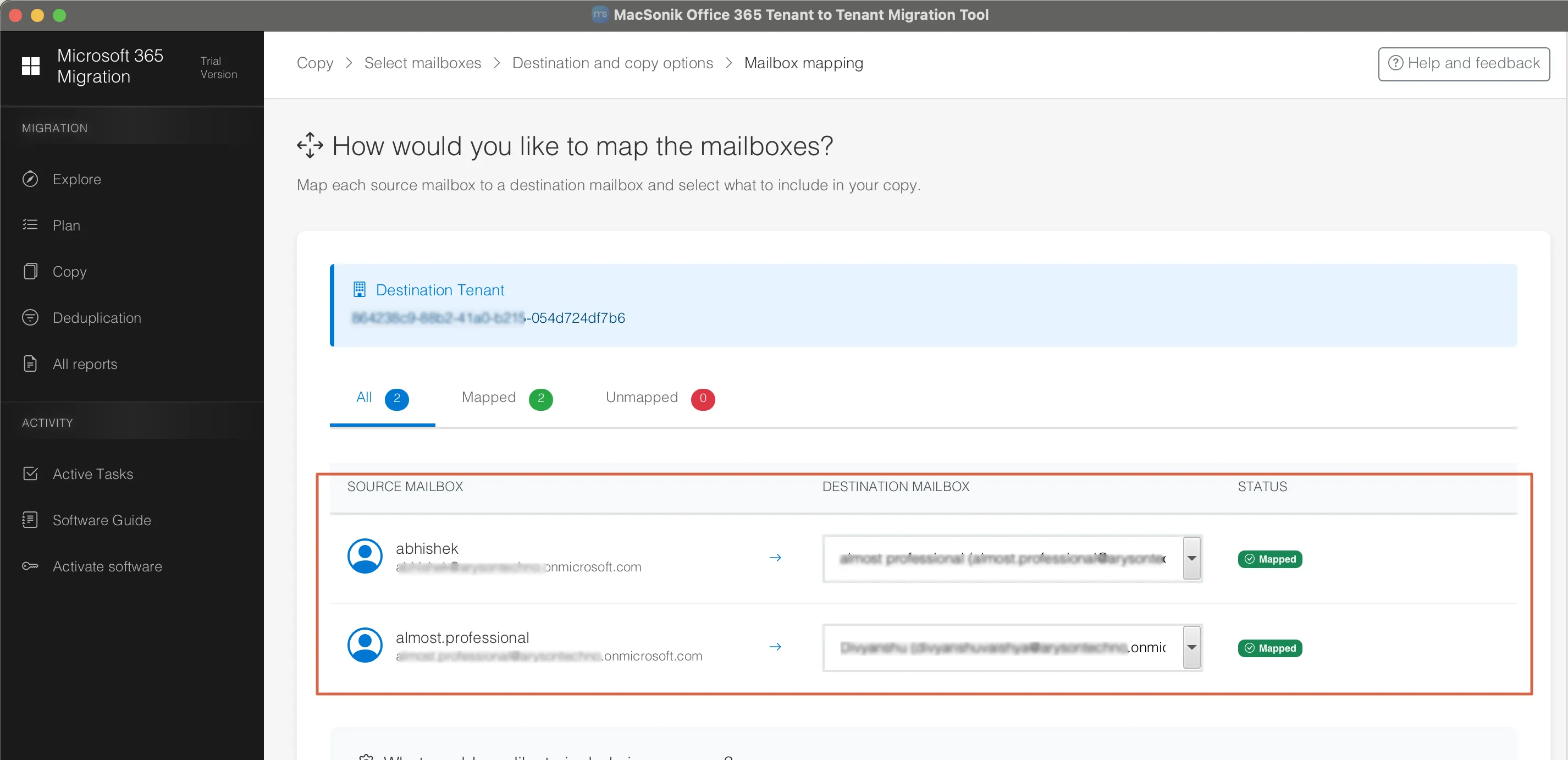
Further, map the source and the destination mailboxes.
Lastly, apply the filters as per your requirements and click Start Migration.
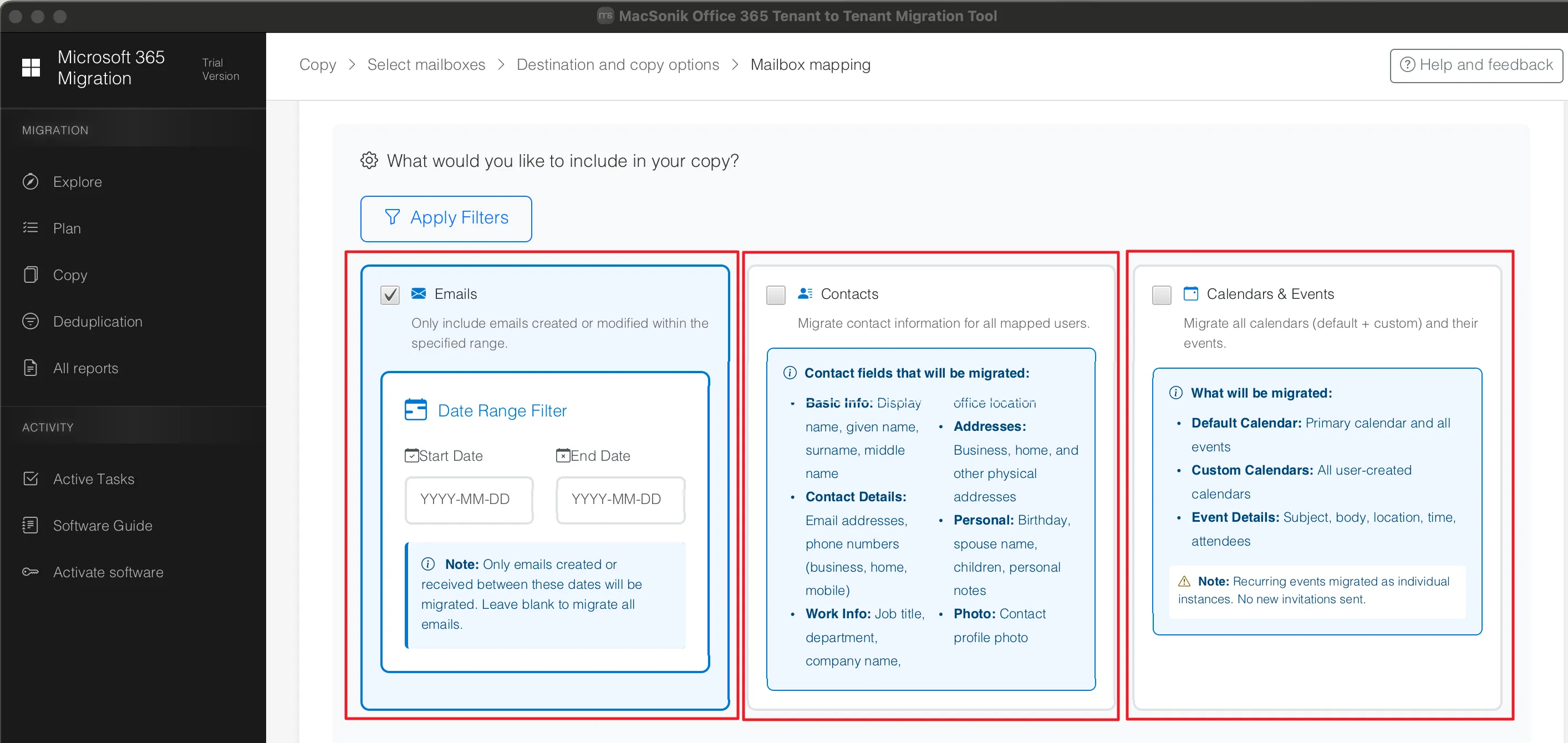
Important Note: For Mailbox and OneDrive, clients need to select the required users, whereas for SharePoint, they need to select the sites.
Troubleshooting Guide: Cross tenant Microsoft 365 migration
| Complications | Resolution |
|---|---|
| Authentication Errors | Re-authenticate using OAuth 2.0 and verify Global Admin permissions. |
| Mailbox Mapping Failures | Review mailbox mapping and ensure destination users exist. |
| Migration Paused | Check internet connectivity and Microsoft throttling status. |
| Missing Emails | Verify filters and rerun Delta Migration. |
| OneDrive Files Not Transferred | Confirm permissions and rerun the affected migration job. |
| SharePoint Migration Incomplete | Validate destination sites and review migration logs. |
| Calendar/Contacts Missing | Ensure these workloads were selected before migration. |
| Duplicate Mailbox Data | Enable Skip Previously Migrated during reruns. |
| Slow Migration Speed | Migrate during low-traffic hours and process users in batches. |
| Failed Migration Report | Review detailed logs, resolve errors, and rerun failed mailboxes. |
Real-Life Case Study
Problem
A regional Managed Service Provider (MSP) was tasked with merging two healthcare organizations into a single Microsoft 365 tenant. The project involved migrating over 500 user mailboxes, including Exchange Online mailboxes, shared mailboxes, OneDrive data, SharePoint libraries, calendars, and contacts, while ensuring minimal downtime and no data loss.
Solution
The MSP conducted a pilot migration, validated mailbox mappings, and verified permissions before the full deployment. Using the MacSonik Office 365 Tenant-to-Tenant Migration Tool, they securely migrated all Microsoft 365 workloads with features like OAuth 2.0 authentication, Microsoft Graph API integration, bulk migration, and Delta Migration to streamline the process.
Result
The migration was completed successfully over a weekend with minimal downtime and zero reported data loss. All emails, attachments, folders, calendars, contacts, OneDrive files, and SharePoint documents were transferred successfully, allowing employees to access the new tenant and resume work without disruption on the next business day.
Closing Remarks
Cross tenant Microsoft 365 migration requires planning, proper validation, and secure execution to ensure a successful transition. While native migration methods can support basic scenarios. They often become difficult to manage for large organizations and MSP-led projects.
A dedicated Microsoft 365 Tenant-to-Tenant Migration Tool securely transfers Exchange Online mailboxes, OneDrive, SharePoint, shared mailboxes, calendars, contacts, and other Microsoft 365 workloads. With its advanced features organizations can perform cross-tenant migrations efficiently while preserving data integrity and minimizing business disruption.
Frequently Asked Questions
Q1. Why do organizations need a Cross-Tenant Microsoft 365 Migration?
Ans. Organizations typically perform a cross-tenant Microsoft 365 migration during mergers, acquisitions, business restructuring, tenant consolidation, domain changes, or corporate rebranding. It enables businesses to move users and Microsoft 365 workloads into a single tenant while maintaining productivity and data continuity.
Q2. Can shared mailboxes be migrated during a Cross-Tenant Microsoft 365 Migration?
Ans. Yes, shared mailboxes can be migrated along with Exchange Online mailboxes. Professional MacSonik tool helps transfer shared mailbox content while preserving folder hierarchy, emails, attachments, and supported mailbox permissions.
Q3. How do you migrate emails, calendars, and contacts between Microsoft 365 tenants?
Ans. You can migrate emails, calendars, and contacts by using Microsoft's native migration methods or a dedicated Microsoft 365 tenant-to-tenant migration tool. This solution simplifies the process by securely transferring mailbox data while preserving metadata, folder structure, and other mailbox properties.
Q4. How long does a Cross-Tenant Microsoft 365 Migration take?
Ans. The migration duration depends on several factors, including the number of users, mailbox sizes, internet bandwidth, Microsoft 365 throttling policies, and the workloads being migrated. Small migrations may take a few hours, while large enterprise migrations can take several days.
Q5. How do I map users between source and destination Microsoft 365 tenants?
Ans. User mapping involves matching each source mailbox with its corresponding destination user account before migration. This can be done manually, while the professional migration tool provides automated or CSV-based mailbox mapping to reduce errors and simplify large-scale migrations.
Was this article helpful?
