Table of Contents
MacSonik Office 365 Tenant-to-Tenant migration for MSPs and SMBs
“Our company is merging with another business, and we need to migrate Microsoft 365 mailboxes from one tenant to another. We want a secure migration with minimal downtime while preserving emails, OneDrive files, and SharePoint data. What is the best approach for Office 365 Tenant-to-Tenant migration for MSPs and SMBs?”
James Anderson
IT AdministratorAs businesses grow through mergers, acquisitions, rebranding, or organizational restructuring, migrating data between Microsoft 365 tenants becomes a common requirement. For MSPs and SMBs, efficient tenant-to-tenant (T2T) migration minimizes downtime and protects critical business data. A poorly executed migration can result in missing emails, disrupted collaboration, and extended business interruptions. With the right Microsoft 365 Tenant-to-Tenant Migration for SMBs & MSPs can securely move users and workloads while preserving mailbox integrity. This guide explains about T2T migration in 2026 using the MacSonik Office 365 Tenant to Tenant Migration.
What Is an Office 365 Mailbox Tenant Migration?
A tenant-to-tenant migration is the process of transferring Microsoft 365 data from one Microsoft 365 tenant (source tenant) to another (destination tenant).
Exchange Online Mailboxes
Migrate complete Exchange Online mailboxes, including emails, folders, metadata, and mailbox settings, while preserving the original structure and ensuring uninterrupted access after migration.
Microsoft Teams Data (Where Supported)
Transfer supported Microsoft Teams components, such as associated files and connected resources, helping organizations maintain collaboration continuity during tenant migration.
Shared Mailboxes
Transfer shared mailboxes securely without affecting shared email content, or folder organization, enabling teams to continue collaborating seamlessly.
OneDrive for Business Data
Move OneDrive files, folders, and document libraries while maintaining the original directory structure, file properties, and sharing settings wherever supported.
SharePoint Online Documents
Migrate SharePoint Online sites, document [libraries and sites], folders, and files with their metadata intact to ensure business documents remain organized and accessible.
Calendars & Contacts
Migrate calendars, recurring events, appointments, reminders, and personal or organizational contacts while preserving schedules, time zones, names, email addresses, phone numbers, and other essential details.
Email Attachments
Ensure all email attachments, including documents, images, PDFs, spreadsheets, and presentations, are migrated along with their respective emails without modification.
Folder Hierarchy
Maintain the complete mailbox folder structure, including Inbox, Sent Items, Drafts, Archive, custom folders, and nested subfolders, ensuring users experience a familiar mailbox organization after migration.
Why Do You Need Office 365 Tenant-to-Tenant Migration for MSPs and SMBs?
Some common business scenarios include:
Common Business Scenarios
- Company mergers and acquisitions
- For business rebranding
- Office relocations
- Domain name changes
- Tenant consolidation
- IT infrastructure modernization
- Managed migration projects for clients
A structured migration minimizes disruption and simplifies IT management.
Challenges: Tenant-to-Tenant Migration for SMBs
Microsoft Throttling Limits.
Incomplete Mailbox Mapping.
Large mailbox migration delays.
Broken Folder Hierarchy.
Missing OneDrive Documents.
Extended User Downtime.
These challenges become more significant in enterprise-scale migrations.
Best Practices for Successful Migration
1. Assess the Source Tenant
Before migration:
- Review mailbox sizes
- Identify inactive accounts
- Check storage usage
- Verify Microsoft 365 licensing
- Remove obsolete user accounts
A complete assessment helps estimate migration timelines and avoid unexpected issues.
2. Create a Full Backup
Always back up Microsoft 365 data before migration.
A backup protects:
- Emails
- Attachments
- OneDrive files
- SharePoint libraries
- Calendars
- Contacts
This provides a recovery option if unexpected issues occur.
3. Prepare the Destination Tenant
Before migrating:
- Create user accounts
- Assign Microsoft 365 licenses
- Configure custom domains
- Verify DNS settings
- Prepare mailbox permissions
Proper preparation reduces migration errors.
4. Run a Pilot Migration
Test a small group of users first.
Verify:
- Email delivery
- Calendar synchronization
- Contacts
- Folder hierarchy
- OneDrive accessibility
Pilot migrations help identify potential issues early.
5. Migrate During Off-Peak Hours
Scheduling migrations outside business hours reduces disruption and minimizes the impact on end users.
6. Validate the Migration
After migration, verify:
- Mailbox counts
- Folder structure
- Attachments
- OneDrive documents
- SharePoint files
- Calendar events
- Contacts
Validation ensures all data has been transferred successfully.
Manual Migration Limitations
Although Microsoft provides native migration methods, they may not be suitable for every migration project.
- Complex configuration
- Multiple administrative steps
- Limited automation
- Difficult mailbox mapping
- Time-consuming for large organizations
- Requires advanced technical knowledge
- Limited reporting capabilities
For MSPs managing multiple client projects, these challenges can significantly increase migration time.
Enterprise Solution: MacSonik Office 365 Tenant-to-Tenant Migration for MSPs and SMBs
Enterprise Solution:
The MacSonik Office 365 Tenant-to-Tenant Migration Tool is designed to simplify Microsoft 365 migrations. It is used mainly for MSPs, SMBs, and enterprise administrators. The software securely migrates Microsoft 365 workloads while maintaining mailbox integrity and minimizing downtime. Moreover, this software allows to export Microsoft 365 Shared Mailbox to PST.
Essential Features for SMBs to Plan Microsoft Tenant to Tenant Migrations
Migrate Exchange Online Mailboxes
Securely migrate Exchange Online mailboxes, including emails, attachments, calendars, contacts, and other mailbox data while preserving the original folder structure and metadata.
Transfer Shared Mailboxes
Move shared mailboxes between Microsoft 365 tenants without affecting mailbox content or access, enabling teams to continue collaborating with minimal disruption.
Migrate OneDrive for Business Data
Transfer OneDrive files and folders while maintaining the original directory structure, file properties (where supported), and document integrity.
Transfer SharePoint Online Documents
Migrate SharePoint , document libraries Online sites and lists, folders, and files securely, preserving metadata and organizational structure for seamless access after migration.
OAuth 2.0 Secure Authentication
Authenticate Microsoft 365 accounts using OAuth 2.0, eliminating the need to store user passwords while providing a secure and Microsoft-recommended sign-in process.
Microsoft Graph API Integration
Leverage the Microsoft Graph API to perform reliable, secure, and efficient migrations while ensuring compatibility with modern Microsoft 365 services and APIs.
Preserve Folder Hierarchy and Metadata
Maintain the complete mailbox organization, including custom folders, subfolders, read/unread status, timestamps, sender/recipient information, and other email properties throughout the migration.
Advanced Date-Range and Mailbox Filters
Migrate only the required data by applying filters based on date range, mailbox selection, or other criteria, helping reduce migration time and unnecessary data transfer.
Bulk Mailbox Migration
Migrate multiple user mailboxes simultaneously, making large-scale tenant-to-tenant migration faster and more efficient for MSPs and enterprise administrators.
Delta Migration with Skip Previously Migrated
Perform incremental (delta) migrations by transferring only newly added or modified items while automatically skipping data that has already been migrated, reducing migration time and duplicate content.
Detailed Migration Reports
Generate comprehensive migration reports with user-wise status, completed items, skipped items, failed items, timestamps, and error logs to simplify auditing and troubleshooting.
Supports Both Windows and macOS
Run the migration tool seamlessly on both Windows and macOS, giving IT administrators the flexibility to manage Microsoft 365 tenant migrations from their preferred operating system.
Step-by-Step Migration Process
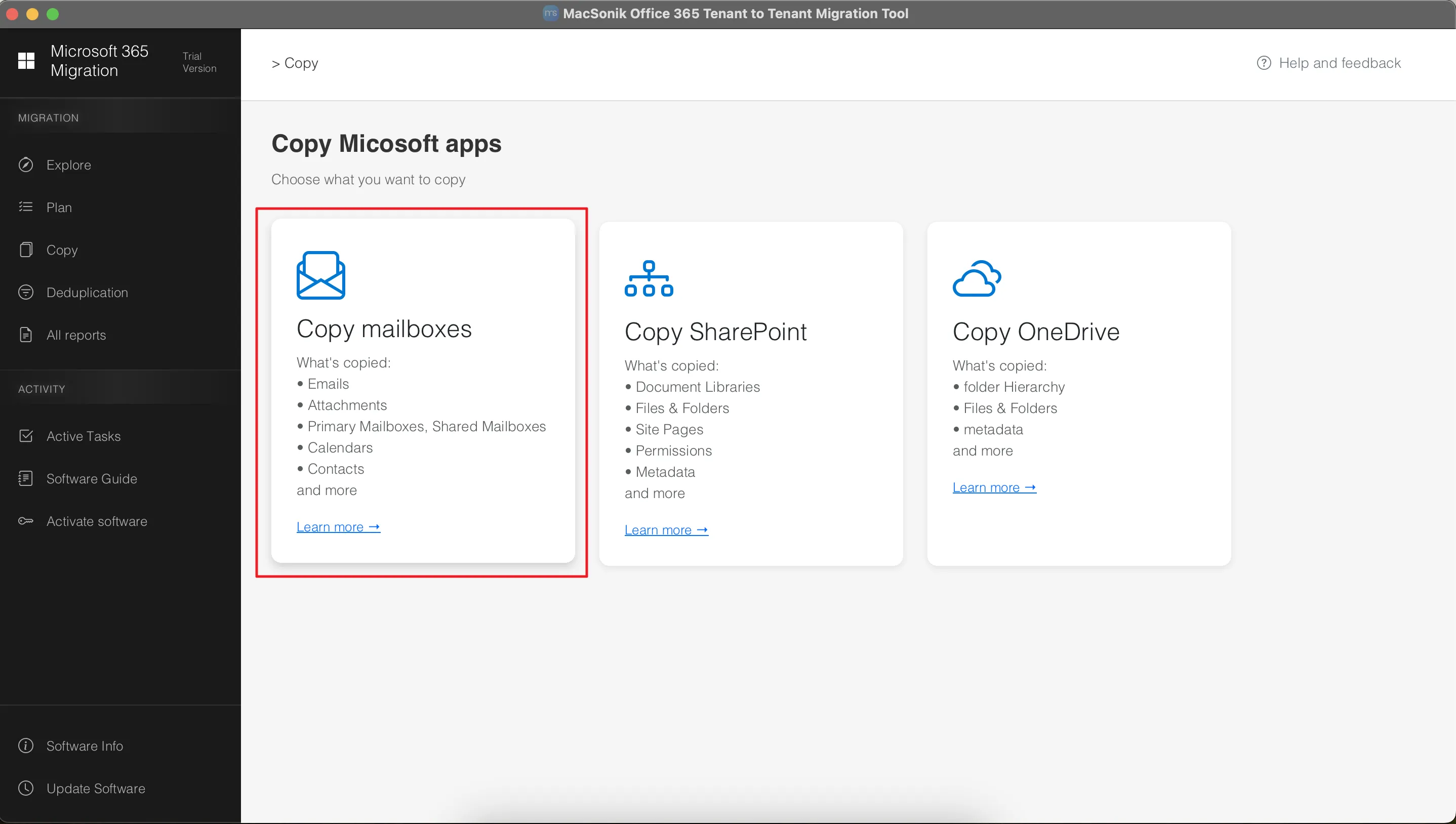
Step 1
Start by installing the MacSonik Microsoft 365 T2T Migration and click Copy Mailboxes.
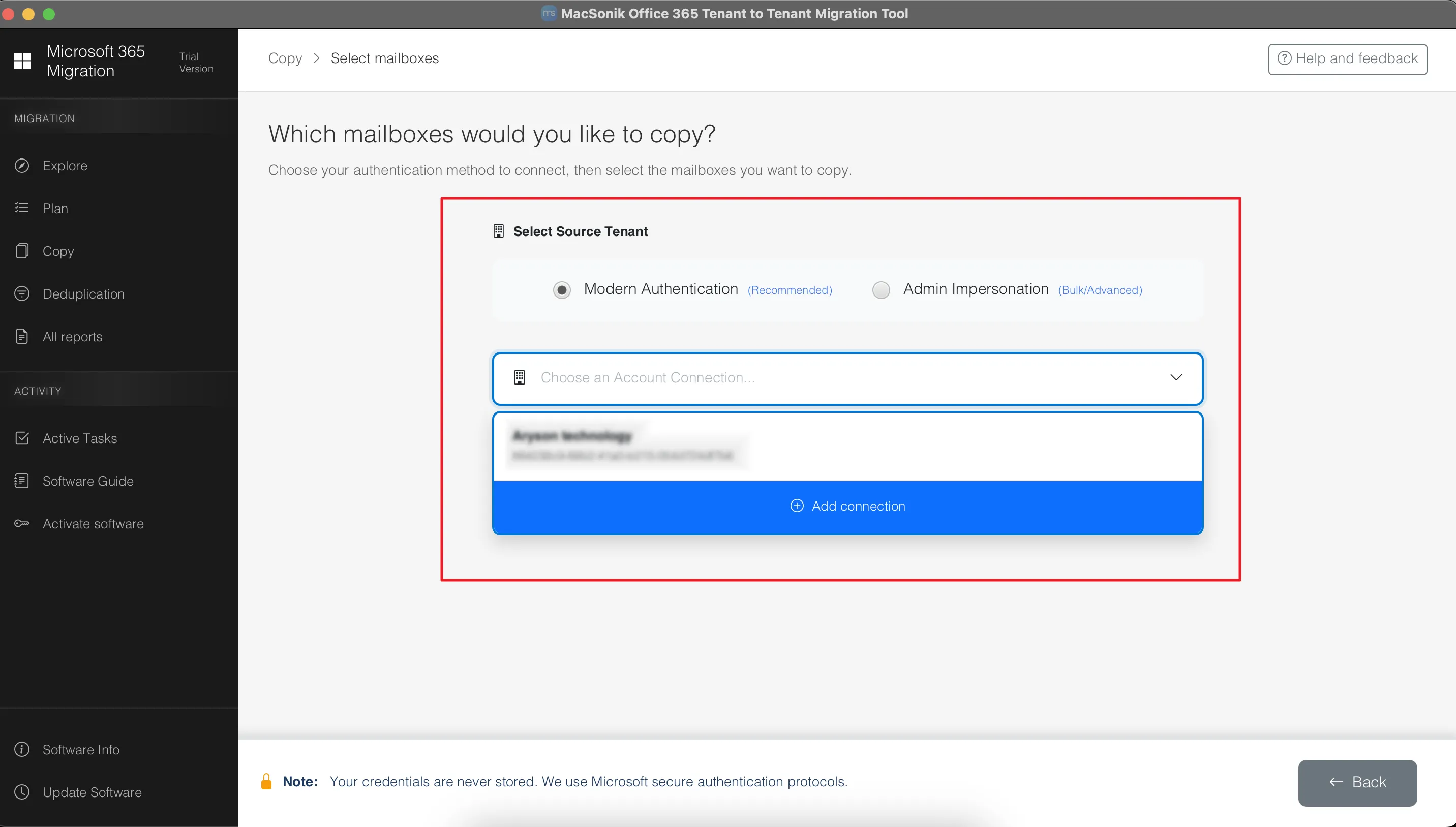
Step 2
Sign in with the source tenant using the valid account credentials.
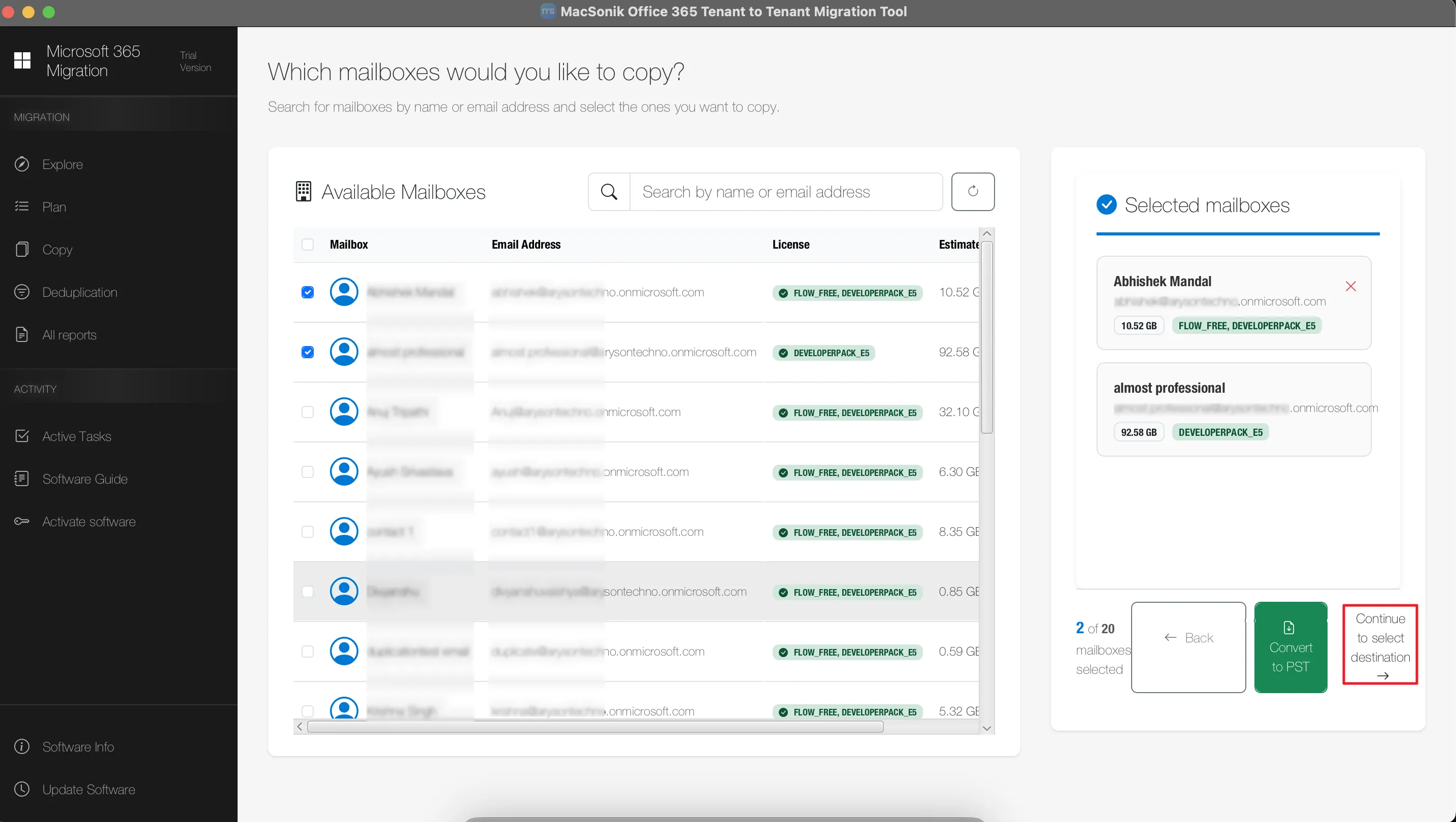
Step 3
Select the mailboxes and click Continue to select the destination.
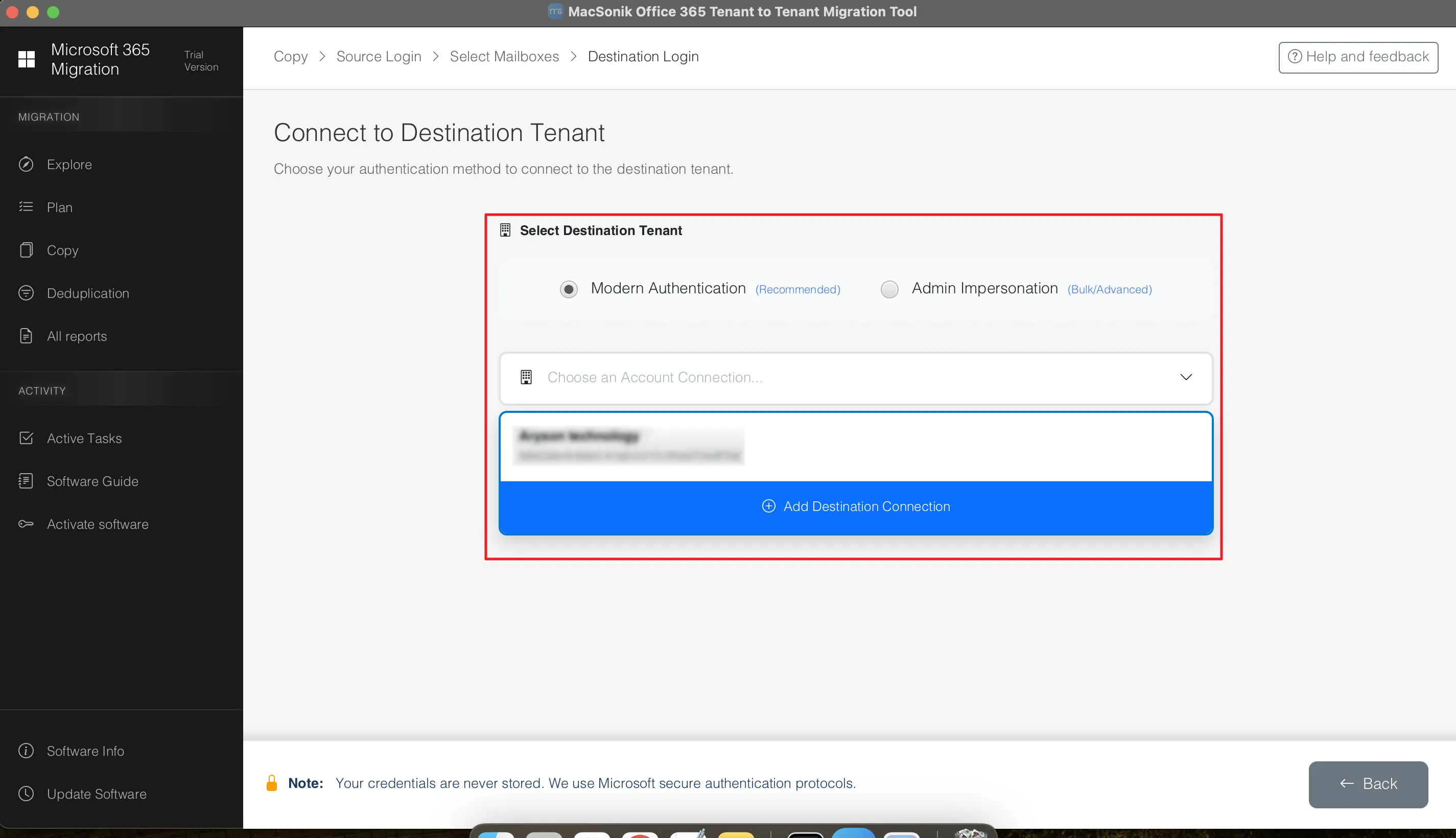
Step 4
After that, connect to the destination tenant with valid credentials.
Step 5
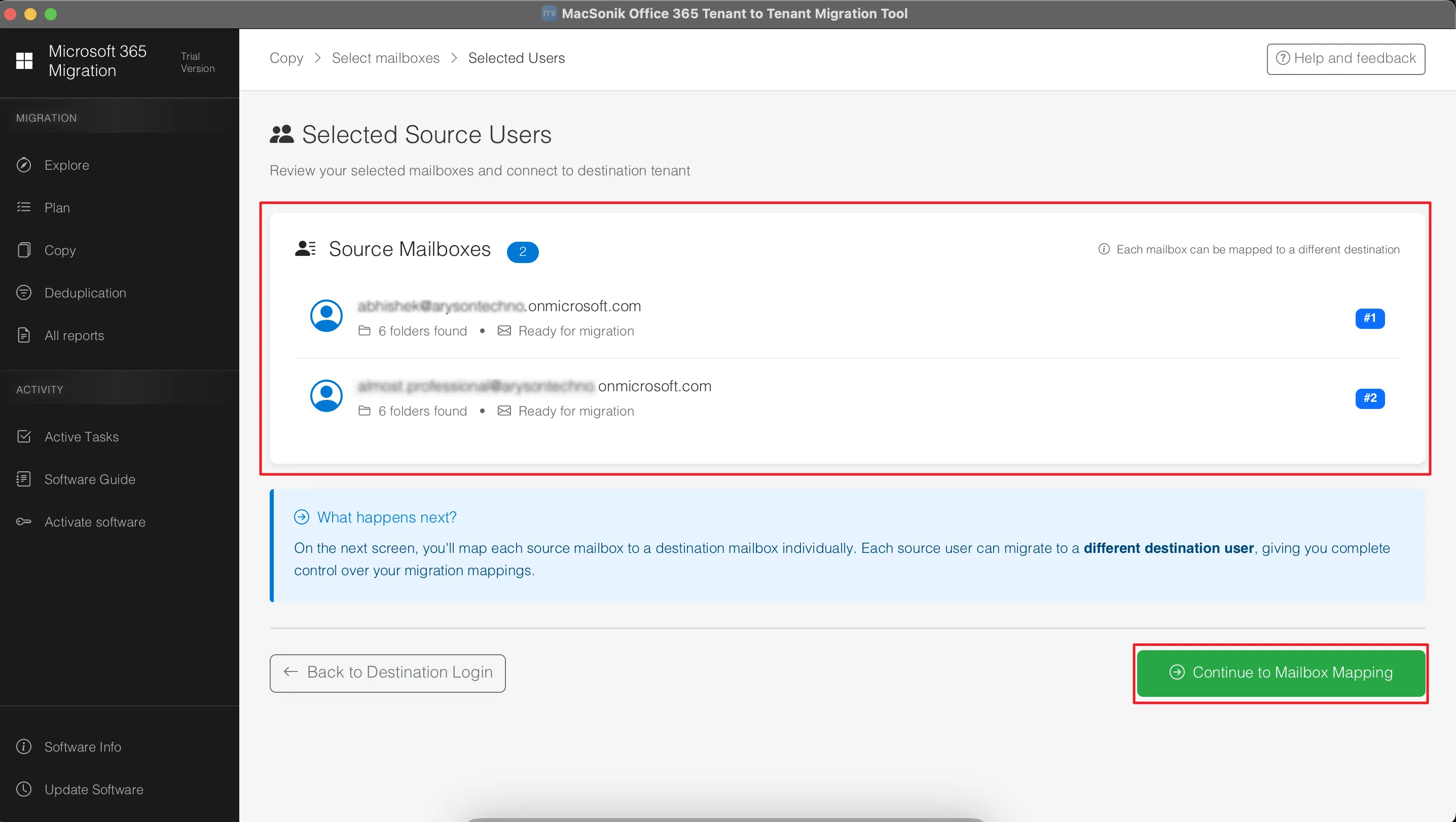
The user can view the selected source mailboxes before proceeding.
Step 6
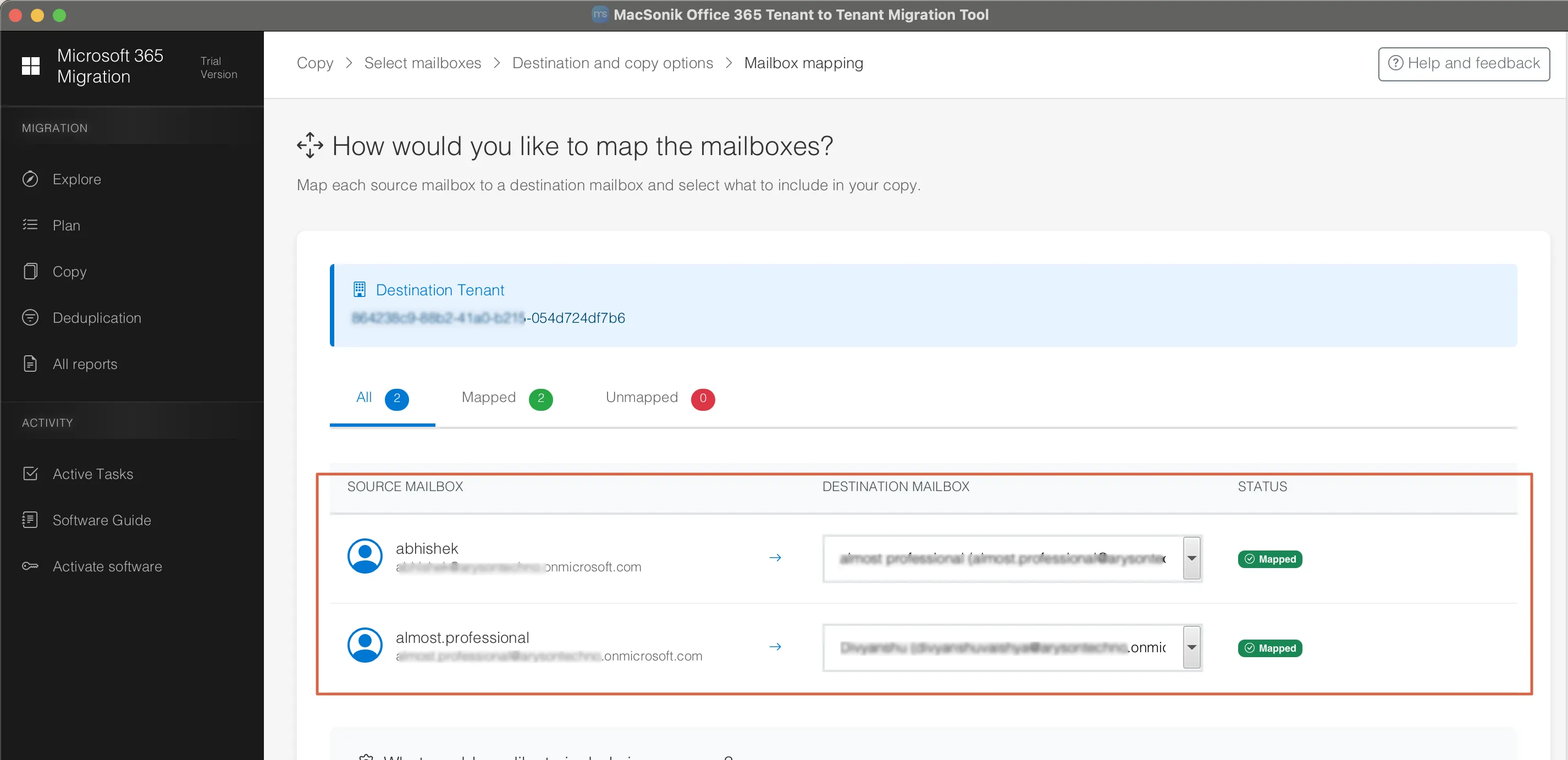
Further, map the source and the destination mailboxes.
Step 7
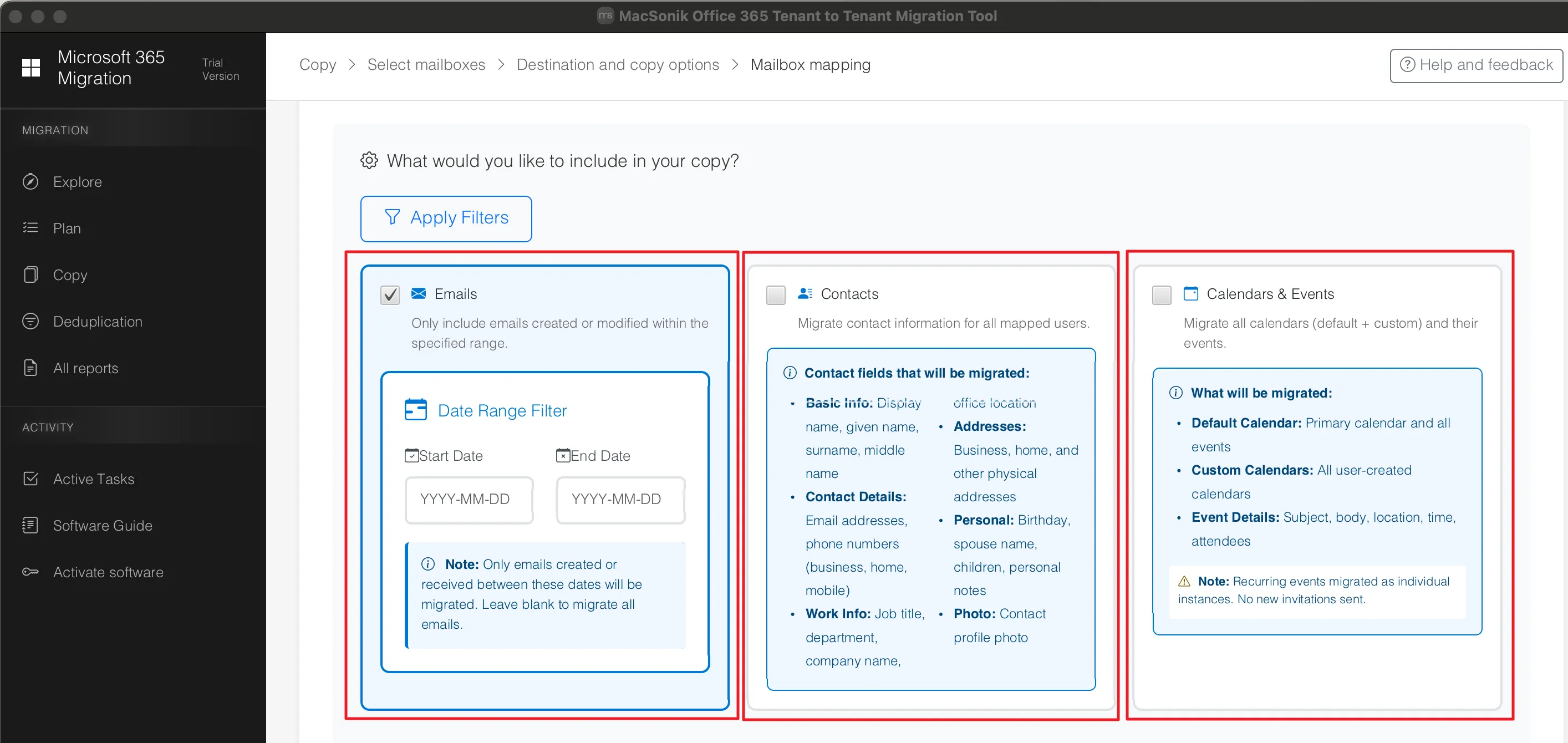
Lastly, apply the filters as per your requirements and click Start Migration.
Office 365 Tenant-to-Tenant Migration Troubleshooting Guide
| Issue | Possible Cause | Solution |
|---|---|---|
| Authentication Failed | Incorrect credentials, expired admin session, MFA restrictions, or insufficient permissions. | Re-authenticate using OAuth 2.0, verify Global Admin credentials, and ensure the required Microsoft Graph API permissions are granted. |
| Mailbox Mapping Failed | Source and destination users are not mapped correctly. | Review mailbox mapping, ensure all destination users exist, and verify email addresses or UPNs match correctly. |
| Unable to Connect to Source or Destination Tenant | Network connectivity issues, firewall restrictions, or Microsoft service outage. | Verify internet connectivity, allow Microsoft endpoints through the firewall, and check the Microsoft 365 Service Health dashboard. |
| Migration Stuck at a Certain Percentage | Large mailbox size, throttling, or unstable network connection. | Wait for the process to resume, reduce concurrent migrations, or enable Delta Migration to continue only pending items. |
| OneDrive Files Missing | Unsupported file types, permission issues, or interrupted migration. | Verify user permissions, rerun the migration for the affected account, and review migration logs for skipped files. |
| Some Emails Were Not Migrated | Date filters applied, corrupted items, or skipped duplicates. | Review migration filters, inspect migration logs, and rerun the migration using Skip Previously Migrated to transfer missing emails. |
| Calendar Events Missing | Calendar folder excluded or synchronization issue. | Ensure calendar folders are selected during migration and perform an incremental migration if required. |
| Contacts Not Migrated | Contacts folder excluded or permission issues. | Verify contact folders are selected and rerun migration for the affected users. |
| Attachments Missing After Migration | Interrupted migration or file size limitations. | Check migration reports, verify attachment filters, and rerun the migration for incomplete items. |
| SharePoint Documents Not Appearing | Site permissions or incomplete synchronization. | Confirm SharePoint site access, verify destination site creation, and rerun the SharePoint migration task. |
| Shared Mailboxes Not Migrated | Shared mailbox not selected or insufficient permissions. | Confirm shared mailboxes are included in the migration job and assign the required admin permissions. |
Real-Life Case Study
A Managed Service Provider was tasked with migrating over 300 Microsoft 365 users after two companies merged. The project involved Exchange Online mailboxes, OneDrive files, and SharePoint libraries with strict downtime requirements. Using the MacSonik Office 365 Tenant-to-Tenant Migration Tool, the MSP completed the migration over a weekend, preserving mailbox structure, and metadata while allowing employees to resume work without significant disruption on Monday morning.
Final Verdict
Office 365 Tenant-to-Tenant migration for MSPs and SMBs requires careful planning, thorough validation, and reliable migration technology. While native methods can work for smaller environments. They often become difficult to manage as the number of users and workloads grows. For MSPs and SMBs, a dedicated Microsoft 365 Tenant-to-Tenant Migration Tool simplifies the entire process. It completes the process by securely migrating mailboxes, OneDrive data, SharePoint content, and other Microsoft 365 workloads while preserving data.
Frequently Asked Questions
Q1. How do I plan a Microsoft 365 tenant-to-tenant migration for SMBs and MSPs?
Ans. Start by assessing the source and destination tenants, reviewing mailbox sizes, assigning the required licenses, configuring domains, and creating a full backup. Next, perform a pilot migration, validate the results, and schedule the full migration during off-peak hours to minimize business disruption.
Q2. What is the best way to perform Microsoft 365 tenant-to-tenant migration for SMBs and MSPs?
Ans. The most efficient approach is to use a dedicated tenant-to-tenant migration solution that supports Exchange Online, OneDrive, SharePoint, and shared mailboxes. Look for features such as OAuth 2.0 authentication, Microsoft Graph API integration, bulk migration, filtering options, and detailed migration reports for a secure and streamlined process.
Q3. Is it safe to migrate Microsoft 365 data between two tenants?
Ans.Yes. Microsoft 365 tenant-to-tenant migration is safe when performed using secure authentication methods such as OAuth 2.0 and following Microsoft's recommended migration practices. Creating a backup before migration and validating the migrated data further helps ensure data integrity.
Q4. Is there a free way to perform a Microsoft 365 tenant-to-tenant migration?
Ans. Microsoft provides native migration capabilities for certain workloads, but they often require extensive manual configuration and administrative expertise. While these methods may work for small migrations, organizations handling multiple users or large datasets generally benefit from dedicated migration tool that offer automation and advanced features.
Q5. Is 24/7 customer support available during Microsoft 365 tenant-to-tenant migration?
Ans. Support availability depends on the migration solution or service provider you choose. The professional MacSonik migration software vendors offer technical support through email, live chat, or phone, with some providing extended or 24/7 assistance for enterprise customers and critical migration projects
Q6. Why would a business need a Microsoft 365 tenant migration?
Ans.Businesses commonly perform tenant-to-tenant migrations during mergers, acquisitions, company rebranding, domain changes, organizational restructuring, or when consolidating multiple Microsoft 365 environments into a single tenant for easier management.
Q7. Is Microsoft 365 tenant migration affordable for small businesses?
Ans. Yes.The MacSonik migration solution offers flexible licensing suitable for small businesses, allowing organizations to migrate only the required users and workloads. This makes tenant-to-tenant migration a cost-effective option compared to managing complex manual migrations.
Q8. Does SharePoint migrate during tenant-to-tenant migration?
Ans. Yes, SharePoint Online content can be migrated during a tenant-to-tenant migration, depending on the migration solution being used. A professional tool can transfer SharePoint sites, document libraries, folders, files, and associated metadata while preserving the organizational structure wherever supported.
Was this article helpful?
