How to Open Google Takeout MBOX Files on Mac and Windows

Amelia James
May 21st, 2026
User-Query:
“I downloaded my Gmail data using Google Takeout, but I received MBOX files that I cannot open directly. How can I view or open Google Takeout MBOX files on Mac and Windows?”
— Asked by “James Anderson”
Introduction: Downloading mailbox data through Google Takeout is a common way to create backups of Gmail emails. However, many users become confused after receiving MBOX files. These files do not open like regular documents or PDFs. An MBOX file stores email messages in a single mailbox database. Whether you use Mac or Windows, there are multiple ways to open Google Takeout files. This guide explains both manual and professional methods to perform this task safely. Besides, covers the steps to use the MacSonik MBOX Viewer Tool for seamless migration.
Google Takeout MBOX vs Email Client: Quick Comparison
|
Main Factors |
Google Takeout MBOX |
Email Client/Viewer |
|
Mailbox archive |
Application to read emails |
|
Cannot open directly |
Opens and displays emails |
|
Stored inside MBOX |
Viewable with emails |
|
Backup format |
User-friendly access |
|
Limited |
Easier mailbox handling |
Why Open Google Takeout MBOX Files?
Users often need to access Google Takeout MBOX files for several reasons:
- For reading backed-up Gmail emails.
- Recover old email conversations.
- Accessing attachments and contacts.
- Archiving emails for legal or business purposes.
- Transfer mailbox data to another platform.
- To maintain offline copies of Gmail data.
- Also, to view exported emails on Mac or Windows.
Manual Methods to View Google Takeout files
There are various manual methods to complete this process, but it consumes a lot of time and comes with its own limitations.
Method 1: Open Google Takeout MBOX Using Thunderbird
Mozilla Thunderbird supports MBOX files and is commonly used for viewing exported mailboxes.
- Firstly, install Mozilla Thunderbird on your system.
- Now, launch the application.
- Configure a temporary mail profile if needed.
- Then, install an MBOX import add-on.
- Import the Google Takeout MBOX file.
- Browse and read emails inside Thunderbird.
This method works on both Mac and Windows.
Method 2: Use Apple Mail on Mac
Mac users may open MBOX files through Apple Mail.
- Open Apple Mail.
- Click File and then import Mailboxes.
- Choose Files in MBOX Format.
- Browse and select the Google Takeout MBOX file.
- After that, complete the import process.
- View imported emails from the Import folder.
Method 3: Import MBOX into Outlook Through Conversion
Since Microsoft Outlook does not directly support MBOX files, conversion is usually required before opening the mailbox.
- Convert MBOX into PST format.
- Furthermore, open Outlook.
- Import the converted mailbox.
- Lastly, access emails and attachments.
Limitations: Open Google Takeout MBOX Files Manually
- There are multiple configuration steps.
- Sometimes, there is a risk of import failure.
- Attachments may not display correctly.
- Time-consuming for large mailboxes.
- It requires technical knowledge.
- Not suitable for bulk mailbox access.
- Moreover, compatibility issues may occur.
Therefore, manual approaches may not always be practical for users handling large Google Takeout archives.
Automated Solution: MacSonik MBOX Viewer Tool
For quick and hassle-free access, the MacSonik MBOX Viewer Tool provides a reliable way to Open MBOX file on Mac and Windows. The tool is designed to let users preview and access mailbox data without requiring complicated setup or email account configuration. It allows users to import Google Takeout to Gmail. Additionally, it guarantees an accurate and secure process with zero downtime.
Benefits: Open Google Takeout MBOX Files
- Open Google Takeout MBOX files directly.
- Preview emails and attachments.
- Maintains original folder hierarchy.
- Supports large mailbox files in one go.
- There is no technical expertise required.
- Safe and secure email viewing.
- Also, it has a user-friendly interface.
Step-by-Step Procedure to Use Google Takeout MBOX Viewer
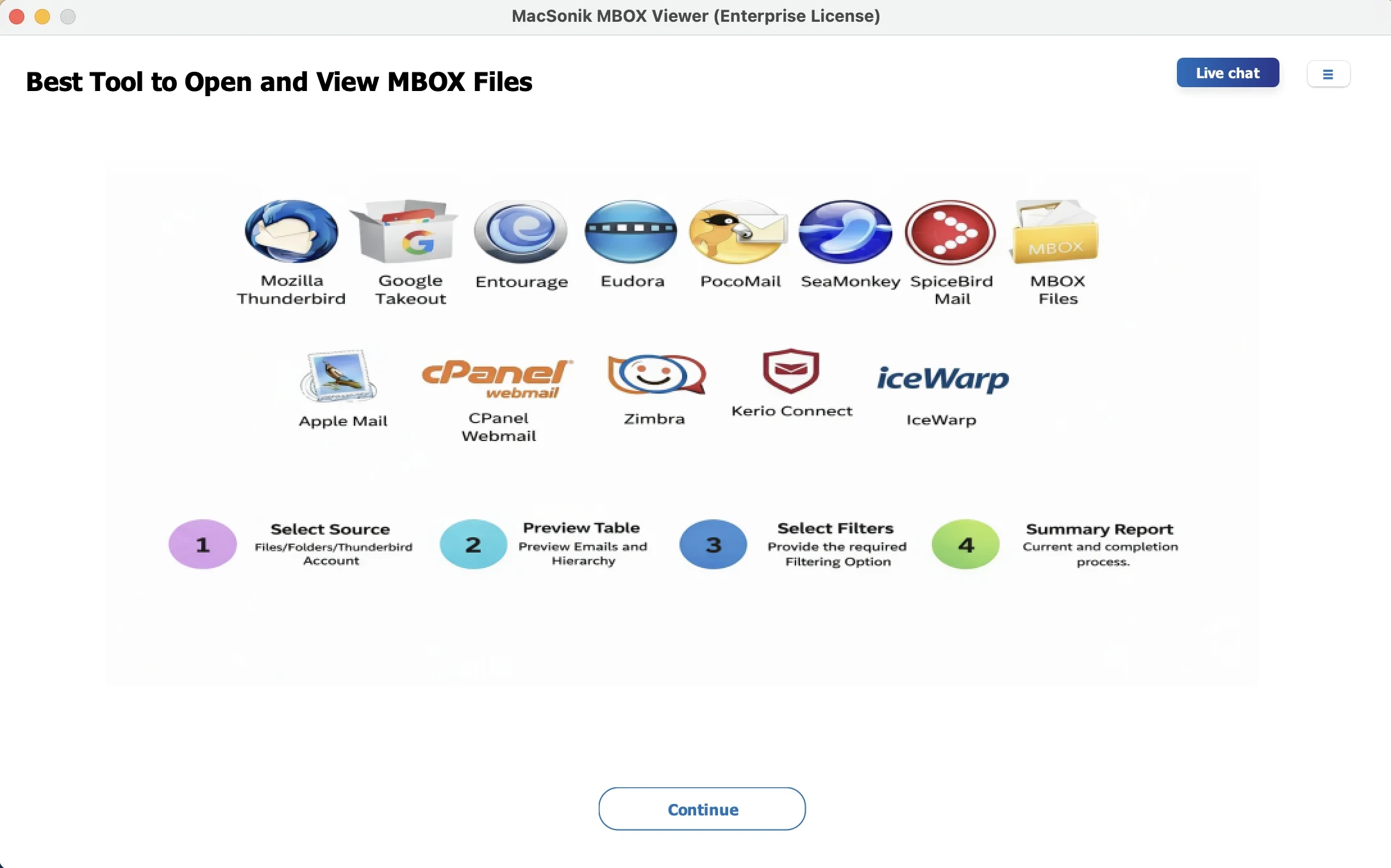
- Firstly, download & launch the ‘MacSonik MBOX Viewer Tool’.
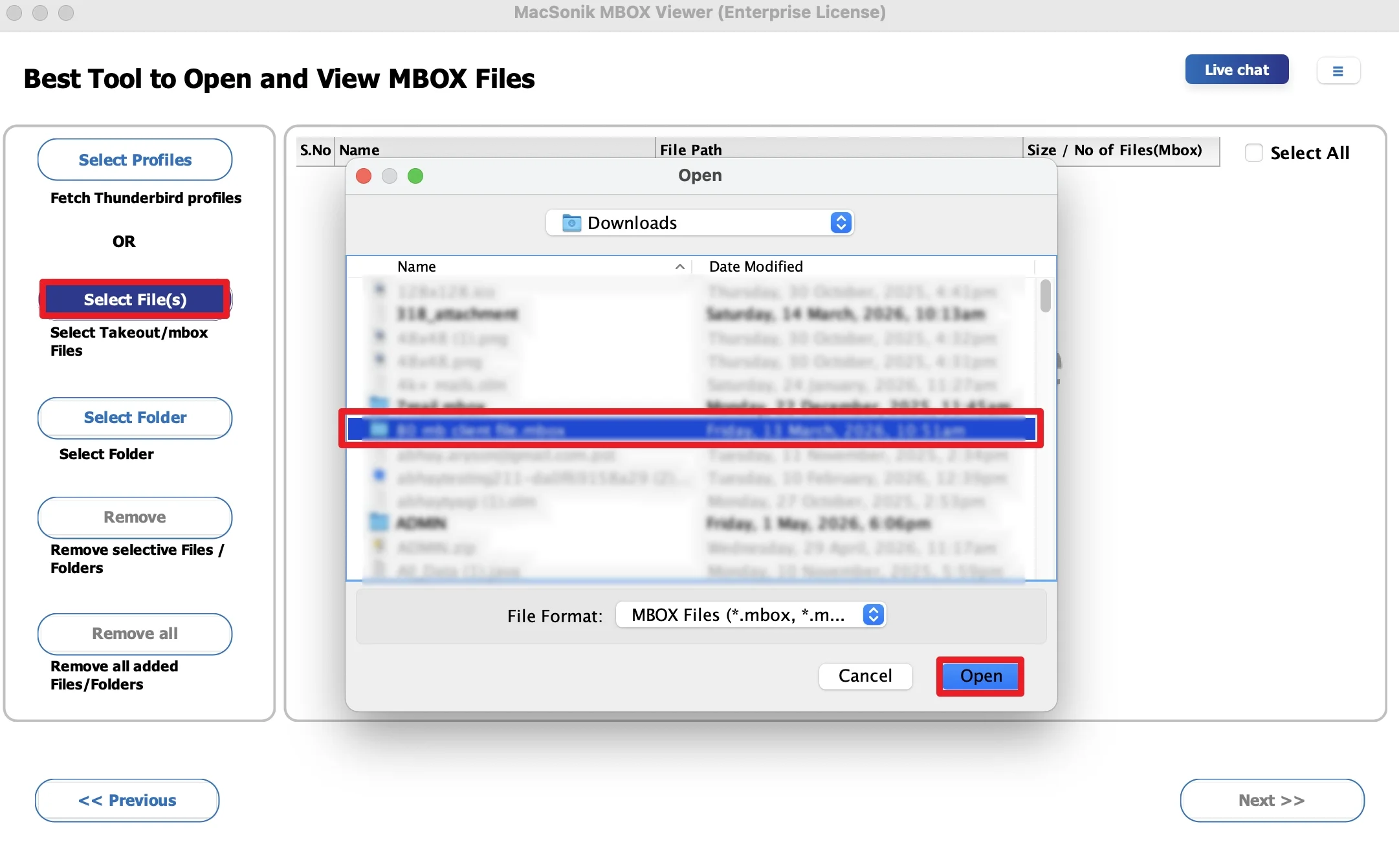
- Click ‘Select Files’ and ‘add’ the MBOX file that you want to open.
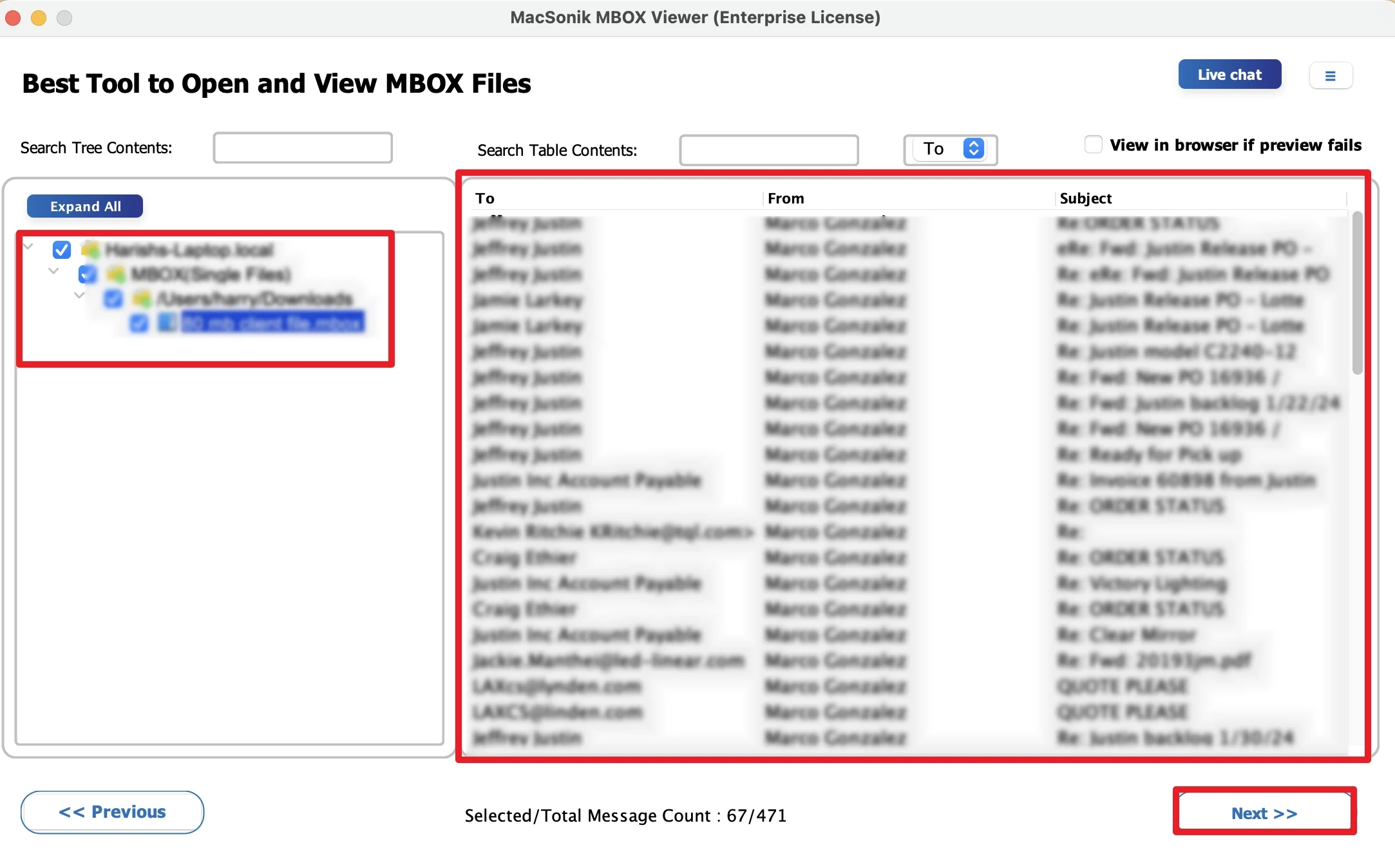
- ‘Drag’ the folder structure and ‘preview’ the complete mailbox, and tap ‘Next’.
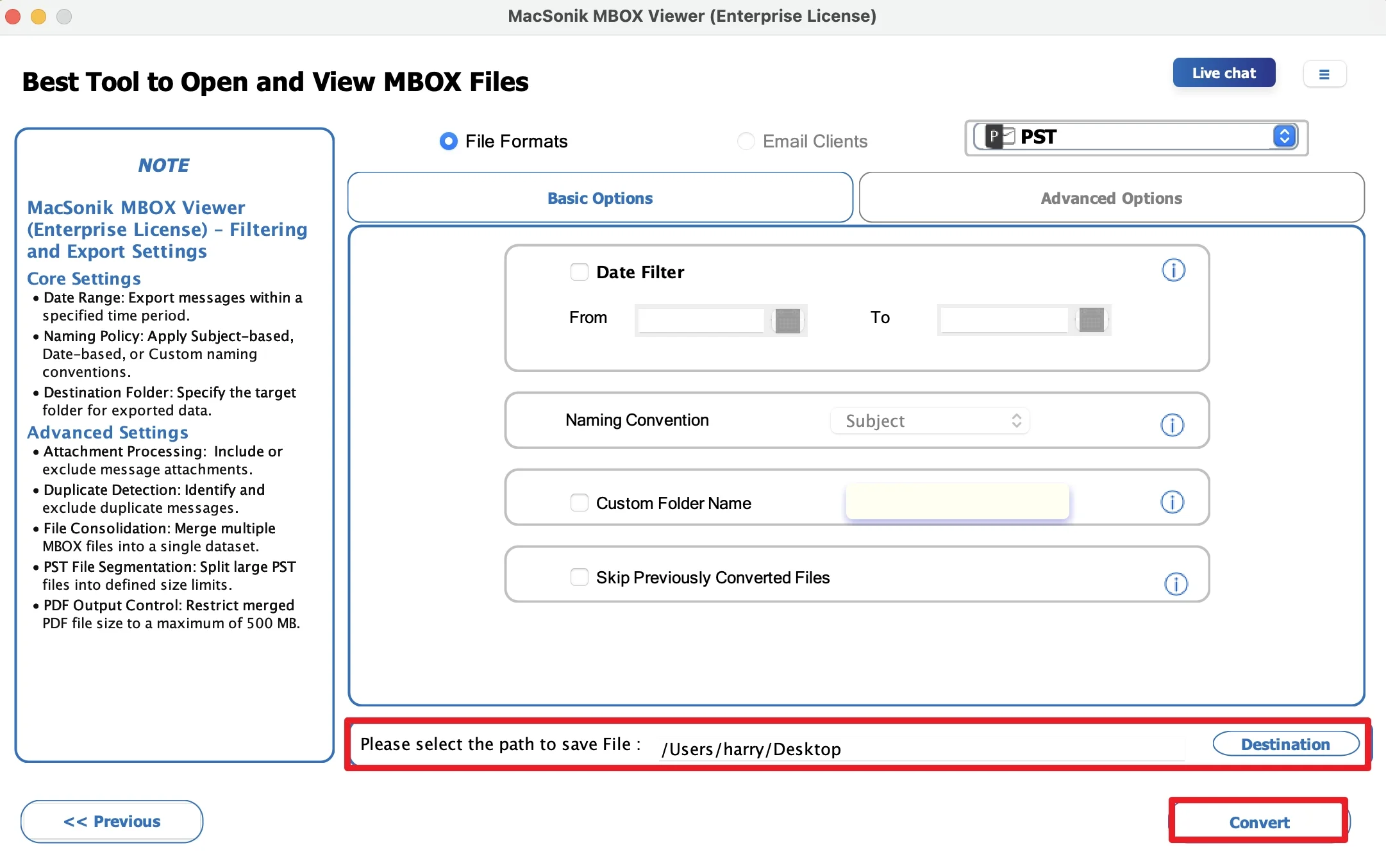
- Now, choose ‘PST’ as the saving file format, and ‘set filters’ as per your need. (You can also choose another format accordingly.)
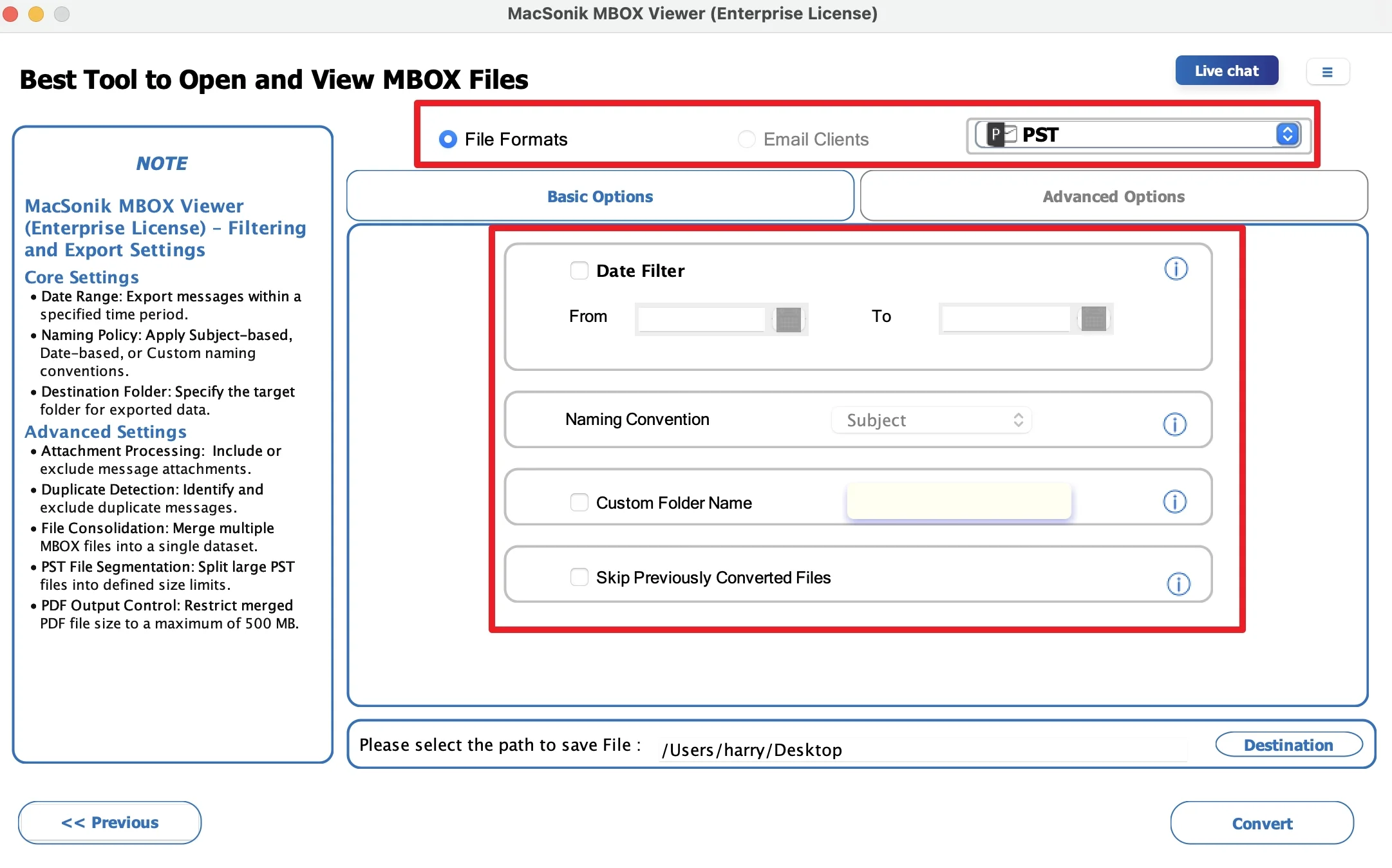
- Finally, select the ‘location’ to save the file, and hit ‘Convert’ to start the process.
Real-Life Case Study
A small business owner downloaded Gmail backups through Google Takeout before switching email platforms. After receiving MBOX files, they struggled to open the archive on both Mac and Windows systems. However, the manual import attempts caused formatting issues and left folders missing. Using a Google Takeout MBOX Viewer, they successfully accessed all emails and attachments without data loss.
Wrapping Up
In this blog post, Google Takeout MBOX files contain valuable Gmail backup data. But it cannot be opened directly without compatible software. However, there are manual methods that can help, although they require technical setup and may not work smoothly for large mailboxes. For a faster and more reliable experience, using the MBOX Viewer Tool offers an easy way to open Google Takeout MBOX files. Apart from this, if you have any issues related to the software, feel free to reach out to our support team anytime.
Frequently Asked Questions
Ans. Yes, you can view Google Takeout MBOX files without using manual methods. Mac users may import MBOX files into Apple Mail, while a dedicated MBOX viewer tool provides a simpler way to access mailbox data on both Mac and Windows.
Ans. Attachments are usually stored within the MBOX file itself. To view them, you need an email client or MBOX viewer that supports attachment preview. Once the MBOX file is opened, attachments can be accessed along with their corresponding emails.
Ans. The best tool depends on your needs. For free access, Mozilla Thunderbird is a common option. However, for easier navigation, large mailbox support, and attachment preview, many users prefer the dedicated MacSonik MBOX Viewer Tool.
About The Author:
Amelia is the mistress of the webmail clients like Office 365, Gmail, Yahoo, Hotmail, and Opera Mail. Her research on downloading emails from webmail is outstanding. She has given the solution to download emails from webmail clients to a Mac device with all the mailbox items. She’s been into webmail solutions since 2010. In her free time, she reads books and writes technical blogs.
Related Post
