How to Bulk Migrate Apple Mail Emails Without Outlook?

Neeru Kuchhal

April 28th, 2026
User-Query:
“I have years of emails stored in Apple Mail on my Mac. I need to migrate them to another format. I do not want to use Microsoft Outlook during the process. What is the easiest and safest way to backup Apple Mail Emails on Mac?”
— Posted by “Christopher Evans”
Introduction: Apple Mail is the default email platform for Mac users. It stores important emails, attachments, and mailbox folders. However, users need to migrate Apple Mail data when switching platforms, changing systems, creating backups, or moving to a business environment. There are various ways that let you migrate Apple Mail emails without Outlook. In this guide, we explain the best ways to complete the migration smoothly on Mac using the MacSonik MBOX Converter.
Challenges to Migrate Mac Emails Without Outlook
Many users need to save Apple Mail data but do not want to install Microsoft Outlook just for a task.
Here are some common issues include to migrate Apple Mail emails without Outlook:
- No to install Microsoft Outlook on Mac
- Need to migrate multiple emails in bulk.
- Risk of losing attachments or folders.
- Time-consuming manual conversions.
- Difficulty in moving to another platform directly.
- Need for secure migration without technical hassle.
Why You Should Migrate Emails from Mac to Mac?
Below are several reasons why users want this conversion:
|
Move to another email client or cloud platform. |
Transfer mailbox during company migration. |
Preserve attachments and records safely. |
|
Create organized backups of old emails. |
Access emails on different systems. |
Avoid depending on Outlook for conversion. |
Step-by-Step: How to Manually Transfer Apple Mail to Another Mac?
If you don’t want to access any external software, you can use the manual methods to complete this task. Therefore, do remember that this method is time-consuming and prone to some errors as well.
The following are the various manual methods:
Method 1: Export Mailboxes from Apple Mail
- Firstly, open Apple Mail.
- Select the mailbox folder.
- Click Mailbox and then, Export Mailbox.
- Next, save the mailbox file locally.
Method 2: Drag Emails to Finder
- Select emails in Apple Mail.
- Now, drag them to a Finder folder.
- Lastly, save as individual message files.
Manual Restrictions to Migrate Apple Mail Emails Without Outlook
- This method is slow for multiple mailboxes.
- The repetitive work for bulk tasks.
- There is a risk of missing folder structure.
- Attachments may need checking manually.
- It is not ideal for enterprise migrations.
- Also, it has limited control over output formats.
A Standard Solution to Migrate Apple Mail Emails Without Outlook
For migrating bulk Apple Mail mailboxes, you need to use the MacSonik MBOX File Converter Tool. It supports the batch conversion with complete data accuracy and end-to-end security. This software enables you to convert Apple Mail to Outlook and other supported formats as well. Furthermore, it has a simple and beginner-friendly interface that can be used by anyone.
Advanced Features: Migrate Apple Mail Emails Without Outlook
- There is a bulk migration of Apple Mail emails.
- No Outlook installation required.
- Preserves folder hierarchy without data loss.
- Keeps attachments and metadata intact.
- Also, supports multiple formats and email platforms.
Quick & Easy Tutorial: Bulk Transferring Apple Mail Mailboxes
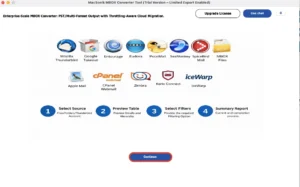
- Firstly, install the MacSonik MBOX Converter Tool, and click Continue.
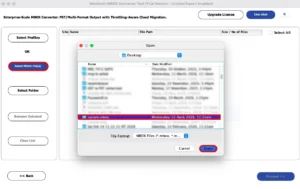
- Then, select the MBOX files, add the file that you want to export, and click Open.
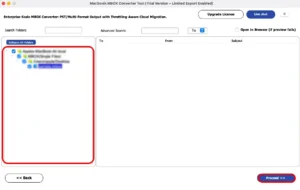
- After that, preview the entire mailbox folder and click proceed further.
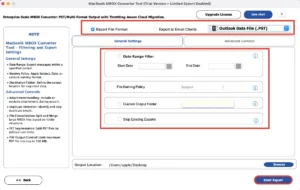
- Finally, choose PST or any preferred format as the saving option, apply the filters as required, and hit Convert.
Real-Life Case Study: Agency Mailbox Transition
Client: Creative agency with years of Apple Mail records.
Challenge: They needed to move mailbox data without using Outlook.
Problem Faced: However, the manual export was too slow for multiple users.
Solution: Then, they used the MacSonik MBOX migration solution to complete the process.
Result:
- Bulk emails exported successfully.
- Attachments preserved.
- No Outlook dependency.
- Smooth platform transition.
Now, the agency manages email records more efficiently.
Conclusion
In the end, bulk migrating Apple Mail emails without Outlook is completely possible with the right method. There are manual exports that may work for small tasks. But they are slow and limited for large mailboxes. The best solution is to use MBOX converter software migrate Apple Mail emails without Outlook on Mac. Additionally, if you face any kind of issues, feel free to reach out to our support team anytime.
Frequently Asked Questions
Ans- Yes, Apple Mail supports mailbox export options that can be used for migration without needing Microsoft Outlook. Users can export mailboxes directly and move them to another system or compatible platform. For larger and bulk migrations, the MacSonik MBOX Converter Tool provides a smoother and faster process.
Ans- The easiest method is to export your Apple Mail mailboxes through a MacSonik MBOX Migration Tool. This solution simplifies the process and helps preserve folders, metadata, and attachments.
Ans- You can back up all Apple Mail emails by exporting mailboxes manually or copying Mail data folders from your Mac Library. Another option is using a MacSonik MBOX converter for organized storage in different formats. This helps protect important emails from accidental deletion or system issues.
Ans- Attachments usually migrate along with emails if the process is completed properly. Reliable MBOX converter tool preserves documents, images, PDFs, and other attached files during transfer. Manual methods may require verification after migration. Using a reliable solution helps ensure attachments remain accessible and correctly linked to messages.
About The Author:
I am Neeru Kuchhal, a Technical Content Writer who focuses on turning complex ideas into clear, engaging, and impactful content. I combine creativity with strategy to write blogs, web content, and technical articles that connect with the right audience and support brand goals. I believe great content is not just written. It is thoughtfully created to inform, build trust, and drive action.
Related Post
