How to Convert MBOX to PST on Mac Without Outlook (2026 Guide)

Amelia James
October 19th, 2026
User Query:
I have a 32GB backup from Google Takeout stored in MBOX format on my Mac. The old tool I used to convert it no longer works. I need to send the mailbox as a PST file for Outlook to an executive. What reliable tool can manage such a file without losing folders or attachments?
Introduction: “Outlook can’t open MBOX files, so the process to convert MBOX to PST on Mac gets stuck at the very first step. Archives from Apple Mail, Thunderbird, and Google Takeout simply won’t load in Outlook. Manual methods often lose attachments or damage the folder structure. That’s why you need a reliable method before moving to Outlook or Office 365. MacSonik MBOX Converter Tool addresses this requirement by exporting data directly to PST on Mac and Windows, without installing Outlook. This blog covers manual ways, their limits, and the professional process.”
Why Do Users Need This Conversion?
MBOX stores messages in a form of plain concatenated text, while PST is a structured database that Outlook requires. As a result, anyone moving mail into Outlook needs to convert MBOX to PST on Mac or Windows beforehand.
Some common reasons include:
- Switching from Apple Mail, Thunderbird, or Eudora to Outlook as a communication platform.
- Mailbox migration to Office 365 or Microsoft 365 Tenants.
- Merge of Google Takeout and Desktop Client Archives to mailbox.
- Archiving legal records, where teams convert MBOX files to PST for one searchable format.
Manual Methods to Convert MBOX to PST on Mac
Before choosing software, many users test free working methods. On the Mac, however, the manual method is unavailable since Outlook for Mac performs exports of OLM files, not PST. This means that any individual looking for conversion of MBOX to PST and doing it manually should finalize the export procedure on a Windows OS.
Method 1: Thunderbird with an IMAP Bridge
It remains the most commonly attempted method among Mac users. However, this particular workflow cannot technically deliver MBOX to PST without Outlook, because the final export happens inside Windows Outlook.
- First, set up Thunderbird. Then add the ImportExportTools NG extension. After that, import your MBOX file.
- Next, connect a Gmail or Outlook.com IMAP account to Thunderbird.
- Finally, move the imported emails by dragging them into a folder under that IMAP account.
- After the upload finishes, add the same account in Windows Outlook.
- Select File, Open & Export, Import/Export, and save the synced data as PST.
Method 2: Thunderbird EML Export
It uses EML files as a middle step and is better for users who have few mailboxes, but still, this method is not able to do conversion in bulk.
- Create a folder in Thunderbird and move emails into it.
- Select every mail then by using save as option to store each one as an EML file.
- Then drag the EML files into a folder in Windows Outlook.
- Open File, choose Open & Export, select Import/Export, and save that folder as a PST file.
Why Manual Methods Fail
Manual conversion suits only small mailboxes. However, users who must convert MBOX to PST on Mac for several accounts face these problems:
- Data loss: It happens when emails, attachments, and embedded images detach or disappear during syncing.
- No bulk support: makes conversion of MBOX files to PST for multiple accounts impractical.
- Folder hierarchy: Often leads to folders and labels being flattened or renamed.
- Slow processing: Slow processing means large archives take many hours to upload and download.
- High skill requirement: demands that add-ons, IMAP settings, and two email clients be managed.
Professional Solution: MacSonik MBOX Converter
To overcome the disadvantages of manual methods, such as not handling large mailboxes and not removing duplicate emails that’s why we introduced MacSonik MBOX Converter, which easily handles large mailboxes and apply filters which helps to get specific data and it does not require Outlook, Thunderbird, or Apple Mail and easily convert MBOX to PST on Mac by handling bulk files. And also along with file format you can also import in email clients, to know about more read this blog Import MBOX to Office 365.
Key Features
- No Outlook requirement: The tool does not depend on Outlook or Thunderbird directly.
- Bulk MBOX support: Add many files or complete folders in one go.
- Complete data fidelity: During conversion, folder structure, metadata, attachments, and more remain the same as the original.
- Multiple file formats: Along with PST, there are multiple formats in which you can convert, like MSG, EML, CSV, and more. For example, if you want an explanation about how to convert MBOX to MSG.
- Preview before export: view folders before conversion in a tree-like structure
- Duplicate removal: skip repeated emails based on sender, subject, or date fields.
Step-by-Step Process to Convert MBOX to PST on Mac
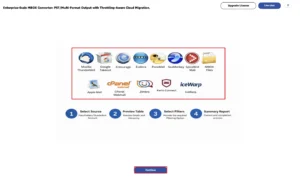
- Download and install MacSonik MBOX Converter, then click Continue.
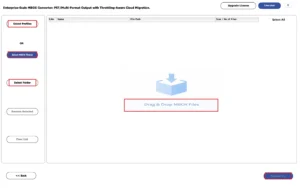
- Click Select MBOX Files, choose the file, then preview it and click Proceed.
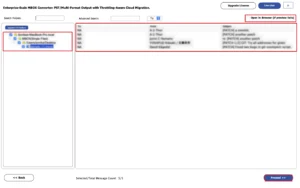
- Expand the folders to check the hierarchy, and select the folders for export.
- Choose PST as the saving format from the list of file formats.
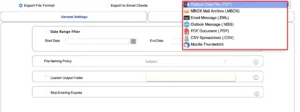
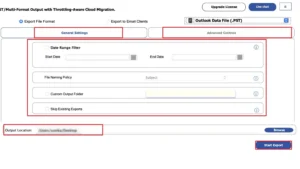
- Apply filters from General Settings and Advanced Controls as per your requirements and select location then Click Start Export.
Watch the Complete Migration Video
Note: For a detailed explanation of each step and to know about each section, you have to read a step-by-step guide for MBOX to PST conversion.
Manual Method vs MacSonik vs Other Tools
| Parameter | Manual Method | Other Tools (Softaken, Kernel, MailsDaddy) | MacSonik MBOX Converter |
| Mac support | Windows Outlook needed at the end | Windows only (MailsDaddy); not stated for the others | Mac and Windows |
| Bulk conversion | One file at a time | Yes | Handle bulk files at once. |
| Preview before export | No | Yes (Softaken, Kernel); not stated for MailsDaddy | Yes |
| Folder hierarchy | Often disturbed | Stated only for Softaken | Yes (Follow Tree Hierarchy) |
| Filters | None | Yes; types vary or are not stated | Date range, duplicates |
| PST splitting | No | Yes (Softaken, Kernel); single or separate PST (MailsDaddy) | Yes (size limit) |
| Output formats | PST only | PST, EML, MSG on all; PDF, Gmail, Office 365 on some | PST, PDF, MSG, EML, CSV, Gmail, Office 365 |
| Free trial | Not applicable | 20 to 25 emails per folder or mailbox | Up to 50 emails |
| Orphan MBOX | Not supported | Not mentioned | Supported |
Real-Life Scenario
An IT executive had to move five Thunderbird mailboxes into Outlook. The manual method took nearly 3 hours for one account and lost some attachments. After that, he chose to do the conversion on Mac and Windows using batch processing with a MacSonik MBOX converter, which easily transfer MBOX to PST. All five mailboxes were done in 30 minutes, and folders, attachments, and metadata were all still there.
Who Should Use This Tool?
- Freelancers: They get client archives from various email clients.
- IT admins: IT admins do mailbox migrations, and IT admins need to convert MBOX to PST frequently while deadlines are tight.
- Businesses and law firms: Businesses and law firms want to make sure that emails are stored in one format.
| One-Time Migration Assistance Option
Don’t want to handle the transfer yourself, or have only one mailbox to move? We also offer a one-time service where our team does the work for you. They convert MBOX files to PST securely, with folders and attachments kept as they are, so your mailbox reaches PST files without any stress. The service costs just $25 and supports up to 10 GB of data. |
Free Trial and Pricing: Free Trial and Pricing: download the trial and look at the output for up to 50 emails. After testing, the full version starts at $49. It ensures a 30‑day money‑back guarantee.
Conclusion
Outlook cannot open MBOX files, so a structured conversion is mandatory. Manual methods suit only small mailboxes and require Windows Outlook at the end. Unlike other tools, MacSonik MBOX Converter helps you to convert MBOX to PST on Mac. It can handle files at once, manage large files, and keep all folders exactly as they are. It does not need Outlook, so it saves your time efforts will save, and also your data.
Frequently Asked Questions
Ans. Yes, this converter supports MIME Structure, so body, attachments, headers, and other elements remain the same as the original in the PST.
Ans. Yes, you can easily convert by using the select folders option and also select multiple files by using select MBOX files and converting them.
Ans. By using a dedicated tool that preserves your folder hierarchy during conversion. Firstly, expand your folder before conversion and view its hierarchy; then, after conversion, open PST in outlook then compare its structure.
Ans. Yes, in Advanced Controls there are some filters related to attachments, like exclude, embed attachments, and export attachments separately. Through these, you can deal with attachments.
Ans. Yes, in general settings, use date range filters and set starting and ending dates to get specific data.
Ans. Yes, By using select folders and MBOX files, you can select multiple files and convert all of them into individual PST files.
Ans. Add a large MBOX file directly, because there is no size limit on the source file. In Advanced Settings, choose PST segmentation, which divides large MBOX files into several small PST files with a size restriction. Along with the same folder structure.
Ans. This is also done by using a duplicate filter, in which you remove duplicate emails on the basis of To, From, Body, Subject, and Cc, and easily remove duplicate emails.
About The Author:
Amelia is the mistress of the webmail clients like Office 365, Gmail, Yahoo, Hotmail, and Opera Mail. Her research on downloading emails from webmail is outstanding. She has given the solution to download emails from webmail clients to a Mac device with all the mailbox items. She’s been into webmail solutions since 2010. In her free time, she reads books and writes technical blogs.
Related Post
