Best Ways to Resolve the Outlook Oversized OST File Problem

Neeru Kuchhal

May 26th, 2026
User-Query:
“My Outlook has become extremely slow and sometimes freezes while syncing emails. I discovered that my OST file is very large. How can I fix the Outlook oversized OST file problem without losing emails?”
— Asked by ‘Jennifer Brooks’
Introduction: Microsoft Outlook stores mailbox data locally using OST files. These files allow users to access emails, contacts, calendars, and attachments even without internet connectivity. However, when the OST file grows too large, Outlook performance may decline significantly. Oversized OST files can cause slow synchronization, frequent freezing, Outlook crashes, and mailbox access issues. Fortunately, there are several ways to reduce OST size and improve Outlook performance. Therefore, this guide explains the best ways to resolve this issue using the MacSonik OST to PST Converter Tool.
Outlook OST vs PST: Key Differences Every User Should Know
|
Feature Aspects |
OST File |
PST File |
|
Offline mailbox synchronization |
Personal mailbox storage |
|
Linked to server account |
Independent storage |
|
Outlook profile dependent |
Portable Outlook file |
|
Automatic |
Manual import/export |
|
Exchange/IMAP accounts |
Backup and archiving |
What Causes an Outlook OST File to Exceed Its Size Limit?
Several factors caused the Outlook oversized OST file problem:
- A large number of emails.
- Heavy email attachments.
- Multiple synchronized folders.
- Long mailbox retention periods.
- Deleted items are not permanently removed.
- Large calendar and contact data.
- Also, synchronization of shared mailboxes.
When mailbox data keeps increasing, Outlook may struggle to maintain performance.
Common Symptoms of a Large OST File
- Outlook becomes slow or unresponsive.
- Frequent application freezing.
- Delayed email synchronization.
- Outlook startup takes longer.
- Search results appear incomplete.
- Send/receive errors occur.
- Moreover, OST synchronization failures.
Recognizing these signs early can help prevent mailbox corruption.
Manual Strategy to Solve OST File Too Large Issue
There are several methods to solve this problem:
Method 1: Empty Deleted and Junk Folders
One of the easiest ways to reduce OST size is by clearing unnecessary mailbox items.
- Firstly, open Microsoft Outlook.
- Go to Deleted Items.
- Permanently delete unwanted emails.
- Open Junk Email folder.
- Remove unnecessary messages.
- Empty the Trash folder if required.
This helps reduce locally synchronized mailbox data.
Method 2: Archive Older Emails
Archiving moves old mailbox data into separate storage and reduces OST size.
- Start by opening Outlook.
- Navigate to File, Tools, then Archive.
- Select older folders or mailbox items.
- Choose archive settings.
- Start archiving.
Archiving improves performance while preserving historical emails.
Method 3: Disable Shared Folder Download
Downloading shared folders can significantly increase the OST size.
- Open Outlook.
- Now, go to Account Settings.
- Select your email account.
- After that, click More Settings.
- Open the Advanced tab.
- Disable Download Shared Folders.
- Save changes and restart Outlook.
This reduces unnecessary synchronization.
Method 4: Compact the OST File
Compacting removes unused space from the OST file.
- Open Outlook.
- Go to Account Settings and Data Files.
- Select the OST file.
- Further, choose Settings.
- Click Compact Now.
- Wait for completion.
This process can noticeably reduce file size.
Method 5: Rebuild the OST File
If performance problems continue, rebuilding the OST file may help.
- First of all, close Outlook.
- Locate the OST file location.
- Rename or move the existing OST file.
- In the next panel, restart Outlook.
- Allow mailbox data to re-sync.
Outlook automatically creates a fresh OST file.
Limitations: Manually Solve Outlook Oversized OST File Problem
- It is time-consuming for large mailboxes.
- There is a risk of accidental email deletion.
- The re-sync process may take hours.
- Requires technical understanding.
- Also, it is not suitable for oversized or damaged files.
Is Your Large OST File Conversion Freezing or Hanging? Here’s a Fix
The MacSonik OST to PST Converter Tool helps users manage and optimize bulk OST files efficiently. It is designed to simplify mailbox handling while maintaining data integrity and folder structure. This software helps users to convert OST to PDF with zero data loss. Additionally, it is compatible with large Outlook environments.
Operating Guide: How the MacSonik Migration Utility Works?
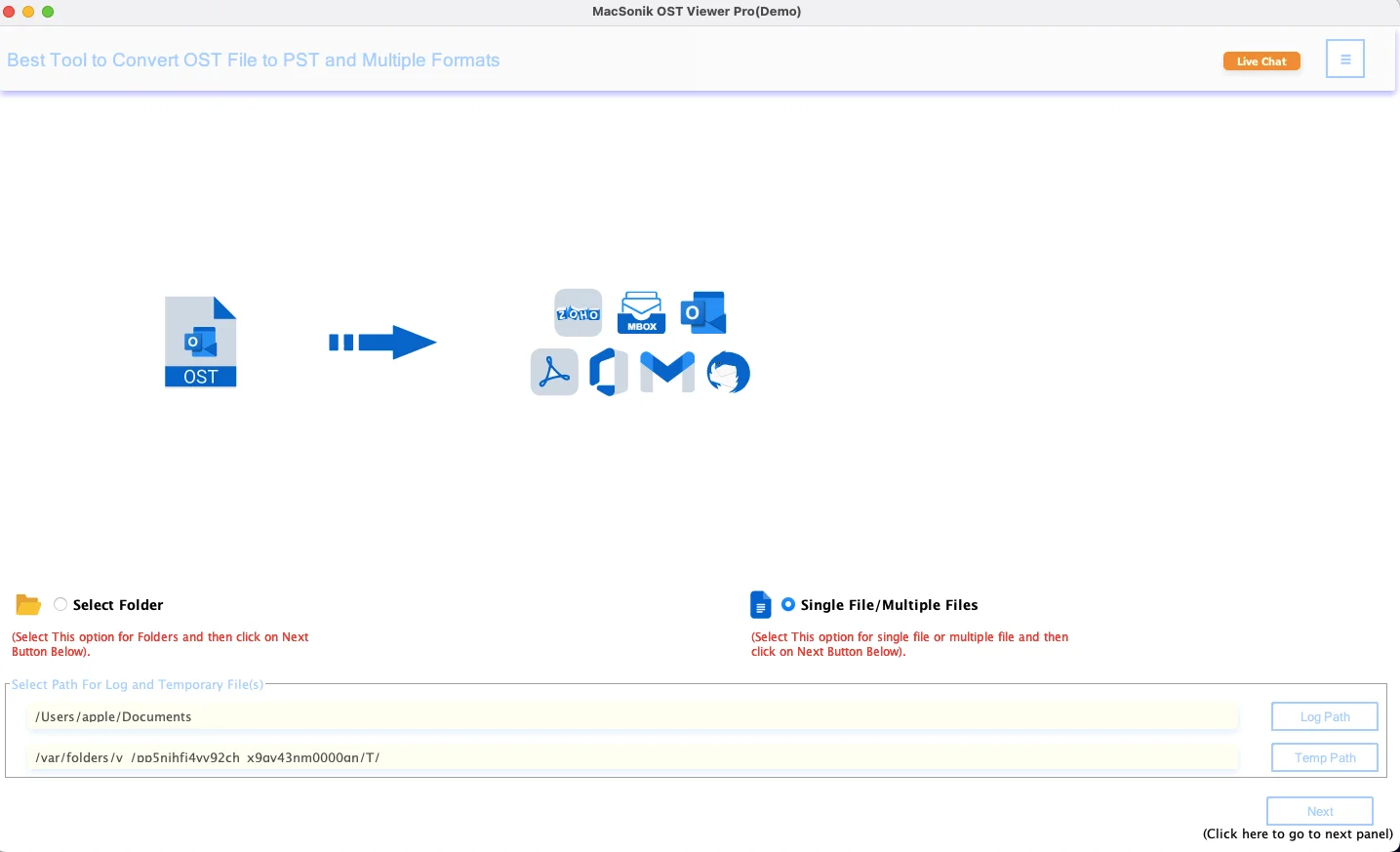
- Firstly, start by launching the ‘MacSonik OST to PST Converter Tool’.
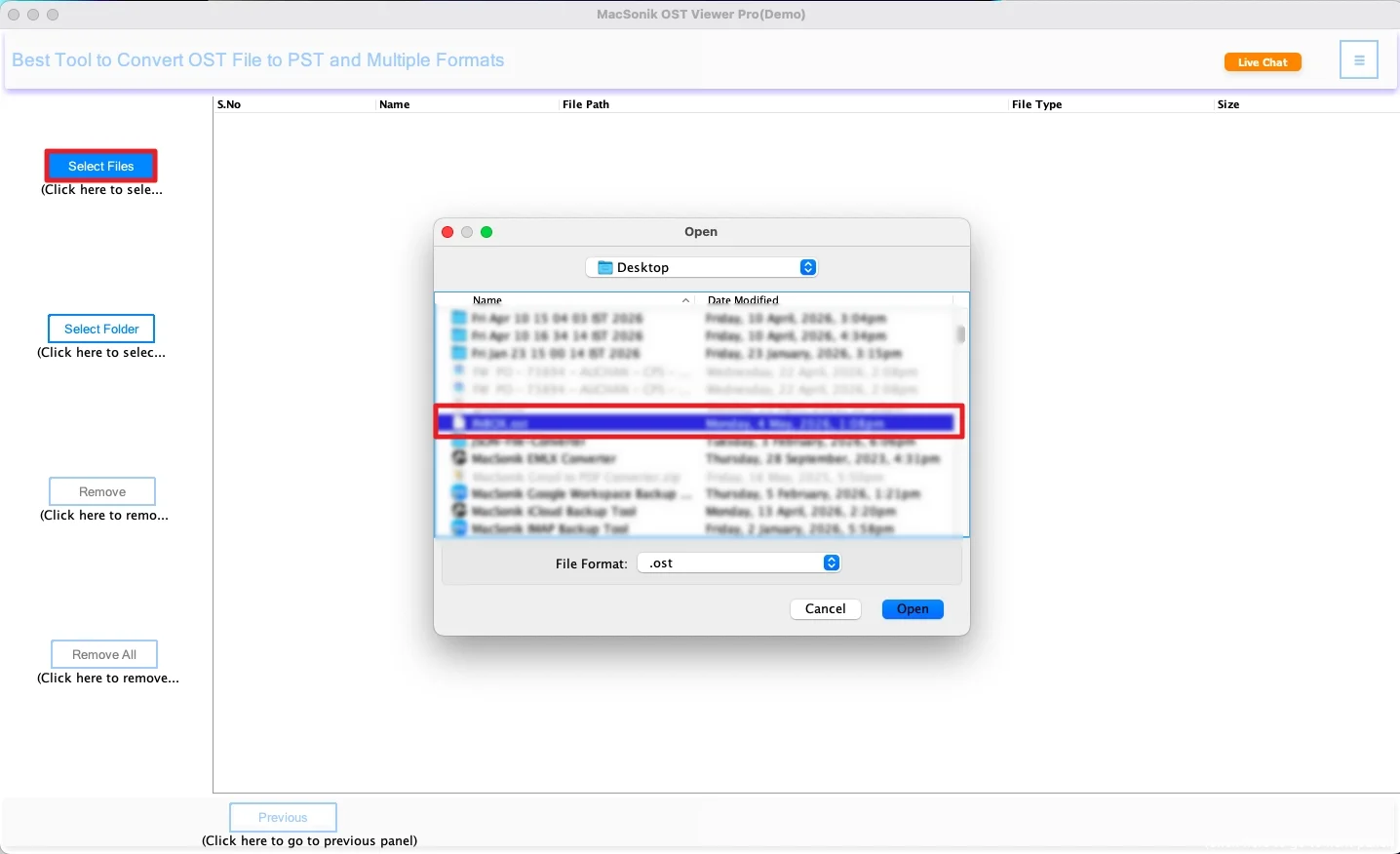
- Now, click ‘Select Files’, and ‘upload’ the OST file that you want to recover.
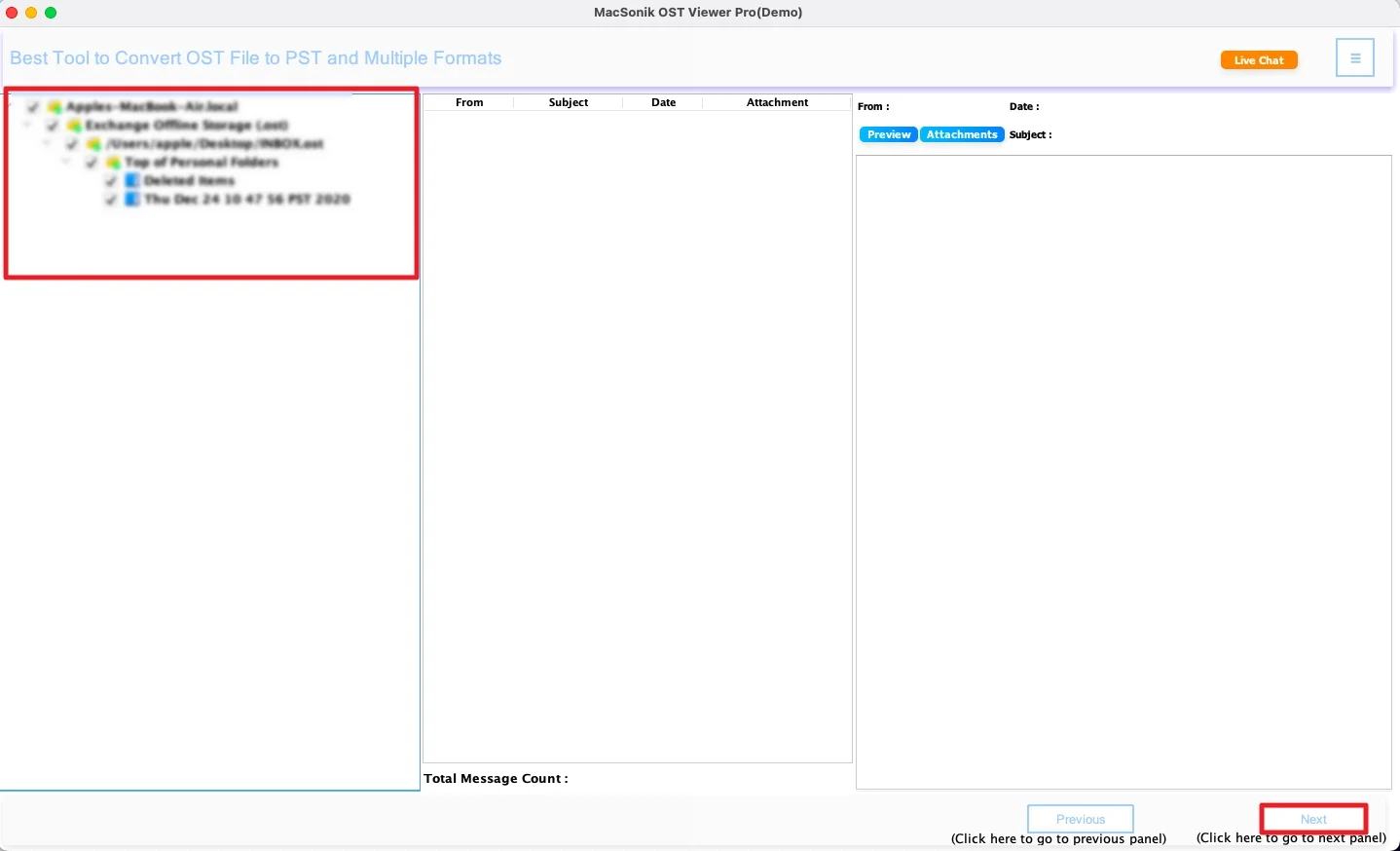
- ‘Drag’ the hierarchy, ‘review’ the entire mailbox folder, and click ‘Next’.
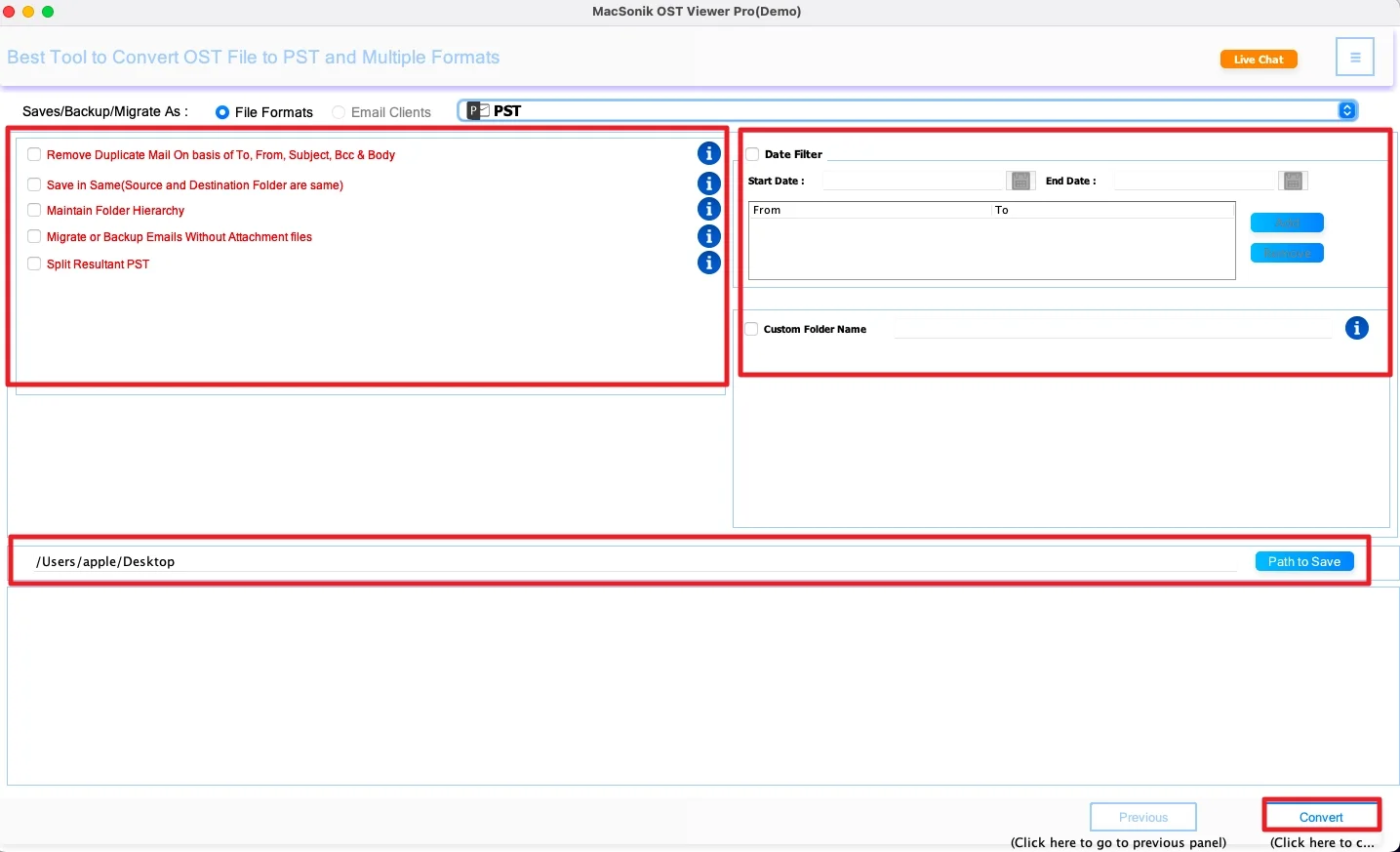
- Furthermore, choose ‘PST’ as the saving file format.
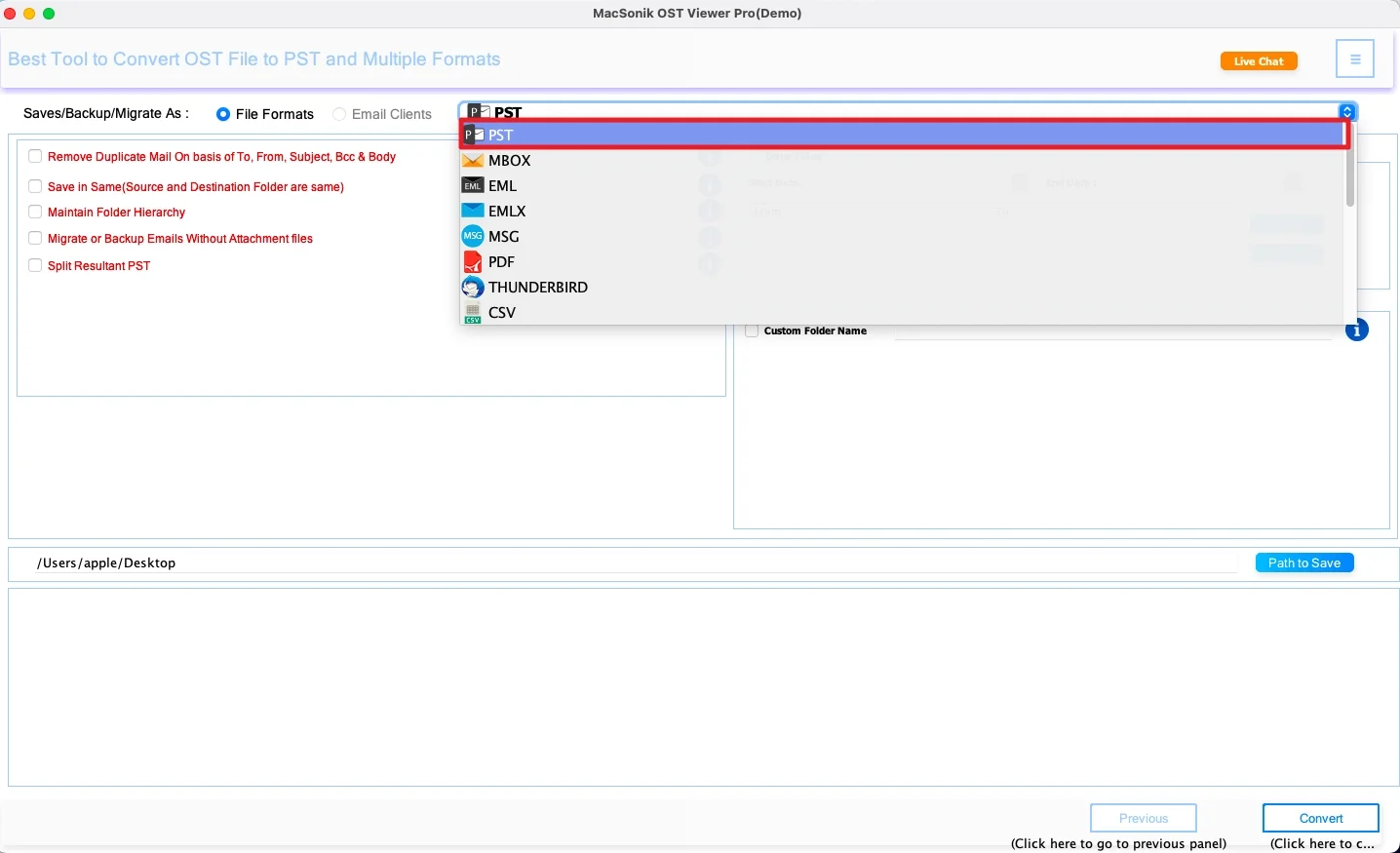
- Finally, ‘set filters’ as per your needs, ‘add’ path to save the file, and click ‘Convert’.
Real-Life Case Study
An accounting manager using Microsoft Outlook noticed severe lag and synchronization failures caused by years of accumulated emails and attachments. However, the manual cleanup improved performance slightly but required significant effort. Using a MacSonik OST management solution, the mailbox was optimized successfully, and Outlook performance returned to normal.
Final Words
In this blog, we have seen that the Outlook oversized OST file problem is a common reason behind slow Outlook performance. While manual solutions, such as archiving, compacting, and rebuilding, can help reduce mailbox size. They often require time and technical effort. For users managing large mailboxes regularly, a professional OST to PST converter solution offers a reliable way to optimize Outlook performance. Apart from this, this process preserves valuable email data.
Frequently Asked Questions
Ans. OST to PST conversion may stop or appear stuck due to corrupted OST data, insufficient system resources, large mailbox size, unstable storage drives, or interruptions during processing. In some cases, background applications or antivirus software may also slow down the conversion.
Ans. The conversion time depends on factors such as OST file size, system performance, storage speed, and the conversion method used. A 20GB or larger OST file may take anywhere from several minutes to a few hours to process, especially if it contains many attachments or complex mailbox folders.
Ans. Using a dedicated OST to PST converter is generally the most efficient method for handling large OST files. It is designed to manage oversized mailboxes, preserve folder hierarchy, and reduce the chances of freezing or incomplete conversion.
Ans. To avoid conversion issues, keep your system updated, ensure sufficient storage space and RAM availability, close unnecessary background applications, maintain a healthy OST file size through regular mailbox cleanup, and use a reliable MacSonik conversion solution that supports large mailbox files.
About The Author:
I am Neeru Kuchhal, a Technical Content Writer who focuses on turning complex ideas into clear, engaging, and impactful content. I combine creativity with strategy to write blogs, web content, and technical articles that connect with the right audience and support brand goals. I believe great content is not just written. It is thoughtfully created to inform, build trust, and drive action.
Related Post
