What Is the Best Way to Convert OST to VCF? Expert Guide

Neeru Kuchhal

June 18th, 2026
User-Query:
“I have a 14 GB OST file from Outlook 365. It contains approximately 8,500 contacts along with around 95,000 emails, calendar entries, tasks, and other mailbox data. I need to extract the contacts and convert them to VCF (vCard) format. All contact details must be preserved during the conversion. What is the safest and most reliable way to convert OST to VCF without data loss or formatting issues?”
— Posted by ‘Michael Turner’
Introduction: OST is a mailbox file format used by Microsoft Outlook to store synchronized mailbox data for offline access. It contains emails, contacts, calendars, notes, and other mailbox items linked to an Outlook profile. However, OST files are not directly accessible outside Outlook and are dependent on the original profile. A VCF (vCard File) is a contact file format used by platforms such as Apple Contacts, Gmail, and many CRM systems. Converting OST contacts into VCF makes it easier to transfer and back up contact information across multiple devices and applications. Therefore, this guide explains the various ways to convert OST to vCard seamlessly using the MacSonik OST File Converter Tool.
OST vs VCF: What’s the Difference and Which Should You Use?
Here’s the difference between the two formats:
|
Major Elements |
OST |
VCF |
|
Outlook mailbox file |
Contact file format |
|
Yes |
No |
|
Yes |
Yes |
|
Limited to Outlook |
Highly portable |
|
Outlook only |
Universal support |
|
Mailbox storage |
Contact sharing and backup |
Better Portability, Better Access: Why OST to VCF Conversion Pays Off?
There are some practical reasons why users need to convert OST to VCF:
- Import contacts into phones and tablets.
- Move Outlook contacts to Gmail or Apple Contacts.
- To create portable contact backups.
- For sharing the contacts easily.
- Maintain contact data during migration.
- Also, access contacts outside Outlook.
Doing It by Hand: The Manual Route from OST to VCF
In this section, we will discuss the manual methods to convert OST contact to VCF.
Method 1: Export Contacts Through Outlook
- First, open Outlook with the original OST profile.
- Now, go to the Contacts section.
- Select the contacts you want to export.
- Open each contact individually.
- After that, choose Save As.
- Lastly, save each contact in VCF format.
Limitations of the Manual Route to Convert OST to VCF
- Requires access to the original Outlook profile.
- Very time-consuming for bulk contacts.
- It is not suitable for orphaned OST files.
- Manual saving for each contact.
- There is a risk of missing contact details.
- Moreover, not practical for business-level contact migration.
Beyond the Manual Method: A Smarter Way to Convert OST Contacts to vCard
If the manual method seems complex and time-consuming, you can opt for the MacSonik OST to PST Converter Tool. This software can directly scan OST files and export all contacts into VCF format without requiring the Outlook profile. It preserves every detail intact while supporting bulk conversion. Similarly, you can also extract contacts from OST file with zero data leakage. Also, users can test the software with its demo version, which allows the conversion of 50 emails from each folder.
One-Time Conversion Assistance Option
If you prefer expert help, you can contact the MacSonik support team. Their specialists can securely convert OST to VCF and manage the complete process for you. Additionally, it offers a One-Time Service for just $35, supporting files up to 10 GB, making it a cost-effective option for users with one-time conversion needs.
Quick Way to Turn OST Files Into vCards
- Start by installing the MacSonik OST to PST Converter Tool.
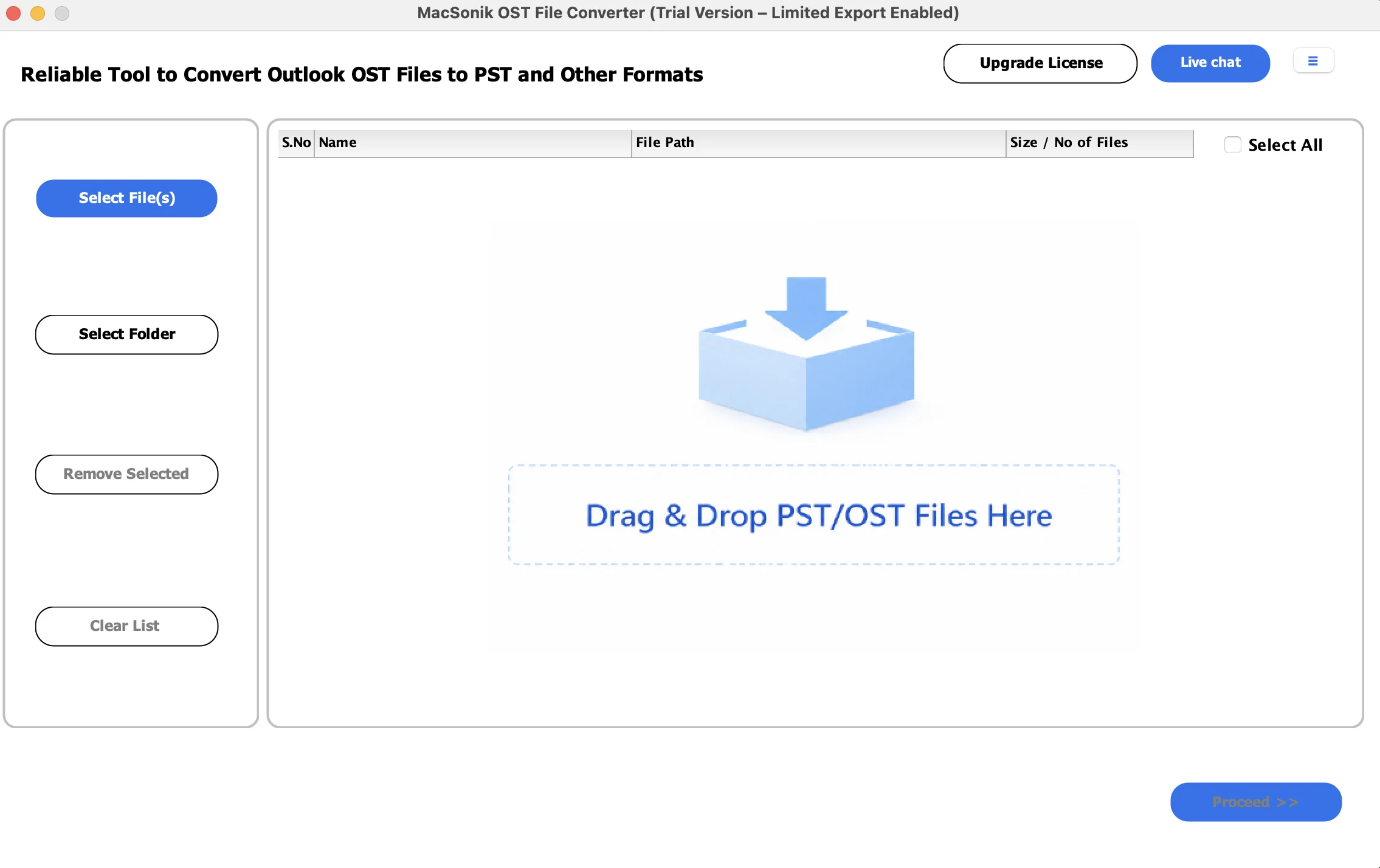
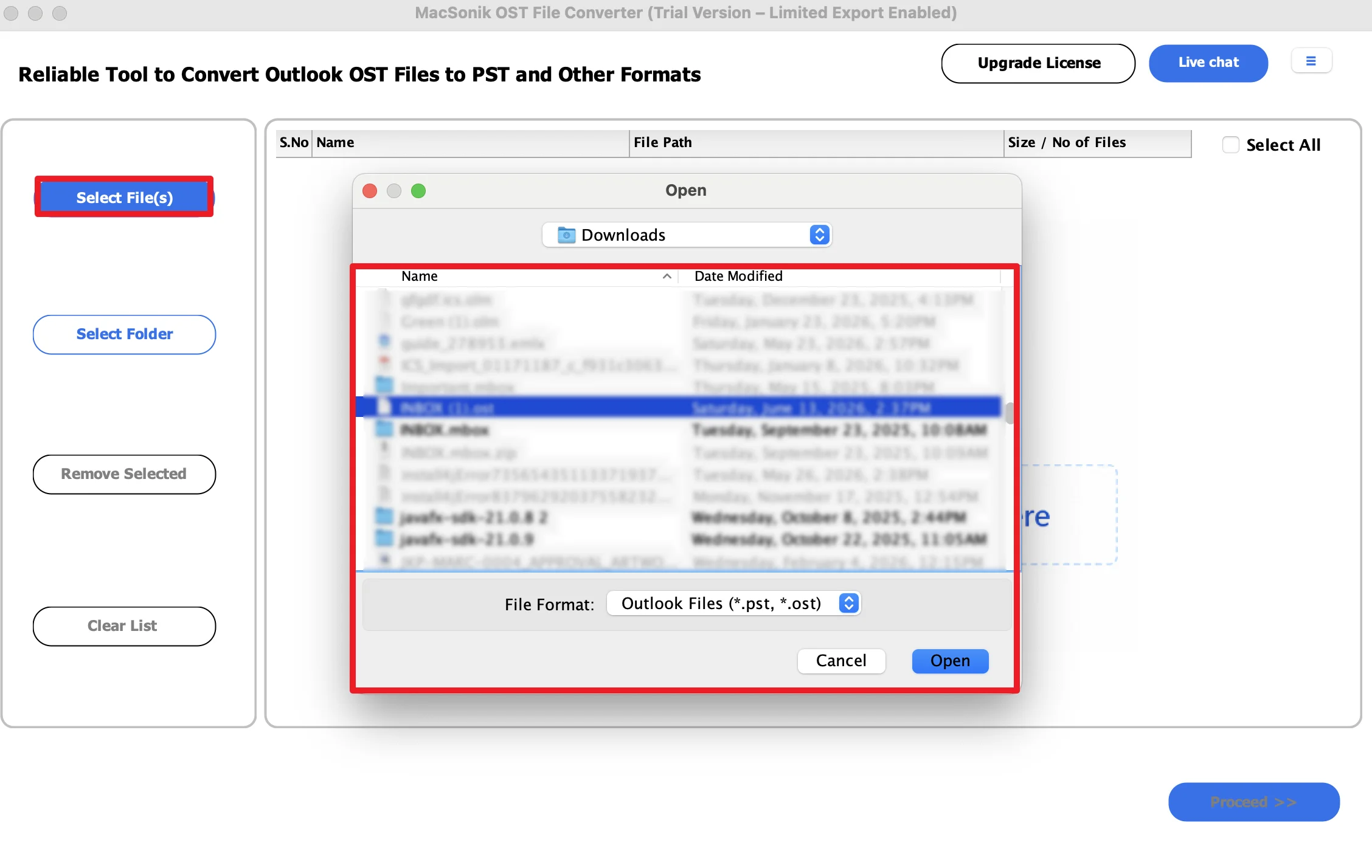
- Click Select Files, add the OST file that you want to export, and click Open.
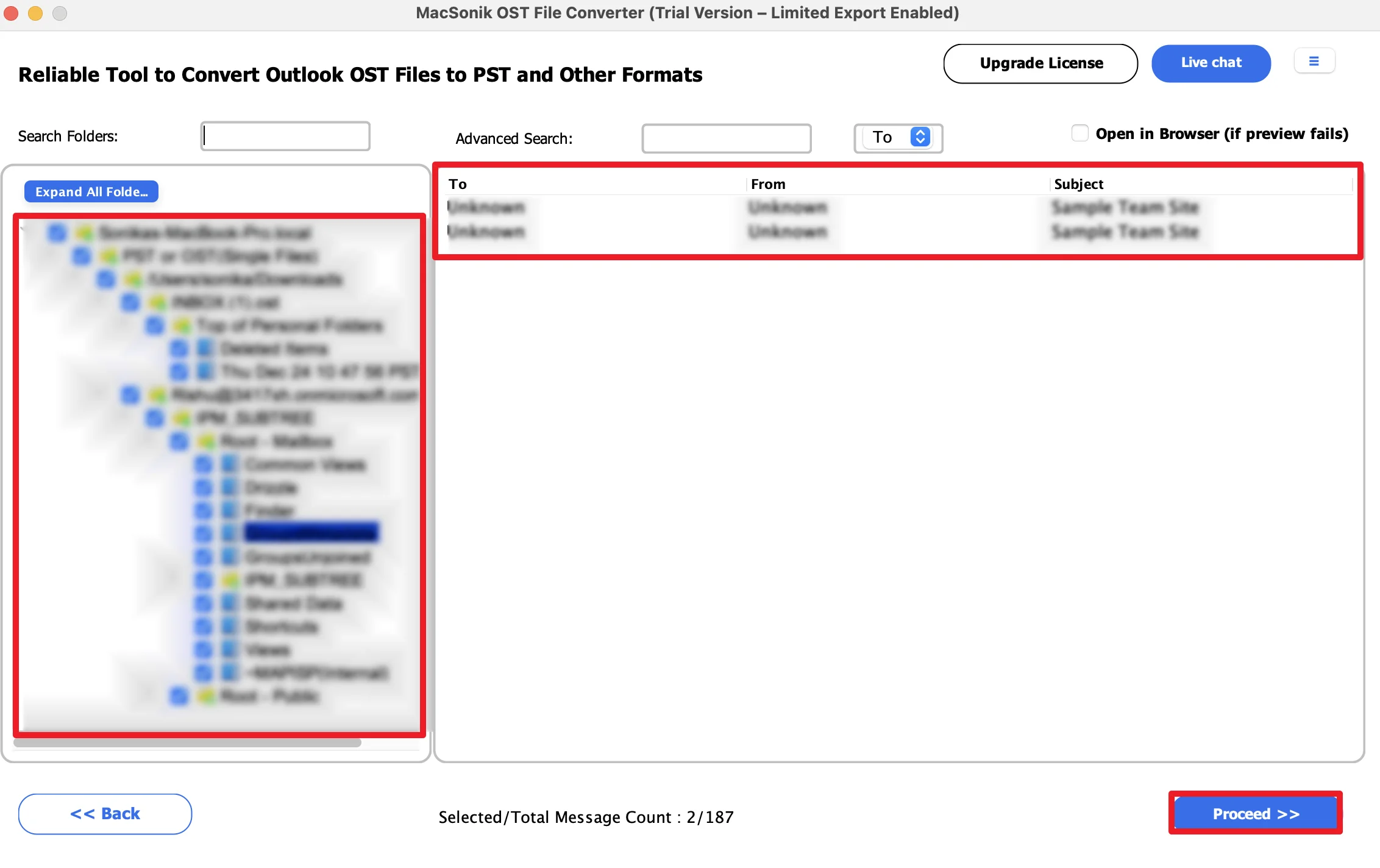
- Expand the folder hierarchy, preview the mailbox data, and click Next.
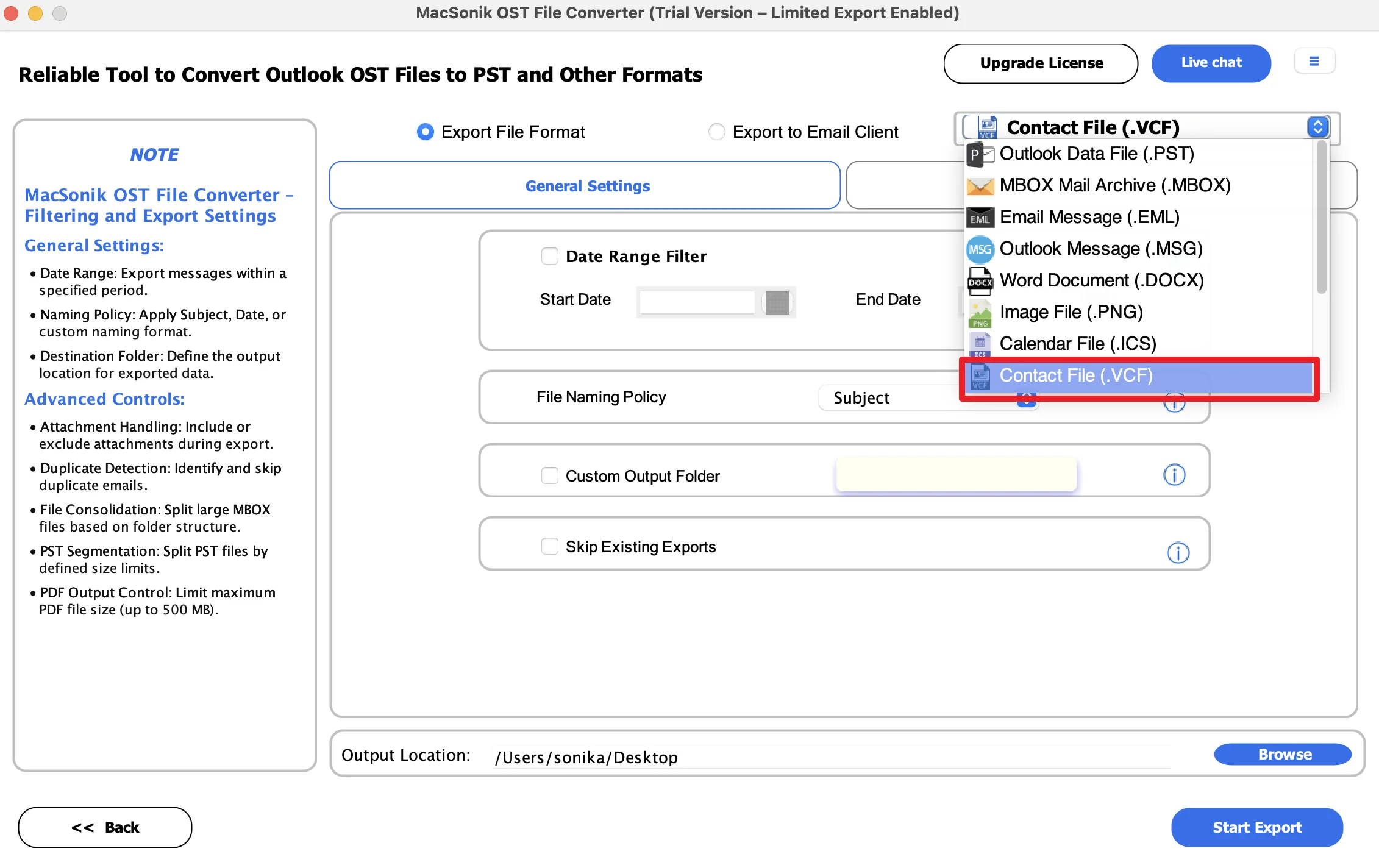
- Furthermore, choose Contact File (.vcf) as the saving file format.
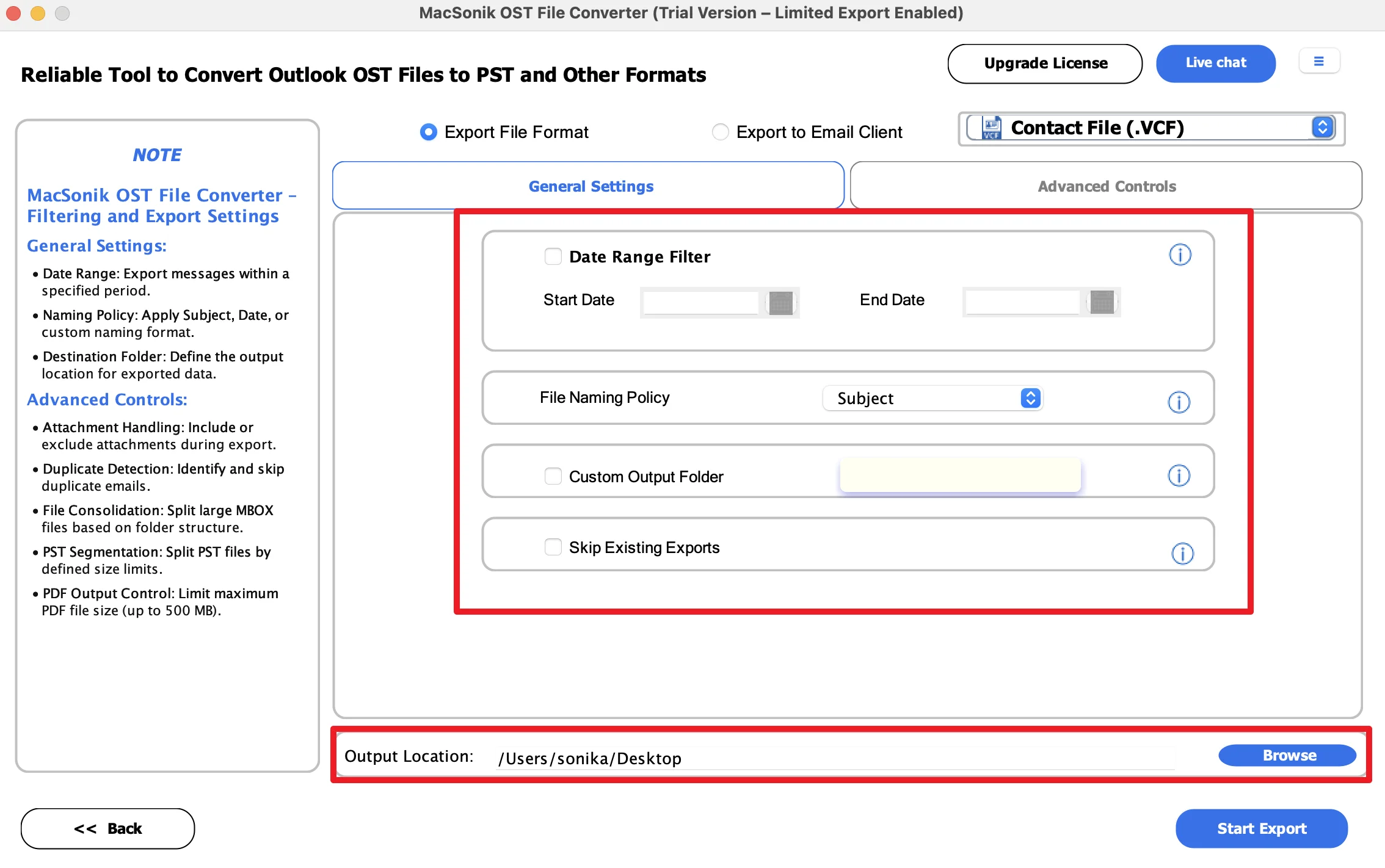
- Apply the filters according to your choice and set the destination path to save the file.
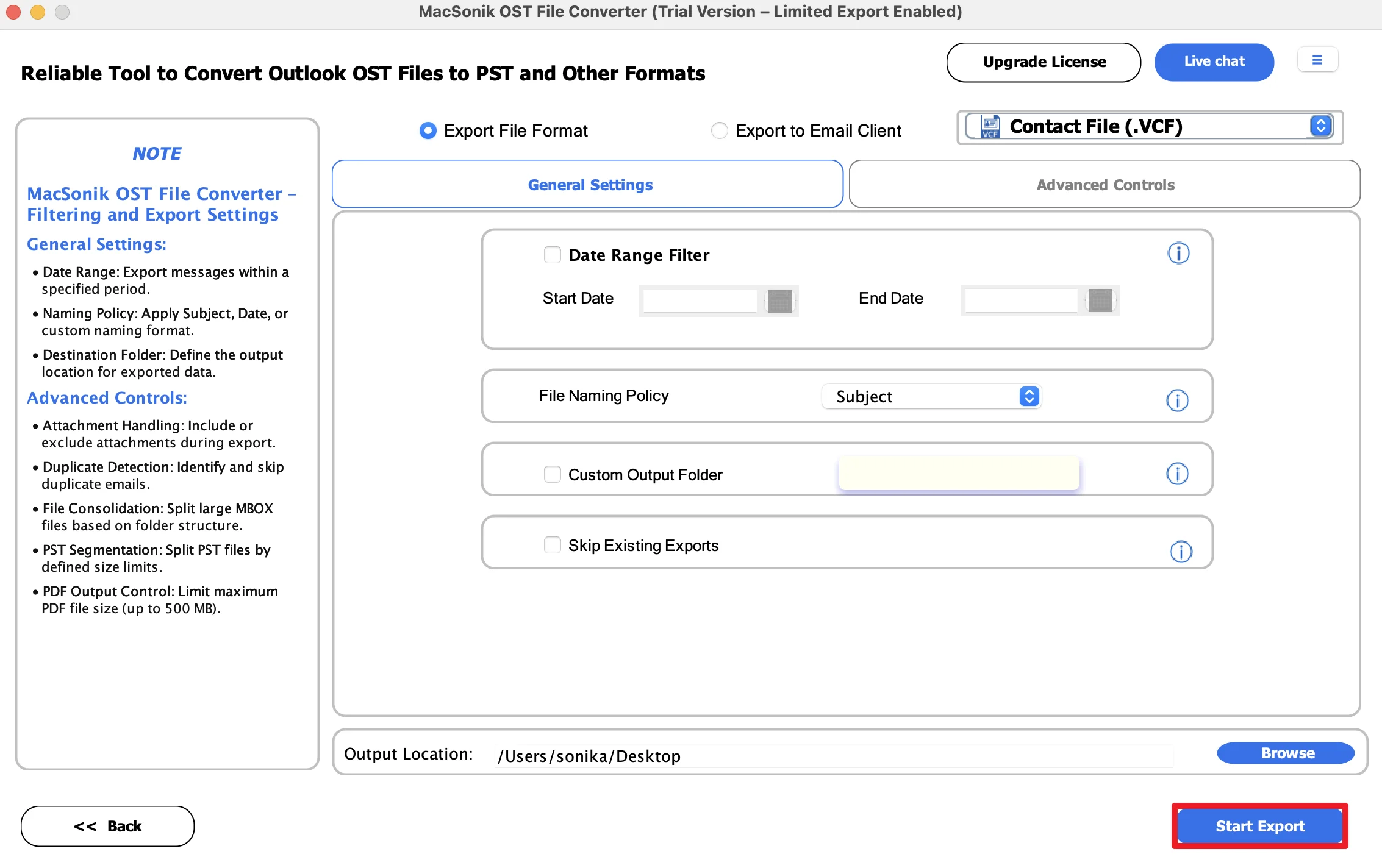
- Finally, click Start Export to initiate the conversion process.
Real-Life Scenario: CRM Contact Migration
A sales company needed to move hundreds of Outlook contacts stored in OST files into a CRM system that supported VCF imports. Since the original Outlook profile was inaccessible, the manual method was impossible. The team used the MacSonik OST Converter Tool to transfer OST contacts to vCard. As a result, every phone number, email address, and company detail was transferred accurately without data loss.
Conclusion
In this article, converting OST to VCF is one of the best ways to make Outlook contacts portable and accessible across devices and platforms. While manual methods may work for small contact lists, they become impractical for bulk conversions and inaccessible OST files. Therefore, using the OST Converter Tool is the most reliable solution to convert OST to VCF. Besides, it offers a fast, secure, and accurate OST to VCF conversion.
Frequently Asked Questions
Ans. Yes, you can save OST contacts to VCF without Microsoft Outlook by using a professional OST conversion tool. This can directly scan the OST file and extract contact information without needing access to the original Outlook profile or Exchange account.
Ans. Yes, an advanced MacSonik OST converter allows you to export multiple contacts into either separate VCF files or a single combined VCF file. This makes it easier to import all contacts at once into supported applications and devices.
Ans. Yes, VCF files are fully supported by Gmail and Google Contacts. After conversion, you can easily upload the VCF file and import all your contact details, including names, email addresses, phone numbers, and other information.
Ans. Yes, the professional MacSonik OST conversion tool provides selective export options, allowing you to choose specific contacts or contact folders for conversion. This helps users avoid unnecessary exports and makes the process faster and more organized.
About The Author:
I am Neeru Kuchhal, a Technical Content Writer who focuses on turning complex ideas into clear, engaging, and impactful content. I combine creativity with strategy to write blogs, web content, and technical articles that connect with the right audience and support brand goals. I believe great content is not just written. It is thoughtfully created to inform, build trust, and drive action.
Related Post
