How to Solve the Microsoft OneDrive Stopped Working Error?

Amelia James
February 13th, 2026
Summary: In a corporate environment, the user noticed that Microsoft OneDrive stopped working the moment they joined the office Wi-Fi. A “Connection error” message appeared repeatedly while none of the files were uploading or downloading. Refer to this blog to fix this issue and continue the work without interruptions. Also, to avoid being in such situations, it is recommended to migrate OneDrive data using the MacSonik OneDrive Migration Tool. Now, let’s look at the factors and solutions to resolve this problem.
User-Query: “My OneDrive keeps crashing with the ‘Microsoft OneDrive has stopped working’ message, and I can’t access some of my folders. Before I troubleshoot further, I want to safely back up all my OneDrive data to my local drive using a professional tool. Can you suggest a secure solution for this?”
Potential Reasons Why Microsoft OneDrive Stopped Working
Given below are some of the reasons why this error occurs in the first place:
- An outdated OneDrive can cause it to fail, which may be due to system updates.
- A broken temporary file can cause the app to stop responding correctly.
- Limited or weak network connectivity may cause OneDrive to fail or freeze.
- Antivirus programs and firewall restrictions can interfere with OneDrive’s processes.
- Profile issues or credentials problems with the Microsoft account may cause repeated account login failures.
Easy Solutions to Fix Microsoft OneDrive Stopped Working
Now that we have reviewed the reasons behind the instance of this error, let’s move ahead. In this section, we will look at the manual methods and an automated tool to fix this problem.
Manual Method 01: Restart the OneDrive Application
Use the following instructions to restart OneDrive:
- Open the Task Manager by pressing Ctrl+Shift+Esc.
- Then, in the Processes tab, find Microsoft OneDrive.
- Select it, right-click on it, and then choose End Task.
- Now, go to the Start Menu and type OneDrive.
- Launch the OneDrive application again.
Manual Method 02: Re-Sign In to OneDrive & Reconnect it
By signing-out and signing-in back refreshes the Microsoft OneDrive application. It fixes authentication-related errors that may have caused OneDrive has stopped working error.
The following are the steps to initiate the reconnection:
- First, click on the OneDrive cloud icon in the bottom-right corner.
- Then, press the Settings icon and choose Settings.
- After that, open the Account tab and select Unlink this PC.
- Now, close OneDrive and restart it from the Start menu.
- Next, sign in again with your OneDrive account credentials and follow the instructions.
Manual Method 03: Reset OneDrive Cache
Resetting OneDrive can clear out the damaged cache and sync data that causes such issues.
Look at the steps to begin resetting the application:
- Open the Run window by pressing Windows+R.
- Then, run this command and press Enter:
- Now, wait for some time to automatically start the OneDrive application.
- If it does not start, open the Run dialog box and enter the command:
- It will relaunch the OneDrive application. Check if the sync resumes.
| %localappdata%\Microsoft\OneDrive\onedrive.exe /reset |
| %localappdata%\Microsoft\OneDrive\onedrive.exe |
Manual Method 04: Upgrade Windows and OneDrive to the Latest Versions
To update Microsoft Windows, follow the steps below:
- Open the Settings app and head to Update & Security.
- Then, click on Windows Update and Check for Updates.
- If any update is found, download and install it.
- Now, restart the Windows application if any update gets installed.
- Then, relaunch OneDrive and see if the issue is resolved.
Similarly, to update OneDrive, perform these instructions:
- First, navigate to the OneDrive cloud icon in the bottom-right corner.
- Then, select the Settings icon and choose Settings.
- Next, go to the About tab and click on the Version to check if it’s updated to its latest version.
- If an update is available, it will be installed automatically.
- Now, restart the OneDrive application.
Manual Method 05: Inspect Antivirus & Firewall Settings
Many times, security software blocks the OneDrive processes, which can cause the OneDrive application to stop working.
Let us look at the instructions to begin the process:
- Open the Control Panel and go to System and Security.
- Then, head to Windows Defender Firewall and choose Allow an app or feature through Windows Defender Firewall.
- Next, click on Change settings and find Microsoft OneDrive in the displayed list.
- Make sure to check the Public and Private checkboxes.
- Finally, hit the Ok button to save the changes.
An Automated Solution to Backup and Secure OneDrive Data
The MacSonik OneDrive Migration Tool provides a simplified and secure solution to back up OneDrive data. It is designed to migrate the data without any risk of data loss or downtime. Also, it is built with high-speed migration technology while ensuring that every piece of data is transferred securely. During the transfer, it also preserves the original folder hierarchy. With this tool, users can migrate their OneDrive data to another OneDrive, Google Drive, or Hard Drive. Moreover, users can transfer files from OneDrive to iCloud with MacSonik’s one-time service option.
Simple and quick steps to backup OneDrive data:
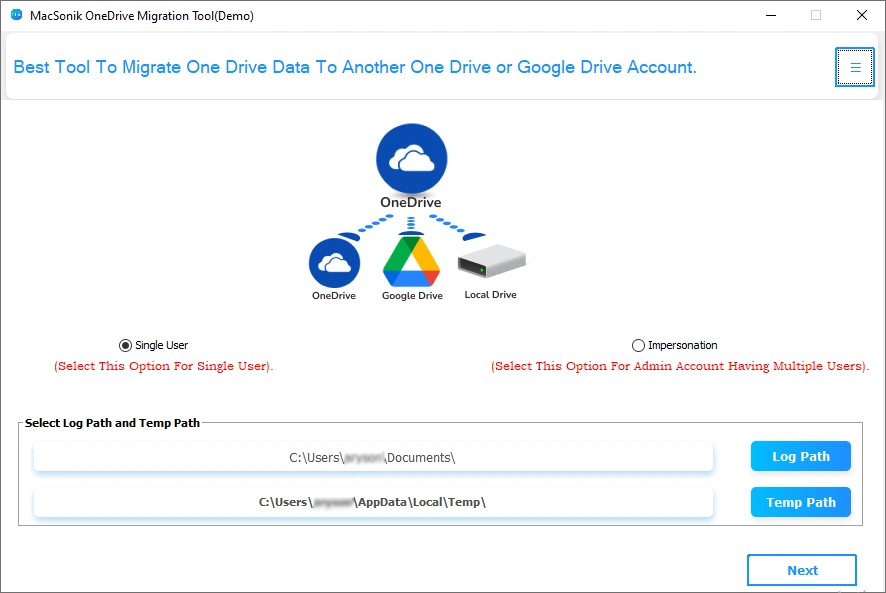
- Download, install, and open the application on your system.
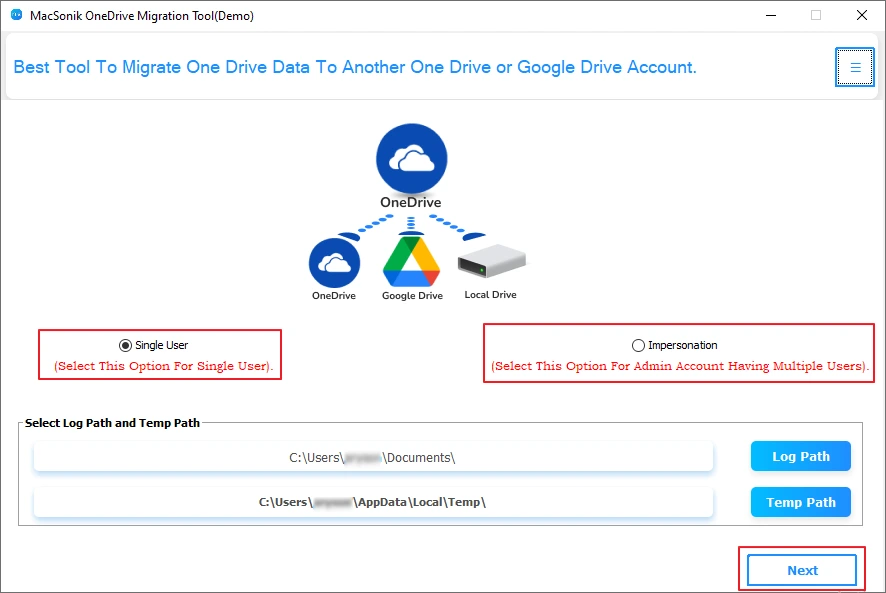
- Then, choose Single User, select Business account, and authenticate with the account credentials.
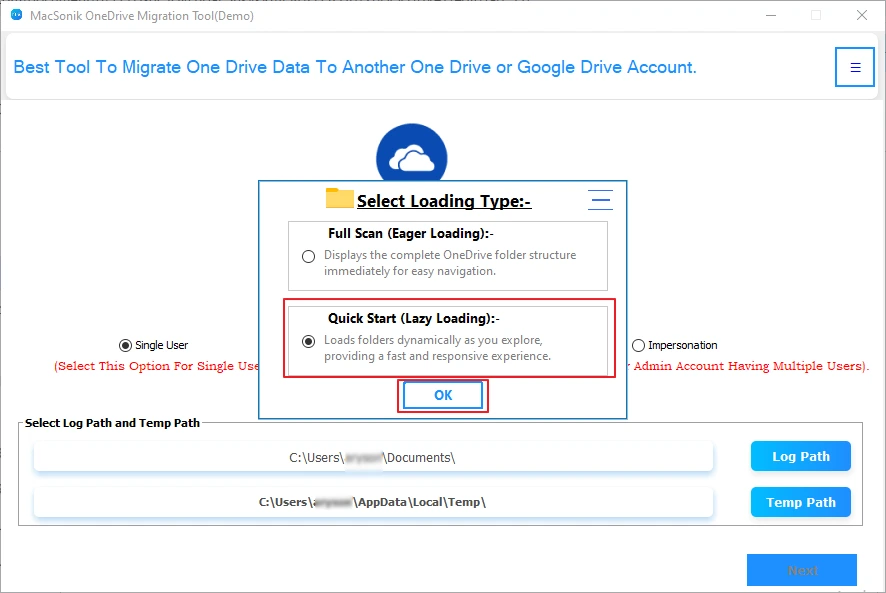
- After that, select the loading type as Quick Start and click Ok.
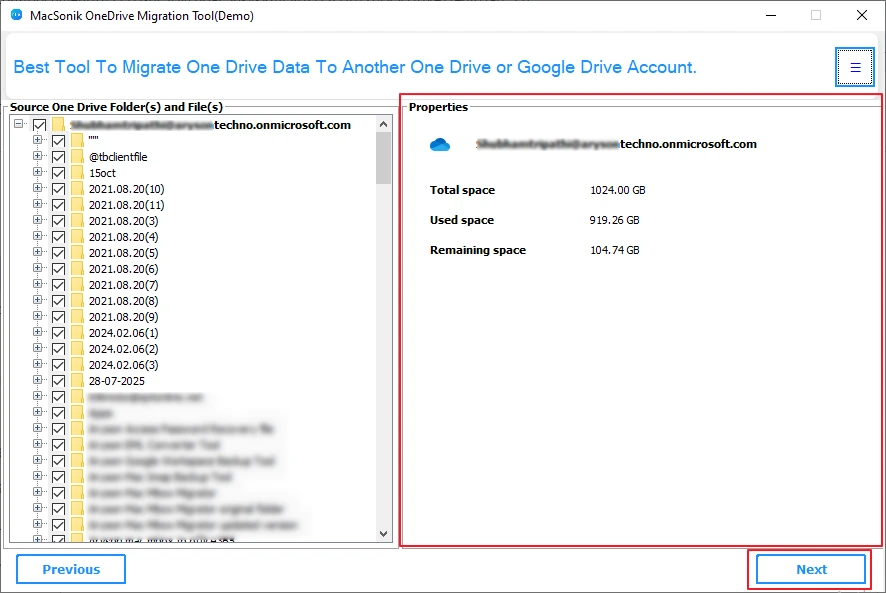
- Then, pick the folders to migrate and check the OneDrive file properties.
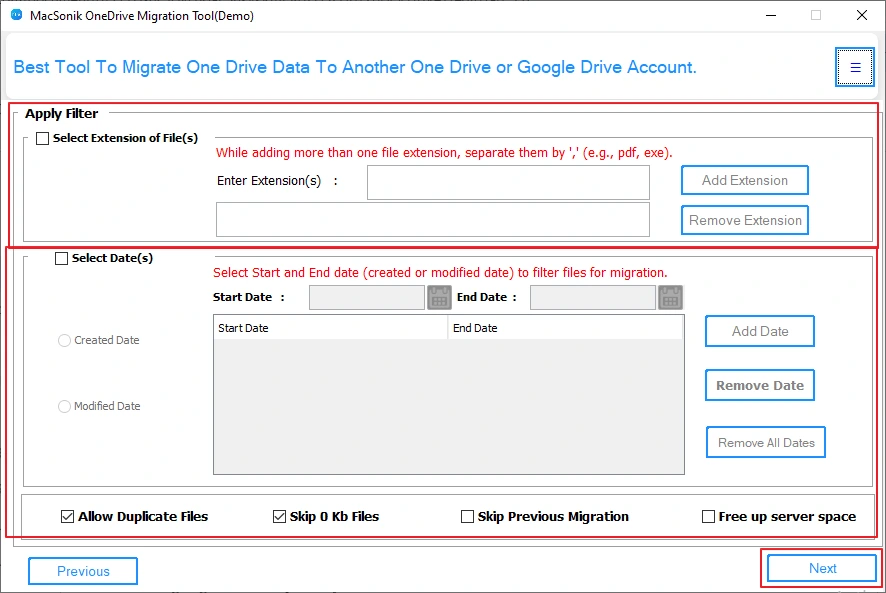
- Apply the advanced filters and again click on the Next button.
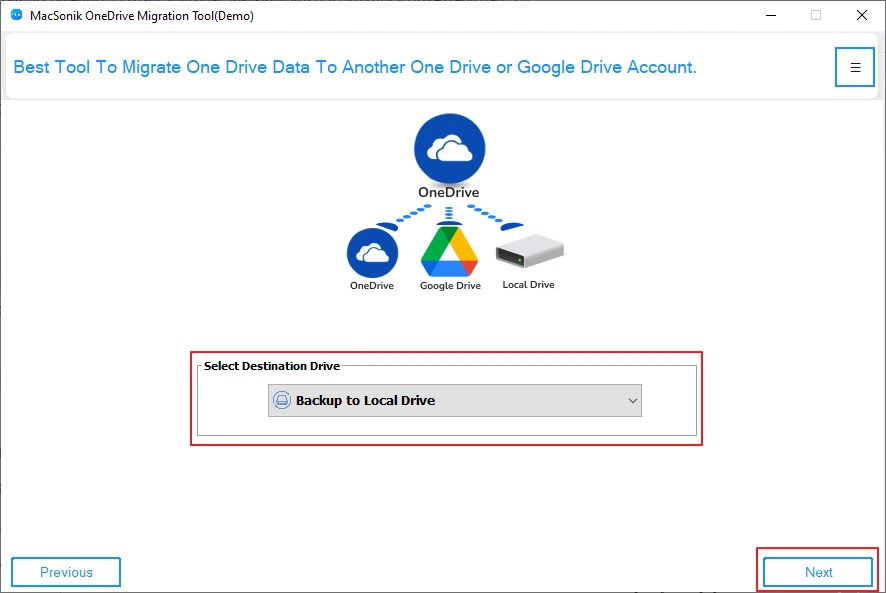
- Now, Select Destination Drive as Backup to Local Drive. Click Next to set the destination path.
- The tool will backup the OneDrive data into a preferred destination folder.
Real-life Scenario:
Christine encountered the error “Microsoft OneDrive has stopped working,” which caused his files to stop syncing. To avoid any data loss, he used the MacSonik OneDrive Migration Tool to back up his OneDrive data locally. Once his files were secure and accessible, he proceeded to fix the OneDrive issue without worrying about losing important data.
Conclusion
The users’ Microsoft OneDrive stopped working could be due to sync issues, corrupted cache data, and many other issues. Through this blog, we have highlighted multiple ways to solve this OneDrive error. Both manual and automated solutions are listed above. The automated solution involves a step-by-step process using the MacSonik OneDrive Migration Tool. This tool effortlessly migrates the OneDrive data into another OneDrive account, Google Drive, or an external hard drive.
Frequently Asked Questions
Q1- What does it mean when Microsoft OneDrive has stopped?
Ans- The “Microsoft OneDrive has stopped working” message indicates that the OneDrive client has crashed, become inactive, or failed to start its background services. As a result, new or updated files won’t upload to OneDrive, and cloud changes won’t download to your device.
Q2- Is backing up OneDrive data to a local drive secure?
Ans- Yes, storing a backup of your OneDrive data on a local drive is secure as long as your computer is protected with strong passwords, encryption, and up-to-date security software.
Q3- What steps can I take to protect my data when OneDrive repeatedly shows errors?
Ans- Protect your data by first creating a secure local backup of important files and pausing sync before making major changes. Avoid editing the same files across multiple devices to prevent conflicts, ensure you have enough storage space, and keep your system protected with encryption and updated security software.
About The Author:
Amelia is the mistress of the webmail clients like Office 365, Gmail, Yahoo, Hotmail, and Opera Mail. Her research on downloading emails from webmail is outstanding. She has given the solution to download emails from webmail clients to a Mac device with all the mailbox items. She’s been into webmail solutions since 2010. In her free time, she reads books and writes technical blogs.
Related Post
