Convert EML to WDSEML: Easy & Fast Step-by-Step Guide

Amelia James
January 30th, 2026
Summary: A business archives critical email communications in an EML file format. Now, retrieving the past communications is time-consuming, affecting the business operations. Therefore, for a faster and system-wide search, users convert EML to WDSEML. In this blog, we’ll walk you through different techniques that efficiently convert the EML files into WDSEML format. Moreover, a dedicated tool, the MacSonik EML Converter, is also discussed for an accurate and authentic EML file conversion. Let’s begin with the blog now.
User-Query:-
“I have stored multiple EML files that has my important email communications. Now, I’m looking for a reliable tool that can help me save EML as WDSEML for a quick email search. Is there any tool that can effortlessly convert the archived EML files to WDSEML format?”
Why Convert EML File to WDSEML?
EML to WDSEML conversion helps users easily search their emails by keywords, sender, subject, or content. Given below are the reasons why this conversion is required:
- With WDSEML files, users ensure that their emails get indexed automatically by the Windows search engine.
- Unlike EML, WDSEML improves email discoverability without manually browsing folders.
- While handling large volumes of archived emails, WDSEML is well-suited for simplifying email organization and retrieval.
- The WDSEML allows searching emails directly in Windows, eliminating the need for any email client.
- WDSEML format is optimized for Windows-based systems, ensuring better performance as compared to EML.
Manual Method to Convert EML to WDSEML
There is no direct way to convert the EML files to WDSEML on macOS. The WDSEML is a format that is specific to Windows and works with Windows Desktop Search (WDS).
Use the instructions to export EML to WDSEML:
- First, open Finder and then locate where you have stored your EML files.
- Now, right-click on an EML file and choose Open With > TextEdit.
- Make sure to open the EML file in Plain Text format to avoid formatting issues.
- Also, ensure to preserve the headers to allow Windows Desktop Search Indexing.
- Once verifying the EML file, go to File > Save As and change the file extension to .wdseml.
- Furthermore, select the format as Plain Text and hit the Save button.
- Next, copy these files to a Windows PC via USB and place them into the Windows Desktop Search folder.
Limitations: This method is ideal for converting only a few EML files. Converting a large number of EML files becomes inefficient. Also, users have to manually check the converted file to see if the headers are preserved or not.
An Easy and Fast Solution to Convert EML to WDSEML Format
The MacSonik EML Converter is an efficient and powerful utility that delivers accurate EML file conversions. This converter tool precisely converts multiple EML files to WDSEML format along with other formats. To save the EML templates for reuse, users convert EML to OFT. Also, during this conversion, it ensures data integrity. It ensures a reliable conversion while migrating emails between different email platforms. Moreover, it handles bulk email conversions to meet the business requirements. Furthermore, the built-in date-range filter processes emails from specific time periods, saving both time and effort.
Simple steps to change EML to WDSEML:
- To begin with, launch the downloaded converter tool on your Mac.
- You can either pick an individual file or an entire folder for conversion.
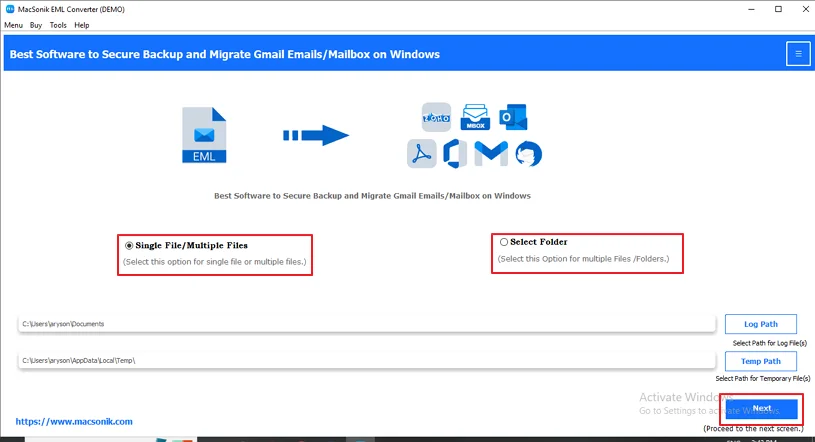
- Now, use the Select File(s) option to upload the desired EML file.
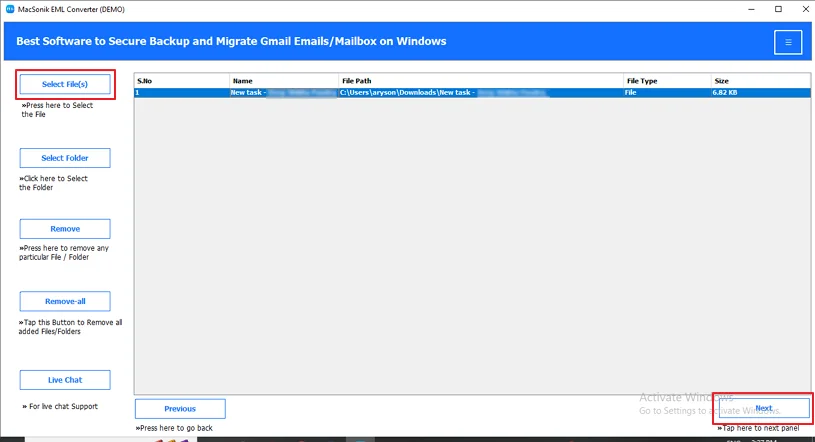
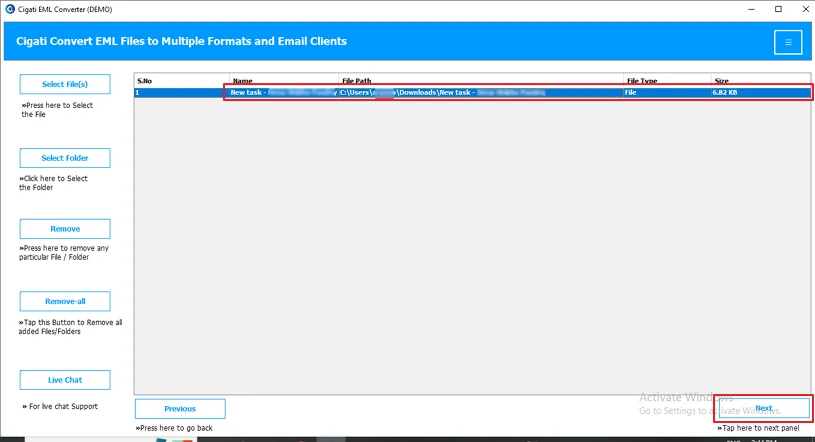
- Then, find and select the EML file to convert and open it. Click Next to continue.
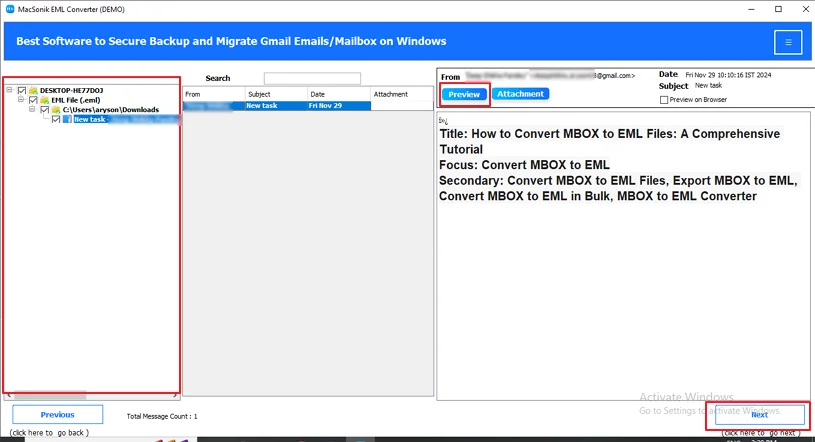
- After that, select the folders from the folder tree view, preview them, and again click Next.
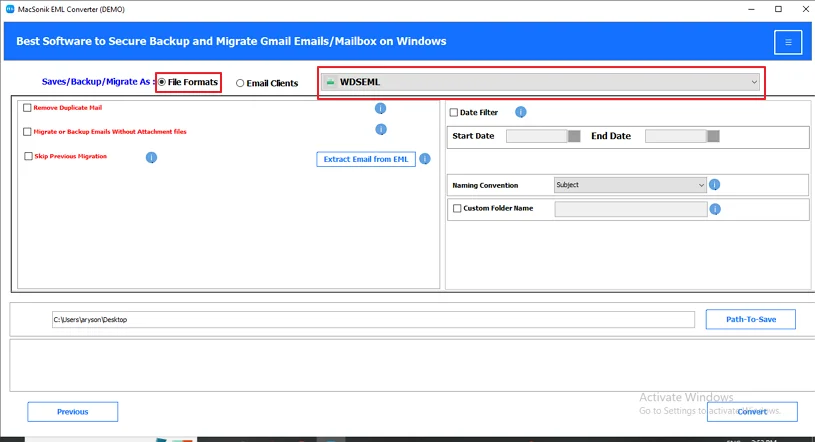
- Next, set the format as WDSEML and apply the smart filters if required.
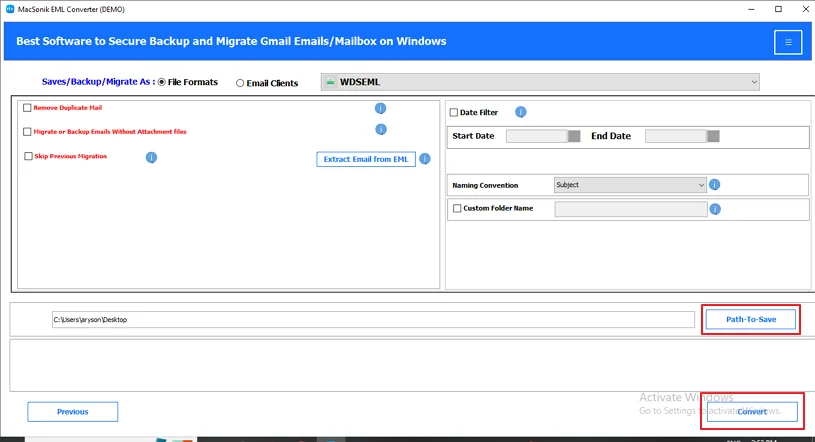
- At last, specify the destination location to store the resultant file and click Convert.
Real-Life Scenario:-
An organization has their employee records saved in an EML file format. Over the period of time, there are a lot of EML files that is to be converted to WDSEML for a quick email reference. But, the available manual options do not reliably save the files in WDSEML in one go. Hence, they used the MacSonik EML Converter that converted multiple EML files to WDSEML in one go.
Conclusion
The EML to WDSEML conversion is essential for managing business, support, and marketing communications. Today’s blog highlights a professional solution using the MacSonik EML Converter that delivers authentic EML to WDSEML conversion. Manual methods work well to convert EML to WDSEML for a limited number of file conversions. These manual methods become inefficient for large-scale business needs. With the professional tool, users can also convert EML to PST format.
Frequently Asked Questions
Ans- The best tool to convert EML to WDSEML is the MacSonik EML Converter. It preserves the complete email data. Also, it ensures fast, accurate, and bulk conversions with no data loss.
Ans- Yes, EML files can be converted to WDSEML in bulk using a professional EML converter tool. Bulk conversion ensures faster processing while maintaining email integrity and search indexing compatibility.
Ans- The best way to change EML to WDSEML without data loss is by using a reliable professional tool. It preserves email headers, attachments, and formatting while ensuring accurate Windows Search indexing.
Ans- Yes, it is possible to save EML files as WDSEML for free using manual methods like renaming extensions or basic workflows on Windows. However, free methods are only suitable for a few files and may not guarantee complete accuracy or reliability.
About The Author:
Amelia is the mistress of the webmail clients like Office 365, Gmail, Yahoo, Hotmail, and Opera Mail. Her research on downloading emails from webmail is outstanding. She has given the solution to download emails from webmail clients to a Mac device with all the mailbox items. She’s been into webmail solutions since 2010. In her free time, she reads books and writes technical blogs.
Related Post
