How to Import PST to BlueMail? Quick Guide

Amelia James
August 11th, 2026
Introduction: Bluehost email has become a popular and favorite client among users who seek a unified, simple, and cross-platform email client. However, it doesn’t support PST files like the MS Outlook application, and therefore, when you make the switch from Outlook to BlueMail, PST files are locked. This brings us to the main concern: how to import PST to BlueMail without hampering the data within. Explore both manual and automated MacSonik PST Converter methods in this guide to import Outlook data easily, securely, and efficiently.
What Motivates Users to Migrate PST Files in BlueMail?
Outlook’s essential workspace is kept inside PST files, which contain emails, contacts, calendars, notes, tasks, and more. To preserve this historical data, users migrate to BlueMail. Some other common reasons are:
- BlueMail offers a unified inbox, simplified UI, and cross-device syncs.
- Switching from desktop to mobile or a multi-device email platform.
- Moving archived emails securely in a cloud-first platform.
- Accessing Outlook data without specifically installing MS Outlook.
- Migrating users to environments based on IMAP for better syncs.
- Maintain email backups for long-term data access and recovery.
User Query on Import PST Files to BlueMail
“I have 10-15 PST files, each of approximately 80 GB, which I need to access in my BlueMail account. I tried the manual method, but due to unclear directions, I think my data didn’t transfer correctly. Suggest a proper method for manual migration. Or is there any other reliable solution for instant migration without loss?”
Absolute Methods to Import PST to BlueMail Account
Either use the lengthy and complex manual methods or go for an easy and quick professional software. The choice is yours, and the step-by-step guide? Well, it’s here.
Free Move PST Files into BlueMail through Outlook
It is the simplest free method that all Outlook users can follow to save PST emails in BlueMail via IMAP. The steps are:
- Launch Outlook and from File, select the Add Account option.
- Then, enter the credentials of your BlueMail account and connect via IMAP.
- After that, click Open & Export in File and select Import/Export.
- Choose the Import from another program or file option in the wizard. Tap Next.
- Furthermore, select PST files, click Next, and choose to import into BlueMail folders.
- Drag your PSTs and drop them into the IMAP synced Bluemail folders. Finally, wait for them to reflect.
Limitations of the Method
- Outlook installation is mandatory.
- Stable internet connectivity is needed to connect accounts via IMAP.
- Users must have technical knowledge and skills for the import.
- It is not possible to bulk import PSTs into BlueMail at once.
Manually Import PST to BlueMail
Another free method for this import involves a lengthy indirect solution. Since BlueMail doesn’t support PST, you first need to convert files to a suitable format, such as MBOX. But why convert Outlook PST to MBOX? Because the latter is an easily supported format for BlueMail emails. Find out the complete procedures here:
- First, install Thunderbird, start it, and from the Menu, choose Tools >> Import.
- Then, select Import from Outlook and select the PSTs from your profile.
- After that, complete the process to access PST in your Mozilla Thunderbird.
- Now, install the ImportExportTools NG extension from Add-ons and Themes.
- Later, right-click the folder containing imported PSTs and choose ImportExportTools.
- Furthermore, select Export Folder (mbox) and save the files locally on your system.
- Once you have the MBOX files, proceed to the final step to import Outlook PST to BlueMail.
- Open your BlueMail account and click on Settings >> Account Settings.
- Afterward, select the Advanced option from the tabs.
- At last, choose Import Mailbox, browse and select your MBOX files, and hit Import.
All the PST emails will be moved into the BlueMail account.
Limitations of the Method
- You need active MS Outlook and Mozilla Thunderbird profiles for conversion.
- There are multiple steps, and you still cannot perform a bulk transfer.
- It requires technical skills, effort, and time for a complete import.
- There are chances of losing data integrity and structure in the process.
Smartly Import PST to BlueMail
To avoid dependency on Outlook and skip the sync errors, use the MacSonik PST Converter Tool. It instantly saves your PST emails into the desired BlueMail account in no time, with 100% accuracy and precision. Additionally, the software ensures that all the folder structure is preserved and data integrity is retained without any worries. Moreover, you can try its Demo Version to free import upto 50 PST emails per folder into BlueMail and other accounts.
Quick Steps to Open PST File in BlueMail
- Launch the MacSonik PST File Converter by MacSonik and click Next.
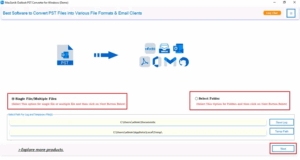
- Then, upload all PST files and folders for the transfer. Tap Next.
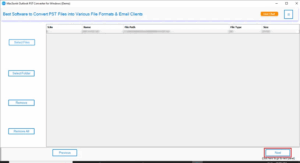
- Furthermore, choose the folders from the preview pane and click Next.
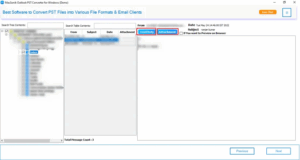
- After that, select IMAP from email clients and enter BlueMail credentials.
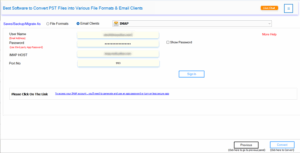
- Once done, complete sign-in, select filters, and click Convert to finish.
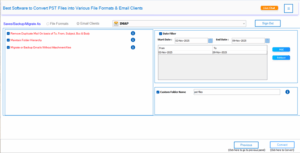
That’s it. You instantly transferred your bulk PST files into BlueMail without any extra effort.
Additional Benefit:
If you want to skip the hassle of the software installation, and still need to ensure that all your files are imported safely. Then, avail our One-Time Service and handle the import of your entire Outlook data file mailbox in one go with precision.
Suggested Read: Convert PST File to MSG
Conclusion
Though import PST to BlueMail is not a direct process, it is still achievable with IMAP sync or via an indirect route. If you have time and patience, and a few PSTs to import, then Outlook or Thunderbird will be suitable for you. But if you belong to an enterprise with large volumes of emails, then using the PST Import Tool is the most feasible solution. It helps with direct batch transfers without losses and downtime.
Frequently Asked Questions
Ans: Use the MacSonik PST Converter Tool to complete the migration without using the MS Outlook application.
Ans: Yes, the tool performs secure import and migrations, maintaining the data’s originality. It also uses secure OAuth authentication for signing in to the BlueMail account and has no database to store your email data or credentials.
About The Author:
Amelia is the mistress of the webmail clients like Office 365, Gmail, Yahoo, Hotmail, and Opera Mail. Her research on downloading emails from webmail is outstanding. She has given the solution to download emails from webmail clients to a Mac device with all the mailbox items. She’s been into webmail solutions since 2010. In her free time, she reads books and writes technical blogs.
Related Post
