Import OLM to IMAP Server on Mac: Best Solution for Migration

Neeru Kuchhal

June 19th, 2026
User-Query:
“I have an OLM file exported from Outlook for Mac. It contains around 22,500 emails along with attachments, contacts, and nearly 250 mailbox folders. The file size is approximately 16 GB, and it includes important client communications, invoices, and archived project data. Now I want to upload this mailbox data to an IMAP server so I can access it across multiple devices. What is the safest and easiest way to import OLM to IMAP without losing folder structure, attachments, or metadata?”
— Posted by “Nathan Brooks”
Introduction: OLM is the native mailbox file format of Microsoft Outlook for Mac. It stores emails, contacts, calendars, notes, tasks, and other mailbox data. Users often create OLM files for backup or mailbox export purposes. However, OLM files are limited to Outlook for Mac and cannot be directly accessed by most email servers. On the other hand, IMAP allows users to store and synchronize emails across multiple devices and email clients. Importing OLM files into an IMAP server helps users centralize mailbox data, improve accessibility, and simplify email management.
Therefore, this guide explains the best ways to migrate emails from OLM to IMAP using the MacSonik OLM Converter Tool.
OLM File vs IMAP Access: Key Differences Explained
|
Important Factors |
OLM |
IMAP Server |
|
Outlook for Mac mailbox |
Server-based mailbox |
|
Local Outlook only |
Multi-device access |
|
Local file storage |
Cloud/server storage |
|
Supported |
Supported |
|
Supported |
Supported |
|
Backup and export |
Live mailbox management |
Stuck with OLM Files? Here’s Why IMAP Server Import Makes Sense
There are various reasons why users want to import OLM to IMAP:
- Accessing emails from multiple devices.
- Centralizing mailbox storage.
- Sharing the mailboxes across teams.
- For improving email accessibility.
- Simplify backup and synchronization.
- Also, to move Outlook archives to active servers.
How to Convert from OLM to IMAP Using the Manual Workaround?
If you don’t want to rely on external or third-party software, you can complete the process using the manual approach.
Method 1: Import OLM into Outlook and Sync via IMAP
- Firstly, open Outlook for Mac.
- Import the OLM file into Outlook.
- Configure the destination IMAP account in Outlook.
- After that, wait for both mailboxes to sync.
- Drag and move emails from OLM folders to IMAP folders.
- Lastly, allow synchronization to complete.
Pitfalls to Manually Import OLM to IMAP
- It requires Outlook installation.
- Time-consuming for large mailboxes.
- Manual drag-and-drop for folders.
- There is a risk of duplicate emails.
- Possible formatting issues.
- Moreover, not suitable for bulk migration.
Open OLM File in IMAP Server Quickly with an Automated Solution
For more secure approach, users are recommended to use the MacSonik OLM Converter Tool. It can directly import OLM mailbox data into IMAP-supported email servers without needing Outlook. This software completes this task accurately with zero data loss. Along with this, it is capable of helping users to import OLM to Google Workspace. Furthermore, the software includes a demo version that allows conversion of 50 emails per folder.
Some of the key advantages of this software are:
- Direct OLM to IMAP migration.
- Bulk mailbox migration support.
- Preserves attachments and metadata.
- Maintains folder hierarchy.
- Supports large OLM files.
- Selective email migration.
- Fast migration engine.
One-Time Migration Assistance Option
If you prefer not to handle the migration yourself, you can contact the MacSonik support team. Their experts can securely manage the entire migration process on your behalf. MacSonik also offers a One-Time Service for just $35, supporting files up to 10 GB, making it a reliable and budget-friendly choice for one-time migration needs.
Import OLM to IMAP: Step-by-Step Tutorial
- First, start and run the MacSonik OLM Converter Tool.
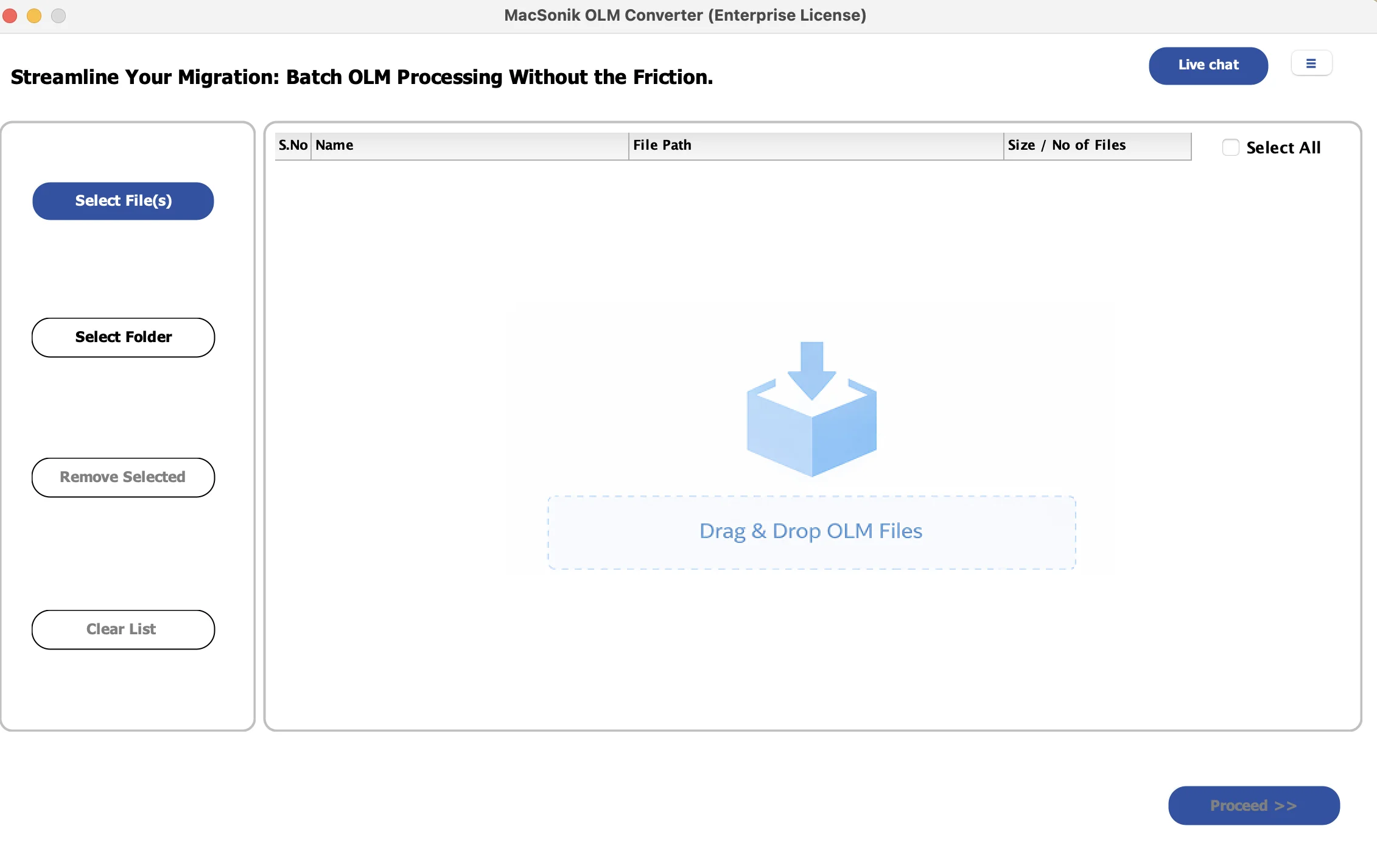
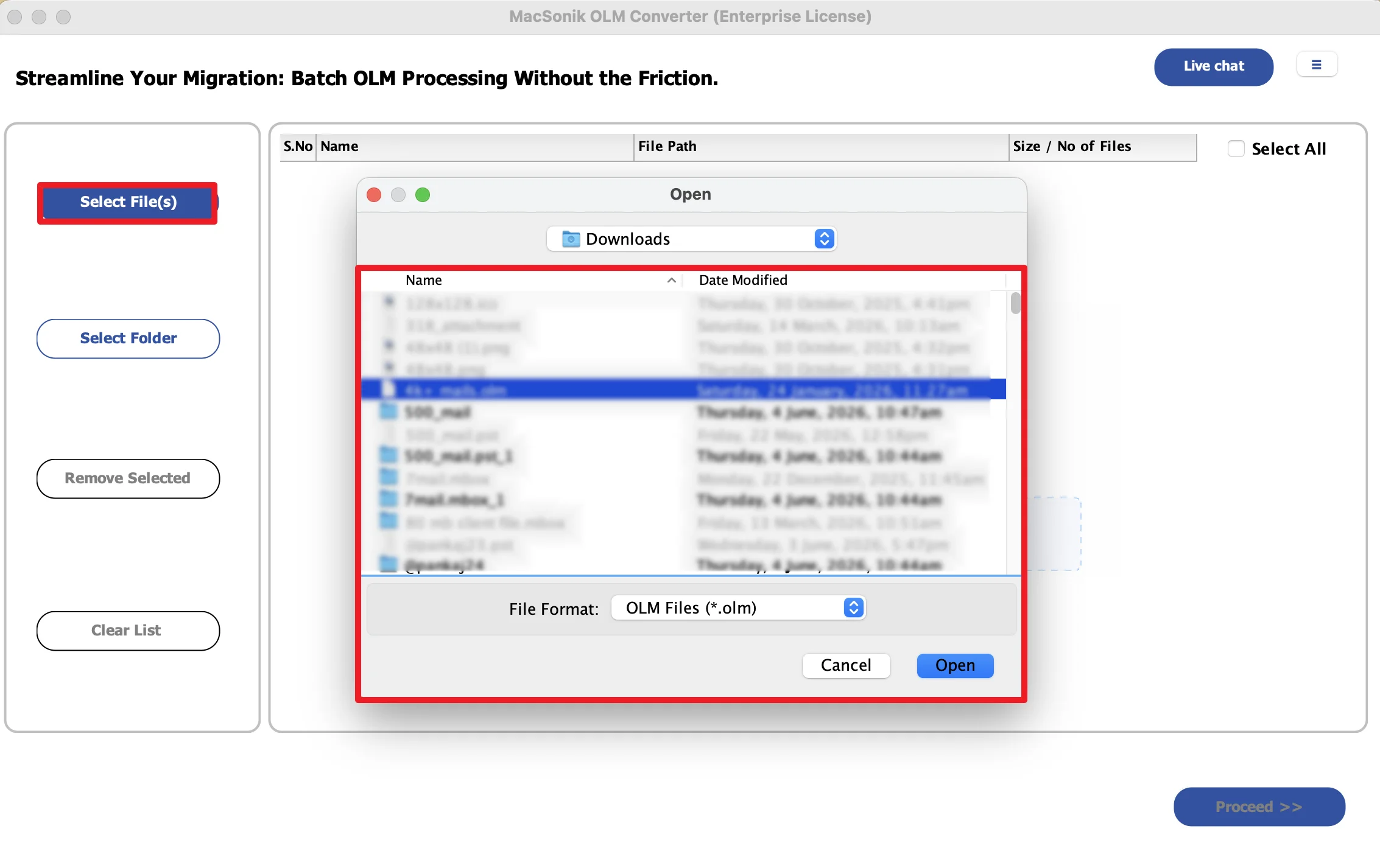
- Click Add file/folders to upload the OLM file that you want to migrate.
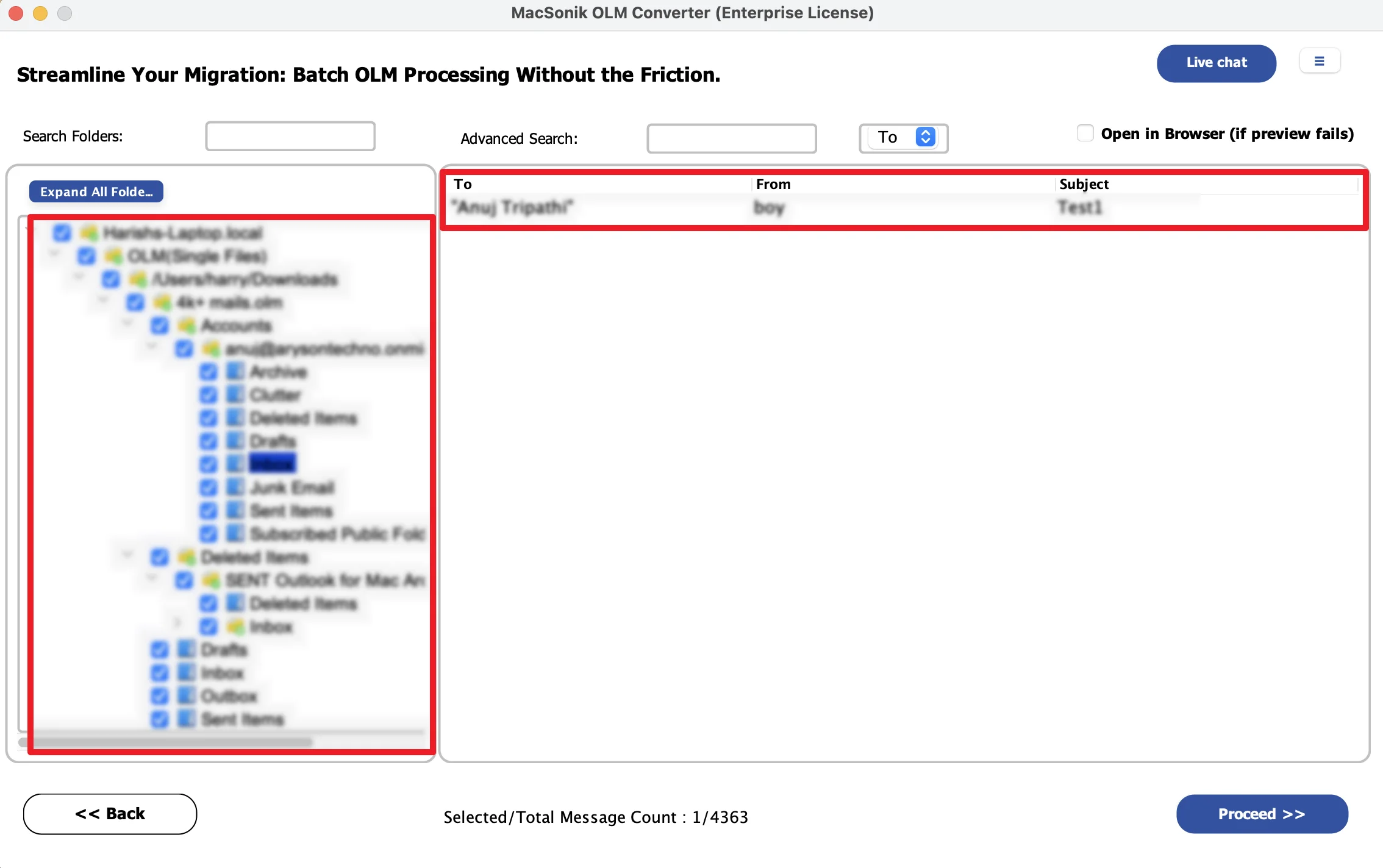
- Drag the folder hierarchy and preview the complete mailbox.
- Now, choose IMAP Server as the saving email platform.
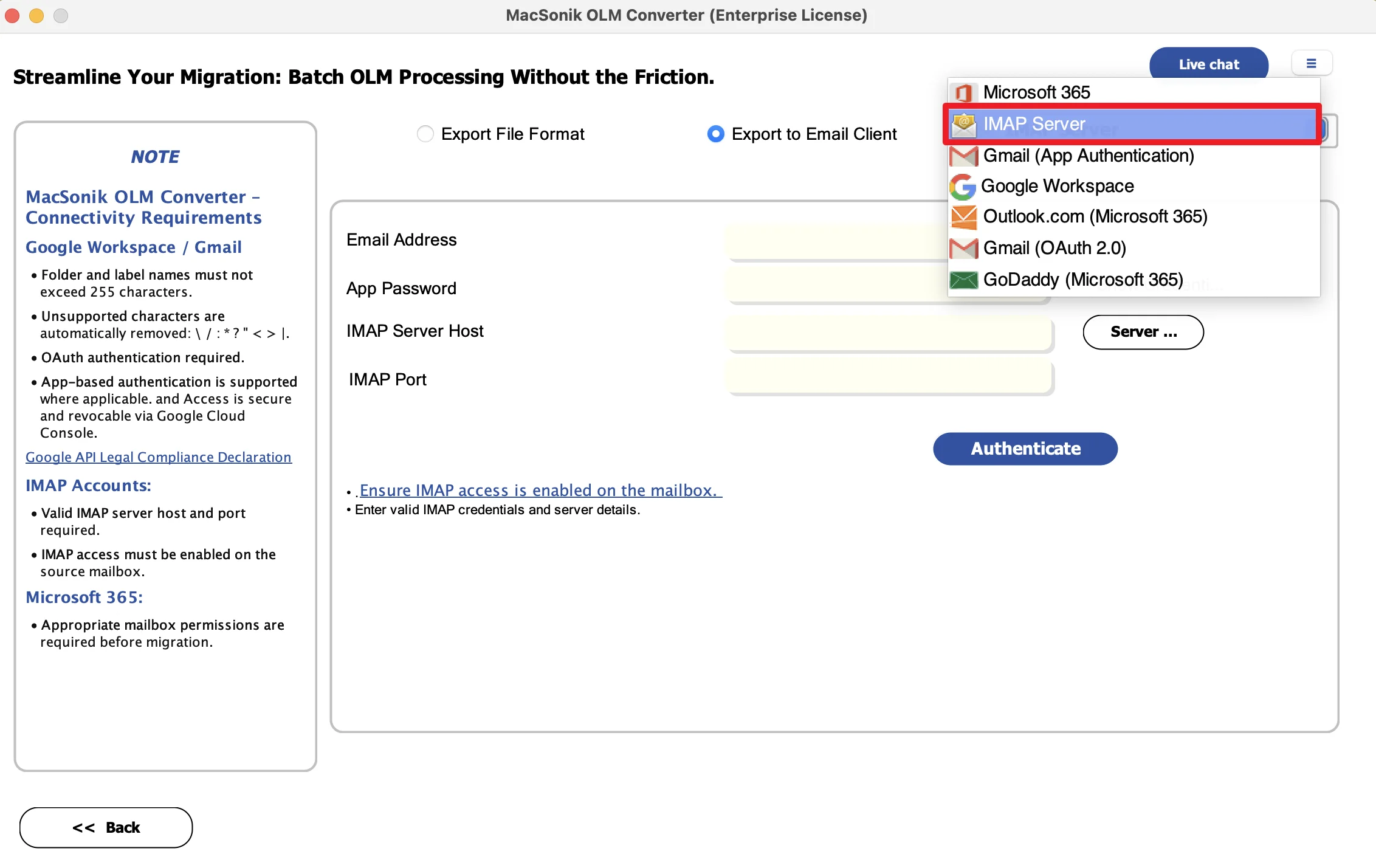
- Afterwards, authenticate using the IMAP account details.
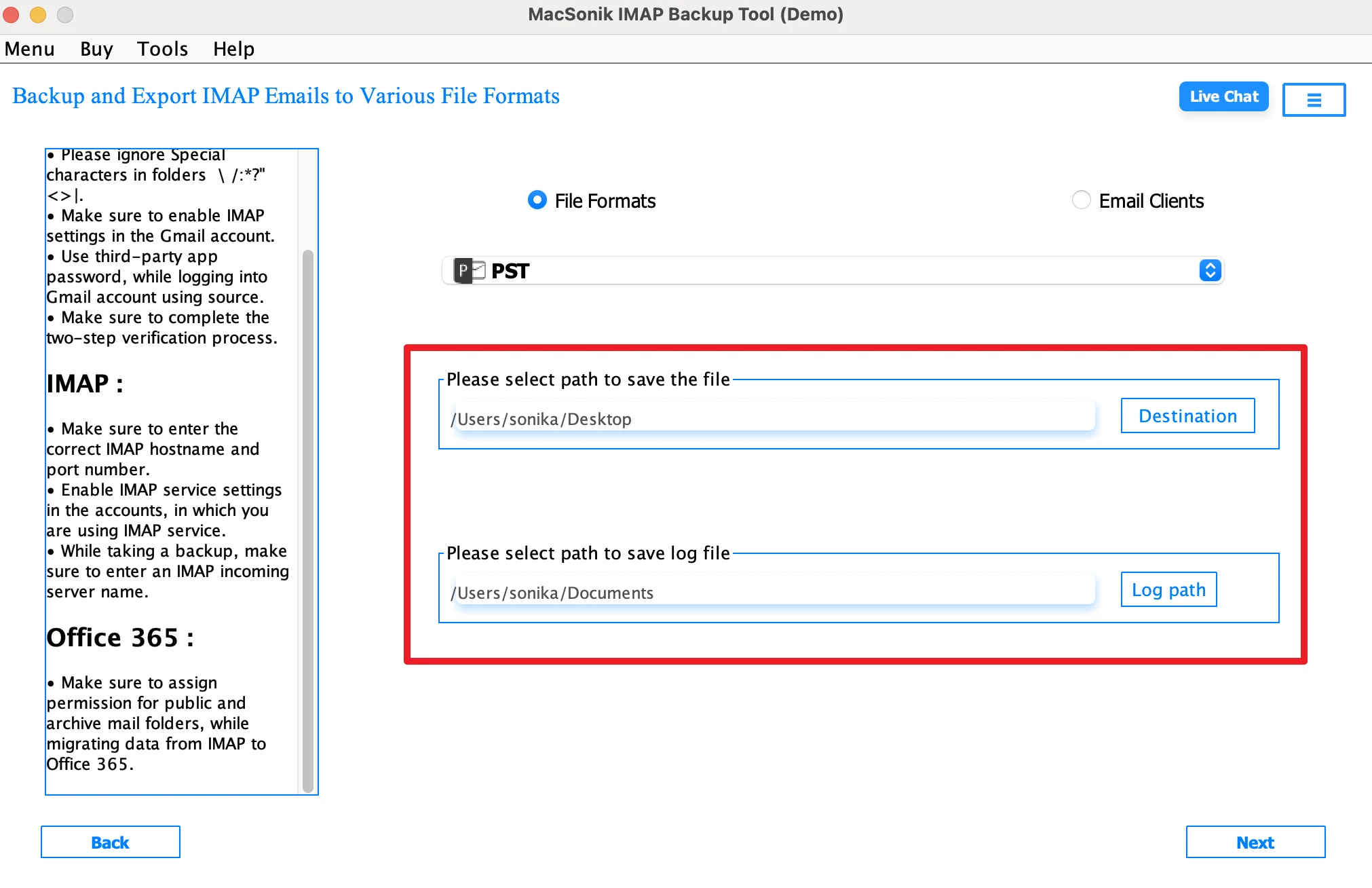
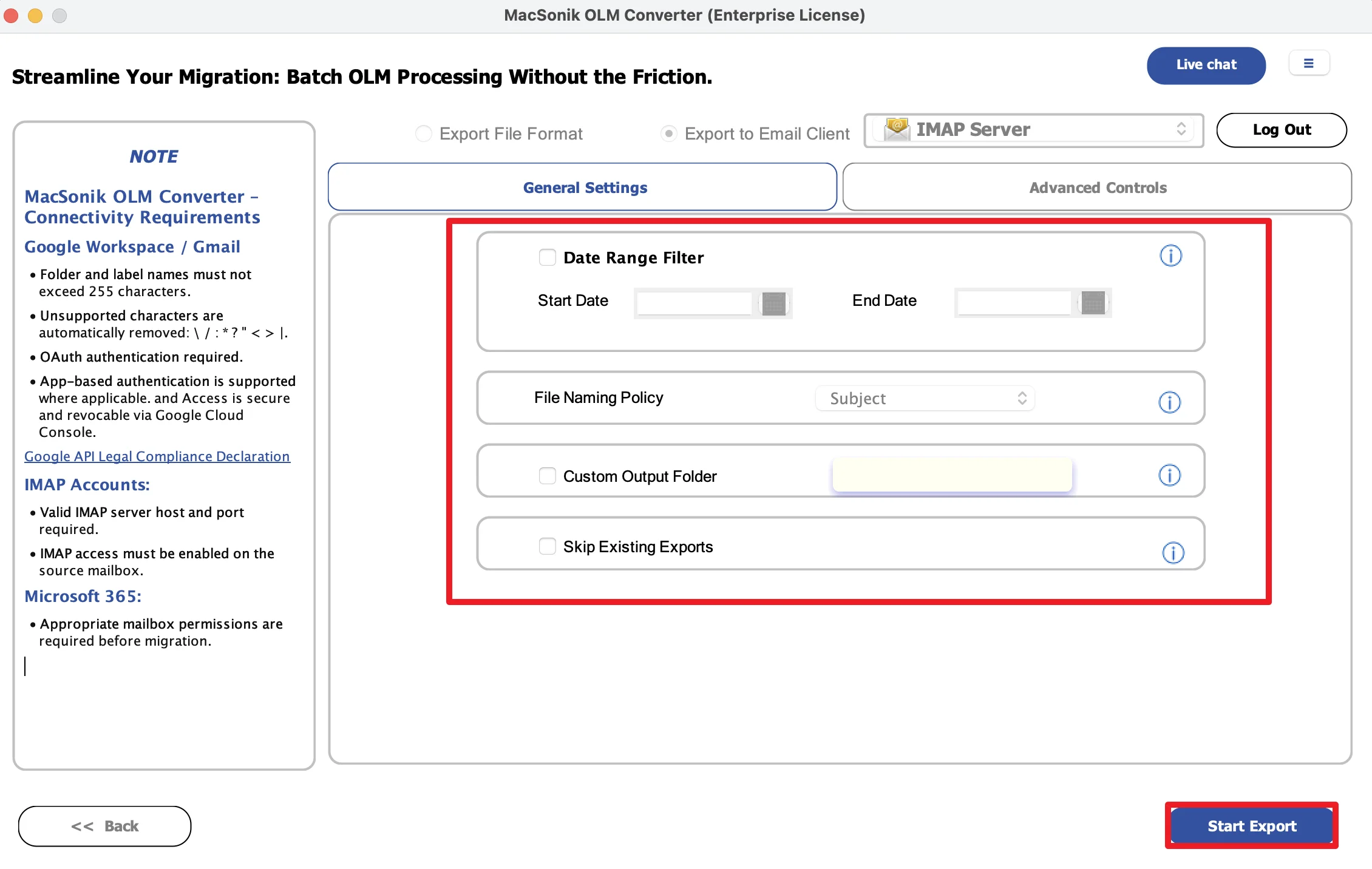
- Finally, apply the filters and click Convert to begin the conversion.
Real-Life Scenario: Team Collaboration Upgrade
A design agency had years of archived Outlook for Mac emails stored in OLM files. The company wanted to move this data to a centralized IMAP server so team members could access project communication across devices. The manual method through Outlook was too slow and complicated. The IT team used the MacSonik OLM Converter Tool to transfer OLM data to IMAP Mailbox successfully, preserving folder hierarchy and attachments without any data loss.
Conclusion
In this article, importing OLM files into an IMAP server helps users centralize and access mailbox data across multiple platforms. While manual methods are possible, they can be slow and difficult for larger mailboxes. Therefore, using the OLM Converter Tool is the most reliable solution to import OLM to IMAP. In addition, it ensures a fast, secure, and accurate migration on Mac. Apart from that, if you face any issues, kindly reach out to our support team immediately.
Frequently Asked Questions
Ans. Yes, you can save OLM files into an IMAP account on Mac using a professional OLM migration tool. Since IMAP servers do not natively support OLM files, the tool helps upload mailbox data directly while preserving emails, attachments, and folder hierarchy.
Ans. Yes, advanced MacSonik OLM migration tool supports bulk migration, allowing users to import multiple OLM files into an IMAP account in one go. This is especially useful for businesses or IT teams managing multiple mailbox backups.
Ans. To import OLM files to an IMAP server, you usually need the IMAP server address, port number, email account credentials, and authentication details. These settings allow the software to establish a secure connection and upload the mailbox data correctly.
Ans. The file size limit mainly depends on the destination IMAP server and its storage quota. The MacSonik OLM converter tool can handle large OLM files, but available mailbox storage and server upload restrictions should be checked before starting the migration.
About The Author:
I am Neeru Kuchhal, a Technical Content Writer who focuses on turning complex ideas into clear, engaging, and impactful content. I combine creativity with strategy to write blogs, web content, and technical articles that connect with the right audience and support brand goals. I believe great content is not just written. It is thoughtfully created to inform, build trust, and drive action.
Related Post
