Import Google Calendar to Office 365 with All Events & Reminders

Neeru Kuchhal

June 24th, 2026
User-Query:
“I have over 1,800 calendar events. It includes 350 recurring meetings, project deadlines, and team schedules, stored in my Google Calendar account. Many of these events include attachments, guest details, and reminder settings. Now I need to move everything to my Microsoft Office 365 Calendar without losing any important data. What is the easiest and safest way to import Google Calendar to Office 365?”
— Posted by Sophia Reynolds
Introduction: Google Calendar is one of the most widely used scheduling platforms for personal and business event management. It stores meetings, reminders, recurring events, and appointments that users can access across multiple devices. On the other hand, Microsoft 365 offers a robust calendar system integrated with Outlook, Teams, and other business collaboration tools. Many users migrate Gmail Calendar to Office 365 for better team collaboration, centralized scheduling, and enterprise-level management. However, this becomes challenging.
To resolve this, this guide explains the best methods to complete this task using the MacSonik ICS Converter Tool.
The Strategic Divide Between Google Calendars and Office 365
|
Main Aspects |
Google Calendar |
Office 365 |
|
Cloud-based calendar |
Enterprise calendar platform |
|
Google Workspace integration |
Outlook & Teams integration |
|
Supported |
Supported |
|
Supported |
Supported |
|
Multi-device |
Multi-device |
|
Personal and business scheduling |
Enterprise collaboration |
Important Factors to Import Google Calendar to Office 365
- Better integration with Outlook and Teams.
- For centralized business scheduling.
- Improved collaboration across departments.
- Enterprise-grade security and compliance.
- Better mailbox and calendar synchronization.
- Moreover, for easier meeting management.
Manual Method to Sync Google Calendar to Outlook Calendar
For smaller migrations, you can manually complete this process. The process is straightforward, but you need to save each calendar separately when handling multiple transfers.
Method: Export from Google Calendar and Import into Outlook
- First, open Google Calendar.
- Go to Settings and then Import & Export.
- Export your calendar as an ICS file.
- After that, open Microsoft Outlook.
- Go to File, Open & Export, and then Import/Export.
- Select the ICS file and import it into your Office 365 calendar.
Pitfalls to Manually Import Google Calendar to Office 365
- Suitable for one calendar at a time.
- Time-consuming for multiple calendar files.
- There is a risk of duplicate events.
- Recurring reminders may not sync correctly.
- This process requires manual verification.
- Besides, not ideal for enterprise migration.
The Enterprise Utility to Transfer Google Calendar to Microsoft 365
The MacSonik ICS Converter Tool is highly useful for bulk migrations. Since Google Calendar exports data in ICS format, this tool can directly import ICS files into Office 365-supported environments. It completes the process while preserving event details, reminders, and metadata intact. This software allows users to download Google Calendar to desktop. Similarly, it is ideal for organizations and enterprise users.
Note: A free trial version is available, enabling users to process up to 50 ICS files per folder.
One-Time Migration Assistance Option
If you prefer expert assistance, you can contact the MacSonik support team. Their specialists can securely import Google Calendar to Office 365 and manage the complete migration process for you. MacSonik also offers a One-Time Service for just $35, supporting files up to 10 GB, making it an ideal and budget-friendly option for users with one-time migration requirements..
How to Migrate Calendar from Gmail to Office 365: Easy Tutorial
- Start by opening Google Calendar.
- Click Export Google Calendar as an ICS file.
- Firstly, install and launch the MacSonik ICS Converter Tool.
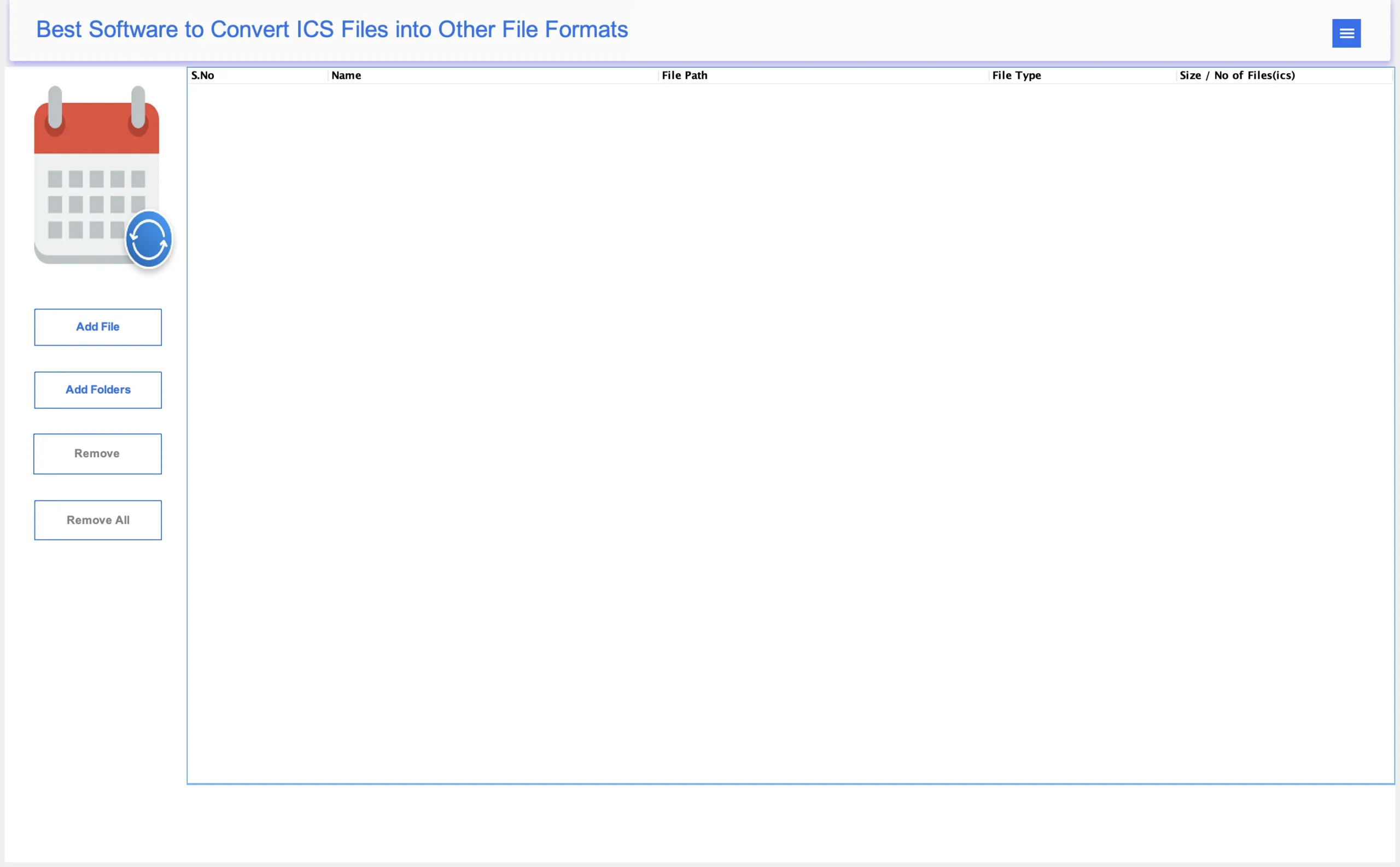
- Add the ICS file to the software that you want to migrate.
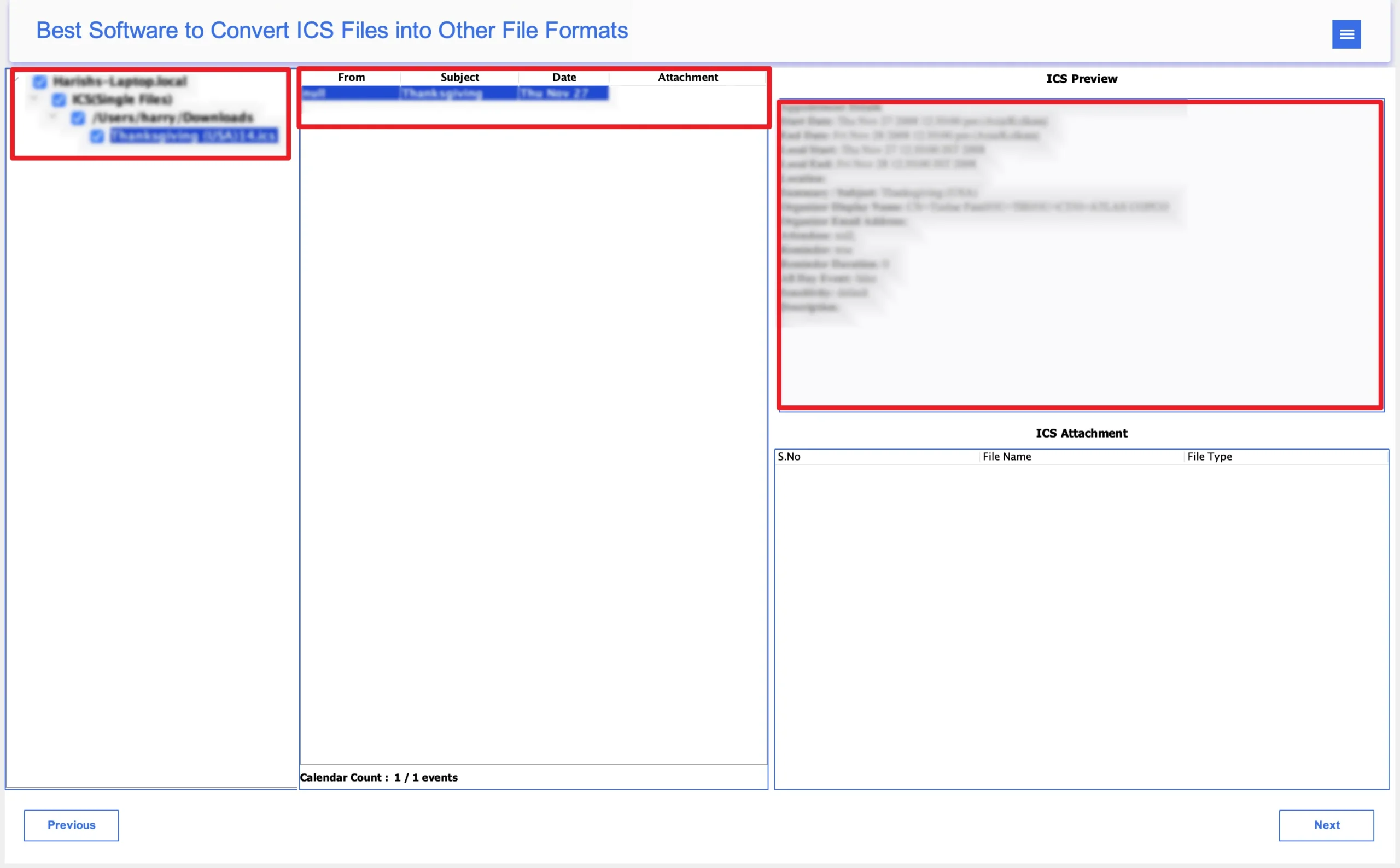
- Expand the structure and preview event details.
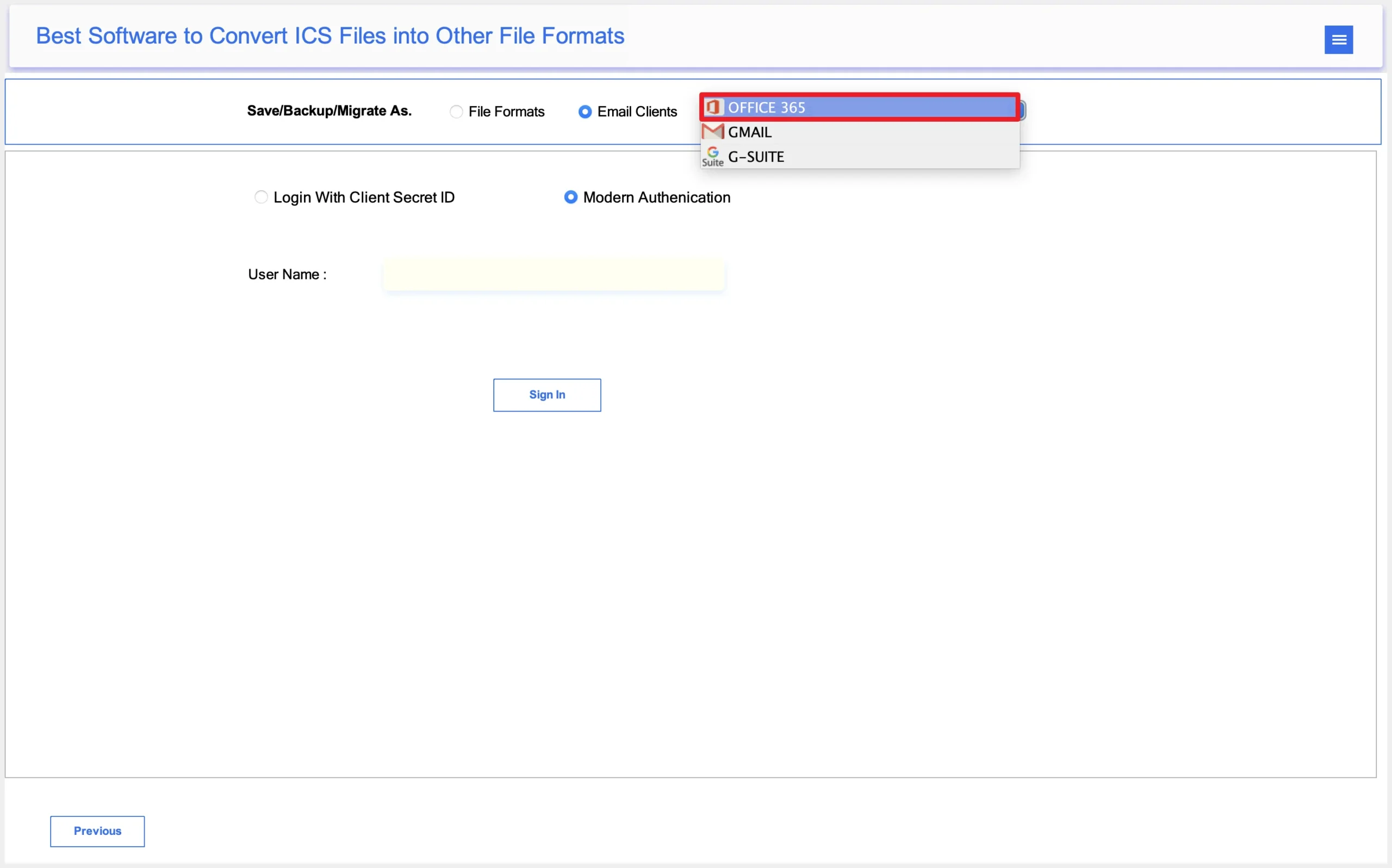
- After that, select Office 365 as the saving email client.
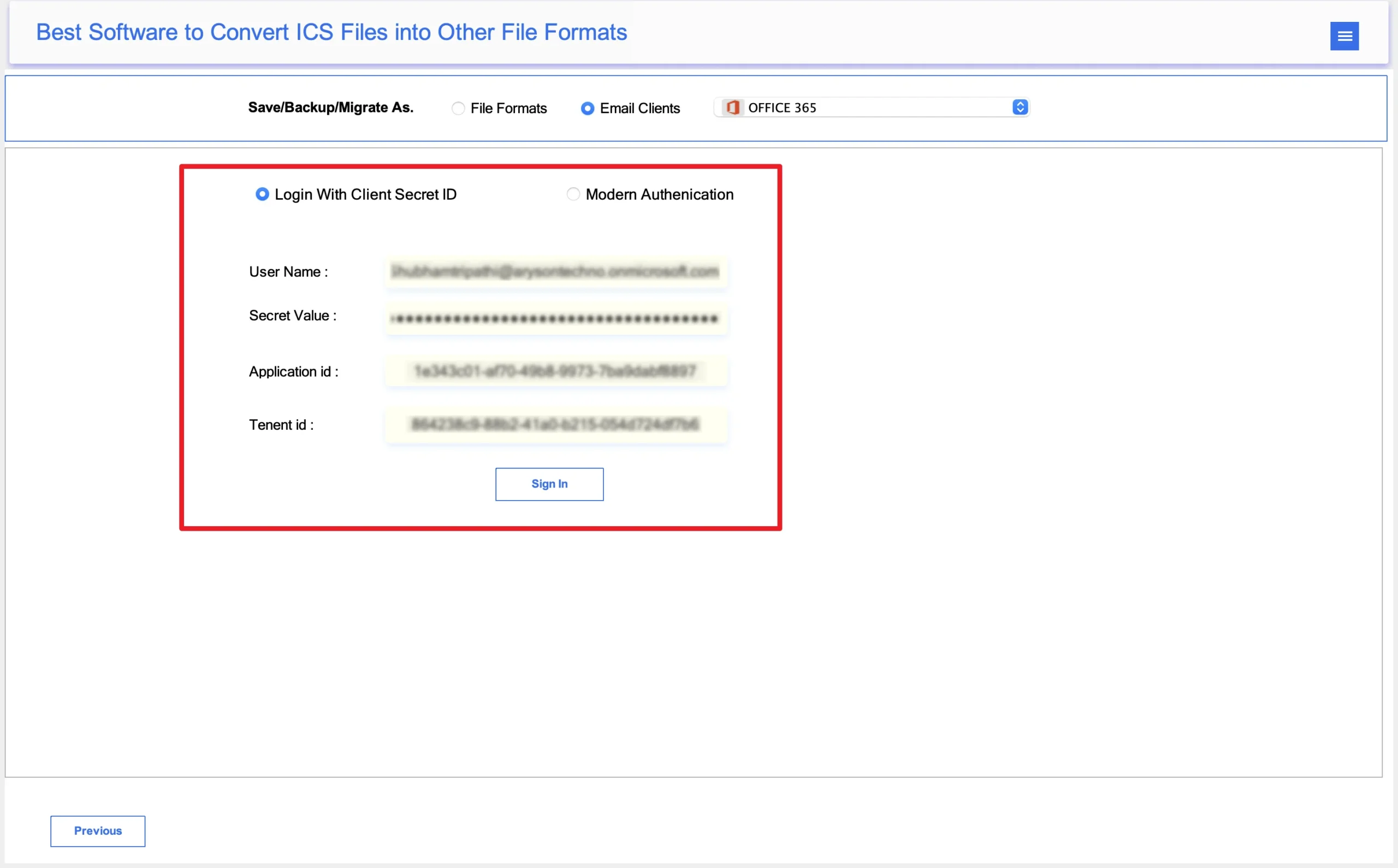
- Authenticate using the Office 365 account credentials.
- Apply the advanced features accordingly as required.
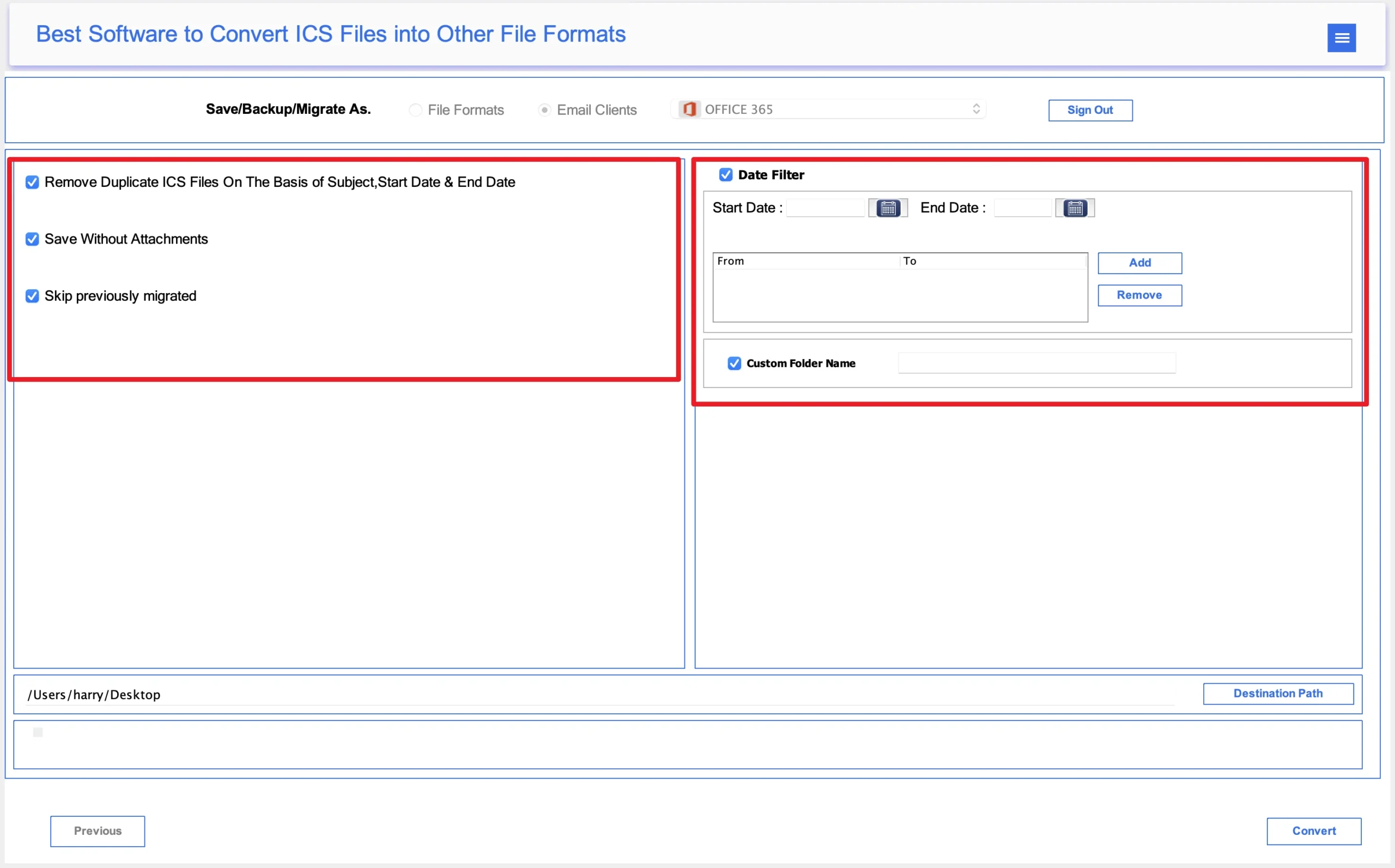
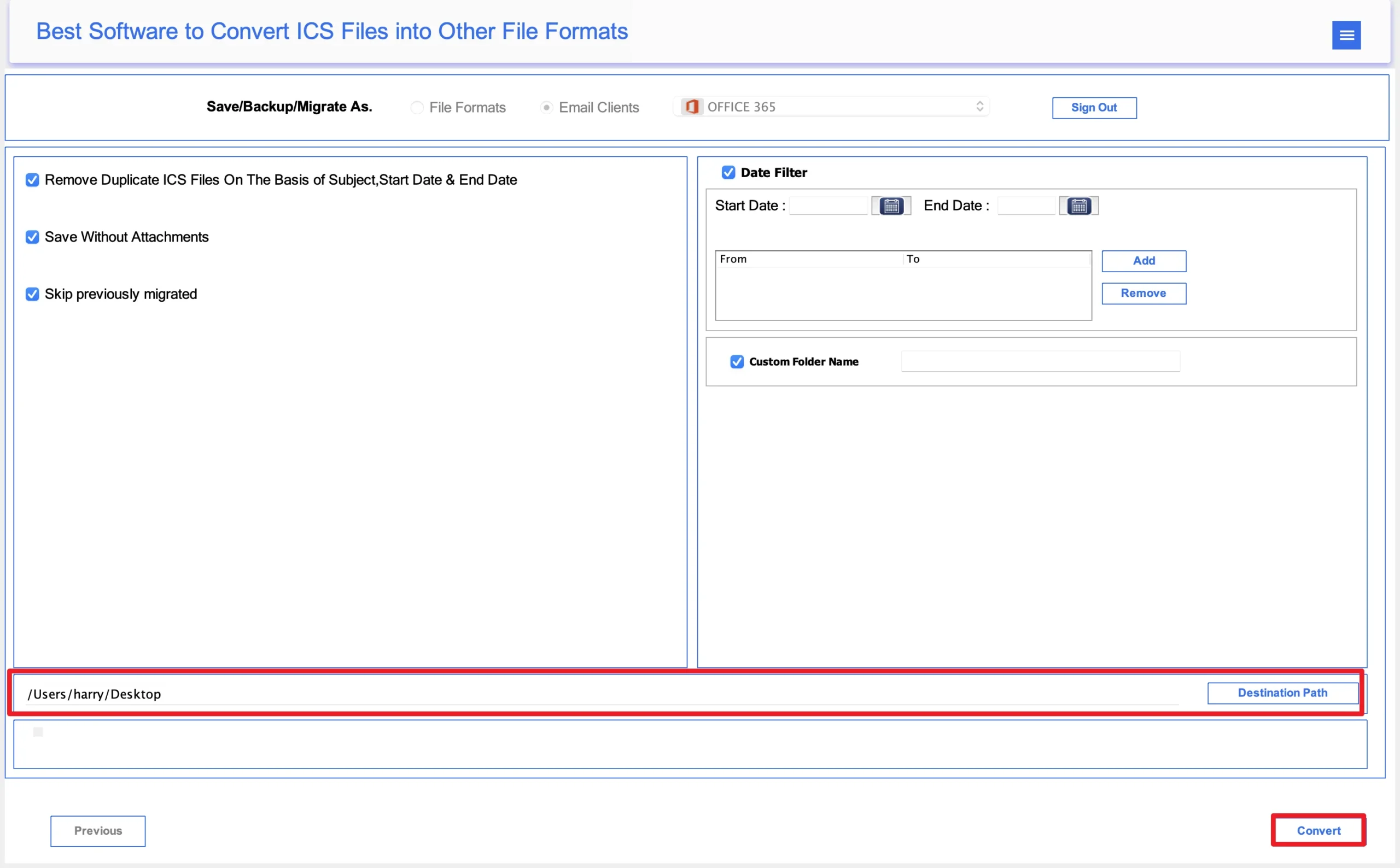
- Finally, set the path to save the file, and click Migrate to start.
Powerful Features of the MacSonik Utility
- Direct Google Calendar ICS import to Office 365.
- Preserves recurring events and reminders.
- Maintains event metadata and descriptions.
- Backup G Suite Emails accurately and securely.
- User-friendly interface suitable for everyone.
Real-Life Scenario: Company Calendar Migration
A software company moved from Google Workspace to Microsoft 365 for better collaboration through Outlook and Teams. The organization had multiple shared calendars with recurring client meetings and internal reminders. However, manual import was slow and created duplicate events. The IT team used the MacSonik ICS Converter Tool to migrate all Google Calendar data into Office 365 successfully, preserving every reminder, event description, and recurring schedule.
Conclusion
In the end, importing Google Calendar into Office 365 helps users centralize scheduling and improve collaboration across Microsoft platforms. While manual methods work for smaller calendars, they become difficult for multiple files and business-level migrations. Therefore, using the ICS Converter Tool is the most reliable solution to import Google Calendar to Office 365. In addition, it guarantees a fast, secure, and accurate migration experience.
Frequently Asked Questions
Ans. Yes, if you use a reliable migration method or tool, all major event details such as subject, date, time, attendees, location, descriptions, and reminders are usually preserved. Advanced MacSonik tool also maintains recurring events and custom event settings for better data integrity.
Ans. Missing events can happen due to incomplete exports, unsupported recurrence patterns, or sync interruptions during manual migration. Large calendar files may also face import limitations. Using a professional ICS migration tool helps minimize these issues and ensures complete event transfer.
Ans. Not directly. Office 365 usually requires calendar data to be imported in ICS format or migrated using a specialized tool. This means users often need to export their Google Calendar first before importing it into the Office 365 environment.
Ans. The imported data generally includes event titles, dates, times, descriptions, locations, reminders, recurring event settings, and attendee information. Depending on the migration method, additional metadata such as notes and organizer details may also be preserved.
About The Author:
I am Neeru Kuchhal, a Technical Content Writer who focuses on turning complex ideas into clear, engaging, and impactful content. I combine creativity with strategy to write blogs, web content, and technical articles that connect with the right audience and support brand goals. I believe great content is not just written. It is thoughtfully created to inform, build trust, and drive action.
Related Post
