Securely Convert ICS to JPG on Mac and Windows

Amelia James
February 6th, 2026
User-Query: “I received an ICS file with multiple event entries, but I need to submit the schedule as image files. Can someone guide me on how to save Calendar data as JPG in a simple way, preferably in bulk, without technical complications?”
A major hurdle faced during a social media promotion is uploading an ICS file. An ICS file is invisible until it is opened in a specific calendar application. In such scenarios, the JPG image format will serve as a visual bridge, and hence, users convert ICS to JPG. Today’s blog will present all the information that users need to convert their ICS files into JPG format. We will discuss both manual options and professional tool-based options using the MacSonik ICS File Converter. Now, let’s start with the blog and understand the process in a step-by-step manner.
Potential Reasons to Convert ICS File to JPG
Sometimes users require a visual proof of meetings or the schedules. Therefore, they prefer converting it to JPG format. Below are some of the reasons for this conversion:
- The calendar details in a JPG image can be instantly shared via chat apps and email. Whereas an ICS file requires a specific app to open.
- Many online platforms, like portals and websites, do not support ICS files. Hence, users convert it to JPG to make it suitable for online uploads.
- By converting to JPG, it can be opened instantly without depending on Outlook or any calendar applications.
- Professionals submit the calendar details as visual evidence when the ICS files are not supported.
- Converting the calendar files into images is more convenient for creating hard copies for records.
Methods to Convert ICS to JPG Image Format
ICS to JPG conversion can be done with the help of two methods. One is a manual method that is done using Apple Calendar. The other is a professional method that uses a tool.
Manual Method: Convert iCalendar to JPG in Apple Calendar
The Apple Calendar provides a built-in option that opens up the ICS file and then takes a screenshot. Users can quickly convert individual calendar events into JPG format with this method.
The following are the steps to start the conversion process:
- First, double-click the ICS file to open it in Apple Calendar.
- Then, switch to your required calendar view and open the event that you wish to convert.
- Now, adjust or resize the window size so that the event is clearly visible.
- Next, press Command + Shift + 4 to select the desired portion of the calendar event.
- After this, the screenshot will be saved automatically to your desktop.
- You can open the image in the Preview app and then navigate to File > Export and choose JPEG format to save it.
Limitations:
The calendar events will be saved to JPG individually. This makes it a time-consuming process to process a large number of events. Also, the image quality of the captured screenshot depends on the screen resolution.
Automated Method: Convert ICS to JPG Using Professional Software
The MacSonik ICS File Converter is a reliable software engineered for high-fidelity data migration. This tool efficiently converts multiple ICS files into JPG format without full accuracy. Using this tool, users can also convert ICS to PDF to turn their calendar data into a non-editable document. Its versatility even extends to a wide range of file formats. Also, this tool prioritizes the safety of the user’s data and ensures to preserve the original event hierarchy. Moreover, the tool processes batch operations simultaneously without risking data corruption.
Quick and simple steps to convert iCal to JPG:
- Begin by downloading and installing the ICS File Converter on your system.
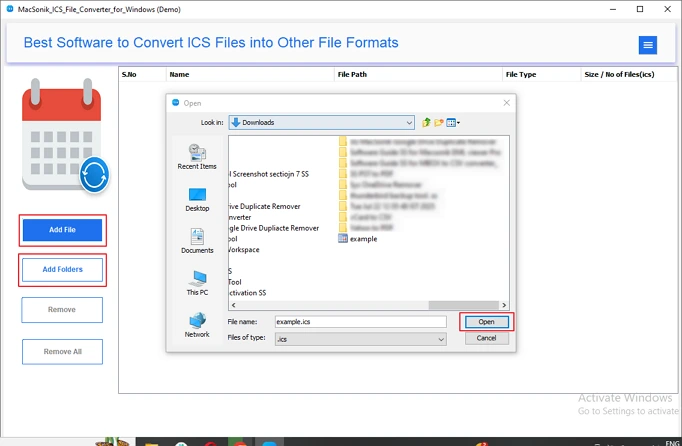
- Now, open it and click on the Add File or Add Folders options to upload the ICS file(s) to convert.
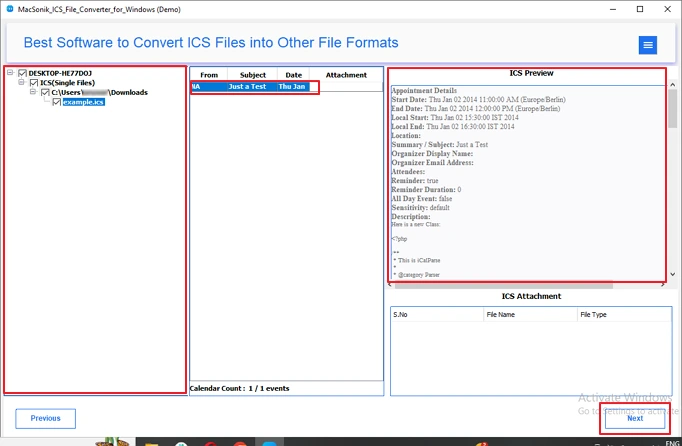
- After uploading the ICS file, pick the specific events to convert and preview them one by one. Click Next.
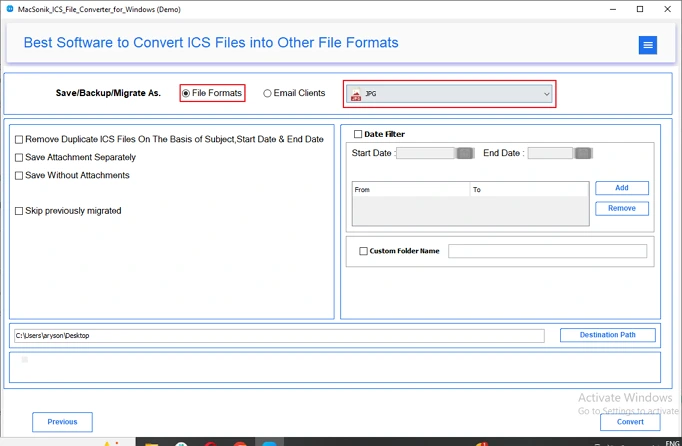
- Next, select File Formats and pick JPG from the dropdown list.
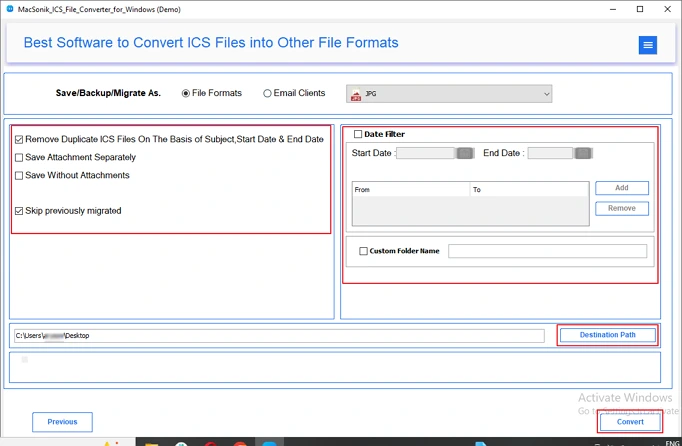
- Now, apply the necessary advanced settings and click the Convert button to complete the conversion.
Real-Life Scenario:
A training organization needed to share and upload their workshop schedules, but their client portal only accepted image formats like JPG. Their schedules were stored in ICS files, and taking manual screenshots for each event was slow and inefficient. To save time, they used the MacSonik ICS File Converter to batch convert multiple ICS files into JPG images. This allowed them to quickly generate shareable schedule images with consistent formatting and no data loss.
Conclusion
The ICS to JPG conversion makes it easy to view, share, and use the calendar event data across different platforms. In today’s blog, we have covered different methods to convert ICS to JPG image format. The manual steps are functional, but are suitable for converting a small number of ICS files to JPG. Conversely, with the help of a professional tool, the MacSonik ICS File Converter, users can convert .ics files in bulk.
Frequently Asked Questions
Ans- Yes, you can convert ICS files to JPG on both Mac and Windows using built-in tools like Calendar or Outlook with screenshots or print-to-PDF methods. However, manual methods are time-consuming and work best for single events rather than bulk conversions.
Ans- Converting multiple ICS events to JPG at once isn’t possible using manual methods, as screenshots and print methods work one-by-one. For bulk conversion, you’ll need MacSonik ICS File Converter that supports batch processing.
Ans- The ICS to JPG conversion is secure when done using MacSonik ICS File Converter, as your calendar data stays on your system. Avoid uploading sensitive ICS files to unknown online converters to prevent privacy risks.
Ans- No, attachments from ICS files are not included in the JPG output, as JPG is only a visual image of the calendar details. Only the visible event information is captured, not embedded files or original calendar metadata.
About The Author:
Amelia is the mistress of the webmail clients like Office 365, Gmail, Yahoo, Hotmail, and Opera Mail. Her research on downloading emails from webmail is outstanding. She has given the solution to download emails from webmail clients to a Mac device with all the mailbox items. She’s been into webmail solutions since 2010. In her free time, she reads books and writes technical blogs.
Related Post
