Smart Ways to Convert ICS File to Excel? A Complete Guide

Amelia James
August 10th, 2026
User-Query:
I have hundreds of ICS calendar files that I need to convert into Excel for business reporting and analysis. Can anyone recommend a professional tool that can bulk convert ICS files to Excel while preserving event details, attachments, and folder structure?
Summary: Enterprise data architects treat ICS files as raw, unstructured data. The fragmented .ics files pose a scalability bottleneck for the global HR teams. It needs to be converted to a more structured environment, like Excel. In this technical blog, we will discuss why the ICS to Excel conversion is required. Along with that, we will execute the solutions that successfully convert ICS file to Excel format. For a reliable and fast approach, a specialized tool, the MacSonik ICS Converter, is recommended, which ensures data integrity. This converter tool bulk converts ICS files into Excel or other formats.
Why ICS to Excel Matters for Enterprises?
The ICS files are primarily for a calendar application and are not ideal for reviewing large datasets. Therefore, they need to convert ICS to Excel format to easily manage and share the data.
- Enhanced Management: Businesses can keep the meeting details in a clear tabular format for quick access.
- Analytical Reporting: Once converted to Excel, organizations can prepare reports to analyze meetings and recurring events.
- Large-scale Editing: When managing hundreds of events, the Excel spreadsheet format makes the editing process simpler.
- Integration with Organizational Platform: Many business tools and databases integrate better with Excel files than with the ICS format.
- Convenient Sharing: Managers can share the event schedules and details with the employees and clients easily.
Traditional Approach to Convert ICS File to Excel
Here, we will provide and discuss the procedures in detail to save their ICS calendar file into MS Excel. First, read it and then pick the method that helps to complete the process in minimal time with zero risk involved. Without wasting more time, move towards the solution.
Convert Calendar ICS file to Excel Manually
For the free method, follow the instructions below. First, we will discuss the steps to extract ICS files from Google Calendar and then save them to Excel.
- To begin, open the Google Calendar > My Calendars.
- After this, opt for the calendar to export > three dots > Settings.
- Later, tap Export Calendar. Now, an ICS file will be created for the particular Calendar event.
- Thereafter, navigate to MS Excel and open it.
- Further, move to File > Open.
- Next, pick the ICS file that you created earlier and hit Open.
- Now, choose the Delimited > Tab checkbox > Finish.
Limitations:
It can be riskier as there is no guarantee of data protection. Also, it is not suitable for converting multiple emails at once, as the data might be scattered and lost during the process. Additionally, it requires good technical knowledge.
A Professional Solution to Convert ICS File to Excel
The MacSonik ICS Converter is a purpose-built tool that manages the conversion at enterprise volume. It does not compromise the data integrity and folder structure. Software supports the conversion to numerous file formats quickly and securely. Besides this, it can also import ICS to Google Calendar and other email services as well. In addition, it includes useful features such as excluding duplicate items, exporting emails with or without attachments, and more. Also, it preserves the structure throughout the conversion without causing any data loss.
Simple steps to export ICS file to Excel:
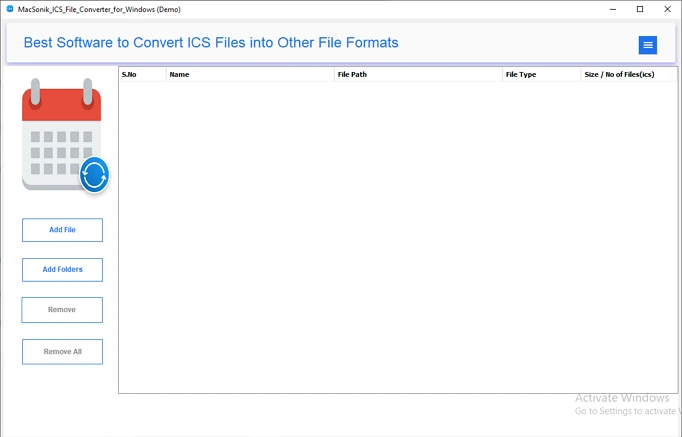
- To start, download and run the software on your PC.
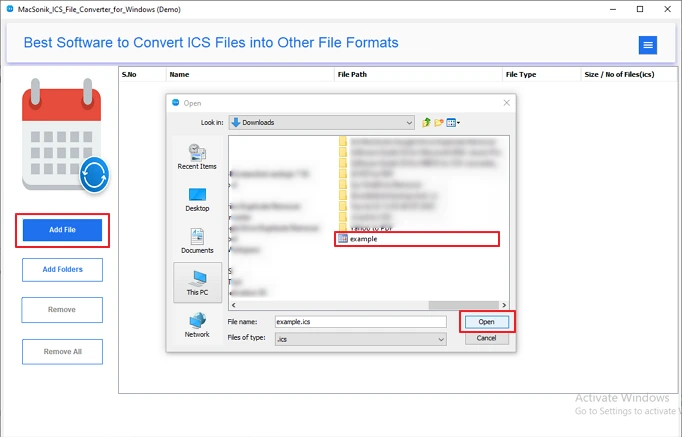
- After that, tap Add File to browse and add ICS files to this wizard. Hit Open > Next.
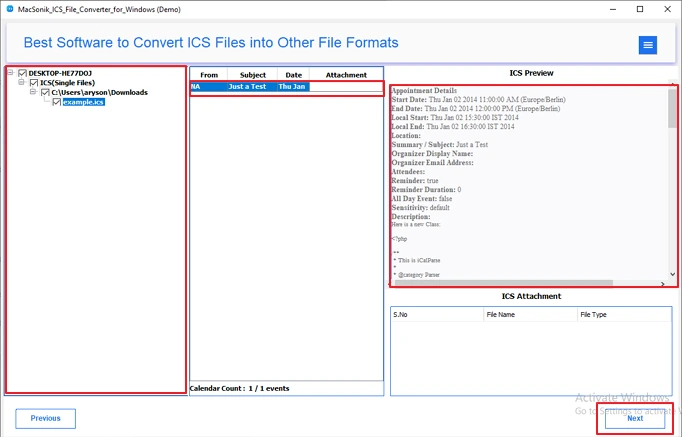
- Now, view the ICS file content, including the attachments, and tick to move toward the next step. Click Next.
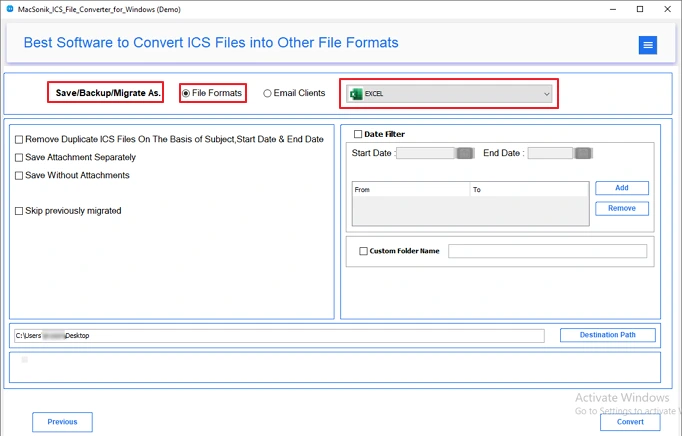
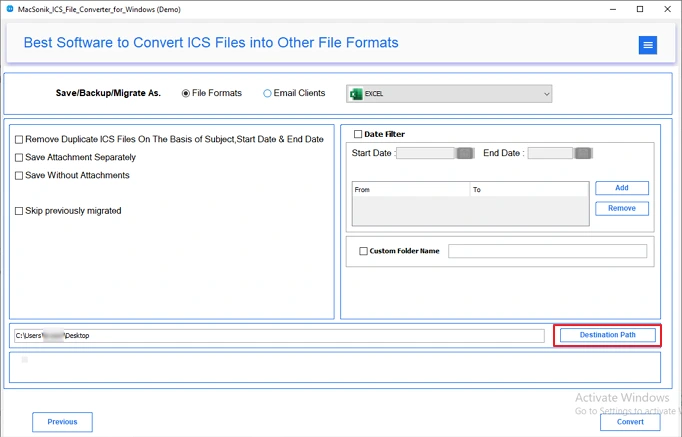
- Further, choose Excel format from the drop-down File Formats list.
- Thereafter, set the Destination Path to save them in your system.
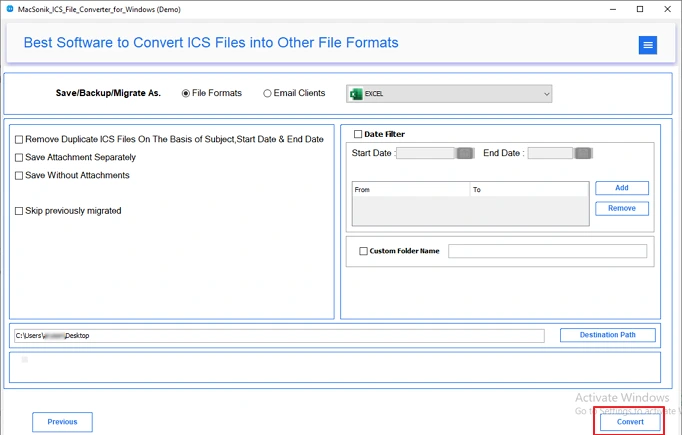
- Lastly, press the Convert tab to initiate the process.
Michael, an operations manager at a healthcare company, needed to analyze appointment schedules stored in hundreds of ICS files collected from different departments. Instead of manually opening and copying data into Microsoft Excel, he used the MacSonik ICS File Converter to convert ICS to XLS in bulk. The software exported the calendar data accurately, skipped duplicate entries, and preserved the original folder hierarchy, making it easy for him to prepare monthly performance reports.
Conclusion
In this blog, we described the reasons behind the ICS to Excel conversion of ICS files and Excel. After this, we discussed the techniques to convert ICS file to Excel. Out of different approaches, you can use either method: manual or professional. However, many technical experts suggest the ICS File Converter Tool to get efficient results without damaging the data integrity. Additionally, its prominent features help to ease the process and customise it accordingly.
Frequently Asked Questions
Ans- One cannot directly open most ICS calendar files in Excel without converting them first. Use a dedicated converter or import the ICS file into Microsoft Outlook or Google Calendar, then export the calendar data as a CSV file for use in Excel.
Ans- Businesses can convert multiple ICS files into Excel by using a bulk conversion tool such as the MacSonik ICS File Converter, which supports batch processing and exports the data into CSV or Excel-compatible formats. This makes it easier to create reports, analyze schedules, and manage large volumes of calendar data efficiently.
Ans- To maintain data integrity during ICS to Excel conversion, use a reliable tool that preserves all event details, formatting, attachments, and folder structure. Tools like the MacSonik ICS File Converter also help prevent duplicate entries and data corruption during the process.
Ans- Yes, duplicate calendar entries can be removed during ICS to Excel conversion by using a tool that includes a duplicate-removal feature. Utilities such as the MacSonik ICS File Converter can exclude repeated items automatically while exporting the data.
Ans- Manual ICS to Excel conversion can be time-consuming because it often requires importing the file into another application like Microsoft Outlook before exporting it to Excel. It may also fail to preserve attachments, recurring events, folder hierarchy, and duplicate-free data during bulk conversion.
Ans- An enterprise ICS converter should support bulk conversion, multiple export formats, duplicate removal, attachment handling, and preservation of original folder hierarchy. It should also provide data integrity and fast processing.
About The Author:
Amelia is the mistress of the webmail clients like Office 365, Gmail, Yahoo, Hotmail, and Opera Mail. Her research on downloading emails from webmail is outstanding. She has given the solution to download emails from webmail clients to a Mac device with all the mailbox items. She’s been into webmail solutions since 2010. In her free time, she reads books and writes technical blogs.
Related Post
