Import EML Files to Google Workspace in Bulk Without Data Loss

Amelia James
October 6th, 2026
User-Query:
James’s Doubt: “I have 1000+ EML files containing business emails, attachments, and client communication. I need to move them into my Google Workspace account. I want to make sure all my emails are uploaded safely without losing attachments, metadata, or folder structure. What is the best and easiest way to import EML file to Google Workspace in bulk?”
Introduction:EML is a widely used email file format supported by multiple email clients for storing individual email messages. Many users and businesses keep important email records in EML format for backup, legal documentation, and archiving purposes. However, EML files are standalone files and cannot be directly uploaded into Google Workspace mailboxes. Since businesses often migrate archived email data into Google Workspace for centralized communication and collaboration, a reliable method is needed.
Therefore, this guide explains the best ways to import EML to Google Workspace in bulk with zero data loss. Apart from that, it walks you through the MacSonik EML Converter Tool.
Understanding the Difference Between EML Files and Google Workspace
| Main Factors | EML Files | Google Workspace |
|
Single email file | Cloud mailbox platform |
|
Local file only | Multi-device cloud access |
|
Yes | Yes |
|
Supported | Supported |
|
No | Yes |
|
Email backup | Business communication |
Centralize Your Workflow: The Benefits of Migrating EML to the Google Cloud
Most users try to import EML file to Google Workspace because:
- Centralize old email archives.
- Access emails from anywhere.
- Improve team collaboration.
- Keep business communication secure.
- Preserve email records for compliance.
- Also, to simplify mailbox management.
DIY Email Migration: How to Manually Migrate EML Email to G Suite
If you want to migrate a small number of EML files, using this manual workaround is highly useful. Therefore, keep in mind that this process comes with some drawbacks.
Workaround 1: Drag and Drop via Desktop Email Client
- First, open an email client like Mozilla Thunderbird or Microsoft Outlook.
- Configure your Google Workspace account via IMAP.
- Create folders inside the mailbox.
- Drag and drop EML files into the desired folders.
- Wait for synchronization to complete.
- Verify uploaded emails in Google Workspace.
Drawbacks of the Manual Workflow
- Time-consuming for bulk EML files.
- Requires an email client installation.
- Manual folder organization needed.
- There is a risk of duplicate emails.
- Large attachments may fail to sync.
- Not ideal for enterprise-level migration.
Instantly Import EML File to Google Workspace Securely
For migrating multiple EML files simultaneously, using the MacSonik EML Converter Tool is highly recommended.
- Imports bulk EML files together with no loss.
- Preserves metadata and formatting intact.
- Supports batch migration with accuracy.
- Comes with an intuitive interface suitable for everyone.
- Helps users to import EML to GoDaddy Email and Import EML to cPanel.
- Additionally, it reduces manual efforts.
What’s more, the demo version allows users to process up to 50 emails per folder at no cost.
One-Time Migration Assistance Option
If you prefer expert assistance, you can contact the MacSonik support team. Their specialists can securely upload EML files to Google Workspace and handle the entire migration process on your behalf. MacSonik also offers a One-Time Service for just $35, supporting files up to 10 GB, making it an affordable and convenient choice for one-time migration needs.
Fast Track Guide: Transfer EML Files to Google Workspace
- Firstly, install and launch the MacSonik EML Converter Tool.
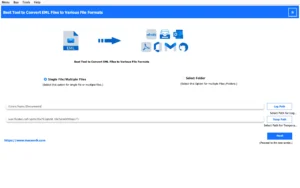
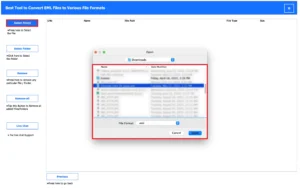
- Select EML files or folders and load the file that you want to convert.
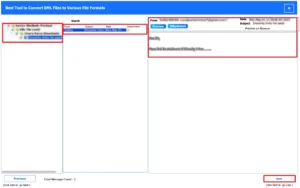
- Drag the hierarchy, preview the complete mailbox folder, and click Next.
- Afterwards, choose Google Workspace (G Suite) as the saving email platform.
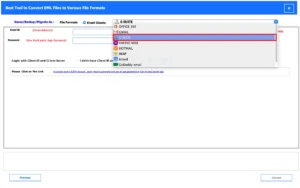
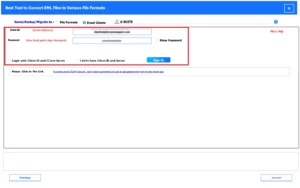
- Sign in using the Google Workspace account credentials.
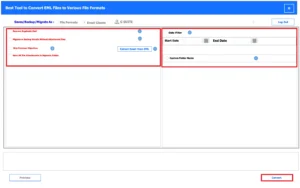
- Finally, apply the built-in features and click Convert to initiate the process.
Real-Life Scenario: Corporate Archive Migration
A consulting company had over 15,000 archived EML files containing client communication and project documentation. They wanted to centralize all email data inside Google Workspace for easier access and team collaboration. Manual drag-and-drop migration was too slow and risky. Using the MacSonik EML Converter Tool, the IT team successfully migrate EML into Google Workspace while preserving folder structure and attachments.
Conclusion
In this tutorial, importing EML files into Google Workspace helps businesses centralize archived emails and improve accessibility across teams. While manual methods work for smaller collections, they become inefficient and risky for bulk migration. Therefore, using the EML Converter Tool is the most reliable solution to import EML file to Google Workspace. Likewise, it ensures a risk-free migration.
Frequently Asked Questions
Ans. Yes, a reliable EML migration tool preserves all email attachments during the import process. Files such as PDFs, images, documents, and other attachments remain linked with their original emails, ensuring complete data integrity after migration.
Ans. Yes, the advanced MacSonik migration tool provides filtering options such as date range, sender, recipient, and subject-based filters. This helps users import only the required emails instead of migrating the entire EML dataset.
Ans. The file size limit mainly depends on Gmail and Google Workspace mailbox restrictions. While most migration tools can process large EML files, individual email size limits and mailbox storage quotas should be checked before starting the import.
Ans. Password-protected or encrypted EML files may require decryption before migration. The verified MacSonik EML converter tool can process them if the correct credentials are provided, but unsupported encryption types may need manual handling first.
Ans. Yes, a reliable EML converter tool preserves original email metadata, including sent date, received date, sender details, and subject lines. This ensures that the imported emails appear in Gmail with their original timeline and maintain chronological order.
About The Author:
Amelia is the mistress of the webmail clients like Office 365, Gmail, Yahoo, Hotmail, and Opera Mail. Her research on downloading emails from webmail is outstanding. She has given the solution to download emails from webmail clients to a Mac device with all the mailbox items. She’s been into webmail solutions since 2010. In her free time, she reads books and writes technical blogs.
Related Post
