How to Import EML to cPanel? Complete Guide

Amelia James
November 13th, 2025
Introdution: When businesses shift from one email platform to another, the most common hurdle is getting those archived emails from the old system. That too, particularly with .eml files used by clients, like Outlook Express, Windows Live Mail, Thunderbird, Apple Mail, etc. However, when users migrate to a webmail-based solution (i.e., Horde, Roundcube, SquirrelMail, etc., on cPanel), it gets trickier. Hence, if you want to efficiently import EML to cPanel, this post outlines both manual and EML Converter solutions for the best and intact outcomes.
What is EML and Why Transfer EML Files to cPanel?
An EML file is an archived email message that holds information such as To, From, Subject, Message Body, and Attachments. EML files are commonly used with many desktop-based email clients, but may not be immediately compatible with webmail interfaces using cPanel. Migration of EML files to cPanel will allow you to:
- Access those old email archives from anywhere through webmail (Roundcube/Horde).
- Consolidate communication under one account for a domain at cPanel.
- Ensure data continuity with migration from previous emails from local clients to a web server.
- Avoid recreation of historical mail or worse, erase data due to unforeseen reasons.
- Also, access to better searchability, reliable data organization, and a secure backup.
After understanding the reasons for this import, let’s move ahead with the prominent ways for the transfer. There are two ways in which you can perform this:
Automatically: This is through the use of a third-party software like MacSonik EML Converter, which has a Demo Version and a Paid Version.
Manual Method to Import EML to cPanel
The cPanel dashboard provides webmail access through interfaces such as Roundcube, Horde, or SquirrelMail (varies by hosting provider). Of these options, Roundcube is the most commonly used webmail service and offers a manual EML import feature. To manually import EML to Roundcube, follow these instructions:
- Log in to cPanel using your authentication details (i.e., https://yourdomain.com: Port (2083)).
- Then, click on the Email Accounts option and opt for the Webmail icon tab.
- Next, select Roundcube for your preferred email client where you wish to import EML.
- Further, go to Settings → Folders, and select Create New Folder. (optional)
- Afterward, choose More → Import and select EML files to add to Roundcube.
- At last, click Import and check the status of your emails. Once the import is finished, refresh your mailbox.
Shortcomings of the Manual Method
- Roundcube has limitations on the number of files that can be uploaded at one time.
- You must import EML files individually; bulk imports will not be possible using Roundcube.
- You may lose attachments or metadata when using this manual method.
- Stable internet is a must, and it will take time if you have a large mailbox.
As we can see, this manual method seems a bit ineffective. For more evidence, check out this “UserQuery at the cPanel Community”: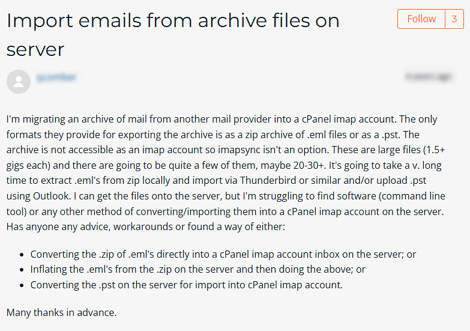
Professional Method to Import EML to cPanel
For larger or business migrations, a dedicated MacSonik EML Import Tool offers a quicker, more reliable solution. It can directly upload batch EML files to the target cPanel account with full data integrity and folder structure retention. Plus, the excellent software provides guaranteed data accuracy and results in minimal time without manual hassle. Moreover, with this, users can also import EML to Rakspace Webmail without worries and technical expertise on Mac or Windows.
To have a successful login into your cPanel account at the destination, ensure you have your cPanel email ID, password (normal or app), Host, and Port No. with you. Also, make sure you are already signed into your account on the browser beforehand for quick and simplified authentication.
Steps to Import EML Files into cPanel
- Start the MacSonik EML to cPanel Import Tool on your local system after downloading.
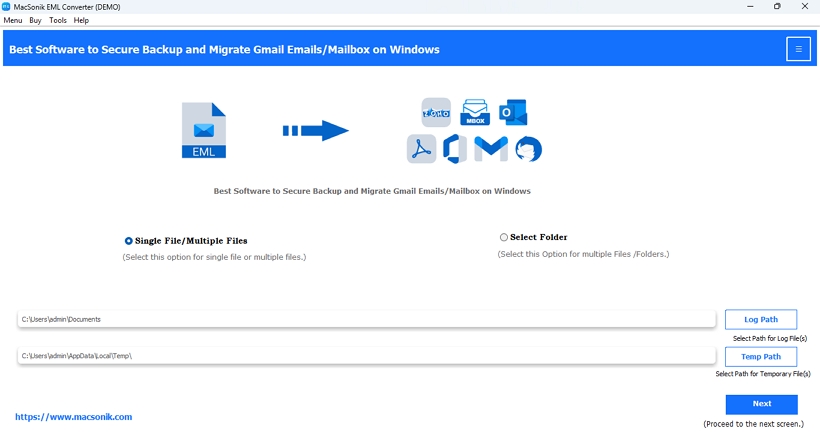
- Then, add the EML files or folder(s) to be imported and click Next.
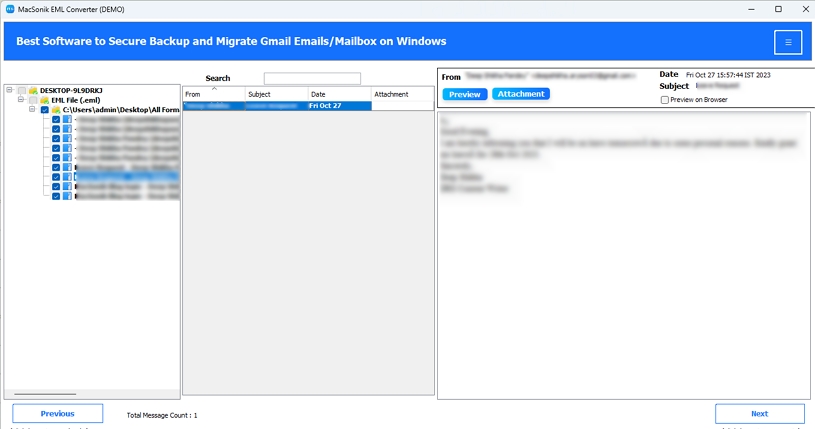
- Further, preview the emails and attachments of your EML. Select and tap Next.
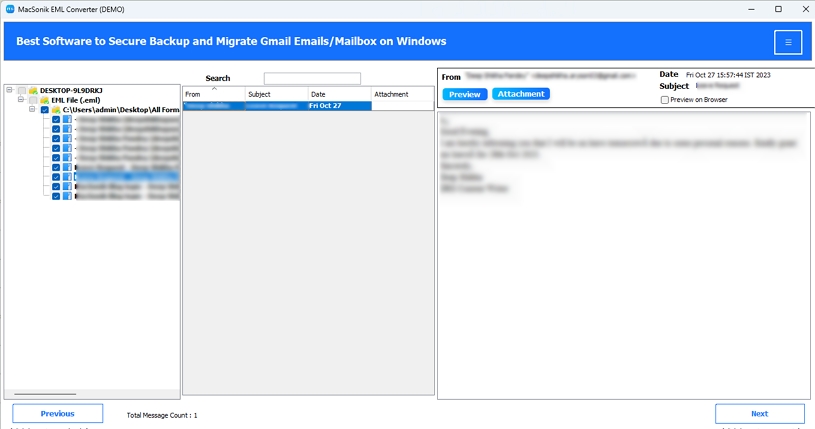
- Afterward, pick IMAP from the output formats (as cPanel supports IMAP).
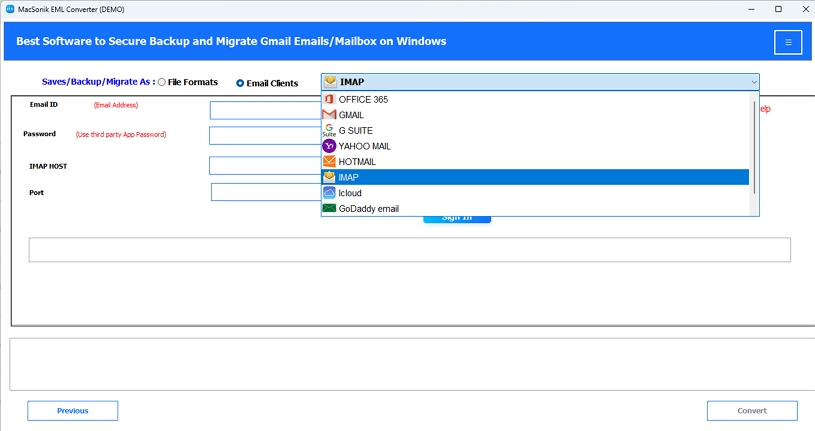
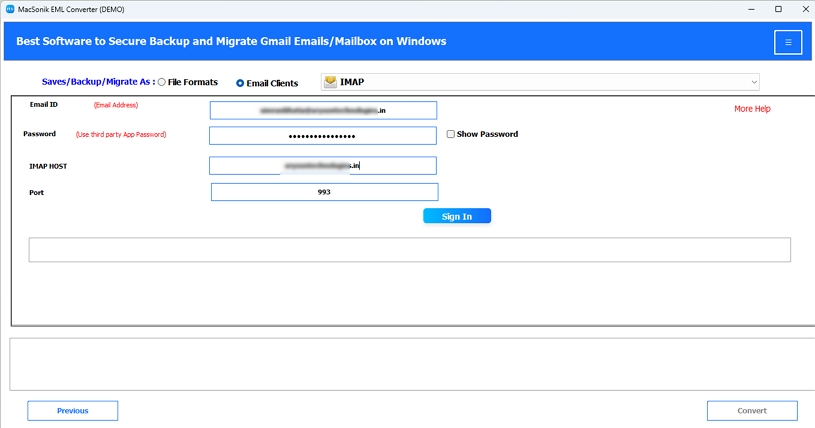
- Enter the cPanel email account credentials and click Sign In to authenticate.
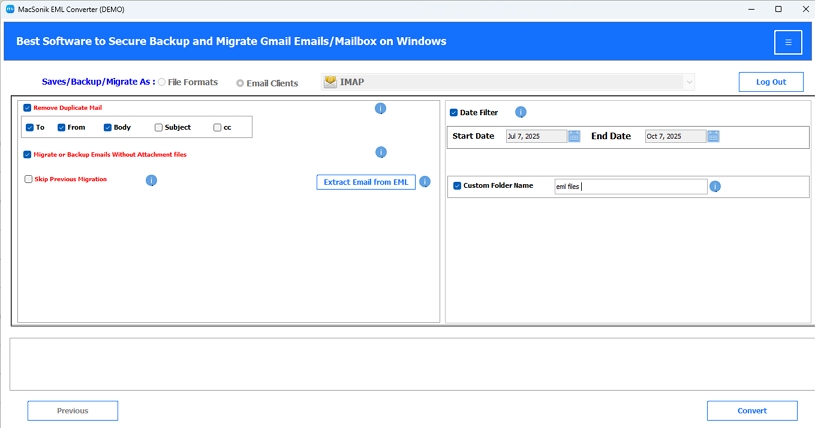
- Finally, select additional options and press Convert to initiate migration to cPanel.
Don’t want to go through the software installation process? Avail the MacSonik One-Time Service and let the experts handle the task to straightforwardly import EML to Roundcube!
Conclusion
Transferring email data should be a concern. Although Roundcube can itself import EML to cPanel, they aren’t recommended for larger mailboxes or organizational configurations. A suitable EML Converter enables you to migrate EML to cPanel, while maintaining all message structure, attachments, and integrity. For institutions using cPanel mail servers and served by professional IT teams, ensuring the right data migration methods is essential. Then only can business continuity, data management, and ease of access to email anytime, anywhere be maintained.
Frequently Asked Questions
Ans: The interface and options may vary by hosting provider, but it is technically possible. Roundcube is the most stable for manual EML imports. If you need to save in Horde or SquirrelMail, prefer the EML Import Tool.
Ans: The manual import would only be able to upload one EML file at a time. Instead, use an automated MacSonik EML to cPanel Importer to transfer multiple files while setting up the IMAP settings for cPanel.
Ans: Yes. If you manually import through Roundcube, inline or larger attachments occasionally may not allow for transfer. But with the MacSonik EML Converter, all data is retained accurately with zero loss.
Ans: Of course. Safely transfer EML files to cPanel with the MacSonik EML Converter Software.
It offers direct IMAP authentication with full SSL support for safe transfer of the email at the same security level.
About The Author:
Amelia is the mistress of the webmail clients like Office 365, Gmail, Yahoo, Hotmail, and Opera Mail. Her research on downloading emails from webmail is outstanding. She has given the solution to download emails from webmail clients to a Mac device with all the mailbox items. She’s been into webmail solutions since 2010. In her free time, she reads books and writes technical blogs.
Related Post
