Top Methods to Export Gmail Emails to MSG with Attachments?

Amelia James
August 14th, 2026
User-Query: I need to export my emails from Gmail to MSG format for use in Microsoft Outlook. Can anyone recommend a reliable professional tool that can perform bulk conversion while preserving attachments, metadata, and folder structure?
Summary: In legal and compliance settings, an MSG file serves as a forensic snapshot of a digital email conversation. Also, the MSG file saves an individual email message. If one file fails, it loses a single message instead of an entire archive. Users also export Gmail emails to MSG to free up Gmail storage. Now, to know why users choose to export to MSG and how to execute the export process, read this blog. Furthermore, a specialized tool, the Gmail Backup Tool, offers a reliable and hassle-free experience to export Gmail emails to MSG format.
Why Export Emails from Gmail to MSG?
Certain organizations export their emails to MSG for compatibility, backup, and other professional requirements. Take a look at a few of the other reasons for this export process:
- The MSG file format is compatible with Microsoft Outlook. Exporting the Gmail emails to MSG will enable users to easily open them in Outlook.
- Those who want to share only specific emails can transfer their Gmail emails to individual MSG files.
- Users also export the emails to MSG format so that they can access them without internet access. It creates a reliable and offline backup of the emails.
- In MSG files, one can retain the formatting and email properties. This makes it suitable for use in legal documentation, audits, and compliance.
- In the process of email migration, the MSG file format ensures smooth transfer and accurate data mapping.
Different Methods to Export Gmail Emails to MSG Format
This section describes how you can export Gmail messages to the MSG file format. You will see both manual and automated approaches for export, and you can determine which approach best meets your needs and level of experience.
Manual Method: By Using Apple Mail
In this approach, we will first export the Gmail emails to an EML file format using Apple Mail. Then, we’ll transfer the EML files to a Windows system and save them as .msg files.
Use the following instructions to export Gmail to MSG:
- On your Mac system, open the Apple Mail application.
- Then, head to Mail > Add Account and select Google.
- After that, sign in to your Gmail account with your credentials.
- Grant permissions and then enable the Mail option.
- After the sync process is completed, select the emails you wish to export.
- Then, go to Files > Save As, select your storage destination, and save the email accounts as .eml files.
- Export the EML files in the Windows system using a USB drive.
- After that, open MS Outlook and drag and drop the .eml files to MS Outlook.
- Finally, drop these files from Outlook to a local folder. This will be saved as .msg files.
Issues with the Manual Method:
- If you will be performing these manual steps, then you will need to have access to both a Windows and a macOS system.
- It is very time-consuming to do this, and using this method for bulk email migrations is not very reliable.
- Additionally, there are a lot of human errors that can occur due to the manual steps that you will take.
Using the automated method will provide you with the best results when it comes to exporting your Gmail emails into MSG files, along with any attachments.
Automated Method: Top-Notch Solution to Export Gmail Emails to MSG with Attachments
The MacSonik Gmail Backup Tool is a software application that allows users to easily extract, back up, and preserve all their Gmail data. It provides a fast, efficient, and safe way to export Gmail emails to MSG while ensuring the integrity of the data. Users can export both their emails and associated attachments, and the software can handle large amounts of data deliberately and efficiently. Besides exporting emails in their original format, the tool allows users to export Google to PST and several other types of files.
Quick and simple steps to convert Gmail emails to MSG:
- Start by downloading and opening the tool.
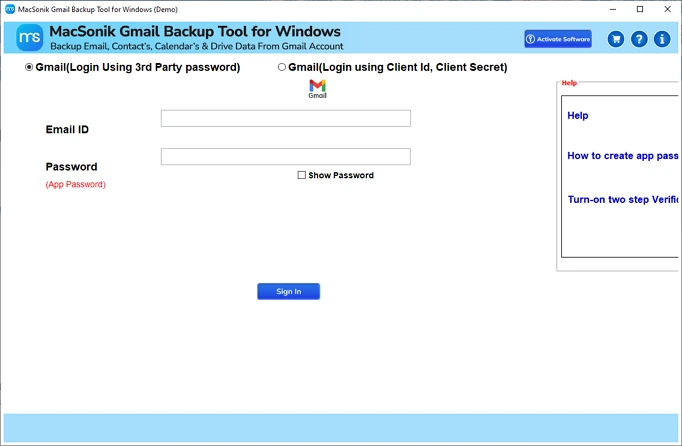
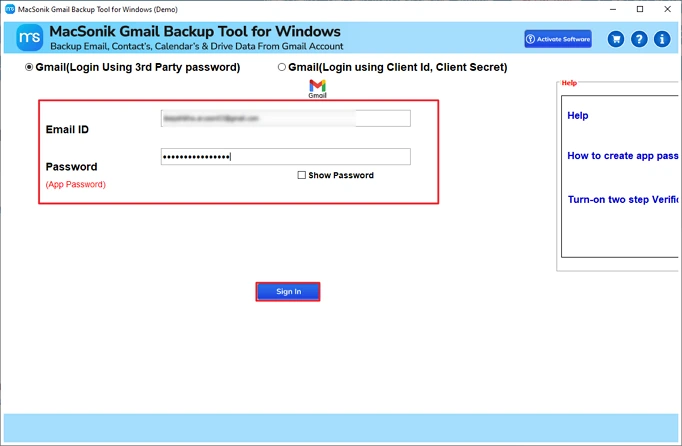
- Then, select the option Gmail (Backup Mails only) and sign in with your Gmail Email ID and Password.
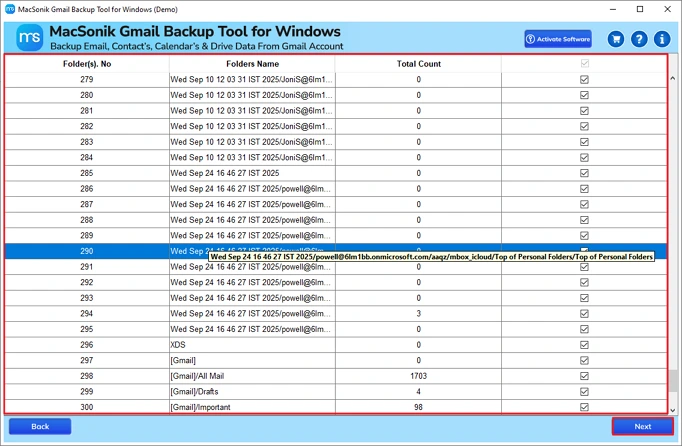
- Now, choose the email(s) that you want to download. Then, click Next.
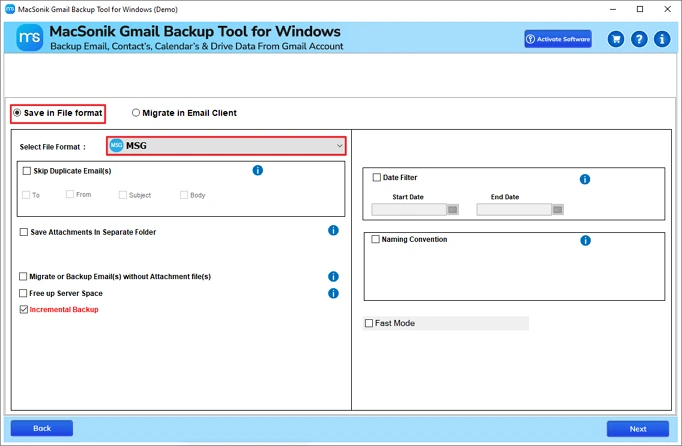
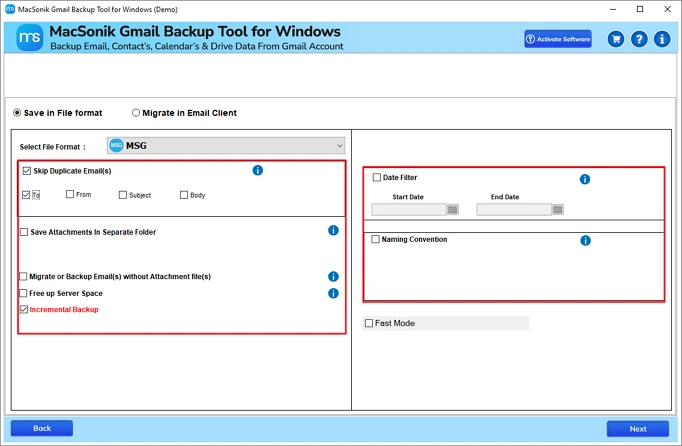
- Select MSG in the Save in File Format section.
- Next, apply any extra features as needed, set the destination location, and then again click Next to start the process.
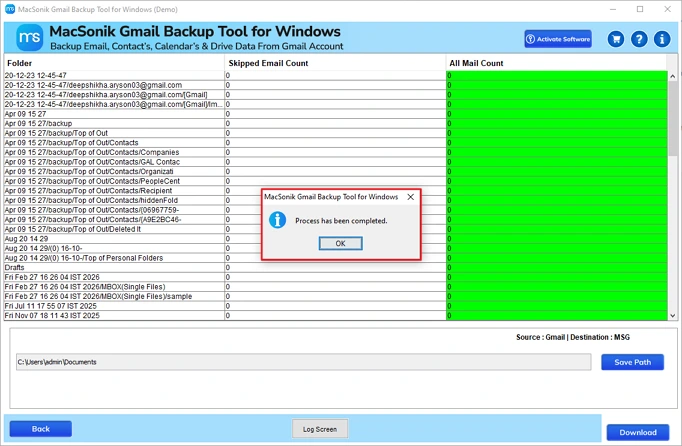
- Finally, click on Download to download the report.
Real-life Scenario:
A compliance officer needed to archive important emails from Gmail for legal purposes and use them in Microsoft Outlook. Instead of using a complex manual method, they chose the MacSonik Gmail Backup Tool for a smoother process. The tool helped them transfer Gmail emails to MSG format in bulk while preserving attachments, metadata, and folder structure.
Conclusion
Enterprises export Gmail emails to MSG for better compatibility with MS Outlook and a reliable backup. However, the manual steps are complex and technically demanding. Due to this reason, they opt for a reliable and automated tool, the Gmail Email Backup Tool. This backup tool offers an efficient solution by offering bulk Gmail email migration to the MSG file format. It effectively saves the emails in MSG format while preserving data integrity, attachments, and other metadata.
Frequently Asked Questions
Ans- Migrating emails from Gmail to MSG files is needed to ensure seamless compatibility with Microsoft Outlook and preserve complete email properties. It also helps in creating secure, individual email backups for legal, professional, and offline access purposes.
Ans- Yes, it is possible to export large emails from Gmail to MSG format, including attachments, using reliable methods or a professional tool. However, manual approaches may face size limitations, while professional solutions like MacSonik Gmail Backup Tool ensure smooth handling of large mailbox data.
Ans- The best method to export emails from Gmail to MSG format is by using a professional MacSonik Gmail Backup Tool, as it ensures direct conversion with complete data integrity and minimal effort. It simplifies the process and preserves attachments, metadata, and folder structure.
Ans- Yes, you can export emails from Gmail to MSG without duplicates by using an advanced professional tool that includes duplicate removal features. This tool ensures only unique emails are converted while maintaining data integrity and structure.
About The Author:
Amelia is the mistress of the webmail clients like Office 365, Gmail, Yahoo, Hotmail, and Opera Mail. Her research on downloading emails from webmail is outstanding. She has given the solution to download emails from webmail clients to a Mac device with all the mailbox items. She’s been into webmail solutions since 2010. In her free time, she reads books and writes technical blogs.
Related Post
