Apple Mail Not Importing MBOX File – Reasons & Solutions

Neeru Kuchhal

April 25th, 2026
User-Query:
“I tried to import my MBOX file into Apple Mail on Mac. But the mailbox is not showing correctly. Some emails are missing, and sometimes the process fails. Why is apple mail not importing mbox file, and how can I fix it safely?”
— Posted by “Emma Wilson”
Introduction: Apple Mail is something that a lot of people use on their Mac computers. It supports MBOX files for mailbox storage and email conversion. However, many users face issues where Apple Mail does not save MBOX files properly. It shows missing emails or displays mailbox errors. This usually happens because of damaged MBOX files, an unsupported structure, large mailbox size, or temporary Mail glitches. If you are not able to import MBOX to Apple Mail, this guide explains the various solutions to fix the issue. Also, cover how MacSonik MBOX Converter Tool can help in accessing mailbox data smoothly.
Understanding the Problem: Successful vs Failed Import
|
Main Aspects |
Successful MBOX Import |
Failed MBOX Import |
|
Appears in sidebar |
Missing after import |
|
All messages visible |
Partial/missing emails |
|
Accessible normally |
Missing or broken |
|
Smooth and quick |
Freezes or errors |
|
Maintained |
Disturbed folders |
|
Immediate access |
Delayed work |
Apple Mail Not Importing MBOX File: Why?
The following are the common reasons behind this problem:
- The corrupted or damaged MBOX file.
- Incomplete mailbox from previous email client.
- Unsupported MBOX folder structure.
- Very large MBOX file size.
- Insufficient storage space on Mac.
- Outdated macOS or Apple Mail version.
- Temporary indexing issue in Apple Mail.
- Permission restrictions on the file location.
Resolving MBOX Import Problems Manually on macOS
There are various manual solutions to solve the Mac Mail import failed issue. But don’t forget that this method comes with some limitations. Plus, it consumes time and effort.
Solution 1: Check MBOX File Integrity
- Confirm that the file has been downloaded completely.
- Now, verify that the MBOX file is not empty.
- Copy it to the Desktop before importing.
Solution 2: Use the Correct Import Option
- Firstly, open Apple Mail.
- Now, go to File and then Import Mailboxes.
- Select Files in MBOX format.
- Then, choose the mailbox file.
Solution 3: Update Apple Mail / macOS
- Open System Settings.
- Check for software updates.
- Install the latest updates and retry the import.
Solution 4: Split Large MBOX File
- If the file is oversized, divide it into smaller mailbox files before importing.
Limitations: Solve Apple Mail Not Importing MBOX File Manually
- Corrupt files may still fail to export.
- Large mailboxes can freeze during import.
- Missing emails may remain unresolved.
- It requires technical troubleshooting.
- Time-consuming for multiple MBOX files.
- Moreover, it is not ideal for business-critical archives.
Professional Grade Solutions for Secure MBOX Conversion
The MacSonik MBOX Converter Tool is the best solution to fix import failed mail error on mac. With this tool, you can convert multiple MBOX files in one go. This tool provides the entire conversion with 100% accuracy and complete data integrity. It supports bulk conversion with a fast processing speed. Additionally, it has a beginner–friendly interface suitable for every user.
Zero Data Leakage: Data Security & User Privacy
|
No mailbox content is shared during processing. |
Selective export of folders or mailbox items. |
Safe bulk conversion for multiple MBOX files. |
|
Preserves original email structure and metadata. |
Read-only process keeps the mailbox unchanged. |
Designed for handling email archives securely. |
Simple Steps to Get Your MBOX Files into Apple Mail
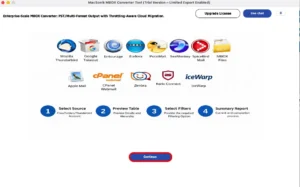
- Firstly, start installing the MacSonik MBOX Converter Tool, and click Continue.
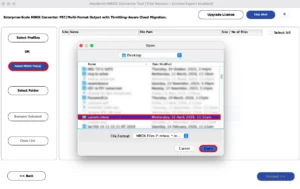
- Now, select MBOX files, choose the file that you want to export, and click Open.
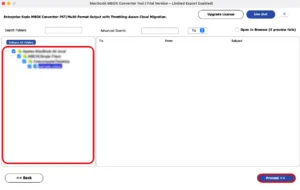
- Expand the data hierarchy, preview the mailbox, and click Next to move ahead.
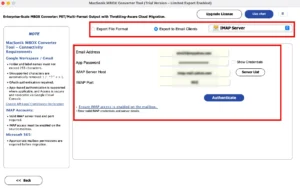
- Choose the IMAP server as the saving email platform and authenticate using the IMAP account credentials.
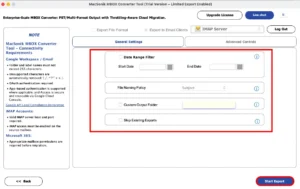
- Finally, apply the basic and advanced filters as required, and click Export to start the conversion process.
Real-Life Case Study: Legal Team Archive Import
Client: Legal Consultant, Managing old Email Records.
Challenge: The important archived MBOX files were not imported into Apple Mail.
Problem Faced: The manual import showed missing messages. Also, it was not suitable for bulk conversions.
Solution: They used the MacSonik MBOX Converter Solution to solve the issue.
Result:
- Opened mailbox data successfully.
- Recovered complete emails with attachments.
- Restored organized folder structure.
- Saved hours of manual effort.
Now, the team accesses records smoothly in a usable format.
Conclusion
In the end, Apple Mail not importing MBOX files can happen because of corruption or a large mailbox size. However, the manual fixes may solve minor problems. But they often fail with damaged or complex mailbox files. For a faster and more reliable solution, using MBOX converter software is the best way to manage your MBOX data. Furthermore, if you have any problem, you can directly contact our support team anytime.
Frequently Asked Questions
Ans- Apple Mail does not always impose a strict file size limit. But very large MBOX files can slow down or fail during import. Performance often depends on available Mac storage, RAM, and mailbox complexity. Splitting oversized files or using a professional MBOX converter tool is usually recommended. For enterprise archives, automated solutions are more reliable.
Ans- Large enterprise mailbox imports may freeze, take excessive time, or show incomplete emails and folders. There is also a risk of missing attachments or indexing delays after import. Native tools may struggle with oversized or complex mailbox structures. Businesses often prefer a dedicated MacSonik MBOX converter solution for smoother results.
Ans- Businesses usually start by checking MBOX file health, storage space, permissions, and Apple Mail version compatibility. If the issue continues, they use professional conversion tools to repair or process the mailbox correctly. This helps reduce onboarding delays and keeps email data accessible. It is often the fastest approach for multiple users.
Ans- A trusted solution like MacSonik MBOX Converter Tool is a strong option for resolving import issues safely. It can process damaged, large, or unsupported MBOX files while preserving emails and attachments. The software is designed for Mac users who need accurate results quickly. It is ideal for both personal and business use.
About The Author:
I am Neeru Kuchhal, a Technical Content Writer who focuses on turning complex ideas into clear, engaging, and impactful content. I combine creativity with strategy to write blogs, web content, and technical articles that connect with the right audience and support brand goals. I believe great content is not just written. It is thoughtfully created to inform, build trust, and drive action.
Related Post
