A Complete Solution to Transfer Sympatico Email to Gmail?

Amelia James
August 11th, 2026
User-Query: I have several years of emails in my Sympatico account, and I want to switch to Gmail for better storage and features. I need to transfer all emails, including attachments and folder structures, safely and efficiently. What’s the recommended professional tool for this?
Summary: A Sympatico address is directly linked with the ISP subscription, meaning that cancelling the subscription results in losing the emails. For this reason, the IT administrators prefer to migrate Sympatico email to Gmail. Gmail ensures that your email ID remains permanent and portable. This article explains the step-by-step process to transfer your Sympatico emails to Gmail in a simpler and more effective way. We’ll provide a dedicated tool, the IMAP Backup Tool, that offers a hassle-free and error-free solution. Now, let’s begin the blog by first understanding why enterprises need to do this email migration.
Why Users Move Sympatico Email to Gmail?
Organizations transfer their Sympatico emails to Gmail to make email communication more convenient in this modern world. Below are a few points why users move to Gmail:
- With Gmail’s capacity to store larger mailboxes, users can store large attachments.
- The Gmail platform is preferred by users as it simplifies email organization and searching capabilities by offering modern features.
- Users move their emails to Gmail to be able to check them on various devices anytime and anywhere.
- By switching from Sympatico to Gmail, users are assured of strong security against phishing and suspicious emails.
- Many people move to Gmail services as it helps users organize their emails with labels, categories, and other advanced inbox features.
How do you Transfer Sympatico Email to Gmail?
The user can effectively transfer their Sympatico emails to the Gmail email client in two ways. First, there is the manual process, and second, there is the professional tool. For enterprise-level email migration, a professional tool will work efficiently.
Migrate Sympatico Email to Gmail in Apple Mail
Users need to first manually add both Sympatico and Gmail accounts to Apple Mail. Once they are added, drag and drop emails from Sympatico to the Gmail account folder. Apple Mail will successfully sync the selected emails to the Gmail email server.
Use the following instructions to begin the process:
- On your Mac system, open the Apple Mail application.
- Next, go to Mail in the menu section and click on Add Account.
- After that, choose Other Mail Account and configure your Sympatico email account credentials.
- Again, press Add Account to add your Gmail account to Apple Mail.
- Once emails get synced, select the Sympatico emails to be transferred to Gmail.
- Drag and drop these emails into the Gmail account folder.
Limitations: For proper synchronization of emails, make sure the internet connection is stable. Moving emails in large numbers will be a time-consuming process. Also, users need to have a basic technical understanding of configuring accounts in Apple Mail.
Manually Forward Sympatico Email to Gmail
With this approach, the user can automatically forward their Sympatico emails to a Gmail account. With this method, the user’s Sympatico email account remains active.
The following are the steps to start the forward process:
- First, log in to your Sympatico email account from the webmail interface.
- Then, head to Settings and navigate to the Forwarding section.
- After that, in the forwarding field, type in your Gmail email address.
- Next, pick if you want to keep a copy or delete the emails after forwarding.
- Finally, save the changes.
Limitations: It does not forward the old and existing emails to Gmail. Some of the email services do not support automatic forwarding. If any technical interruptions occur, the emails will not be forwarded.
An Easy Solution to Transfer Sympatico Email to Gmail Via a Professional Tool
MacSonik IMAP Backup Tool provides a practical, efficient way to transfer emails from Sympatico email to Gmail. The tool is capable of exporting backups of Sympatico emails in various file formats and/or migrating them to various other popular email platforms with accuracy. With the same tool, users can migrate IMAP mailbox to Office 365 account. It can also process multiple email accounts simultaneously, as well as large email or big file sizes at once, with no downtime. Other advanced features of the tool include duplicate email message removal capacity and selective email backup capability, which allows for extremely precise and authentic migration.
Simple steps to move Sympatico email to Gmail:
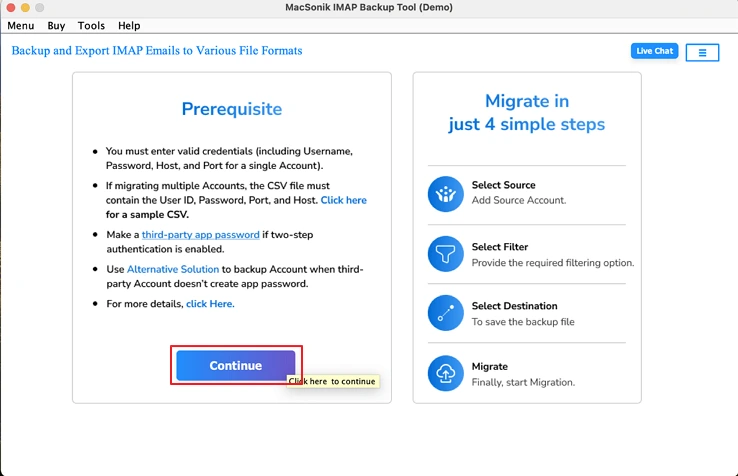
- To begin, download and install this program and click on Continue to begin the process.
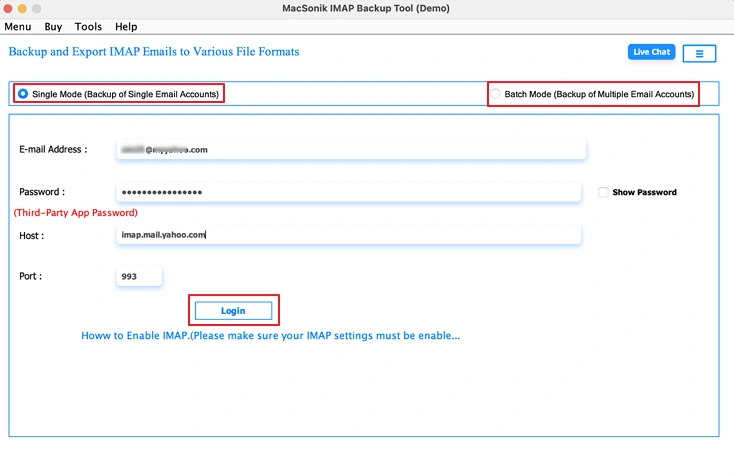
- Select your preferred mode of operation, then enter your Sympatico login credentials.
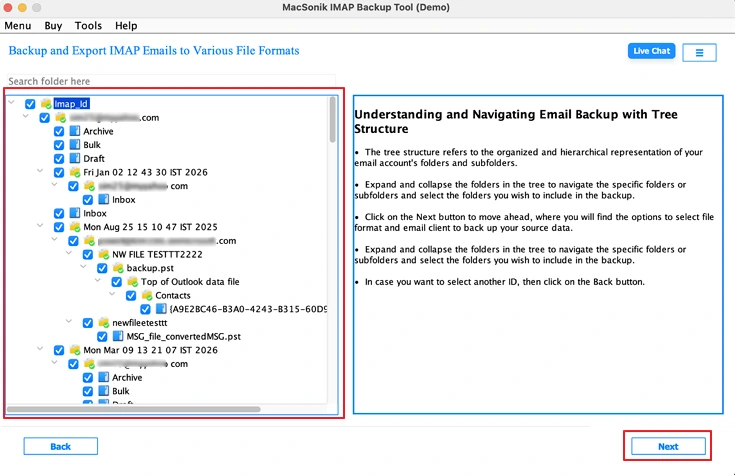
- Click on Next and move on to selecting the appropriate folders from which data will be migrated, then click on Next again.
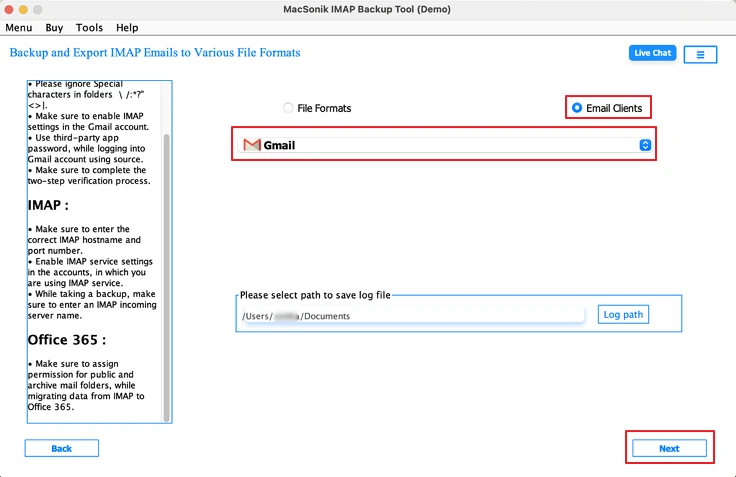
- Choose Gmail from the listed Email Clients, and continue by clicking on the Next button.
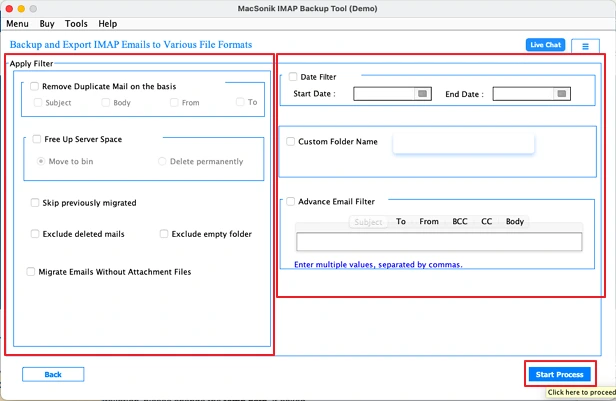
- Lastly, you can apply any applicable filters or set any other features by clicking on the Start Process button.
A growing IT firm decided to move all Sympatico emails to Gmail to overcome storage and accessibility issues. They used the MacSonik IMAP Backup Tool for transferring emails from Sympatico to Gmail, maintaining attachments and folder organization. Duplicate removal and selective migration features made the process efficient, helping the company improve email organization and workflow.
Conclusion
Transferring emails from Sympatico Email to Gmail is vital for those seeking more storage capacity and safer email accounts. While manually moving emails by using an IMAP setup in Apple Mail can be done, it can take a long time, with no guarantee of loss of data. Therefore, many people opt to use a professional solution, such as the IMAP Backup Tool. This will allow you to easily migrate your emails from Sympatico to Gmail in a simple and easy manner, while keeping your email attachments and folder structure intact. For those who want to test this out before purchasing the full version, the demo version is available.
Ans- Yes, Sympatico emails can be moved to Gmail along with attachments. The MacSonik IMAP Backup Tool guarantees that no attachments are lost during migration.
Ans- Batch transferring Sympatico emails to Gmail is possible with IMAP setup or with a specialized tool. The tool will let you move multiple emails quickly and securely.
Ans- Duplicate emails can be eliminated when migrating Sympatico emails to Gmail with a professional tool like MacSonik IMAP Backup Tool. It will automatically detect and remove them with a filter.
Ans- The best method to transfer Sympatico email to Gmail is using a professional tool. It will ensure secure, fast, and complete migration while preserving attachments and folder structure.
About The Author:
Amelia is the mistress of the webmail clients like Office 365, Gmail, Yahoo, Hotmail, and Opera Mail. Her research on downloading emails from webmail is outstanding. She has given the solution to download emails from webmail clients to a Mac device with all the mailbox items. She’s been into webmail solutions since 2010. In her free time, she reads books and writes technical blogs.
Related Post
