Complete Solution to Save Office 365 Emails to Desktop

Amelia James
August 11th, 2026
Summary: Saving your Microsoft 365 mailbox on your computer system is helpful to protect your data from unexpected data loss. Apart from this, it helps create space on your O365 account while providing access to both old and new emails. When you look for a solution, you might come across various solutions, but they are useful for moving a limited emails at a time. To save Office 365 emails to desktop in bulk, try the Office 365 Backup Tool.
Microsoft 365 is a popular suite that helps you grow your business by using Microsoft applications like PowerPoint, Excel, and more. It provides 5GB of free personal storage space, which is insufficient for individual users. To manage them within the given plans, users often want to back up their Office 365 data on their computer. Now, we will discuss the techniques to achieve it.
How Do I Move Emails from Office 365 to My Desktop? – 5 Methods
If you want to save Office 365 emails to your desktop, it can be done in a few ways. From the various methods, choose the solution according to your needs. Below are several common methods:
Way 1. Save Microsoft 365 Emails to Desktop – With Outlook Web
For this method, you need a web browser to run Outlook on the web for conversion.
- First, start Outlook on the web: https://outlook.office.com.
- Then, open an email and tap three dots (More actions) from the top right side.
- Next, click Print.
- A print window will open, and select Save as PDF as the printer. Hit Save.
- Further, set the destination path on your desktop.
Way 2. Use Outlook Desktop-Based Email Client
Follow these steps to save Microsoft 365 data to your desktop.
- In Outlook, choose email and tap File.
- Then, click Save As.
- Further, select the format in which you want to save data, like msg, txt, and more.
- Now, set the destination path to your desktop and click Save.
Way 3. Save Office 365 email to PST
For this process, make sure you have installed Outlook desktop and configured it with your Office 365 account
- Open Outlook.
- In Outlook, go to File > Open & Export and lastly hit Import/Export.
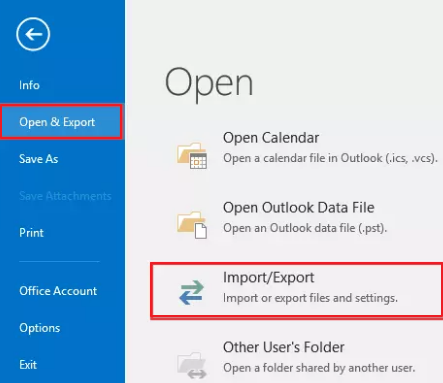
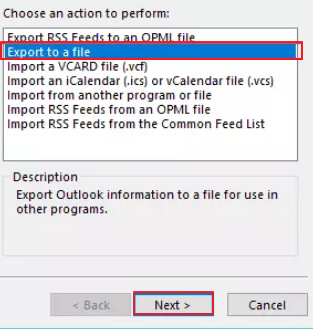
3. Later, pick: Export to a file from the displayed option.
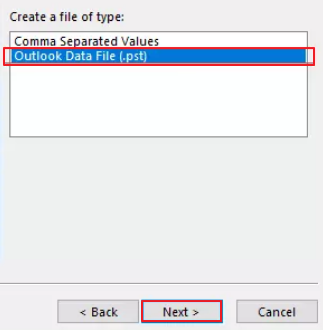
4. Then, select Outlook Data File (.pst) from the new options list.
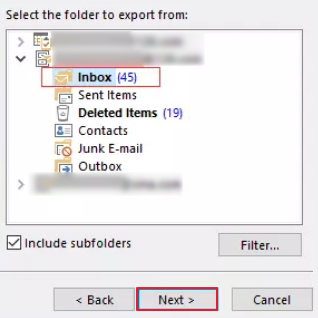
5. After that, set a folder like inbox to export.
6.Further, provide the location to save PST files, such as the Desktop.
7.In the end, hit Finish.
Way 4. Drag and Drop Email to Desktop
This process is useful for users who have installed Outlook on their desktop.
- First, start Outlook.
- Then, drag and drop the email from your Outlook to your desktop.
- With this process, a msg file will be created.
Way 5. Expert Technique to Save Office 365 Emails to Desktop
MacSonik Office 365 Email Backup Tool is a reliable utility to perform this process successfully. With its user-friendly interface, users can effortlessly save email from Office 365 webmail to desktop. Furthermore, you can utilise its advanced features like date mail filter to export particular emails, eliminate attachments from backup, and other features. Other than this, it helps you back up their Microsoft 365 data into multiple file formats, including text and image formats. Besides, this wizard provides 100% accurate and risk-free output.
Simple Steps to Save Office 365 Emails to Computer
In this guide, we will discuss the steps in detail to help you finish this task efficiently without any issues.
- Install and start the Office 365 Backup Software on your PC.
- Next, fill the displayed fields with the Office 365 credentials to log in. Hit Sign In.
- Then, tick the folder that you want to back up from the tree hierarchy. Click Next.
- Later, expand the Backup As drop-down list and pick PST.
- Further, provide the location to save the resultant file.
- Now, click Convert from the bottom right corner to start the process.
Ending Statement
Throughout this blog, we covered all the possible methods to save Office 365 emails to desktop. If you want to export a few emails from O365, using a manual approach is beneficial. However, this is troublesome for users to save an entire mailbox at once without any risk. In such cases, large organisations prefer automated techniques to finish this backup process efficiently with no data disruption.
Frequently Asked Questions
To copy your email from the O365 into your desktop, these steps will help you.
1. Run Outlook – open an email.
2. Drag the emails from Outlook.
3. Drop the email on your desktop.
4. This email will be saved in the .msg file format.
One of the best ways to save Office 365 emails to the desktop is the MacSonik Office 365 Backup Tool. Using this utility, you can easily add an entire O365 mailbox to your computer without losing data integrity.
About The Author:
Amelia is the mistress of the webmail clients like Office 365, Gmail, Yahoo, Hotmail, and Opera Mail. Her research on downloading emails from webmail is outstanding. She has given the solution to download emails from webmail clients to a Mac device with all the mailbox items. She’s been into webmail solutions since 2010. In her free time, she reads books and writes technical blogs.
Related Post
