How to Delete Duplicate Videos from OneDrive?

Amelia James
November 24th, 2025
Introduction: Digital storage must be like a neatly arranged video library without repeated clips that consume your crucial OneDrive space. Still, many users find OneDrive to be a cluttered maze full of duplicates due to sync conflicts, repeated uploads from many devices, and mismatched versions. Of course, it is a big problem, and thus, this blog will help you to delete duplicate videos from OneDrive in one go. You can achieve this effectively for free or use the trusted MacSonik OneDrive Duplicate Remover for the best outcomes.
Let’s take an example case for this:
Imagine you have 4K videos that now run at an average of 350 MB per minute. It consumes your OneDrive space even faster than a file may complete the load. So, it is necessary to skip duplicates to save OneDrive storage.
Why Do Duplicate Videos Occur in OneDrive Storage?
It is not essential that all duplicates arise due to human errors; some may be created automatically. The most common reasons under the conflicting conditions of duplicate videos occurrence are:
- Uploads from multiple devices, i.e., phone, computer, camera, auto-sync, etc.
- Shared folders with repeated submissions of the same video files.
- Conflicts in the filename, such as filename-a.mp4, filenamea.mp4, and so on.
- Network interruptions during the video uploads or sync
- Manual backup of videos from the system or external storage.
Note:
Be it a content creator, freelancer, design team, professional video editor, or a trainer, duplicates aren’t just a mess to them. It’s more like a productivity killer that increases storage budgets! So, let’s just move ahead to the ways that help clear them and retain the productivity.
How to Delete Duplicate Videos from OneDrive on PC for Free?
There are two methods for manual duplicate removal, one via the web browser and another through File Explorer. These are explained in detail as follows:
Method 01: Remove Duplicate Videos from OneDrive Web
- Visit OneDrive.com and sign in to your profile.
- Then, use the Sort option to filter files by Name or Size for large duplicates.
- Alternatively, you can use the Search bar to find files by extension (.mp4, .mov, .mkv, .avi).
- Later, manually preview each thumbnail and identify the duplicates one by one.
- Delete the similar copies and, at last, empty the Recycle Bin as well.
Method 02: Eliminate Duplicate Videos from OneDrive File
- If your OneDrive is synced to the PC or laptop, then open File Explorer.
- Then, go to the OneDrive synced folder and switch it to Detail View.
- Further, sort the files by Name, Size, or Modification Date.
- Alternatively, use the Windows Search filter and type kind:video to find all videos.
- Finally, locate the duplicates manually, select them, and press Delete. Also, remove them from the Trash Bin.
Tip:
For optimal performance and deletion, use desktop instead of the web interface.
Shortcomings of the Manual Method
- Slow and useful only for smaller archives, i.e., cannot handle bulk duplicate removal.
- A time-consuming process if your video library’s size is in TB or more.
- No guarantee of complete detection and high chances of accidental deletion.
- It is possible that sync loops recreate duplicates in your OneDrive after the cleanup.
How to Delete Duplicate Videos from OneDrive on Laptop?
A dedicated duplicate video cleaner like MacSonik OneDrive Duplicate Remover intelligently scans all the video files. It deeply analyzes them and ensures data integrity, scalability, and enterprise-grade security. With its smart parsing algorithms, the smart tool confirms that no original videos are harmed and all duplicates are removed securely. Additionally, its user-friendly interface overcomes all manual limitations and finishes the process in no time. Moreover, it supports faster cleanup for bulk videos, instantly saving storage with improved performance across devices.
Note:
This method is highly ideal for all social media teams, photographers, vloggers, corporate L&D video repositories, and school/university media archives that need to remove duplicate files from OneDrive.
Simple Steps to Remove Duplicate Videos from OneDrive
- Launch OneDrive Duplicate Finder and Remover and select an account type.
- Then, complete the Sign In on either your Personal or Business account.

- You will get a storage summary of all the files. Click Scan Folder to check.
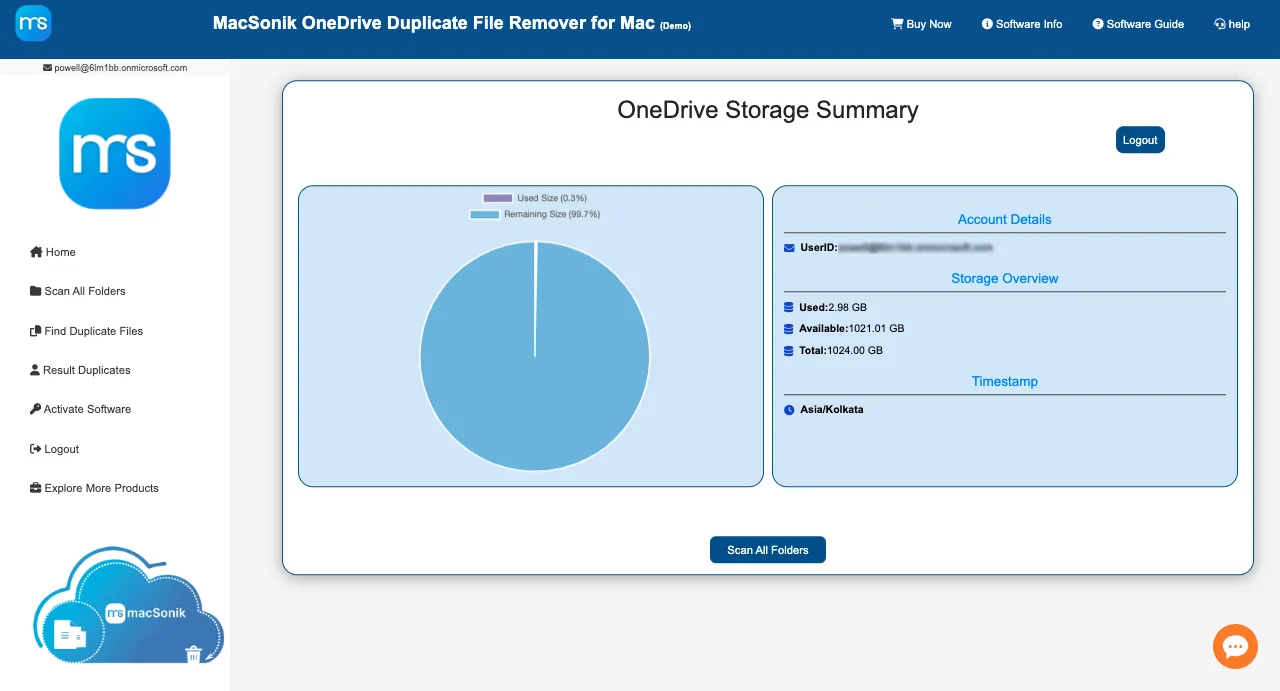
- Next, select the folders and click Find Duplicate Files to check for video duplicates.

- Further, a list of all duplicate videos occurs. Apply other relevant filters and choose how you want to manage duplicates.

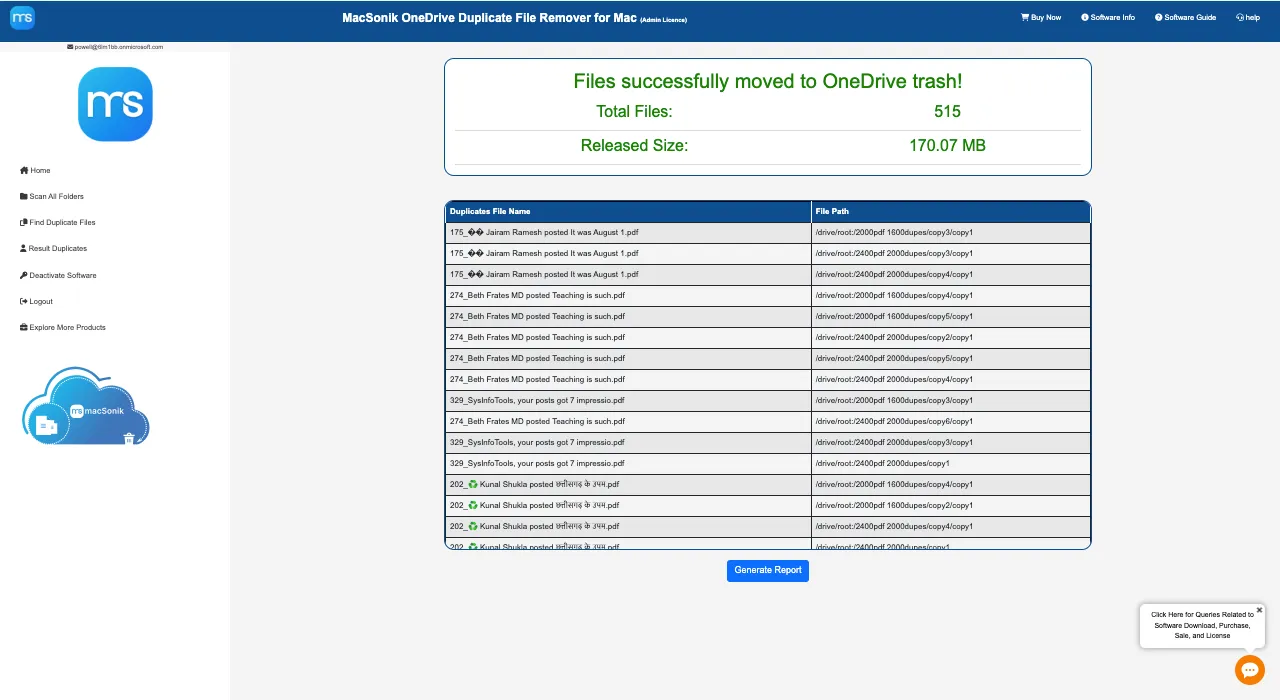
- Finally, all your duplicate videos are eliminated in minimal time. If needed, Generate Report.
Successful Case:
“I had around 500+ duplicate videos in my OneDrive Personal Account. Using this OneDrive Duplicate Finder, I was able to easily free up my space without any alterations or loss in a few hours. It was an effortless, quick, and smooth process.”
-Brian Chandleir
Also Read: Find and Delete Duplicate Photos & Files
Conclusion
Duplicate videos are a mess, but they also consume a lot of space and make your OneDrive storage full in no time. Removing them manually works fine for small libraries, but if you have to delete duplicate videos from OneDrive on a large scale. Then the best option is to download the OneDrive Duplicate Finder and Remover by MacSonik. It simplifies the process and eliminates duplicates without hassle and loss. As a result, you get a cleaner OneDrive that ensures faster performance, lower storage cost, and no sync issues without wasting OneDrive gigabytes.
Frequently Asked Questions
Ans: For one person, OneDrive offers around 5 GB of cloud storage and 15 GB of mailbox storage free. Furthermore, it has many other plans on different bases. For more information, refer here→ OneDrive Storage Plans.
Ans: Of course. The MacSonik OneDrive Duplicate Remover has an Auto-Delete option that scans your drive folders and automatically deletes duplicate videos. It does ot hamper the original videos and gives you back your storage real quick.
About The Author:
Amelia is the mistress of the webmail clients like Office 365, Gmail, Yahoo, Hotmail, and Opera Mail. Her research on downloading emails from webmail is outstanding. She has given the solution to download emails from webmail clients to a Mac device with all the mailbox items. She’s been into webmail solutions since 2010. In her free time, she reads books and writes technical blogs.
Related Post
