Top Ways to Remove Duplicate Files from OneDrive

Amelia James
November 21st, 2025
Introduction: Microsoft OneDrive has become one of the most chosen cloud storage services for both individuals and businesses. However, with multiple syncs between devices, file sharing, and constant backup, duplicate files in OneDrive accumulate quickly. Over the years, they not only clutter storage but can and likely start using up valuable space, slowing down file management. In this blog, we’ll discuss optimal solutions to remove duplicate files from OneDrive, including manual ways and the helpful OneDrive Duplicate Remover to delete files, ensuring that they don’t recur.
Find Duplicate Files in OneDrive
Unlike local drives, as a cloud technology, OneDrive syncs the same document across multiple devices and versions. Because of versioning, duplicates are created. Some common causes for its occurrence include:
- File syncing conflicts between two versions of the same document on upload.
- Multiple uploads of the same document from different device settings.
- Documents edited by various users after sharing save copies of the same document.
- Incorrect service backups save files individually instead of overwriting the file.
All of these examples help track down duplicate files in OneDrive without any challenges.
“I constantly find multiple uploads from my laptop and phone in my OneDrive. Is there an efficient way to clean OneDrive duplicate files without having to go through thousands of files manually?”
Of course, there is one such solution, with an efficient automated tool: MacSonik OneDrive Duplicate Remover. But before you proceed to learn about it, find out how these duplicates actually affect the PC storage.
Why Find and Remove Duplicate Files from OneDrive Mac?
Duplicate files do more than just consume the storage space. They also complicate collaboration between teams.
- Teams working simultaneously may be unaware of each other’s updates and may be working with either out-of-date files (or data), leading to differing data. This takes up storage, prompting unnecessary upgrades. You may be spending time scanning materials that are duplicates of existing files, thus reducing productivity.
- In an enterprise context, duplicate files can lead to legal issues, as sensitive data is duplicated in uncontrolled environments. This means that the original folder for that document may not follow a legal standard.
Hence, to reduce confusion, clear cluttered storage, expand search functionality, improve efficiency, collaboration, and increase productivity, duplicate removal is necessary.
Conventional Approach to Delete Duplicate Files in OneDrive
Removing duplicates manually is not an efficient way to manage 1000s of files in multiple folders. The MacSonik OneDrive Duplicate Finder and Remover can significantly optimize this process. The key benefits of this software are:
- Scan your entire OneDrive storage for duplicate files in one go.
- Identifies duplicates via name, size, extension, and content.
- Allows for the removal of files systematically with multiple selection options.
- Saves time and ensures zero risk of data loss while eliminating duplicates.
- Compatible with both Mac and Windows OS, supporting files of all major formats.
Few Quick Steps to Remove Duplicate Files from OneDrive
- Download and run the OneDrive Duplicate Finder. Choose Personal or Business account. Then, complete the Sign In.

- Further, preview the OneDrive storage summary in the window and click Scan All Folders.
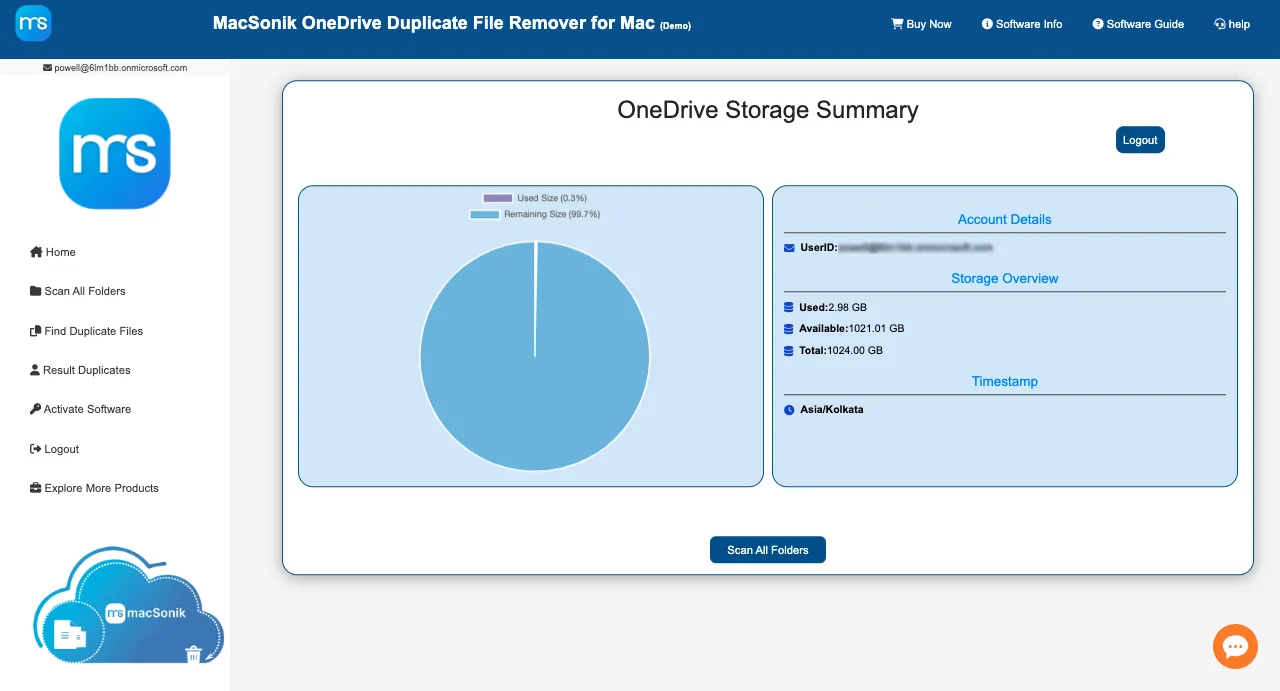
- The list of OneDrive folder shows up. After that, press Find Duplicate Files.

- Wait until the process completes. Later, pick a Selection Type for your duplicates.

- Afterward, choose how you wish to Select Duplicates to retain the accurate file to remove.

- In the end, choose Delete Options and opt to Delete Permanently or Move to Bin.

“A marketing firm, using OneDrive for campaign files, found they were running out of storage faster than anticipated. It was because different team members uploaded duplicate videos for the campaign in the same folder. The firm used the professional OneDrive Duplicate Remover to delete files and restore 15 GB of duplicate data in just one instance. Also, none of their important files were lost!”
Note: For added security, always Backup OneDrive Files to External Hard Drive beforehand to avoid losses.
This is the simplest and easiest direct way to delete OneDrive duplicate files. Also, with its free demo version you can scan and view the duplicates without hassle or manual search.
Manual Approach to Remove Duplicate Files from OneDrive
For those users who need a complete free solution without paid softwares and have only a few free files can use the methods below. This is no longer a complex process if you just follow the right steps in order:
1) Find Duplicate Files in OneDrive Manually & Clean
- First, sync your OneDrive on the local system.
- Then, locate the File Explorer on Windows or Finder on Mac.
- Further, use the search filter in it (name, size, extension, etc.) to identify duplicates.
- At last, select each one of them manually and delete.
2) Delete OneDrive Duplicate Files on Web
- Login to OneDrive Web and browse the folders to visually find duplicates.
- Next, compare the name, size, date, and other details of the files.
- After that, select the unrequired files and press Delete to remove them.
- In the end, empty your Recycle Bin for permanent deletion.
There are two different alternatives for this method. It helps remove duplicate files from OneDrive in a more feasible way:
A. By Sorting
- After the web login to your OneDrive, right-click on a blank space.
- Further, select Sort by and choose Name/Size or other filter as required.
- Spot the duplicates and Delete them.
B. By Built-in Feature
- Initially, go to your OneDrive Settings.
- Then, press Manage Storage to check summary.
- Later, move to files and use Sort filter. Then, check duplicates.
- Lastly, search them manually and Delete.
Loopholes of the Manual Method
- In all the processes, you are doing manual hassle one way or other.
- It is only optimal for very few files in your OneDrive and doesn’t work with large storage.
- Very time-consuming and tedious duplicate removal processes.
- High chance of human error and some files may be skipped in the process.
How to Prevent OneDrive Syncing Duplicate Files?
- Make sure you are enabling real-time sync with all devices.
- Do not rename synced files unnecessarily.
- Instead of uploading a new copy, use shared folders.
- Regularly clean up older versions of files.
Conclusion
While having duplicate files in OneDrive may not seem like an immediate issue. They can result in storage clutters, collaboration problems, and legal issues. In cases where you are managing small size clean-ups, it may be feasible to do it manually. However, businesses and professionals managing large OneDrive accounts require a systematic approach to remove duplicate files from OneDrive accurately and efficiently.
Frequently Asked Questions
Ans: Yes, PowerShell can be used to check for duplicate files in OneDrive, but it require scripting experience and is very complex. If the user is non-technical, it is safer to use a professional MacSonik OneDrive Duplicate Removal Software.
Ans: No, OneDrive does not automatically remove duplicates. It simply syncs the duplicate file. Use the manual ways or the MacSonik OneDrive Duplicate Finder and Remover for their elimination and storage cleanup.
Ans: Yes, manually search for duplicates in Finder, but it is much troublesome. So, use the Mac version of MacSonik OneDrive Duplicate Remover for efficiency on any version, new or old without worries.
About The Author:
Amelia is the mistress of the webmail clients like Office 365, Gmail, Yahoo, Hotmail, and Opera Mail. Her research on downloading emails from webmail is outstanding. She has given the solution to download emails from webmail clients to a Mac device with all the mailbox items. She’s been into webmail solutions since 2010. In her free time, she reads books and writes technical blogs.
Related Post
