How to Convert EML to HTML Format? The Ultimate Guide

Amelia James
June 11th, 2025
Summary: In the personal and professional world, email communication is one of the most common forms. An EML (Email Message) is a standard file format that is used to store individual email messages in a single EML file. Sometimes, users wish to convert EML to HTML (HyperText Markup Language) to access and share easily in web browsers. However, the task can be daunting for users with a lack of technical knowledge.
If you’ve been wondering how to save EML as HTML, you’ve come to the right place. In this blog, we’ll be guiding you to perform this process using the manual and EML Converter Tool. Now, look at the advantages of keeping EML data in HTML format.
Why We Need to Convert EML File to HTML?
There are several reasons why you might want to convert your EML files into HTML format:
- HTML can be easily opened in any web browser, making it easier to access EML files without installing an email client.
- Users can choose to publish or display the email content on websites, which is saved in HTML format easily.
- Users can edit and style the content by converting EML to HTML with images, links, and more.
How Do I Convert EML to HTML? DIY Approach
From the section, you might know that there are various reasons that lead users to save their EML files to HTML. Further, we will be providing a native technique to perform this task effectively. However, a native solution can be tricky and lengthy. Therefore, try another way to do it effortlessly and without risk.
#1. Convert EML Files to HTML – With MS Outlook
In this section, we will discuss perfect ways to perform it without costing you a penny. To start this process, make sure you have installed Outlook on your system. Also, log in to it with the correct credentials. Thereafter. Follow the steps below.
- For this task, you need to launch Microsoft Outlook.
- From the top menu bar, tap File – Save As.
- When a pop-up window displays, choose HTML under Save as type.
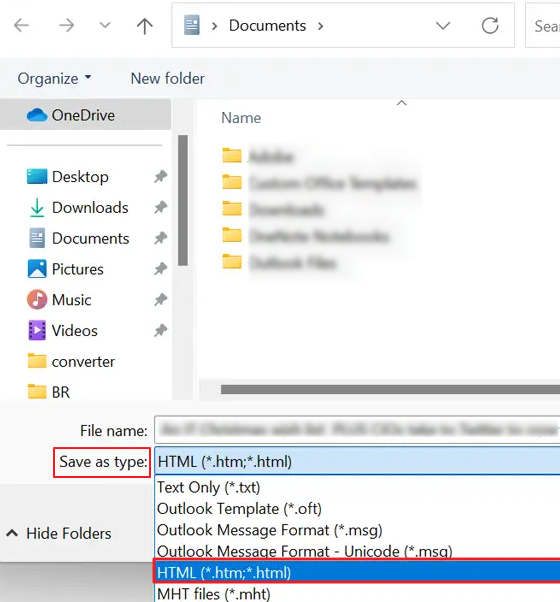
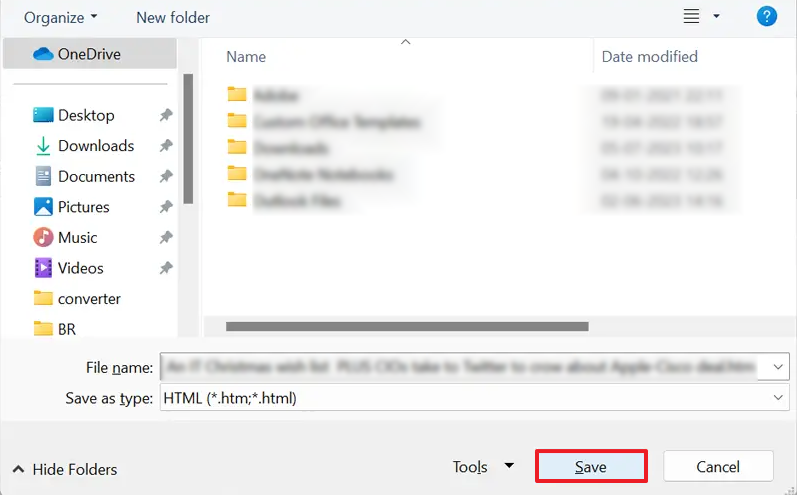
- Then, assign the path to save in your system. Hit Save.
# 2. Automated Method to Convert EML into HTML
MacSonik EML File Converter Tool is one of the most appreciated solutions that helps in an efficient and effective outcome. Apart from this, it gives an easy-to-use interface that helps users with no technical expertise convert EML to HTML. Furthermore, it offers advanced features including removing duplicate emails, email conversion without attachments, and many more. Moreover, it provides 100% accuracy without any data loss or data disruption.
Stepwise Procedure to Convert EML File to HTML
Now, you have to follow the steps given to export EML file data into HTML format automatically.
- In the beginning, open the EML Converter Tool on your PC.
- Later, hit the Select Files option to browse and add EML files. Click Open.
- Then, view the EML file content along with attachments.
- Next, tick the items from the mailbox tree hierarchy and tap Next.
- Further, choose HTML format from the given drop-down menu.
- Thereafter, provide the path to save output HTML files in your system.
- Now, press the Convert tab to begin the process.
Also Read – Convert EML to TXT Format
Conclusion
Reading this blog, users can convert EML to HTML. Most of the users want to save their EML files in HTML to enhance accessibility. Additionally. It allows users to design the content by adding links and images. If you want to perform this process, you have two ways. Still, many business owners and organizations prefer professional solutions to achieve desired outcomes efficiently and securely.
Frequently Asked Questions
Ans. You can use a manual approach to perform this process.
1. Install and log in to Outlook.
2. Tap on File – Save As.
3. In the pop-up window, choose a location to save the resultant HTML file.
4. Pick HTML from the Save As Type.
5. Lastly, hit Save.
Ans. Yes, there are various automated solutions available. Still, the MacSonik EMLC converter Tool is highly recommended due to its efficiency and reliability.
About The Author:
Amelia is the mistress of the webmail clients like Office 365, Gmail, Yahoo, Hotmail, and Opera Mail. Her research on downloading emails from webmail is outstanding. She has given the solution to download emails from webmail clients to a Mac device with all the mailbox items. She’s been into webmail solutions since 2010. In her free time, she reads books and writes technical blogs.
Related Post
