How to Save Gmail to OneDrive [Complete Guide]

Amelia James
August 14th, 2026
Introdution: Gmail is incredible, but it is not free of issues and errors. Accidental deletions, account lockout, and sync failures generally lead to serious data loss, especially when accounts have tons of crucial data. This is a user query from the Microsoft Forum:
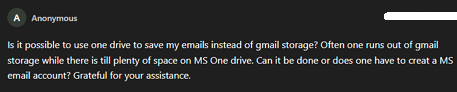
We clearly know that this happens often when we have both OneDrive and Gmail storage, but one remains free, and the other is overly cluttered. That’s why many users now prefer to save Gmail to OneDrive for a secure and centralized backup that is easily shareable and manageable. Whatever your reason may be, this guide provides complete details to save Gmail emails to OneDrive for free or by a Gmail Backup Tool.
OneDrive by Microsoft isn’t just a cloud drive. It’s a hub of data synchronization that bridges storage, sharing, and backup of emails, contacts, calendars, photos, etc. in modern spaces.
Practical Reasons to Migrate Gmail to OneDrive
The significant factors for which a user likely shifts the entire mailbox data, including attachments from Gmail to OneDrive, are:
- Real-time protection in case of Gmail outages, server crashes, or data loss.
- Centralized access to Gmail mailbox data anytime, anywhere, securely.
- Simplified collaboration when sharing emails and data with the team and other members.
- Retains compliance with the maintenance of mailbox data in a secure Microsoft environment.
- Reduce dependency on the local storage and free Gmail space by moving to the cloud.
- Advanced data security when you migrate Gmail to Office 365 OneDrive with integration to other services.
Top Free and Pro Methods to Save Gmail to OneDrive
This section clearly outlines a few manual methods with full control to perform the Gmail to OneDrive migration. Also, it elaborates a professional Backup Tool to manage the data more efficiently in no time without downtime or loss.
Backup Gmail to OneDrive Manually
Though Google doesn’t offer a direct “Save to OneDrive” option, there are three different manual techniques for the migration process. The steps-by-step guide is as follows:
Process 1: Save Gmail Emails to OneDrive Via Google Takeout
- Go to Google Takeout and sign in with your Gmail to continue.
- Then, click on the Deselect All button and browse to choose items to move.
- Select Mail, Photos, and Drive as needed and click Next Step.
- Further, choose the preferred file type (ZIP) and delivery as a Download link via email.
- Click Create Export and wait for it to complete. Once done, download the content and extract it in MBOX format.
- Finally, use the File Upload feature and load the extracted .mbox file to your OneDrive.
Cons:
- MBOX files are not directly viewable in OneDrive, even if you upload them. So, save MBOX file to PDF or any other compatible format to access in OneDrive.
- Since the process doesn’t sync automatically, you need to repeat it for regular backups.
Process 2: Save Gmail to OneDrive with MS Power Automate
- First, log in to Power Automate with your Microsoft account.
- Then, select a prebuilt template like “Save Gmail attachments to OneDrive” from it.
- Next, connect both your Gmail and OneDrive accounts.
- After that, specify the folder path for OneDrive where to save attachments.
- Lastly, run or schedule the transfer for later to move the attachments.
Cons:
- If Google and Microsoft change API permissions, the transfer may halt.
- Some initial admin permissions and configuration setup are required.
Process 3: Outlook Store Gmail Attachments to OneDrive
- Initially, configure your Gmail account in Outlook via IMAP.
- Once the account is synced, open any Gmail email with attachments.
- Further, tap the attachment, right-click, and choose Save As >> OneDrive.
- Create a folder in OneDrive and save all the Gmail attachments in it.
Cons:
- Doesn’t save the entire emails is only suited for the attachments.
- Not suitable when you have thousands of emails in Gmail.
These free methods are appropriate if you have to move only a few emails and attachments from your Gmail to OneDrive. But when you have bulk data volumes or need more data security, reliability, and scalability, then a professional solution is a better choice. To find out how, continue to read below.
Save Gmail to OneDrive Professionally
For enterprise users and large-scale data backups, working with the MacSonik Gmail Backup Tool is a smart solution. It is a faster and more dependable approach as you can directly connect your Gmail via secure OAuth authentication. In addition, you can directly export all the data at once with a clean and clutter-free download of the entire mailbox in a OneDrive-compatible format.
1. Which secure authentications does MacSonik Gmail Email Backup Tool support?
It allows you to log in with your Email and App Password. Or via Modern Authentication, where you are already logged in on the browser, and you just need to input your email and sign in with the tool.
2. Which file formats are compatible with OneDrive?
The major formats are DOC, DOCX, PDF, OneNote (.one), JPG, PNG, TIFF, SVG, EML, CSV, MSG, etc. Additionally, all the provided formats within this software can be viewed by OneDrive in one way or another.
Proceeding, Let’s Check Out the Process to Download Gmail Emails to OneDrive.
- Install, run, and start the MacSonik Gmail Backup Software and pick any one login option.
![How to Save Gmail to OneDrive [Complete Guide]](https://www.macsonik.com/blog/wp-content/uploads/2025/11/image1-1.png)
- Then, enter your respective credentials and click Sign In to authenticate and access data.
![How to Save Gmail to OneDrive [Complete Guide]](https://www.macsonik.com/blog/wp-content/uploads/2025/11/image2-1.png)
- Further, select the emails from the mailbox to transfer and click Next to proceed.
![How to Save Gmail to OneDrive [Complete Guide]](https://www.macsonik.com/dit/img/screenshot/gmail-backup/6.webp)
- After that, choose the desired file format in which you want your data to be in your OneDrive account. Also, apply filters and tap Next.
![How to Save Gmail to OneDrive [Complete Guide]](https://www.macsonik.com/blog/wp-content/uploads/2025/11/image3-1.png)
- In the end, choose the location for your data with Save Path and tap Download to save the data.
How to Save Gmail to OneDrive After Data Download?
- Simply log in to your OneDrive and click Add New button.
- Next, click on the File Upload or Folder Upload button.
- Finally, select your downloaded Gmail files and click Open to load.
- You can access them in the My Files section of your OneDrive.
Key Advantages of the Tool to Migrate Gmail to OneDrive
- Allows batch saving of mailbox data without size limitations.
- Enables you to migrate Gmail to Webmail and other email clients.
- Preserves folder hierarchy and attachments intact as the original.
- Supports Incremental Backup and many other filter options.
- Provides a Demo Version for free, saving 50 emails per folder.
So, in all, it’s your best go-to solution for Gmail mailbox to OneDrive migration in the least time possible. Also, it eliminates manual intervention and overcomes manual limitations with ease and precision.
Conclusion
Backing up Gmail to OneDrive is a smart way to protect important business conversations. All while embedding your workflow into Microsoft’s secure cloud ecosystem. While manual methods can work if you have limited data, a professional Gmail Backup Tool provides the reliability, flexibility, and control that are essential when you save Gmail to OneDrive regularly and automatically. In the age of hybrid clouds, downloading Gmail messages to OneDrive is not just a backup operation; it is an industry-standard for productivity promotion.
Frequently Asked Questions
Ans: No, you cannot connect them directly. The major difference here is that Google and Microsoft are two different cloud ecosystems. For this reason, you will have to use Power Automate or Gmail Backup Software to transfer files securely.
Ans: It really depends on your current Gmail storage usage. It’s usually about 15 – 50 GB for your personal use Gmail account; for business professionals, it can differ and be much more than this.
Ans: Yes, but only if the emails are exported in a readable format such as PDF or EML.
About The Author:
Amelia is the mistress of the webmail clients like Office 365, Gmail, Yahoo, Hotmail, and Opera Mail. Her research on downloading emails from webmail is outstanding. She has given the solution to download emails from webmail clients to a Mac device with all the mailbox items. She’s been into webmail solutions since 2010. In her free time, she reads books and writes technical blogs.
Related Post
