How to Rename All Files and Folders on Mac?

Amelia James
December 4th, 2025
Summary: In a business environment, a clean and proper naming format is crucial before sharing a file. This might involve implementing numeric sequencing, eliminating special characters, and more. It is a simple task to rename files and folders on Mac, but it requires a step-by-step approach. Through this blog, we will try to provide every detail required to help users rename their files on macOS. Renaming files and folders ensures that the files appear organized and are well-structured. Now, let’s start the blog.
Various Ways to Rename multiple files at once on Mac
In the following section, we’ll highlight various methods to change the names of the files or folders on macOS. Let’s begin.
Method 01: Change File Name on Mac OS
It is the simplest and quickest way to rename a file with a new name on macOS.
Look at the steps to start the process:
- First, launch Finder and navigate to the file that you wish to rename.
- Now, select the file, right-click on it, and choose Rename.
- Next, enter the new name of the file and click Enter to save it.
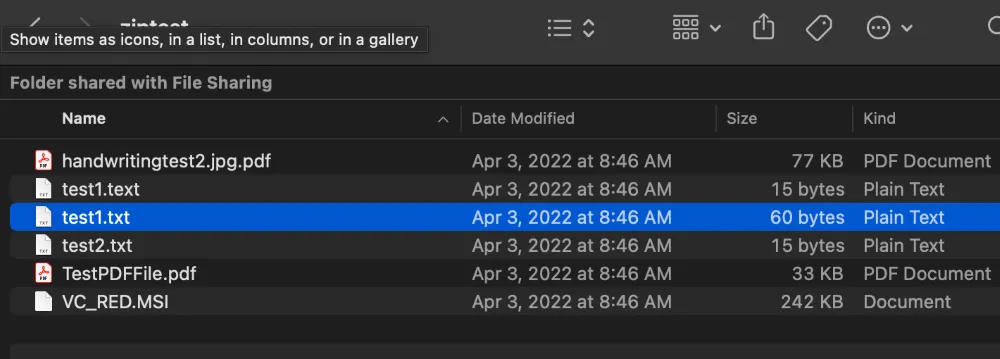
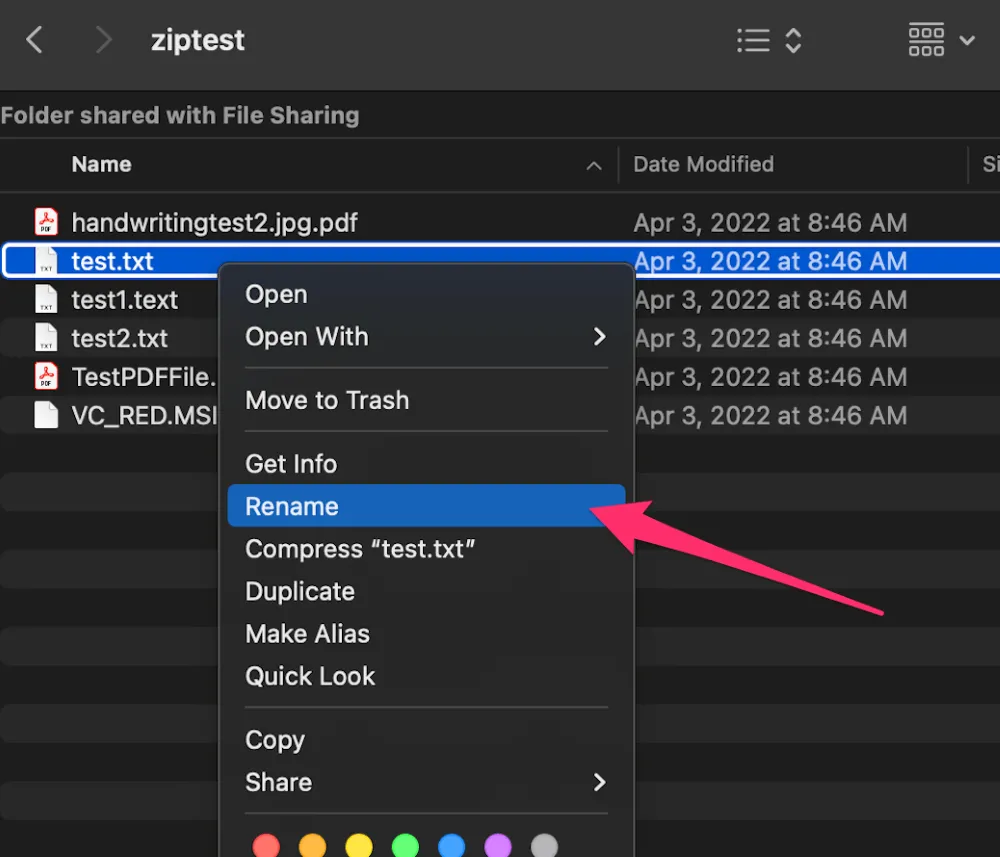
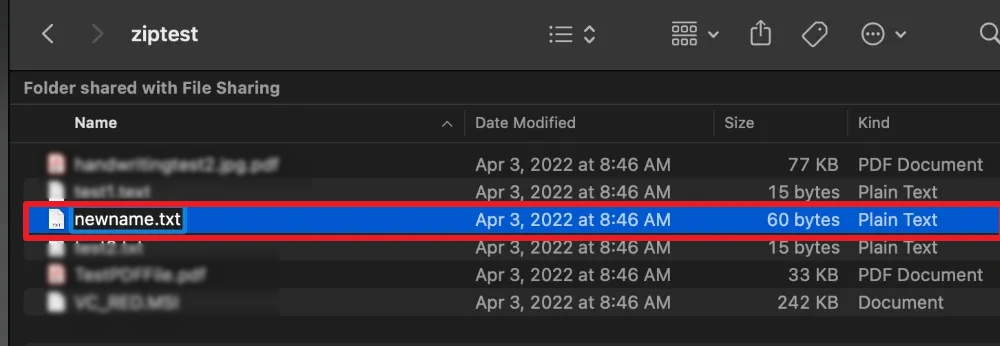
Make sure that you do not enter any special characters in the file name. MAacOS does not accept it.
Method 02: Rename Files and Folders on Mac
This method is ideal for users who need to do batch renaming. It efficiently renames multiple files or folders simultaneously.
Follow the step-by-step process:
- Launch Finder and go to the files/folders you want to rename.
- Now, drag and select the files or folders, and then right-click on them.
- Next, choose Rename (no.of) Items, and a dialog box will appear.
- After this, select a Rename Option: Replace Text, Add Text, or Format.
- Preview and review the filenames carefully and click Rename to save the changes.
Also Read: Delete Duplicate Files on Mac
Method 03: Change File Names and Folder on Mac
In this method, we’ll rename files and folders on Mac not working using the terminal commands. With this process, users can automate the file/folder renaming process.
The following are the instructions to start the procedure:
- Start by pressing Command+Space, typing Terminal, and hitting Enter.
- Then, run this command to go to the folder containing the folder:
- Now, use the mv command to rename the file or folder:
| cd /path/to/your/folder Example: cd ~/Desktop/Reports |
| mv oldfilename.txt newfilename.txt Example: mv ReportDraft.txt ReportFinal.txt |
Method 04: Select and Rename Directly
Perform the simple steps to begin changing the file name:
- Open the Finder application.
- Navigate to the file or folder you want to rename.
- Select it, press Enter, and provide a new name to the file.
- After that, click anywhere on the screen, and the new filename will be saved.
Also Read: Remove Duplicate Files from OneDrive
Conclusion
One of the primary reasons why users rename files and folders on Mac is for smooth collaboration across different teams. Above, we have provided various methods that help users rename the files. Choose whichever method you think is simple and solves the problem. Businesses often rename the files or folders to improve productivity and ensure compatibility. Moreover, it keeps the data clean and well-organized.
Frequently Asked Questions
Q1. How can I rename several files and folders at once on my Mac?
Ans- In Finder, select multiple files and right-click on them. Then, choose Rename (no.of) Items and select the options to rename it. Finally, tap Rename to apply the changes.
Q2. I am experiencing an error during the file-renaming process on my MacBook Pro, and as a result, I’m unable to rename files or folders.
Ans- This can be due to multiple reasons. It may indicate permission issues, file locks, and system restrictions. Also, if the new name contains special characters, macOS won’t accept it. Moreover, sometimes restarting the system or updating the macOS also helps.
Q3. How do I rename a folder on a Mac using Finder?
Ans- Open Finder and select the desired file. Now, press Enter and type in the new file name. Once done, hit Enter again to save the changes.
Q4. How do I change extensions while renaming files on a Mac?
Ans- To change a file’s extension, select the desired file in Finder, press Enter, edit both the name and extension, and press Enter again. macOS will prompt you to confirm. If extensions aren’t visible, enable Show all filename extensions in Finder settings.
About The Author:
Amelia is the mistress of the webmail clients like Office 365, Gmail, Yahoo, Hotmail, and Opera Mail. Her research on downloading emails from webmail is outstanding. She has given the solution to download emails from webmail clients to a Mac device with all the mailbox items. She’s been into webmail solutions since 2010. In her free time, she reads books and writes technical blogs.
Related Post
