Best Methods to Import Outlook Contacts to Thunderbird

Amelia James
September 15th, 2025
Introduction: Transferring from one email client to another doesn’t mean leaving behind your important contacts. Whether switching from the bubble of a corporate Microsoft Outlook environment to the flexibility of Mozilla Thunderbird. Or joining multiple accounts, or just looking for an alternative to traditional corporate email. The decision to export your address book is essential, but the methods are often overlooked. This blog covers a PST Converter Tool and free ways to import Outlook contacts to Thunderbird 365 perfectly and accurately.
Alex Bee, a tech-savvy entrepreneur from New York handling multiple Outlook accounts, was unable to connect with the important clients. It was because he couldn’t manage to find their details when needed due to the clutter. So, he decides to ditch costly Outlook for free, open-source Mozilla Thunderbird amid rising prices in 2025. He queries: “Which top-notch foolproof methods can I use to import Outlook contacts to Thunderbird 365 seamlessly?”
Why it Matters to Import Outlook Contacts into Thunderbird?
Outlook and Thunderbird are both powerful, non-licensed email clients, even though they attract different user types. Thunderbird is typically the choice for individuals and organizations with a fairly large email account. Also, it has configuration options, control, flexibility, and customization that many users desire without licensing fees.
The need to import Outlook Contacts to Thunderbird Windows 10 is usually triggered by a major organizational change. Or, probably, to simply settle on one email tool instead of having a wide range of competing tools. Moreover, a successful import prepares the user for an unchanged day-to-day workflow with all relevant email, notes, phone, physical addresses, etc. included in their original Thunderbird setup forever.
Note: Doing so will enable you to import Outlook contacts to Android phone or access them on a Mac with ease.
How to Migrate Outlook Contacts to Thunderbird Address Book?
Shifting contacts from one address book to another needs careful execution, as it contains details of our important clients. Also, losing them can create chaos and disrupt the regular workflow. So, we have drafted a reliable free solution below for this import. However, it can be time-consuming and contain some other risks too. Hence, we have also mentioned an effective professional tool to make the process smooth and quick without losses.
Manually Import Outlook Contacts to Thunderbird
This process requires using Comma Separated Values (CSV) as an intermediary output for the import. It is performed in two parts and is explained briefly below:
Step 1: Exporting Contacts from Outlook to CSV
- Initially, we need to open Microsoft Outlook.
- After that, navigate to File. Here, choose Open & Export and subsequently, Import/Export.
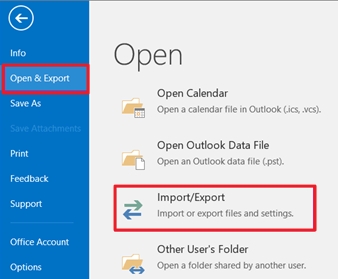
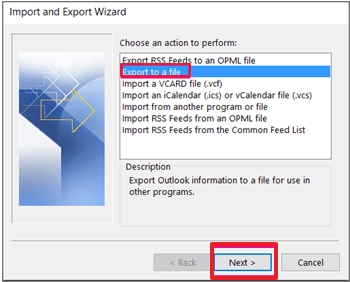
- In the Import and Export Wizard, select Export to File. Click Next.
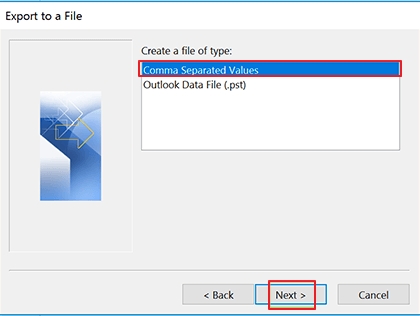
- Later, select Comma Separated Values and again proceed to click Next.
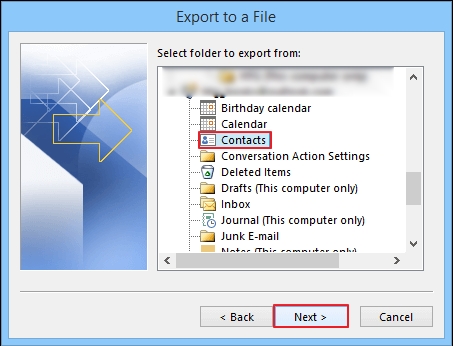
- Select the contacts folder you wish to export to. Tap Next.
- Lastly, select where you would like to save the CSV file. Give it a name and then, Map Fields, and click Finish.
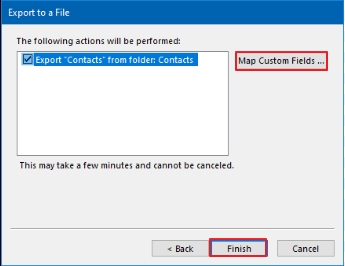
Note: Outlook will likely warn you about losing some information. This is a significant limitation; certain details, like custom fields and categories, may not export properly.
Step 2: Import Outlook Contacts to Thunderbird
- First, open Mozilla Thunderbird.
- Next, browse to the Address Book from the left.
- Further, in the pop-up window, choose to add a new address book, give it a name, and click OK. Then, from the bottom, press Import.
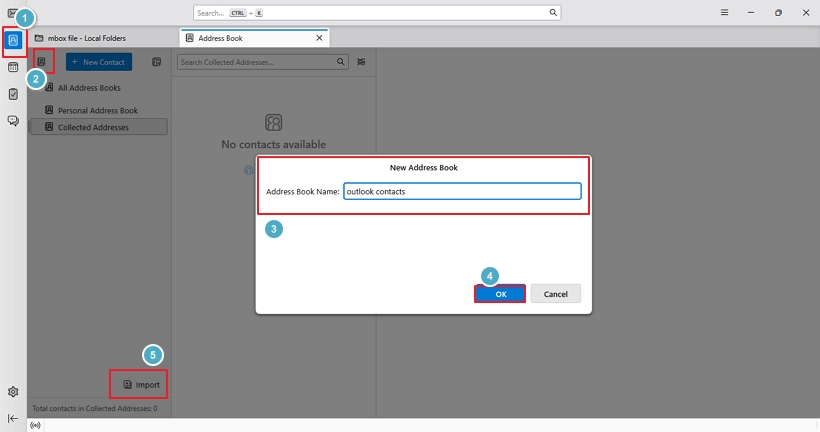
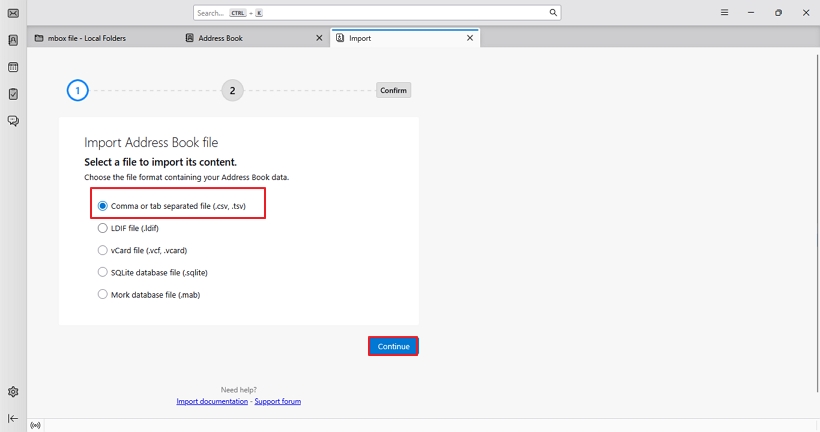
- In Import Address Books, choose Comma or tab Separated, and click Continue.
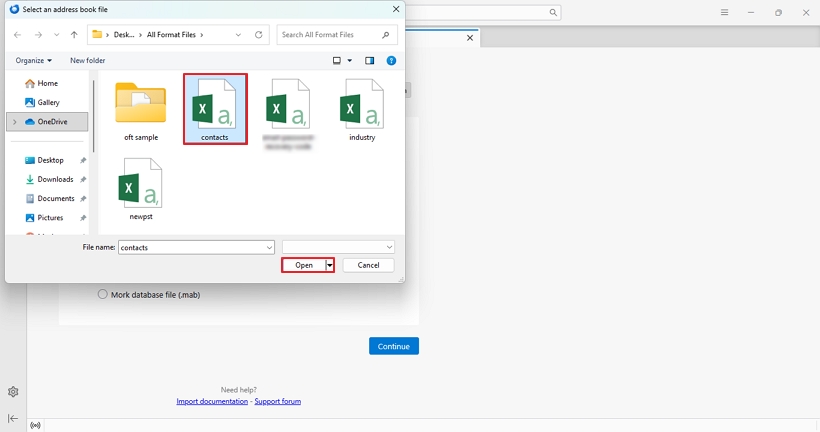
- Find and select the Outlook CSV file we saved earlier. Press Open.
- Then, a mapping tool will appear. Manually match the column headers from your Outlook export with the corresponding Thunderbird fields. Click Continue. (This is incredibly important for accuracy.)
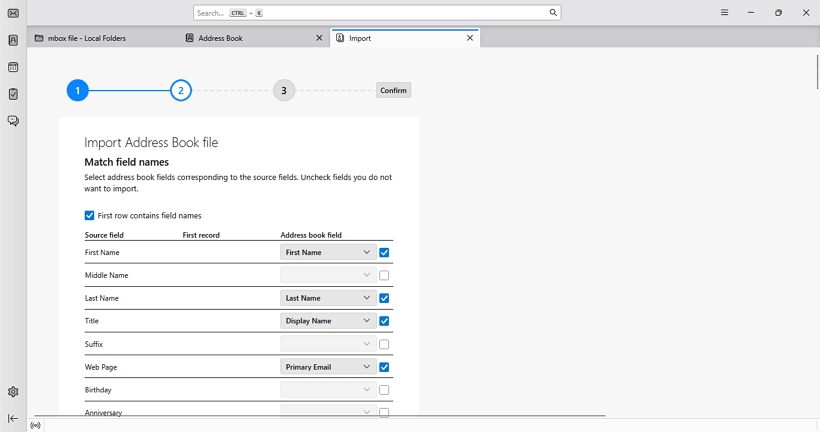
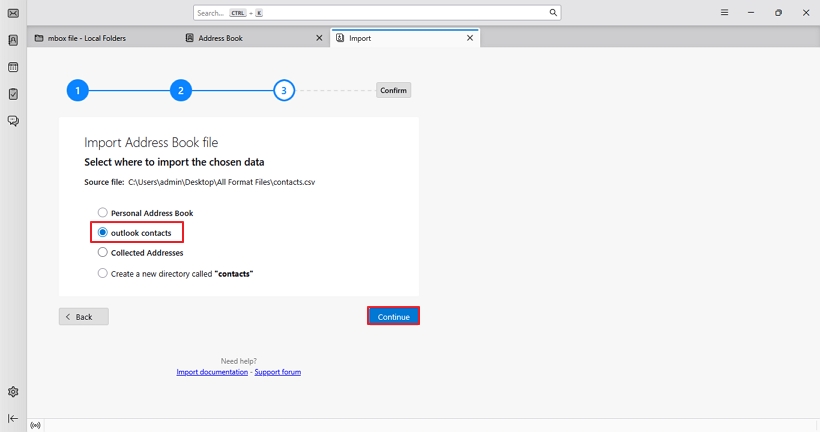
- When you finish mapping fields, select the destination to save the CSV contacts, and click Continue.
- In the end, press Start Import, and the import tool begins.
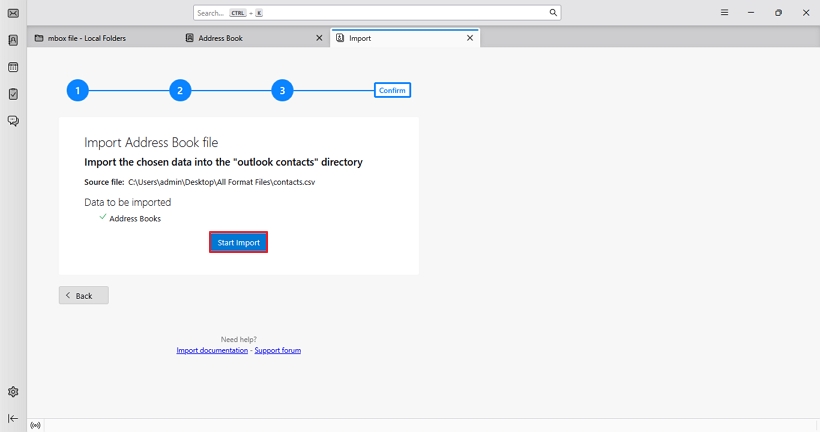
Finally, you finish the process to free convert Outlook Contact file to Thunderbird.
Shortcomings of the Manual Method
- Chances for potential loss of photos, calendar events, and other custom category data.
- Non-technical users can find the mapping of the field complex, and are prone to human errors.
- Users need technical skills for flawless export through two different active applications.
Automatically Import Outlook Contacts to Thunderbird
Users requiring a guaranteed, accurate, and direct transfer without manual risks may use the MacSonik PST Converter Tool. This proficient software is built to handle specific conversion tasks with precision. Additionally, it directly saves data in Thunderbird without the need for a CSV intermediary and preserves 100% data integrity. Moreover, it can easily handle 100s or 1000s of contacts in a single import, saving huge time and effort.
Besides this, it is also useful to save Outlook email as PDF and is very cost-efficient. Along with that, it has a free version through which you can convert upto 50 files per folder for free. So, it is an all-in-one solution for all your custom Outlook migration needs. For any other queries, you can reach out to our tech experts.
Steps to Import Outlook Contacts into Thunderbird
Before you proceed with these steps, make sure to export your Outlook contacts to a PST on the system. Then:
- Launch the software and upload your Outlook contacts PST.
- Click Open and Next to display all the contact fields in the preview panel.
- Further, select those needed and click Next to choose the output format.
- Later, select Thunderbird from the drop-down menu, and its location is automatically set.
- In the end, apply the filters you need and click Convert to complete the transfer.
Successful User Case:
“A marketing company based in the US with 15+ employees switched from Microsoft 365 to Thunderbird to save money. While they were able to import Contacts from Outlook to Thunderbird via CSV, they ran into field mismatches and data loss.”
Initially, they tried the professional Outlook to Thunderbird Converter. They migrated all of their client contacts, along with their associated notes and photos, precisely. Luckily, they only spent a one-time cost to access the tool, which saved them a lot of time from manual corrections and dealing with CSV errors.
Conclusion
Even though there is an option of manually extracting and importing the CSV. The potential for error and data loss makes it a risk for more than a handful of contacts. For guaranteed simplified contact migration, a dedicated tool is the safest and efficient route to import Outlook contacts to Thunderbird. It is the best course of action to ensure your important network of contacts is kept intact and viable the moment you launch Thunderbird.
Frequently Asked Questions
Ans: Yes, both options will work with Outlook 365 and on a Windows 10 PC. The manual CSV export and import process requires you to use the Thunderbird and Outlook applications, and can still result in data loss. That’s why most experts prefer the automated PST File Converter to import contacts directly without the use of any application. It only has a few steps, retains data properly, and ensures no loss occurs.
Ans: To ensure no duplicates occur when you save Outlook contacts to Thunderbird, use the Outlook to Thunderbird Conversion tool. It has a remove duplicate feature to skip similar items and only transfer the unique contacts.
About The Author:
Amelia is the mistress of the webmail clients like Office 365, Gmail, Yahoo, Hotmail, and Opera Mail. Her research on downloading emails from webmail is outstanding. She has given the solution to download emails from webmail clients to a Mac device with all the mailbox items. She’s been into webmail solutions since 2010. In her free time, she reads books and writes technical blogs.
Related Post
