Import OST to Office 365 Without Outlook: Easy Methods

Neeru Kuchhal

June 4th, 2026
User-Query:
“I have an OST file that contains some important emails and mailbox data. But I do not have access to Outlook anymore. I need to import OST to Office 365 safely without losing emails, attachments, or folder structure. What is the easiest way to complete this task without Outlook?”
— Posted by “Daniel Foster”
Introduction: OST is an Outlook data file that stores synchronized mailbox information locally on a system. It allows users to access emails, contacts, calendars, and attachments even without an internet connection. However, problems arise when users lose Outlook access, switch devices, or need to migrate mailbox data to a cloud platform. Since OST files are linked to Outlook profiles, importing them directly into Office 365 can be challenging. Users often face issues such as inaccessible mailbox data, broken synchronization, and migration delays.
Therefore, this guide explains easy methods to import Outlook OST to Office 365. It also explains how the MacSonik OST to PST Converter Tool simplifies the entire process.
Stop Guessing: Should You Keep Your Data in OST or Office 365?
| Major Factors | OST File | Office 365 |
|
Local offline mailbox | Cloud mailbox |
|
Outlook dependent | Accessible anywhere |
|
Emails, contacts, calendars | Complete mailbox environment |
|
Not always required | Internet-based access |
|
Offline access | Cloud productivity and collaboration |
|
Supported | Fully supported |
What Is the Problem?
Many users have OST files but can’t open or migrate them because Outlook access is unavailable.
Some of the common problems include:
- Lost Outlook profile or account access.
- OST files are becoming inaccessible.
- Difficulty importing directly into Office 365.
- Large mailbox data is causing migration delays.
- Attachments and folders at risk during manual handling.
- Also, need for secure cloud migration without Outlook.
Why Smart Users are Moving Their OST Data to Microsoft 365?
Users commonly import OST to Office 365 to:
- Access mailbox data in the cloud.
- Recover emails from inaccessible OST files.
- Move away from local mailbox dependency.
- Improve accessibility across devices.
- Preserve business communication records.
- Moreover, to maintain long-term mailbox continuity.
A Tutorial to Manually Import OST into Office 365
As Outlook cannot directly open the OST files, you need to complete this process using the manual process. But don’t forget that this solution consumes a lot of time and has its own disadvantages.
Method: Convert OST Through Outlook Export
- Firstly, open Outlook with the associated OST profile.
- Now, export mailbox data into PST format.
- Afterwards, sign in to the Office 365 account.
- Use Outlook import options to upload PST data.
- In the end, verify imported mailbox folders and emails.
Limitations to Manually Import OST to Office 365
- It requires Outlook access.
- Cannot work with orphan or inaccessible OST files.
- Time-consuming for large mailboxes.
- There is a risk of incomplete migration.
- Sometimes it is difficult for bulk migration tasks.
- Additionally, it requires technical expertise.
Advanced Solution to Migrate OST to Office 365
For a more reliable experience, use the MacSonik OST to PST Migration Tool. This software helps users to complete the task without requiring Outlook installation. It preserves emails, attachments, contacts, folder hierarchy, and metadata intact during migration. Designed for Mac users and organizations handling secure OST migration tasks. Along with this, it allows users to convert OST to MHTML and other file formats and email clients as well.
Advanced Features to Import OST to Office 365 Using the Tool
- Direct OST to Office 365 migration.
- No Outlook installation required.
- There is a bulk OST file processing.
- Preserves attachments and metadata.
- Maintains original mailbox hierarchy.
- It has a user-friendly Mac interface.
How to Open OST File in Outlook 365: Step-by-Step Tutorial
- Firstly, start downloading the ‘MacSonik OST to PST Converter Tool’.
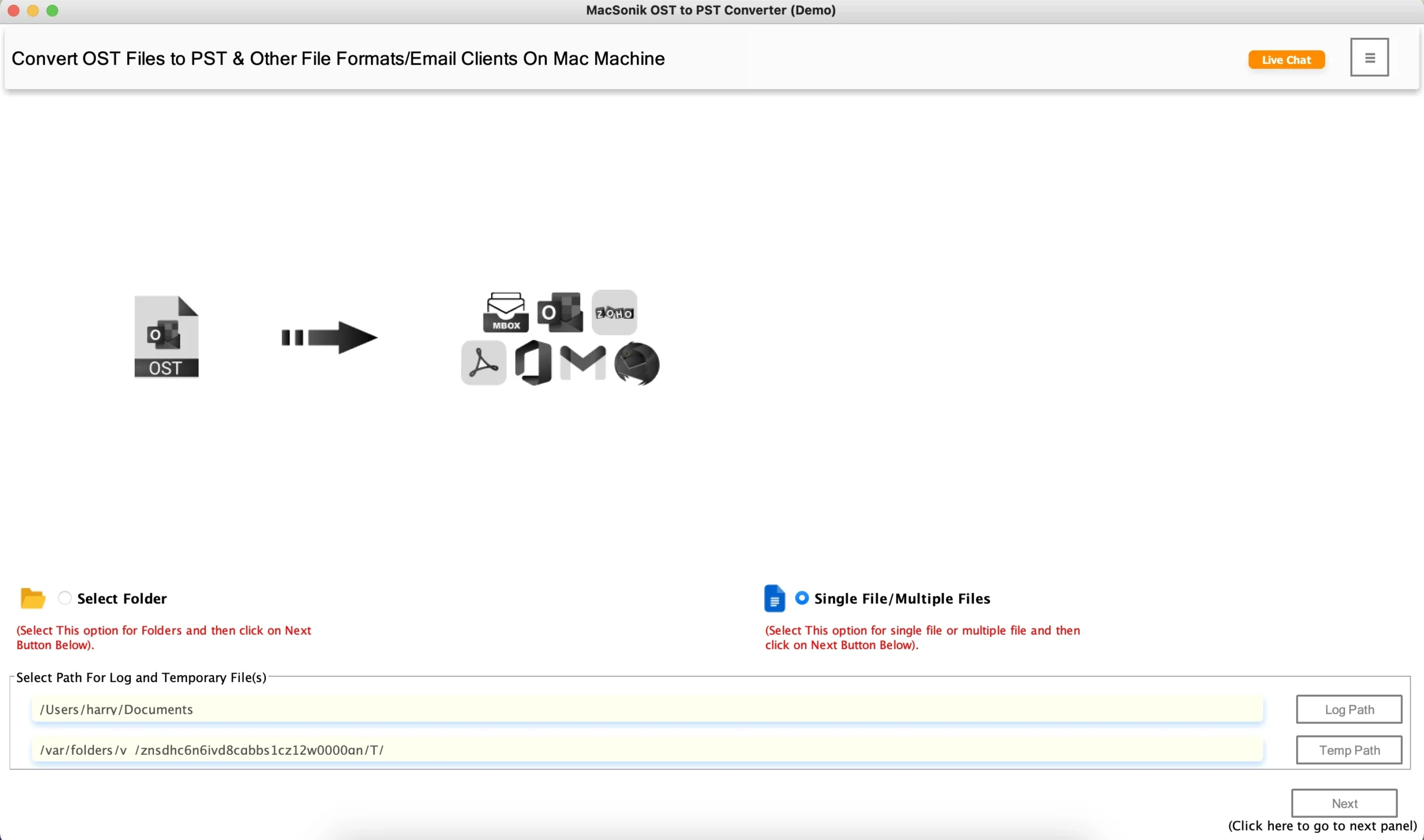 >
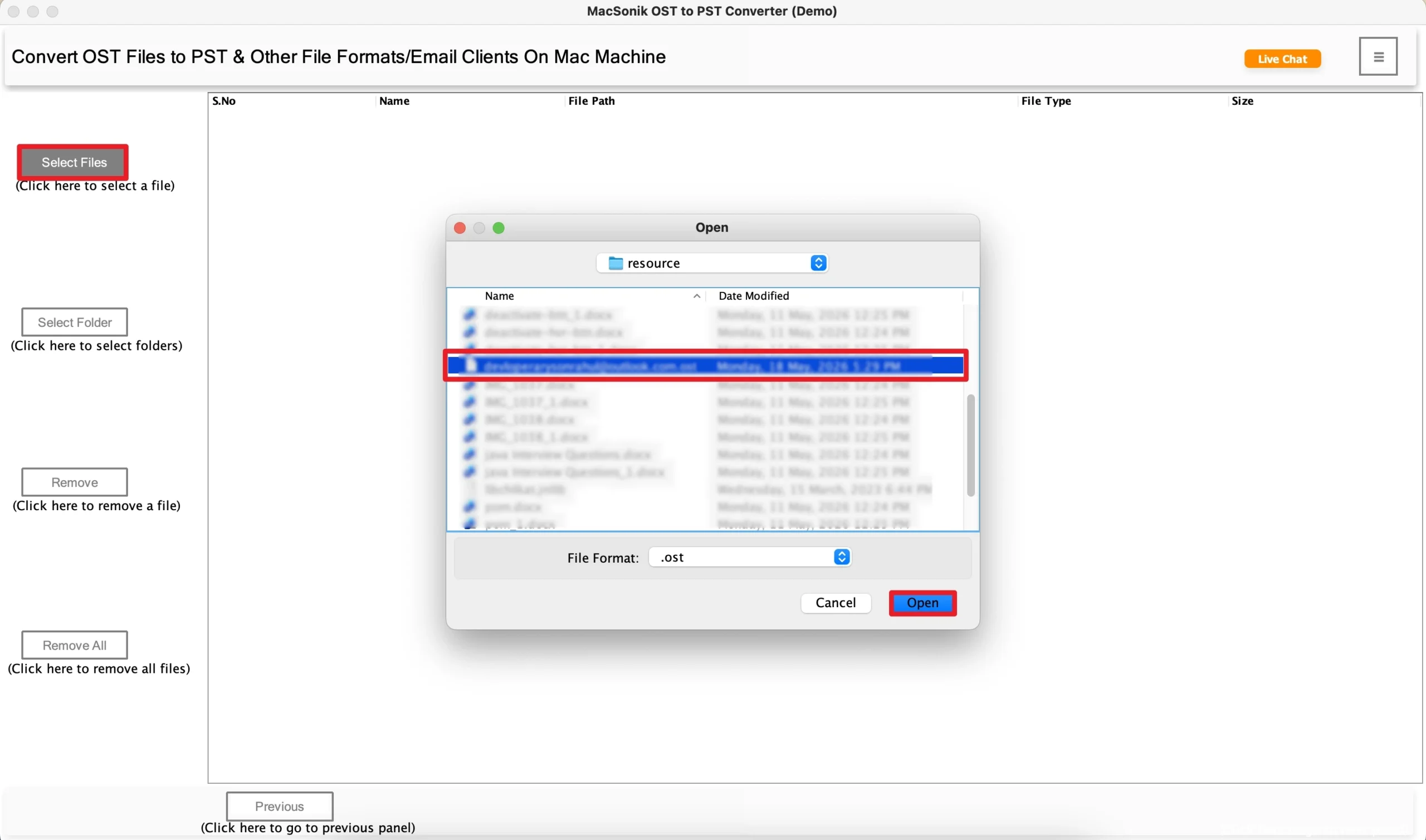
> - Now, click ‘Select Files’, ‘Open’ the OST file that you want to convert.
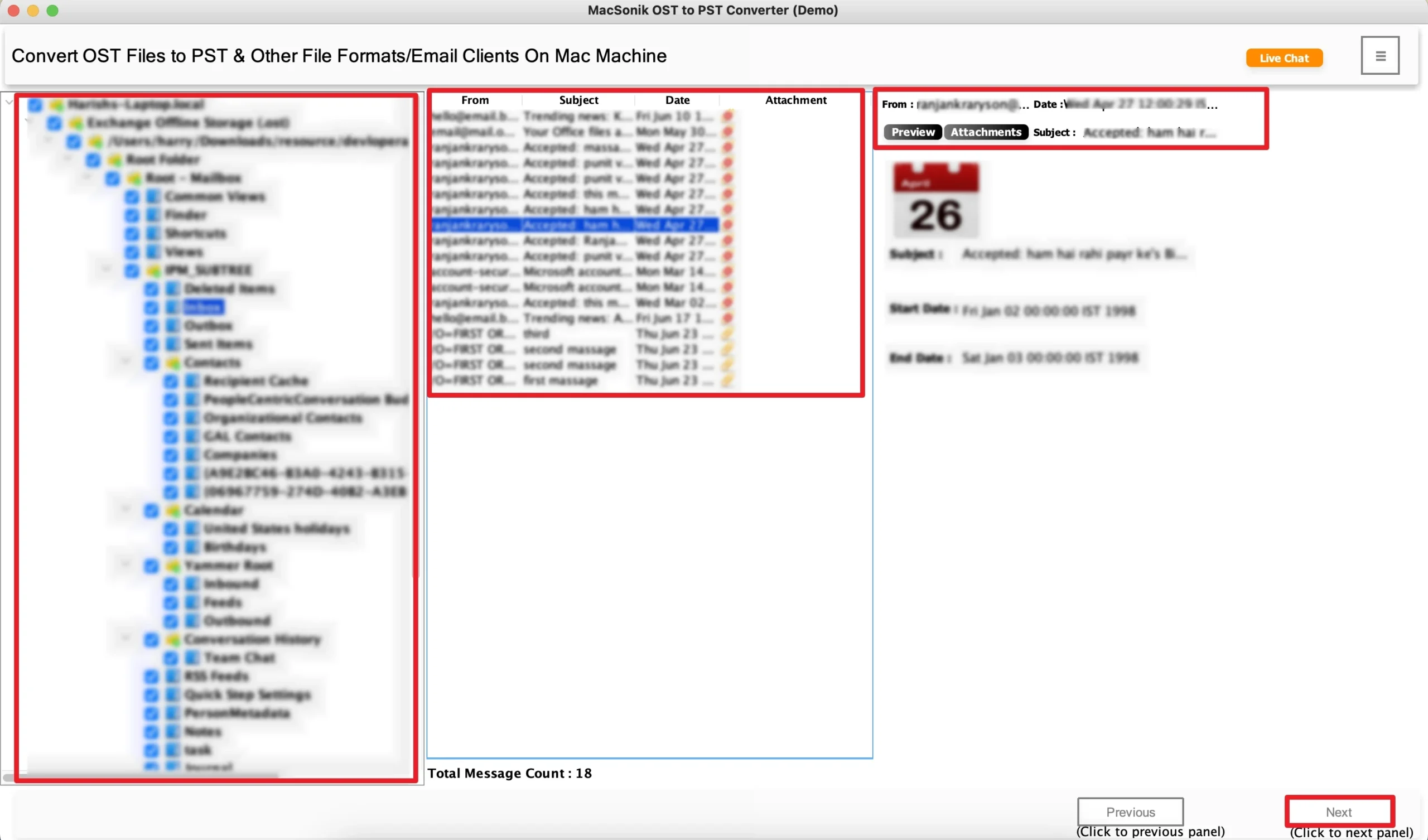
- ‘Expand’ the folder structure and ‘preview’ the entire mailbox, and hit ‘Next’.
- After that, choose ‘Office 365’ as the saving email platform.
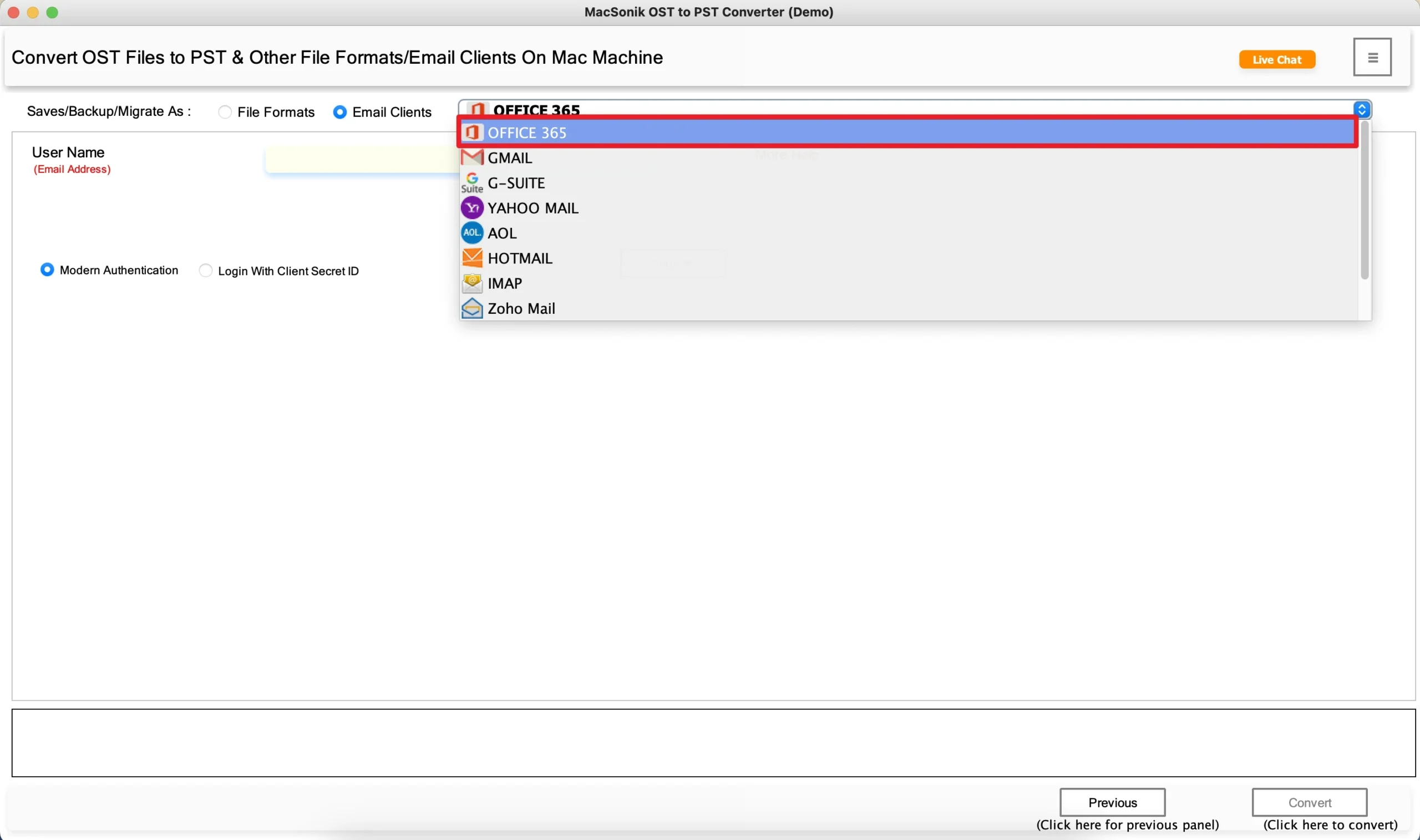
- Furthermore, ‘sign in’ using the ‘Office 365 account’ credentials.
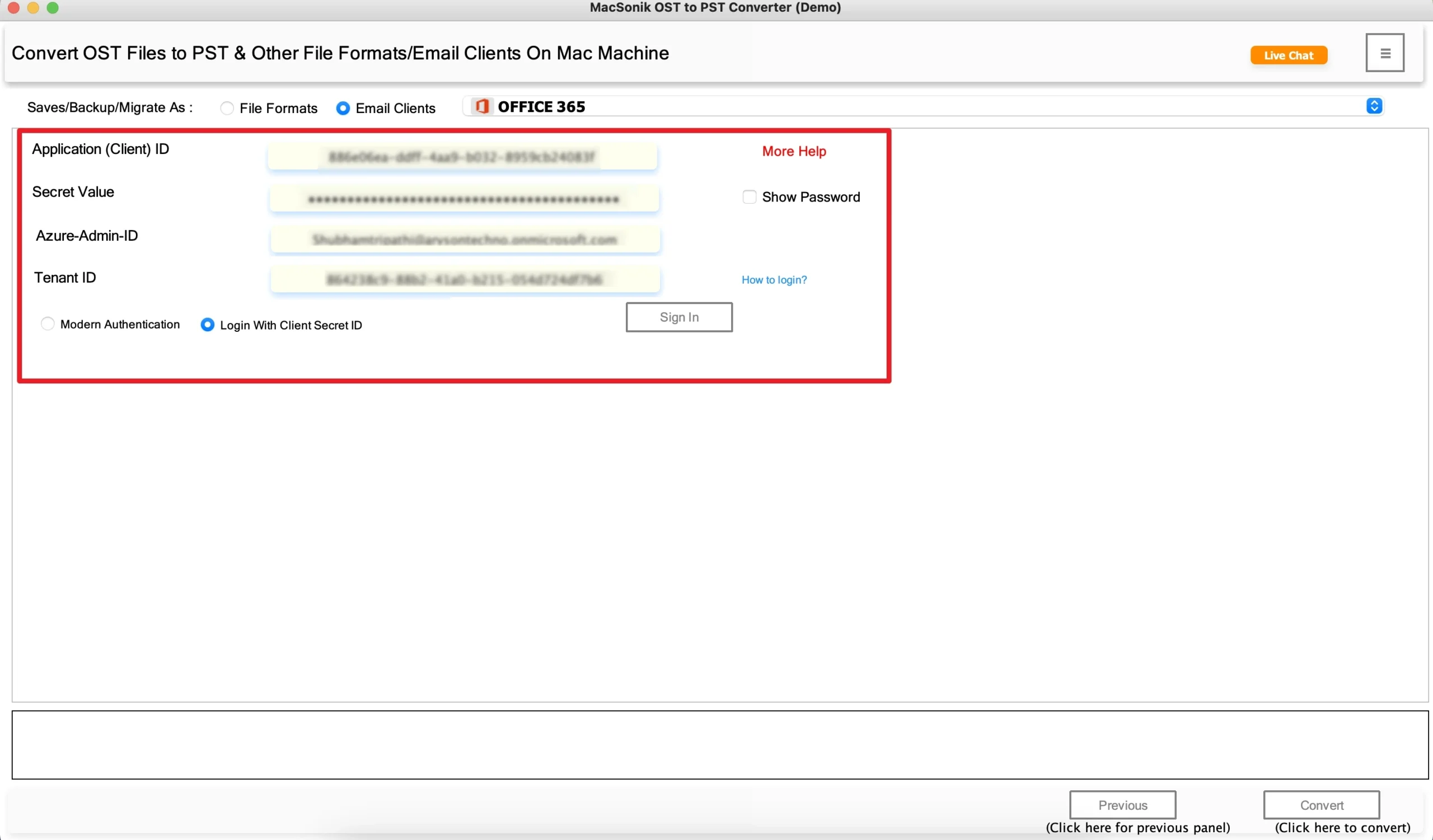
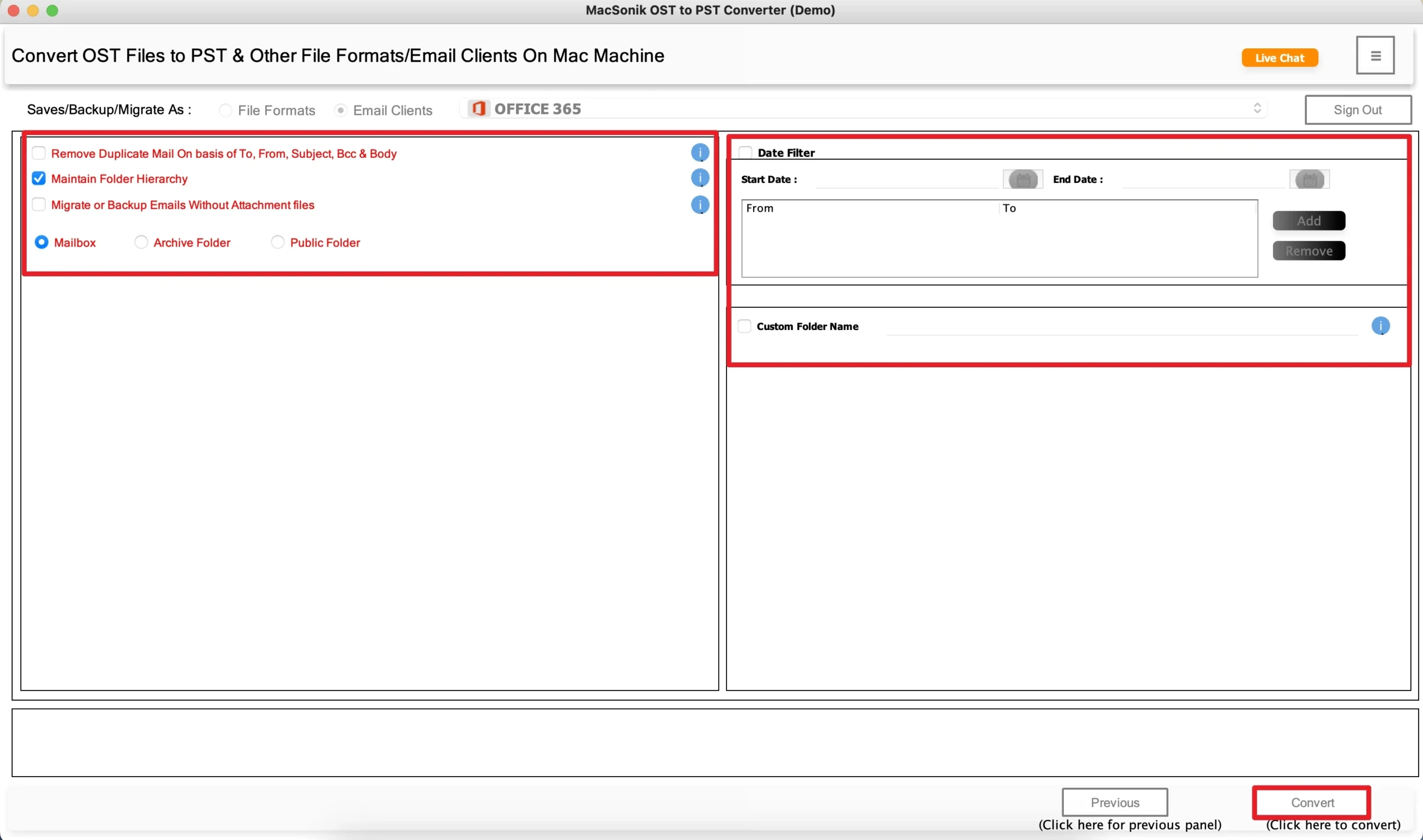
- Finally, ‘apply filters’ as per your requirement, and tap ‘Convert’ to start the conversion process.
Real-Life Scenario: Employee Mailbox Recovery
A consulting firm had an employee’s old OST file containing years of client communication. But the original Outlook profile was no longer accessible. However, the manual recovery options failed because Outlook access was unavailable. The IT team then used the MacSonik OST to PST migration solution to import the OST directly into Office 365. As a result, all emails, attachments, and folders were restored successfully, allowing the company to continue operations without data loss.
Conclusion
In the end, importing OST files into Office 365 without Outlook can be difficult using manual methods. However, the manual approaches may work in limited situations. But often creates delays and compatibility issues. The most reliable solution is to use OST migration software to import OST to Office 365. It offers an accurate OST to Office 365 migration on Mac.
Also Read: Import OST to GoDaddy
Frequently Asked Questions
Ans. No, clearing the Outlook cache usually does not permanently delete emails stored on the mail server. It mainly removes locally stored temporary data and forces Outlook to download fresh mailbox information. However, users should still create a backup before clearing the cache to avoid accidental data issues.
Ans. On Mac, Outlook cache is generally stored inside the user Library folder associated with Outlook profile data and application cache files. The exact location may vary depending on the Outlook version and macOS configuration. These cached files help Outlook load mailbox content faster.
Ans. Normally, clearing Outlook cache does not permanently remove contacts or calendar items if they are synchronized with the mail server or cloud account. Outlook simply rebuilds the local cache during synchronization. However, unsynced or locally stored data should be backed up beforehand as a precaution.
Ans. Yes, certain Outlook versions allow users to refresh or clear the cache for individual folders instead of the entire mailbox. This can help fix synchronization or loading problems related to specific folders. It is useful when only one mailbox folder is causing issues, rather than the whole Outlook account.
About The Author:
I am Neeru Kuchhal, a Technical Content Writer who focuses on turning complex ideas into clear, engaging, and impactful content. I combine creativity with strategy to write blogs, web content, and technical articles that connect with the right audience and support brand goals. I believe great content is not just written. It is thoughtfully created to inform, build trust, and drive action.
Related Post
