Import MSG to IMAP in 2026 – Complete Step-by-Step Guide

Neeru Kuchhal

June 24th, 2026
User-Query:
“I have 100+ MSG files saved from Outlook. Now I want to upload them to my IMAP account so I can access them from multiple devices. The files contain important emails and attachments that I cannot lose. What is the easiest and safest way to import MSG to IMAP?”
Introduction: MSG is a file format used by Microsoft Outlook to store individual email messages along with attachments, metadata, and formatting. Many users save important emails in MSG format for backup, legal records, or business documentation. However, MSG files are standalone files and cannot be directly uploaded to an IMAP server. IMAP allows users to access emails from multiple devices while keeping everything synchronized on the server. Therefore, importing MSG files into an IMAP account is the best way to centralize old emails and make them accessible anywhere.
This guide explains the easiest methods to convert MSG to IMAP in 2026. Similarly, covers the MacSonik MSG Converter Tool for hassle-free conversion.
A Clear Guide to MSG and IMAP Differences
|
Main Factors |
MSG File |
IMAP Server |
|
Single email file |
Server mailbox |
|
Local file only |
Multi-device access |
|
Yes |
Yes |
|
Supported |
Supported |
|
No |
Yes |
|
Email backup |
Live email management |
Take Your Emails Anywhere: Why You Need to Import MSG to IMAP?
There are the following reasons why users choose IMAP instead of MSG:
- Access old emails from anywhere.
- To centralize email storage.
- Preserve important email records.
- Improve collaboration and accessibility.
- Keep attachments and metadata safe.
- Also, to move archived emails into active mailboxes.
How to Upload MSG Files to IMAP for Free Without Third-Party Tools?
Since IMAP does not support MSG files directly, you can complete this process manually. However, it has limitations that make the process slow and error-prone.
Method 1: Drag and Drop via Outlook
- Firstly, open Microsoft Outlook.
- Configure the destination IMAP account in Outlook.
- Create a folder inside the IMAP mailbox.
- Drag and drop MSG files into the IMAP folder.
- Wait for Outlook to sync with the server.
- In the end, verify that all emails are uploaded successfully.
Limitations of the Manual Method
|
How to Bulk Import MSG to IMAP Automatically?
For error-free and bulk conversion, using the MacSonik MSG Converter Tool is the most reliable solution. It enables you to complete this task with full data integrity and zero information loss. This tool validates the metadata, structure, and formatting should remain intact. Besides, it helps business and enterprise users to import MSG to Apple Mail with high-end security.
Quick Reminder: Users can explore the software’s features through its free demo version, which permits 50 email conversions per folder.
Advanced Features of the MSG to IMAP Migration
- Direct MSG to IMAP email migration.
- There is bulk file upload support.
- Preserves attachments and metadata.
- Maintains original folder hierarchy.
- It supports large MSG files.
- Selective email migration.
- Moreover, fast processing engine.
One-Time Migration Assistance Option
If you prefer expert assistance, you can contact the MacSonik support team. Their specialists can securely import MSG into IMAP and handle the complete migration process on your behalf. MacSonik also offers a One-Time Service for just $25, supporting files up to 10 GB, making it an ideal option for users with a one-time migration requirement.
Quick Tutorial: How to Import MSG to IMAP?
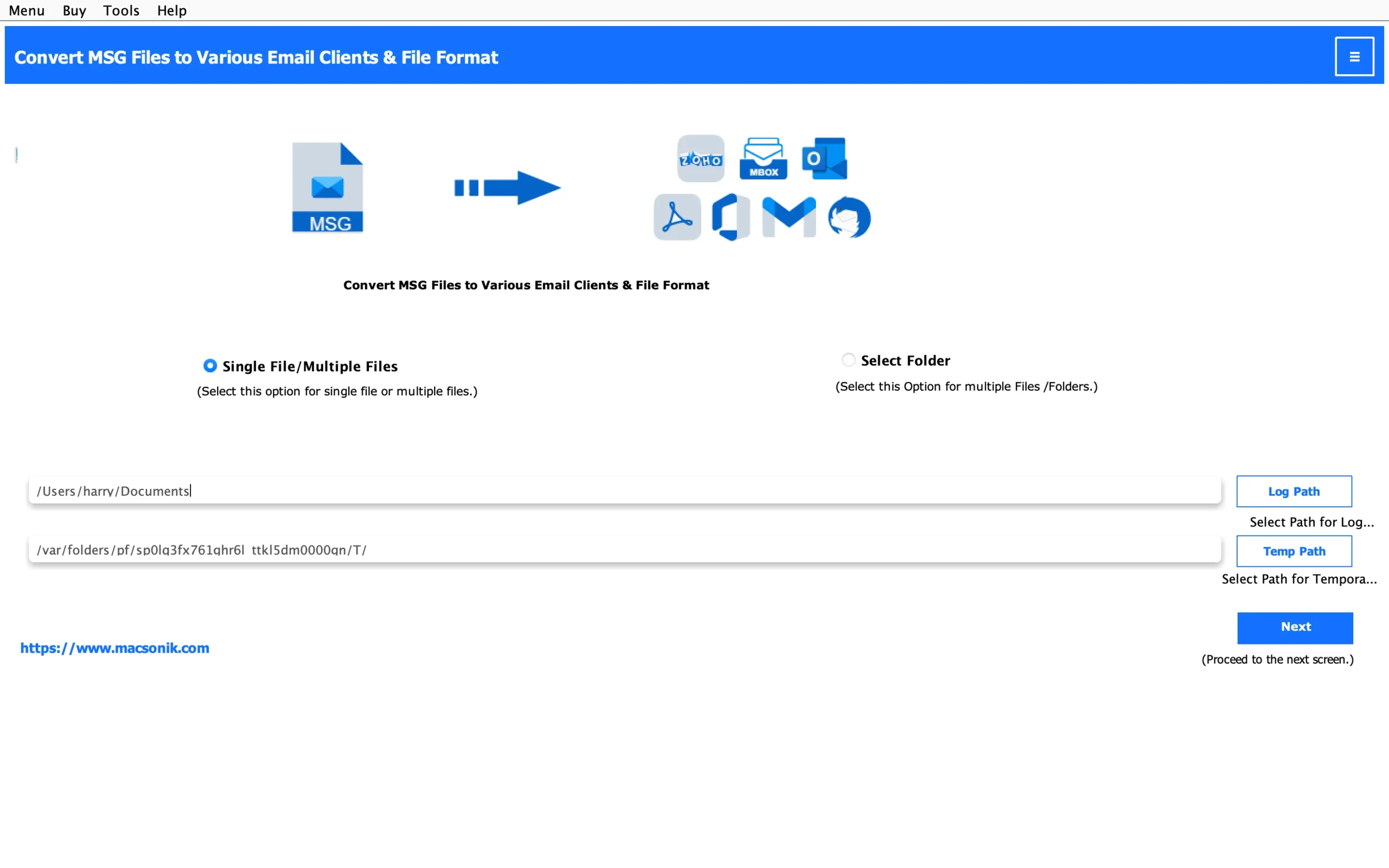
- First, start by launching the MacSonik MSG Converter Tool.
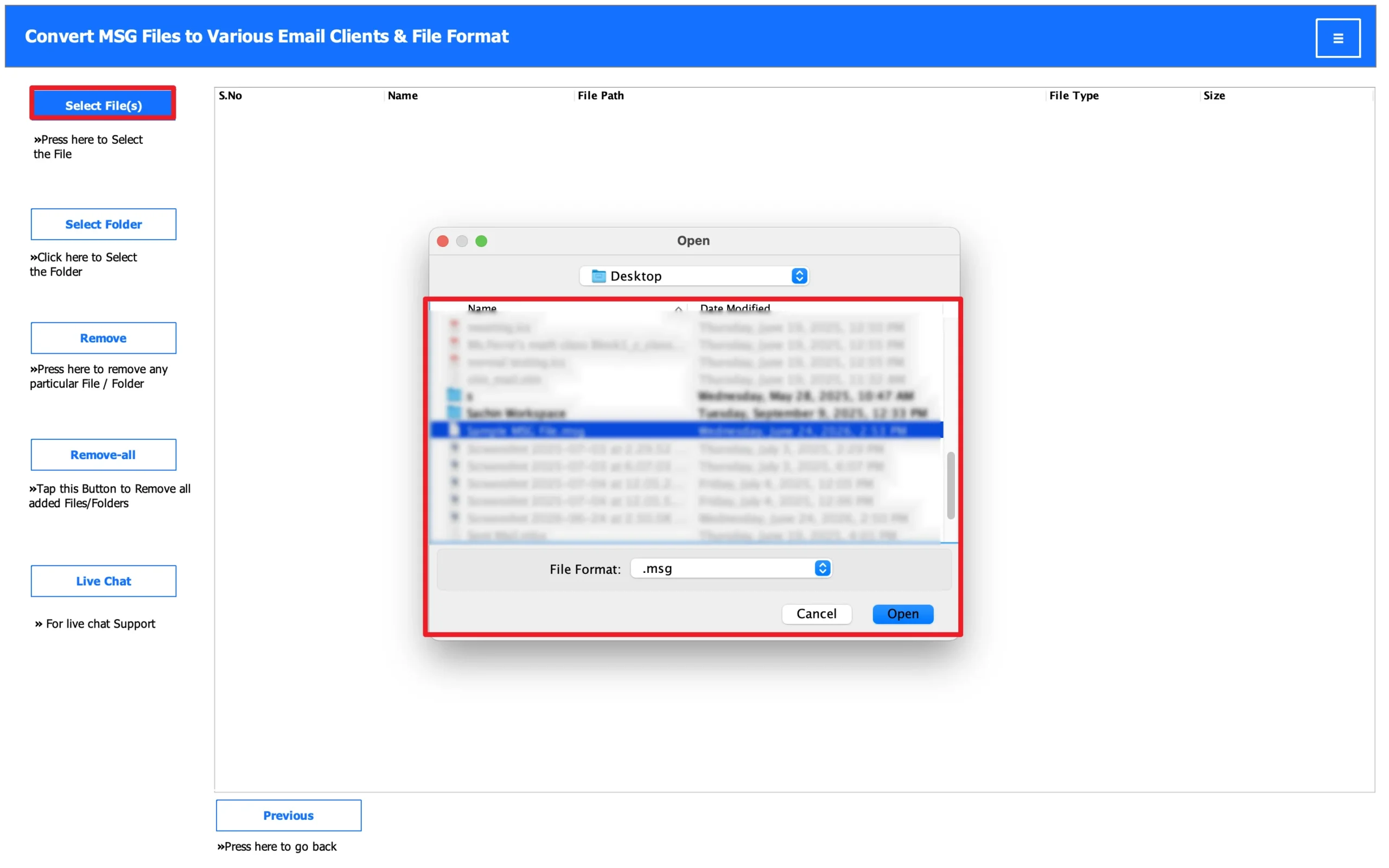
- Select the Files/Folders to upload the MSG file that you want to transfer.
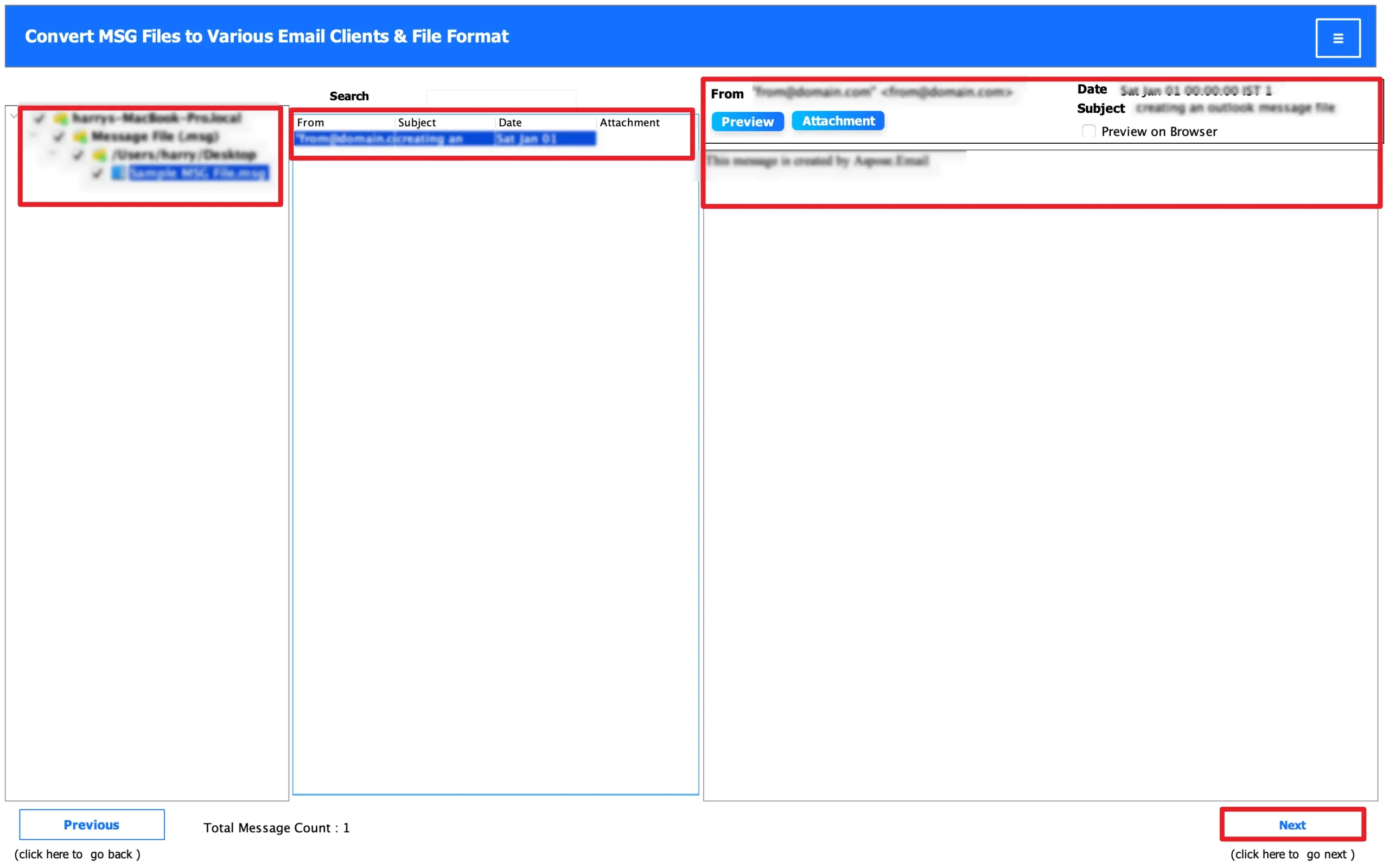
- Expand the tree structure and preview the entire panel, and click Next.
- Furthermore, choose IMAP as the email platform for saving.
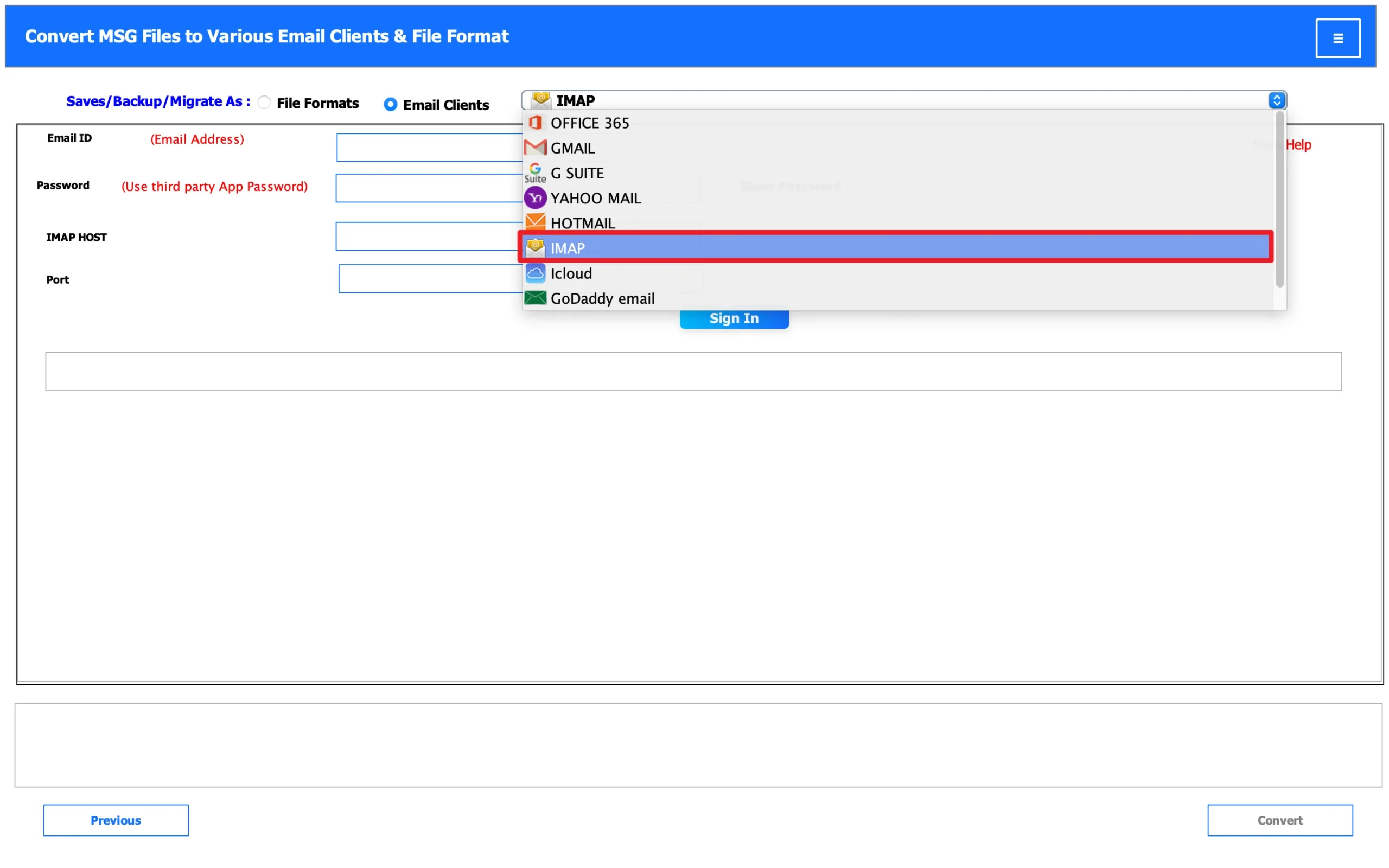
- Authenticate using IMAP account credentials carefully.
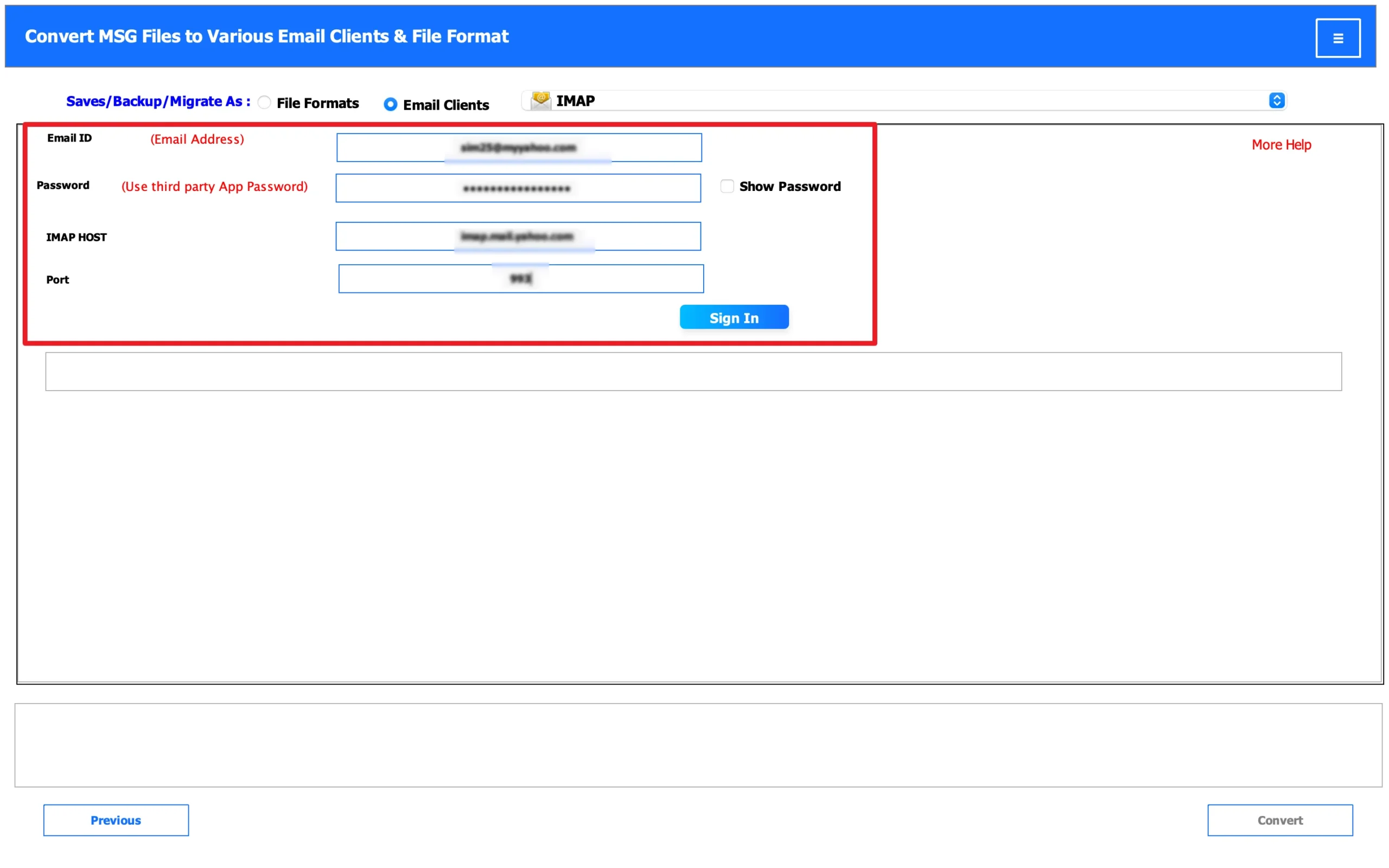
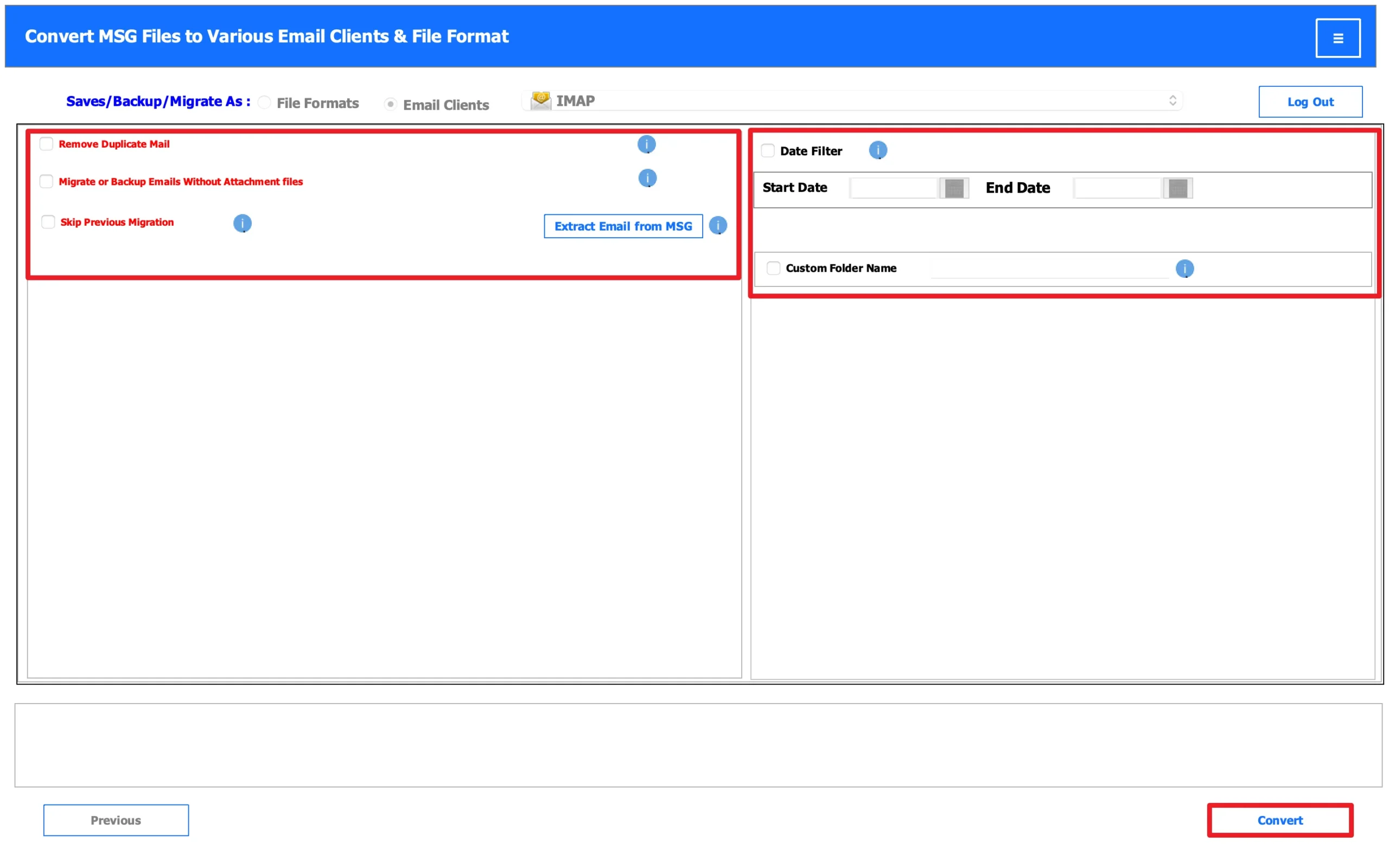
- Finally, apply the features, browse the path to save the file, and start the migration process.
Real-Life Scenario: Legal Archive Email Upload
A software company moved from Google Workspace to Microsoft 365 for better collaboration through Outlook and Teams. The organization had multiple shared calendars with recurring client meetings and internal reminders. However, manual import was slow and created duplicate events. The IT team used the MacSonik ICS Converter Tool to migrate all Google Calendar data into Office 365 successfully, preserving every reminder, event description, and recurring schedule.
Conclusion
In this write-up, importing MSG files into IMAP helps users centralize email archives and access them from multiple devices. While manual methods are possible for small collections, they become impractical for bulk migration. Therefore, using the MSG converter tool is the most approachable solution to import MSG to IMAP. In addition, if you face any issues, you can freely reach out to our support team.
Frequently Asked Questions
Ans. You can transfer Outlook MSG files to an IMAP account by using Microsoft Outlook’s drag-and-drop method or by using a professional MSG migration tool. The tool is often the easier option because it directly uploads MSG files to the IMAP server while preserving attachments and email properties.
Ans. Yes, a professional MacSonik MSG converter tool allows bulk import of MSG files into an IMAP account without requiring Outlook installation. This makes the process faster and more convenient, especially for users handling hundreds or thousands of MSG files.
Ans. Yes, advanced MacSonik migration software supports batch migration, allowing users to upload multiple MSG files into an IMAP mailbox in one go. This saves time and ensures that large email collections are transferred efficiently.
Ans. The safest way is to use a dedicated MacSonik MSG to IMAP migration tool. It preserves email content, attachments, metadata, and folder hierarchy during the transfer process, ensuring complete data integrity without altering the original MSG files.
About The Author:
I am Neeru Kuchhal, a Technical Content Writer who focuses on turning complex ideas into clear, engaging, and impactful content. I combine creativity with strategy to write blogs, web content, and technical articles that connect with the right audience and support brand goals. I believe great content is not just written. It is thoughtfully created to inform, build trust, and drive action.
Related Post
