Quick Ways to Fix Outlook for Mac Error Code 17193?

Amelia James
February 23rd, 2026
User-Query:
I’ve been using Outlook for Mac for my business emails, but recently I started getting Error Code 17193 whenever I try to sync or send messages. Some emails are not syncing properly, and I’m worried about possible data corruption or loss. Can anyone suggest a reliable tool that can safely fix Outlook for Mac Error 17193 and repair my mailbox without affecting my data?
Summary: Following a macOS upgrade, some users experience email-sending failures and display Error 17193. Such errors occur because the update creates compatibility conflicts, or while sending emails with attachments. This technical blog will discuss ways to fix Outlook for Mac error code 17193. Continue to read the blog carefully to resolve this Outlook error. But before implementing the solutions, we’ll first understand what this Outlook error is and how it occurs. Let’s begin with the blog now
The organization encountered Error Code 17193 in Outlook for Mac while syncing its mailbox and feared data loss. He used the MacSonik OLM Converter to back up his emails safely before troubleshooting, which allowed him to fix the error without risking important data.
Causes of Mac Outlook Error Code 17193
Below are the causes of this error 17193. Take a look:
- Sending an email fails when the SMTP settings in Outlook prevent it from communicating with the server.
- If the security or login authentication changes, Outlook cannot send emails.
- Network connectivity issues, such as an unstable or weak internet connection stops Outlook from reaching the mail server.
- Security software, like a firewall or antivirus settings, can block Outlook’s network access as a security risk.
- Outlook profile corruption can occur because of synchronization issues or abrupt system shutdowns.
- macOS updates may alter the system changes that may interfere with Outlook’s communication settings.
Ways to Fix Outlook for Mac Error Code 17193
Now, let’s execute various ways to fix the error code 17193 in Outlook for Mac. Let’s begin with the manual solutions first.
Solution 01: Keep Outlook for Mac Up to Date
By upgrading Outlook to its latest version, bugs can be fixed that cause email failures.
Take a look at the steps to start updating Outlook:
- Open Outlook for Mac on your system and sign in with your account.
- Then, click on Help > Check for Updates > Update.
- After that, download and install the update.
- Now, close and reopen Outlook.
- Verify by sending an email.
Solution 02: Validate SMTP and Outgoing Mail Settings
It is a common reason that the user enters the incorrect mail server settings. Checking them can solve Outlook error code 17193 on Mac.
Look at the steps to begin checking the server settings:
- In Outlook for Mac, go to Outlook > Preferences > Accounts.
- Then, choose the desired email account and click on it.
- Check the SMTP server, Port, Authentication, Username, and Password.
- Also, verify the incoming settings and click on Save to save the changes.
- Lastly, close Outlook completely and reopen it. Try to send an email now.
Solution 03: Use Proper Authentication Settings
When Outlook uses incorrect login credentials, it leads to authentication errors.
- If 2FA is enabled, users need to generate a new app-specific password.
- Log in to your email provider and head to Settings.
- Then, navigate to App Passwords and generate a new app password.
- In Outlook for Mac, go to Accounts and select the email account.
- Input the correct app password.
Solution 04: Inspect Network Connectivity
To communicate properly with the mail server, Outlook requires a stable internet connection. If the internet connection is weak, it can trigger error 17193 and need user to resolve Mac Outlook error code 17193.
Use the following instructions to checkthe internet connection:
- Try browsing a website.
- Switch networks between Wi-Fi and mobile hotspot.
- Turn off the router and switch it on after a few minutes.
- Test the network speed and reset it if required.
Solution 05: Fix Outlook for Mac Error Code 17193 Using a Specialized Tool
The safest option to troubleshoot the above steps is to backup the Outlook data with the MacSonik OLM Converter. This converter is a simplified and lossless utility that ensures authentic OLM file conversion. Also, this same tool is used to import OLM to IMAP. This tool efficiently handles bulk conversions without any data loss. It ensures that users can effortlessly access their Outlook for Mac data in other formats and email platforms. Moreover, the tool handles batch conversions with precision and guarantees data privacy, too.
Simple steps to resolve Mac Outlook error code 17193:
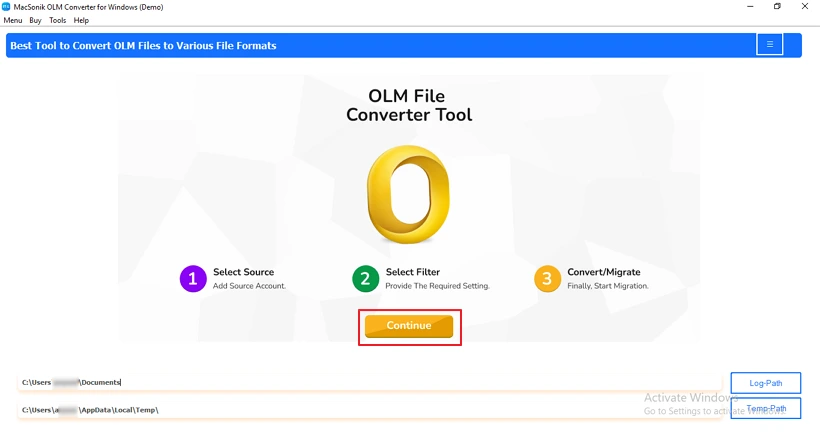
- First, download and install the software. Tap Continue.
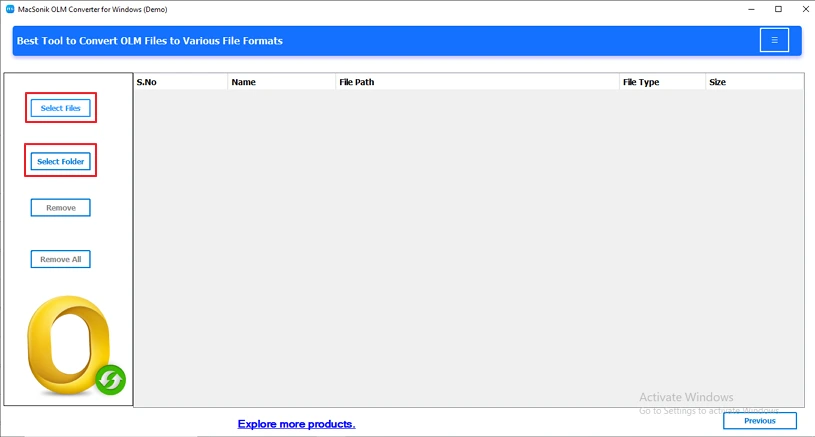
- Open the application and choose from Select Files or Select Folder.
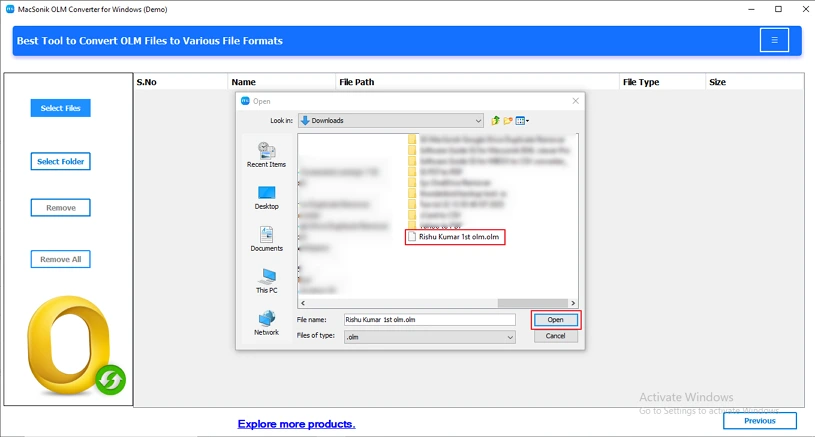
- Then, locate the desired OLM file and select it to upload it. You can also choose to select a folder for bulk conversions.
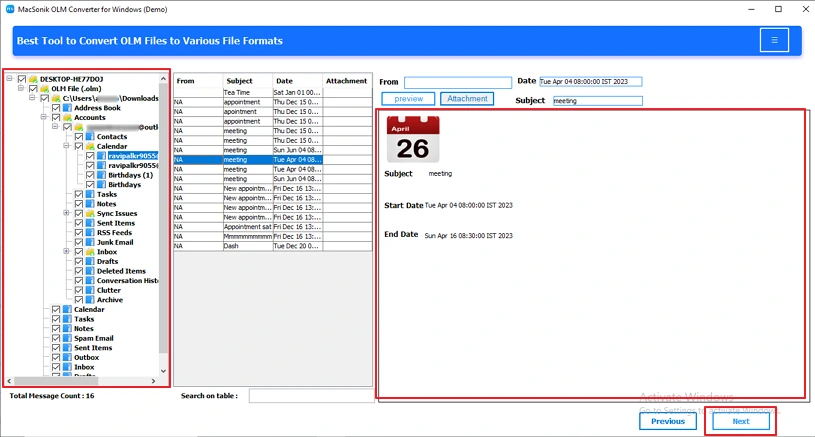
- Expand the folder tree, select the folders, and preview the files one by one. Click Next.
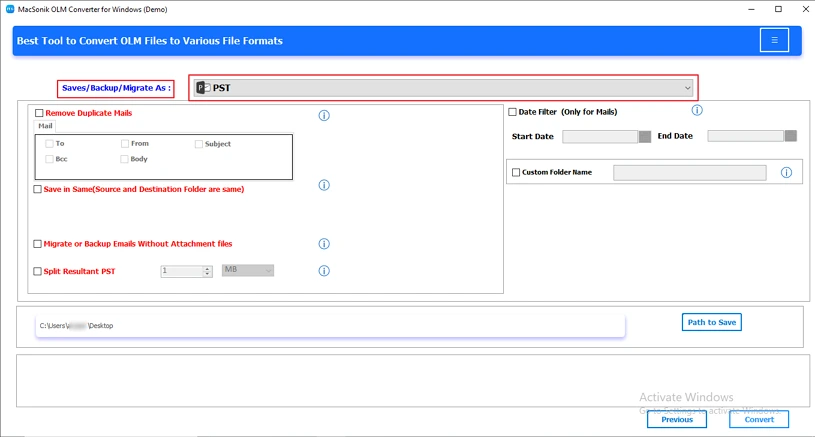
- Next, select the desired format from the drop-down list.
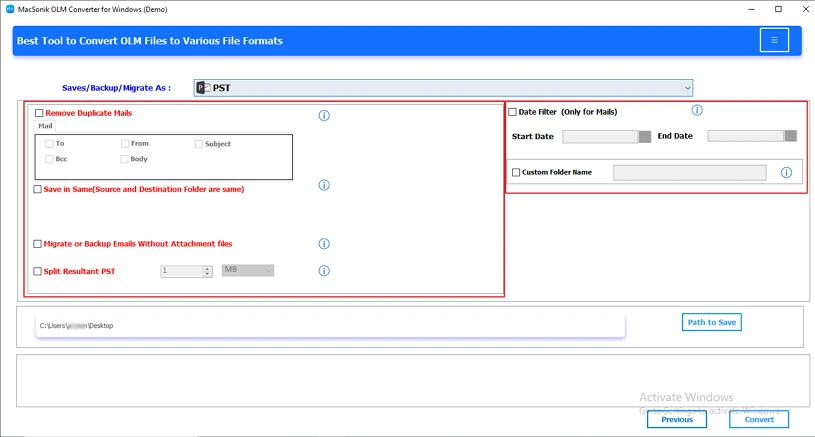
- Opt for the additional filters to refine the conversion process.
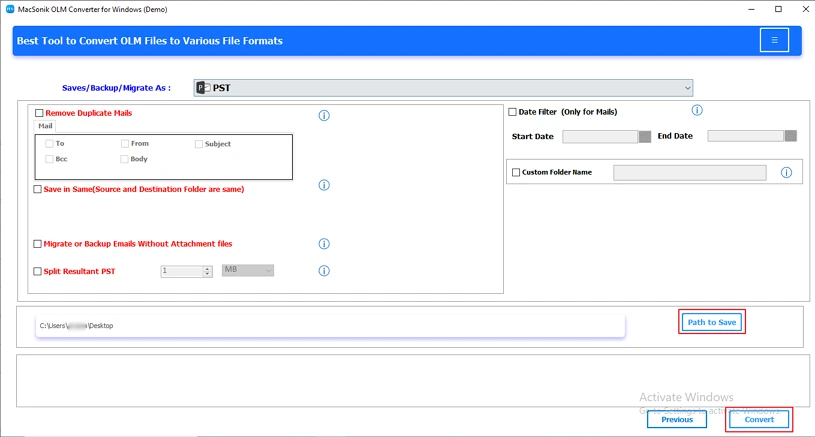
- At the end, set the Path to Save and click on the Convert option.
 <
<
Conclusion
To conclude, this blog have illustrated the solutions to fix Outlook for Mac error code 17193. One can manually solve this error through the various solutions. But to try out these solutions and ensure no data loss, the safest way is to take a backup. The professional OLM Converter Tool allows users to take a backup of their OLM data into their preferred file formats. This way, users can be assured of preserving their Outlook for Mac data.
Frequently Asked Questions
Ans- Mac Outlook Error Code 17193 is a synchronization or mailbox-related error that occurs when Outlook for Mac fails to communicate properly with the mail server. It is commonly caused by corrupted emails, problematic attachments, oversized data files, or a damaged Outlook profile.
Ans- Yes, you can back up your Outlook for Mac data to prevent potential loss while resolving Error Code 17193. You can use a professional converter tool that enables users to backup their data into various formats. Creating a backup before troubleshooting ensures your emails and mailbox data remain safe and recoverable.
Ans- The best method to back up Outlook data without any data loss is to export your mailbox using a professional tool to create an OLM backup file. You can also maintain an additional copy on external storage or cloud storage for added security and recovery purposes.
Ans- To fix Error Code 17193 in Outlook for Mac, verify your SMTP and authentication settings, ensure a stable internet connection, and update Outlook to the latest version. If the issue persists, recreate your Outlook profile or reconfigure the email account to restore proper synchronization.
About The Author:
Amelia is the mistress of the webmail clients like Office 365, Gmail, Yahoo, Hotmail, and Opera Mail. Her research on downloading emails from webmail is outstanding. She has given the solution to download emails from webmail clients to a Mac device with all the mailbox items. She’s been into webmail solutions since 2010. In her free time, she reads books and writes technical blogs.
Related Post
