How to Export PowerMail to Outlook PST? Quick Solution

Amelia James
August 11th, 2026
Introduction: A user has been using PowerMail on his Mac for a long time, and it holds thousands of important emails. Recently, his organization has shifted to Outlook for better accessibility and synchronization across different devices. Since the user carries thousands of work-related emails, he starts searching the web for some reliable migration processes. Therefore, to help such users, we have discussed some most efficient conversion methods, including a manual method to export PowerMail to Outlook PST. Or a professional MBOX Converter Tool to save time and energy.
Why Users Export Emails from PowerMail to Outlook?
Multiple reasons make users export their PowerMail mailbox to the Outlook PST file format. Some of the most common reasons for migration are:
- Outlook is much more widely used in the business ecosystem, and it has better integration with Microsoft 365.
- PST files offer the convenience of easy storage, backup, and transferring Outlook data from one system to another.
- PowerMail is only used on Mac, while PST files can be opened on both Windows and Mac versions.
- Outlook offers configuration with advanced encryption, spam filters, and secure authentication to protect data.
- Users can manage, sort, and search their emails much more efficiently in Outlook.
Best Ways to Export PowerMail to Outlook PST
To perform the migration smoothly, we have discussed two reliable methods in this section. We’ll start with the manual method, and then we’ll head to the specialized conversion method. It’s up to users which method to choose that completes their requirements. But first, let’s analyze the difficulties associated with this migration.
Challenges to Import PowerMail to Outlook
Manual Method to Transfer PowerMail Emails to Outlook
PowerMail does not provide any built-in option to export emails in Outlook PST format. However, you can use the manual method, with some simple steps to complete the export. The process is free but needs attention to be carried out smoothly.
Steps to Convert PowerMail to Outlook PST
- First, launch PowerMail and open the folder containing the emails that have to be exported.
- Next, go to Export → MBOX format and place the message files in a Local Folder.
- After that, launch Thunderbird and install the ImportExportTools NG add-on.
- Now, right-click Local folder → ImportExport → Import MBOX files, and click Open to add the PowerMail MBOX files.
- Further, go to the Tools → Account Settings → Add Mail option, and configure an IMAP-enabled Gmail account.
- Then, drag and drop your MBOX files into the configured Gmail account.
- Moving on, configure your Outlook account with the same previously used Gmail IMAP account.
- Now, go to File, select Open & Export, and choose Import/Export.
- And, choose Export to a File and select the Outlook Data File (PST) as the saving option.
- Then, choose the MBOX files you added to your Gmail-configured account to save them.
- Finally, click Finish to end the migration process.
Disadvantages of the Manual Process
While the manual method to convert mailboxes from Powermail to Outlook PST is free, it has some disadvantages. Major problems users face while using the manual method are:
- It is lengthy and technical, utilizing multiple applications.
- There is a risk of loss of data or incomplete migration if the MBOX file is too large or corrupt.
- Attachments or metadata (i.e., timestamps or read status) may not migrate correctly.
- It is not appropriate for bulk exports or non-technical users.
If users are looking for a quick, reliable, and professional solution, they should use a dedicated converter tool.
Specialized Approach to Export PowerMail to Outlook PST
The MacSonik MBOX Converter Tool is an efficient way to migrate your emails to Outlook PST quickly. With the tool, data will be accurately converted with folder hierarchies intact, and no data will be lost. This tool is useful for personal and enterprise-level migrations. Moreover, it ensures to keep the data highly secure and provides a One-Time Service if you do not want to install the software yourself.
Users can request this cost-effective one-time migration service from our support team to complete the migration in no time with zero effort.
Professional Steps to Import PowerMail to Outlook
- Initially, open the MacSonik MBOX converter on your system.
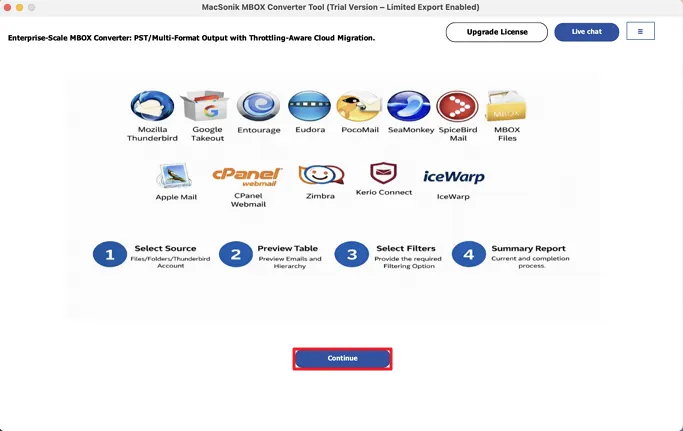
- Then, click Select Files/Select Folder to browse your MBOX files/folders.
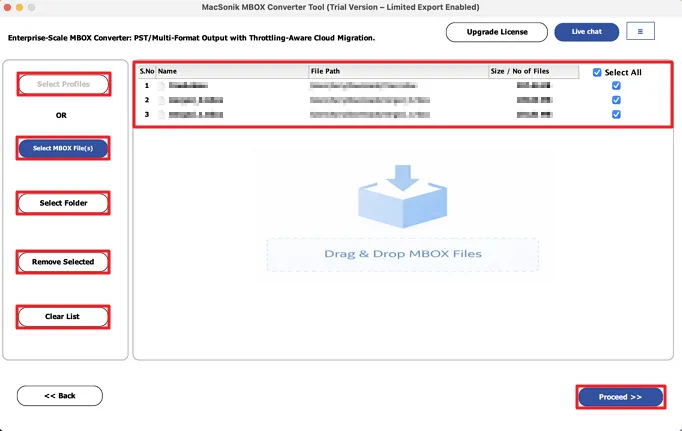
- After that, browse and select your MBOX file and click Open. And click Next.
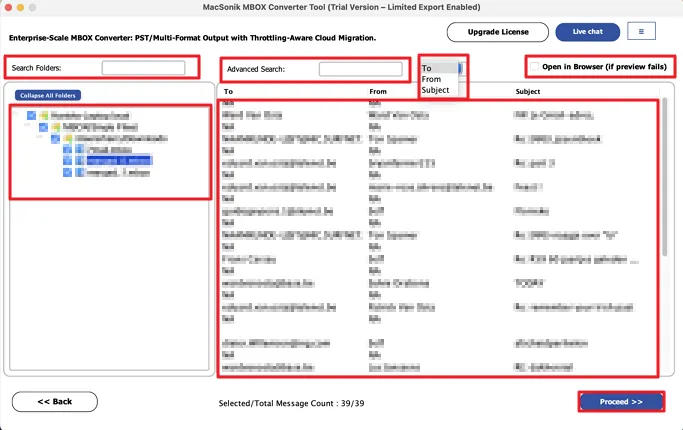
- Then, select the email files from the tree structure, preview them, and click Next.
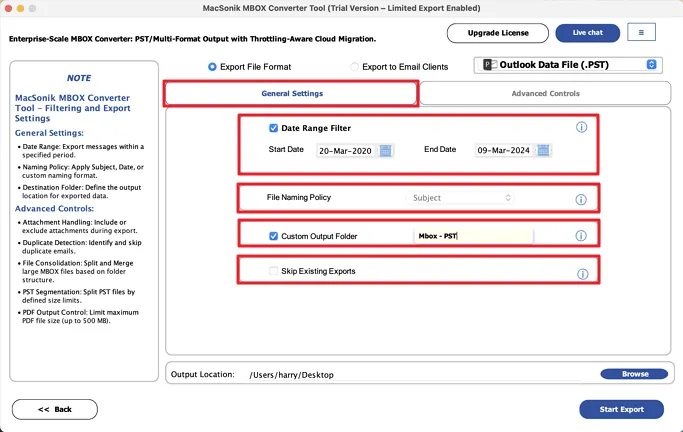
- Further, choose PST as the saving format and enable features to remove duplicates, include/exclude attachments.
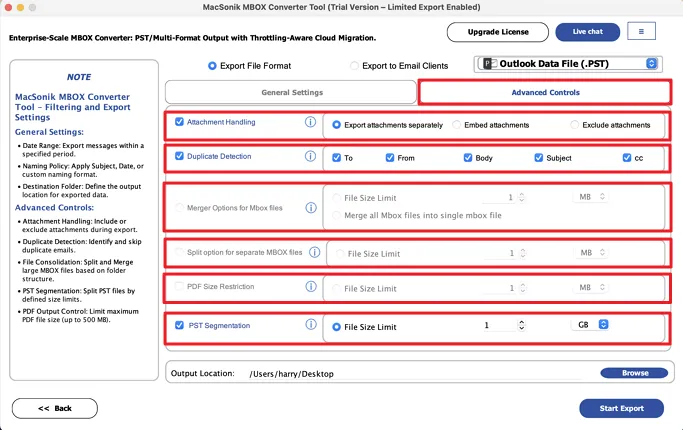
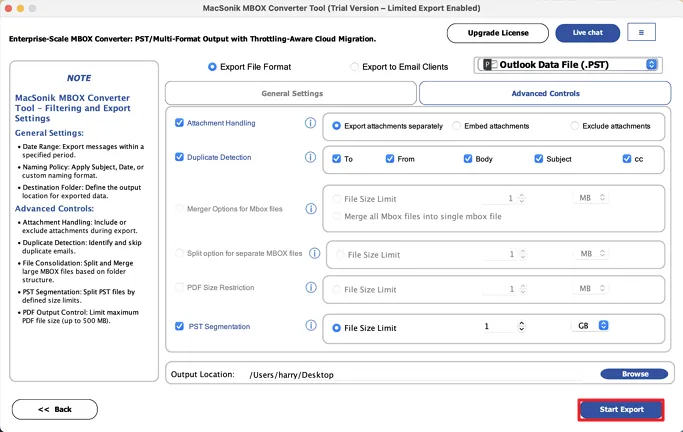
- Finally, choose advanced filters, specify the saving location, and click Convert.
Key Benefits of the Tool to Export PowerMail to Outlook PST
- Completes conversion with accuracy to retain the total email structure and metadata.
- Bulk migration that exports multiple PowerMail mailboxes all at once.
- PowerMail emails can be exported to multiple file formats like PST, MBOX, EML, PDF, etc.
- Filtering email options to only export the emails you want and remove duplicates.
- A Demo version is also provided to help users evaluate the performance of the tool.
“I had used PowerMail for more than five years, and I wasn’t sure how I would transition to Outlook. The transfer process was complicated and had several other limitations. In the end, I used the MacSonik PowerMail Converter Tool to help with my migration. It converted all of my PowerMail emails into PST files easily and accurately. Everything transferred to Outlook just as I had organized it in PowerMail. Every folder, every attachment was in place. Highly recommended!”
– Sophia Turner, HR Executive, Australia
Also Read: Import Eudora to Gmail
Conclusion
In brief, this article discusses both the manual and an automated method to export PowerMail to Outlook PST. The manual method works, but it includes a very large no. of steps for migration. Also, it comes with many limitations that make it the least preferred choice. Therefore, we recommend that users employ the specialized converter tool for their migration. Since the tool comes with advanced filters and special features, it makes selective migration easy. Additionally, the tool is capable of maintaining the exact email structure and data like the original email message.
Frequently Asked Questions
Ans: The time depends on your mailbox size. Manual methods may take several hours, while the automated MacSonik MBOX File Converter Tool can finish the process within minutes. Additionally, it allows you to filter your email data based on their date received, sender, subject, and more.
Ans: No, PowerMail doesn’t have a direct option to export emails to PST format. You need to first export your emails in MBOX format and then convert them into PST using Thunderbird or a MacSonik MBOX File Converter Tool.
About The Author:
Amelia is the mistress of the webmail clients like Office 365, Gmail, Yahoo, Hotmail, and Opera Mail. Her research on downloading emails from webmail is outstanding. She has given the solution to download emails from webmail clients to a Mac device with all the mailbox items. She’s been into webmail solutions since 2010. In her free time, she reads books and writes technical blogs.
Related Post
