How to Convert OneNote to HTML on Mac? A Detailed Guide

Amelia James
September 30th, 2025
Introduction: The inability to access OneNote drafts on a browser is a common frustration for Mac users. Especially those relying on OneNote as their digital note-taking station. Convert OneNote to HTML helps you in creating web pages and provides long-term access to your notes. The great news is that this guide will take you through every step of the process, as we explore the built-in manual option. Also, a powerful automated OneNote Converter Tool that allows you to capture everything perfectly.
After taking hours in Microsoft OneNote to draft the ideal project plan, a detailed research notebook, or a fantastic travel itinerary — all on the freeform canvas full of text, images, and checkboxes — you now want to make that digital work available on a website or blog, or simply in a way that is easily opened, such as in your browser. But you hit a roadblock. OneNote’s built-in options do not offer a straight-up “Save as HTML” option. Your beautifully crafted notes feel locked in.
Why Convert OneNote Notebook to HTML Format?
To be liberal and use OneNote data with full ease, users tend to save it in HTML format. But this isn’t it; many other factors motivate users to convert OneNote to HTML as:
- Universal Accessibility: HTML is the language of the web. Anyone with a web browser can access and view your notes.
- Independent Format: Provides feasible data access regardless of whether users have OneNote or even a Microsoft account or not.
- Web Publishing: Ideal for bloggers, developers, and students who want to publish their notes directly to a website or online portfolio.
- Long-term Archiving: HTML is a standard, readable for the foreseeable future, making it effective for backup & archiving information to retain value.
- Better Sharing: Rather than sending a .one proprietary file that the recipient potentially can’t open. You can self-contain HTML files, or a folder of web-ready files that can be shared or viewed directly.
“I use OneNote on my Mac for all of my class notes and project ideas. Now, I need to get some of that onto my personal portfolio website. How do I convert the OneNote file into HTML on my Mac without losing the formatting or anything like that?”
Considering the scenario, reasons, and user query, as mentioned above, we have drafted the simplest ways for this conversion. You can follow them for ease of data conversion based on your preferences.
Manual Method to Convert OneNote to HTML Online
Go through these easy and quick steps on your Mac to change the file formats for free. But these methods may have some cons discussed at the end of the section. The steps are:
- Launch MS OneNote on Mac and open the specific page to convert.
- Them from the File at the top, press Export.
- A dialog box opens. Further, choose the following:
- In the Current section, opt for Page.
- From the format list, select Web Page (.htm).
- Or you can opt for a Single Web Page (.mht).
- In the end, pick the destination where you want to save.
- Tap Save/Export to seamlessly convert Notes into HTML files.
Note: Alternatively, you can open the OneNote file on the web and click Cmd + S to save it as HTML.
Drawbacks of the Manual Method
- Conversion of an entire section is a tedious process.
- Only suitable to convert one page at a time without hassle.
- Complex formatting, tables, embedded files, and handwritten ink are disrupted.
- The resultant HTML is basic and lacks CSS styling that gives a modern touch.
- Attachments and embedded images or audio won’t come the same way as in the notes originally.
- Automatic exports or other customizations aren’t available.
Professional Method to Convert OneNote to HTML
To overcome the limitations of the manual method and to export OneNote files to HTML error-free, use MacSonik OneNote Converter. It converts entire sections and notebooks with 100% accuracy and intact formatting. Additionally, it can handle batch conversions and preserve everything from layout, tables, images, to embedded files and so on. Moreover, it saves hours of manual labor with automation and gives a clean, structured HTML file for all professionals, academicians, researchers, businesses, and other users.
Note: Looking to freely convert OneNote file to PDF other than as HTML? Download the DEMO VERSION of the software now and get started with your hassle-free notebook conversions!
O5 Simple Steps to Convert OneNote Documents to HTML
- Start the MacSonik OneNote to HTML Converter and press Continue.

- Next, with Select File/Folder, load .one files. Press Open to show.

- Further, click Next and choose HTML to quickly convert OneNote to HTML.

- After that, pick the filters and click Path to Save for your destination.
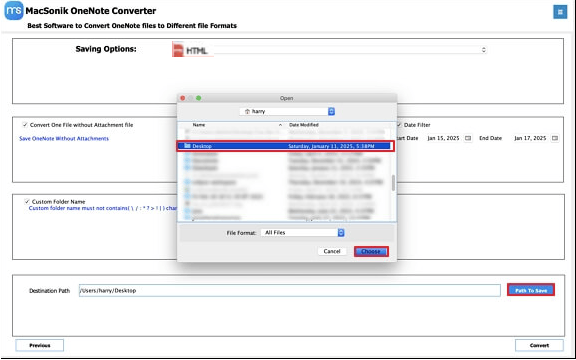
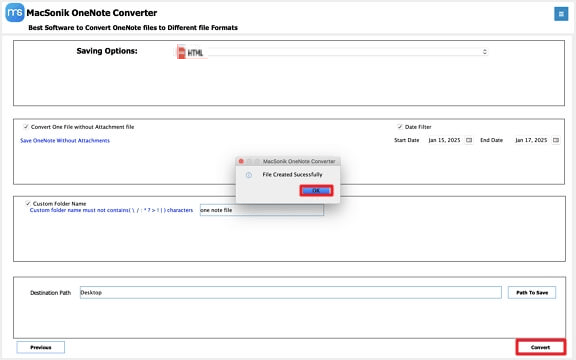
- Finally, press Convert to successfully create the HTML file.
Pro Tip: If you need your files in an editable format, follow this straightforward process: export OneNote to Word with DOC as the native format.
“As a research student, I needed to post my annotated notes online. The manual export from OneNote destroyed the formatting of my complicated tables. The MacSonik OneNote Converter was a lifesaver. It converted my entire 80-page notebook in one click, and it preserved every single detail. It is worth every penny for the time it saved me.”
– David L., Graduate Student
Final Thoughts
OneNote to HTML conversion is beneficial in several ways, from global access to data preservation in the long run and others. This doesn’t need to be a frustrating task, as we have two very simple and easy processes to convert OneNote to HTML on Mac. Whether you are an individual or an organization’s admin, the manual method will only suffice for one or a few files. But the expert converter tool is a great choice for reliable, efficient, and high-quality file conversions in minimal time with zero loss!
Frequently Asked Questions
Ans: Yes, but not using the native OneNote app. You can use the MacSonik OneNote Exporter to convert an entire notebook at once by adding multiple .one files and converting with batch processing.
Ans: No, it is not. Manual export to HTML is a tedious conversion and will change formatting, misalign images, and lose elements, especially when there are complex page layouts.
Ans: Yes. The manual export function of OneNote for Mac, even in the free version, allows you to export to HTML. Additionally, the MacSonik OneNote Converter Tool has no affiliation with your Microsoft subscription status.
About The Author:
Amelia is the mistress of the webmail clients like Office 365, Gmail, Yahoo, Hotmail, and Opera Mail. Her research on downloading emails from webmail is outstanding. She has given the solution to download emails from webmail clients to a Mac device with all the mailbox items. She’s been into webmail solutions since 2010. In her free time, she reads books and writes technical blogs.
Related Post
