Proven Methods to Convert OLM to ICS File on Mac & Windows

Amelia James
August 10th, 2026
User-Query:
I have several OLM files from Outlook for Mac, and I need to convert them into ICS format so I can import the calendars into Google Calendar and Apple Calendar. What is the easiest and most reliable way to do this, preferably in bulk without losing any event details?
Summary: OLM files are designed exclusively for Microsoft Outlook for Mac. Users may lose the ability to access scheduled events stored in the original OLM file while switching platforms. Therefore, most people will choose to convert OLM to ICS to ensure compatibility and accessibility of their calendar data across different platforms and devices. The purpose of this article is to provide the simplest and most effective way of converting OLM files to the ICS file format. We will offer the OLM Converter Tool, which provides users with a complete, error-free methodology to achieve an OLM to ICS conversion.
Reasons to Convert OLM File to ICS Format
Businesses can use these reasons as justification to perform an enterprise-wide migration from OLM to ICS. The critical reasons for performing this migration include:
- Cross-Platform Compatibility: ICS format is supported by Outlook Calendar, Google Calendar, Apple Calendar, and Thunderbird. Cross-platform compatibility means that calendars can be shared regardless of what calendar application is being used.
- Platform Independent Access to Calendars: ICS allows you to import, export, share, and secure your calendars across all calendar applications with no dependence upon a specific calendar application.
- Reduced Data Size for Scheduling: OLM captures and saves all Outlook data in a single file. Whereas ICS files only save calendar-specific data, resulting in a reduced file size for better storage of data.
- Increased Collaboration: ICS provides seamless sharing of timelines, event details, meeting and appointment dates, thereby allowing for effective cross-platform collaboration.
- Long-Term Access and Compliance: Calendar data stored in the ICS format will allow for long-term access to calendars.
- Enterprise-Grade Archiving and Analytics: By storing calendar data in the ICS format, an organization can benefit from allowing its calendars to be consolidated and provide it to be used for advanced analytics and reporting.
Methods to Convert OLM to ICS File on Mac & Windows
Let us now execute the methods to convert the OLM files to an ICS calendar file on both Mac and Windows.
Method 01: Convert Mac OLM File to ICS
It is the simplest approach to convert the Mac OLM files to the ICS calendar format. This approach involves first importing the Mac OLM files into Outlook and then exporting them as an ICS file.
Use the following instructions to begin the process:
- On your Mac system, open the Outlook application.
- Click on the File menu and choose the Import option.
- After that, select the Outlook for Mac archive file (.olm) and hit Continue.
- Then, find and select the OLM file and import it.
- Next, switch to the Calendar view and select the events you wish to export.
- Now, click on File > Export and pick the ICS (.ics) format.
- Lastly, save the exported ICS file to the preferred destination folder.
Limitations: This approach won’t work on the Windows system. It is specifically for macOS. If your OLM file has large calendar data, it will take a lot of time to export.
Method 02: Import OLM to ICS Calendar
In this approach, we will be transferring the OLM data from Outlook for Mac to Outlook for Windows. Once it is transferred, it will then be exported to an ICS format.
Use the step-by-step process to initiate the import process:
- Open up Outlook for Mac and go to the File menu, then select Import.
- Choose the Outlook for Mac archive file option (.olm file).
- Navigate to the location of the .olm file you want to import and select it.
- After importing the .olm file, go to Calendar and sync your calendar data through an IMAP-enabled account.
- Open Outlook for Windows and go to Calendar.
- To save your calendar, click on File > Save Calendar > and select the .ics file type and save.
Limitations: This method is quite complicated: you have to have both Outlook for Mac and Outlook for Windows to do this process, and you will also need a reliable internet connection to sync calendar events.
Verified Solution to Convert OLM to ICS File Using a Specialized Tool
If you’re looking for a reliable method to convert your OLM Calendar data into ICS format, the MacSonik OLM Converter is an excellent option. This software allows users to quickly and easily convert OLM files into several different formats in both personal and business situations. It is also compatible with cloud services like Google Workspace and Yahoo Mail, as well as IMAP email accounts, so that users can also import OLM to Zoho Mail. Additionally, during the conversion process, the integrity of the data is preserved by ensuring that all original folder hierarchies and calendar field/attribute values are retained.
Simplified steps to convert Mac Outlook files to ICS:
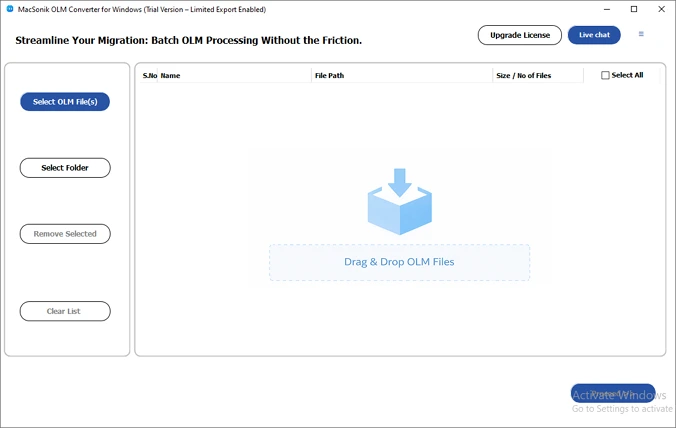
- Download and execute the application on your machine.
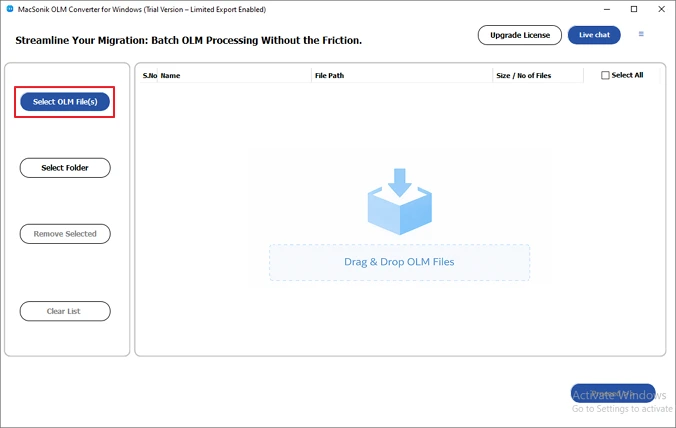
- Continue by selecting the option called Select Files.
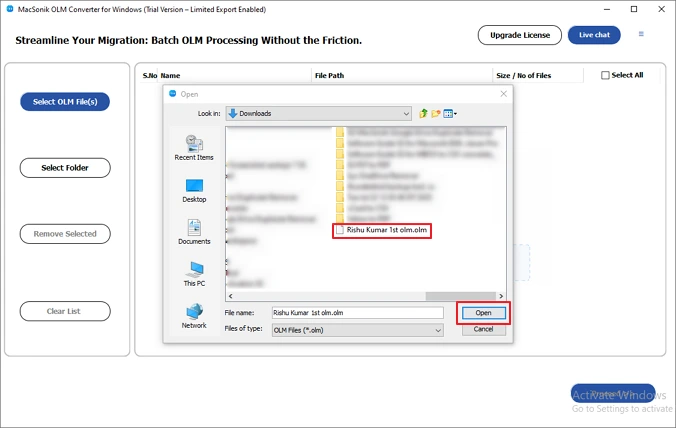
- Use the built-in browser to locate the OLM file, then select it and open it to upload. Select the file and click Next to proceed.
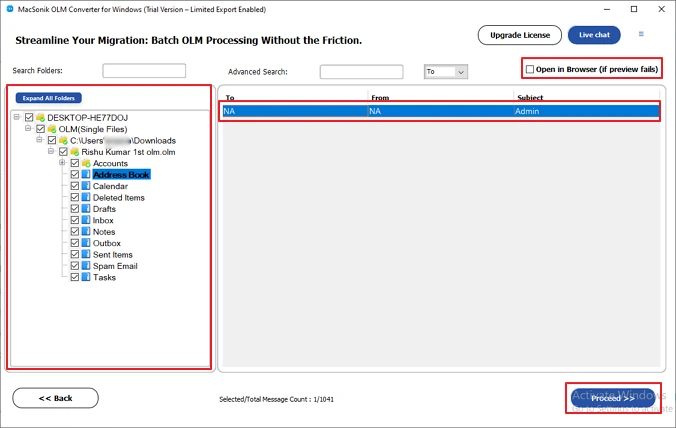
- Expand the folder list hierarchy and choose the folders to preview their contents by double-clicking on them.
- From the Saves/Backup/Migrate As drop-down menu, click on ICS.
- Then, specify the destination folder to save the converted ICS file.
- Set all of the Advanced Filter settings and click on the Convert button.
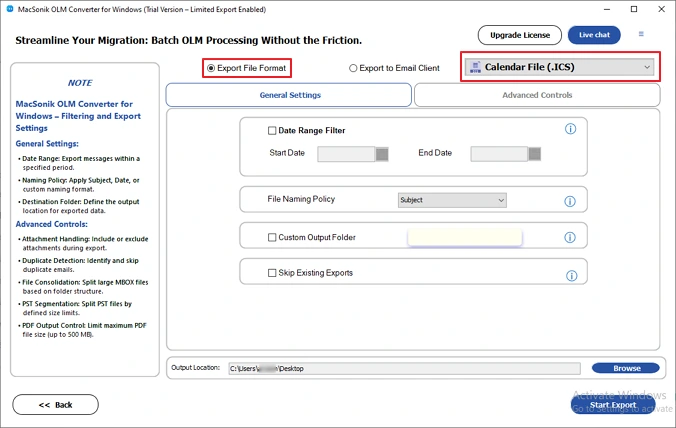
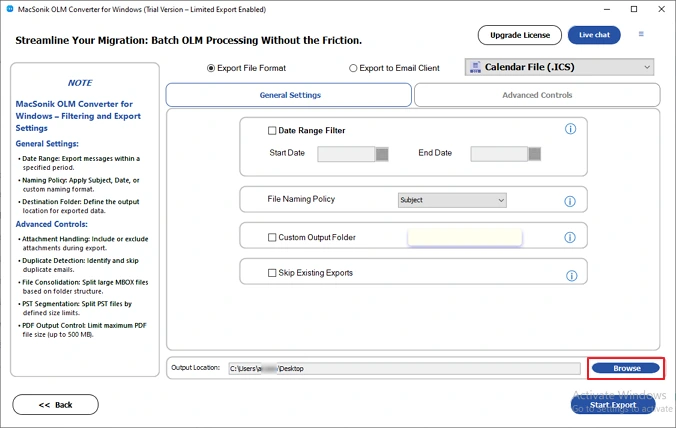
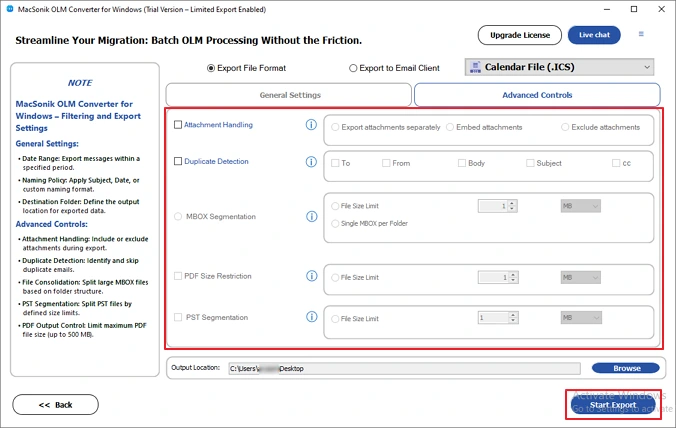
An HR manager at a mid-sized company needs to migrate multiple Outlook for Mac calendars to a shared Google Calendar for team scheduling. Using MacSonik OLM Converter, the manager quickly converts all OLM files to ICS in bulk, preserving event details, reminders, and calendar structure. The exported ICS files are then imported into Google Calendar, enabling seamless team scheduling with zero data loss. Also, the same tool helped the manager convert OLM to PDF.
Conclusion
One can easily and quickly convert OLM to ICS file format using the MacSonik OLM Converter and free manual options. Using the tool’s strong conversion engines, users can quickly extract their calendar events from OLM files and save them to an ICS file without losing crucial data. It also helps to ensure that your original calendar item’s data remains intact throughout the conversion process.
Frequently Asked Questions
Ans- You can convert an OLM file to an ICS file on Mac by importing the OLM file into Microsoft Outlook for Mac and then exporting the calendar data as an ICS file.
Simply go to File > Import to load the OLM file, open the Calendar, and export the events in ICS format.
Ans- Exporting a calendar from a Mac OLM file to an iCal (ICS) file generally preserves the event details, including dates, times, and reminders. However, some formatting or customizations may not transfer perfectly, depending on the complexity of the original calendar. But with the help of a professional MacSonik OLM Converter, users can preserve the original formatting.
Ans- Yes, duplicates can be removed while converting OLM to ICS by using a professional converter that offers a duplicate removal feature. Manual methods in Outlook may require checking and deleting duplicate events before exporting to ICS.
Ans- The best method to convert OLM File to ICS in bulk is by using a professional tool like MacSonik OLM Converter, which supports fast, secure, and batch conversion. It preserves all calendar details, maintains folder structure, and handles multiple OLM files at once without data loss.
About The Author:
Amelia is the mistress of the webmail clients like Office 365, Gmail, Yahoo, Hotmail, and Opera Mail. Her research on downloading emails from webmail is outstanding. She has given the solution to download emails from webmail clients to a Mac device with all the mailbox items. She’s been into webmail solutions since 2010. In her free time, she reads books and writes technical blogs.
Related Post
