Best Way to Convert Apple Mail to PDF in Bulk on Mac

Amelia James
August 11th, 2026
User-Query:
I have many emails in my Apple Mail account that I want to save as PDFs. I am not sure that how I can convert my email to PDF properly. Is there a faster way to convert Apple Mail emails to PDF without losing the formatting or attachments?
Summary: Many Mac users struggle to save their Apple Mail messages as PDFs, especially when they need to archive important conversations or share them outside the Mail app. Doing it manually works, but it gets frustrating fast when you have a bunch of emails to deal with. This blog walks you through a simple manual method to convert Apple Mail to PDF and also covers the MacSonik MBOX Converter Tool for anyone dealing with bulk emails or wanting a cleaner, more reliable result without the hassle.
How Does it Help Convert Apple Email to PDF?
Apple Mail works fine until it doesn’t. If you switch to a different email client, move to Windows, or just want to back up old conversations, your emails can become hard to access or completely unreadable. The app ties your messages to its own format, which means outside of Mac, those emails are basically stuck.
PDF fixes that. It’s a format that opens on any device, any system, no special software needed. Whether you’re saving a contract thread, keeping records for tax purposes, or just archiving old work conversations, a PDF stays exactly as it is. Nobody can accidentally edit it, and it doesn’t break when you move it somewhere else.
There’s also the sharing side. Sending someone a PDF is cleaner than forwarding a long email chain. Lawyers, accountants, and HR folks deal with this constantly. They need email records in a format that’s easy to store, print, or hand over without worrying about compatibility.
At the end, converting Apple Mail to PDF is just about making your data yours, in a format that actually works well and doesn’t depend on any single app to stay useful.
Manual Ways to Convert Apple Mail to PDF
If you don’t want to use any paid tools, macOS already gives you basic options to save emails as PDFs. These methods are fine for a small number of emails. Let’s go through them.
Convert Mac Mail to PDF Using Print Option
- Open the Apple Mail app on your Mac.
- Select the email you want to save.
- Click on File and choose Print, or press Command + P.
- In the print window, click the PDF button at the bottom left.
- Choose Save as PDF.
- Select where you want to save the file and click Save.
Export Apple Mail to PDF Use Notes or TextEdit
- Open Apple Mail and select the email.
- Press Command + A, then Command + C to copy it.
- Further, open TextEdit or Notes and paste the content using Command + V.
- Go to File and choose Export as PDF or use Print > Save as PDF.
- Choose the file name and location, then save it.
Common Drawbacks of the Manual Method
- For large volumes, it starts feeling like a slow and frustrating task
- The attachments don’t come along with the email, so you have to save those separately
- Sometimes the email doesn’t look the same after saving.
- Basic details like the sender name or date don’t always show up the way you expect
- There’s no way to keep your emails organized in folders like they were originally
- There’s no simple way to handle multiple emails together.
Secure Way to Convert Apple Mail to PDF in Bulk
If you have a lot of emails to convert, doing it manually gets messy fast. You can lose formatting, attachments don’t always carry over, and folder structure is usually gone by the end. Manual methods just weren’t built for bulk work.
That’s where the MacSonik MBOX Converter Tool comes in. It handles large batches without you having to babysit the process. Attachments stay attached, formatting holds up, and your folder structure doesn’t get scrambled. You don’t need to know anything technical to use it. The interface is straightforward, and most people figure it out without reading any instructions.
The tool lets you pick specific emails instead of converting everything at once. Moreover, it can be used to convert Apple Mail to Outlook if any user wants to switch their email client.
Use MBOX Converter to Save Apple Email as PDF
- Download the MBOX Converter Tool.
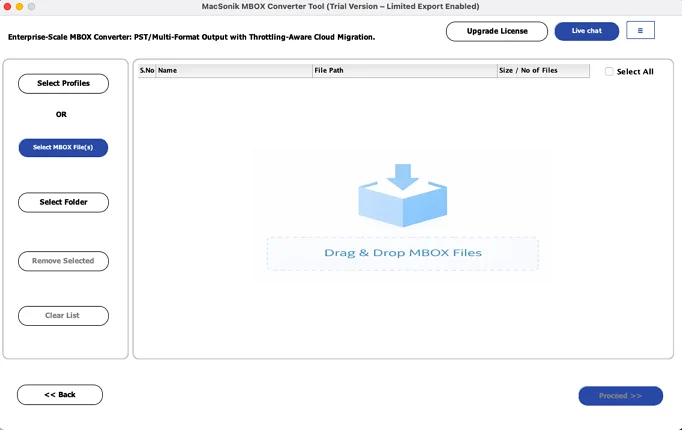
- Then, add your MBOX files and press Proceed.
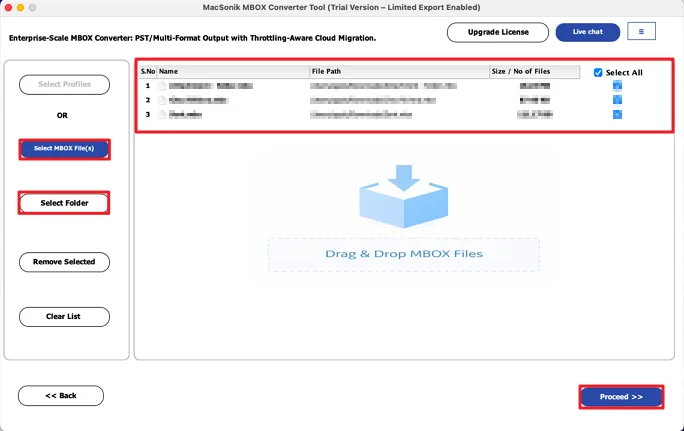
- Preview and select files from the tree structure and click Proceed.
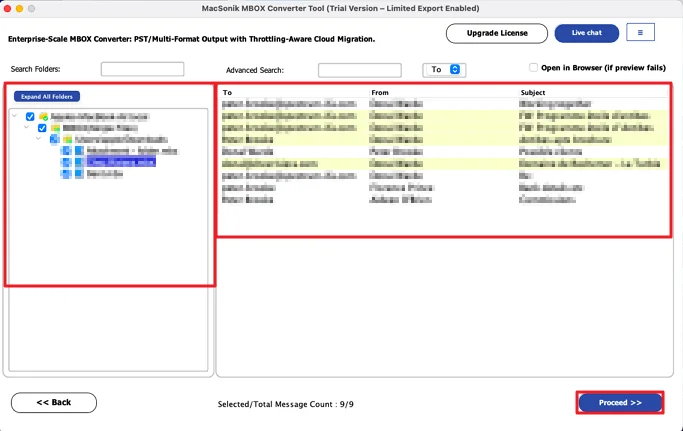
- Then, choose the PDF file format from the list.
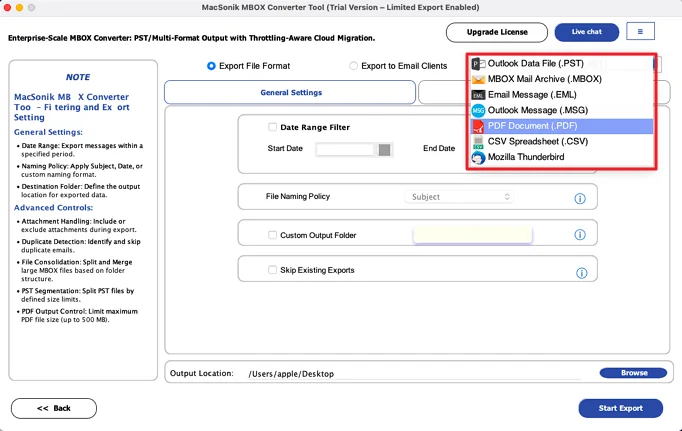
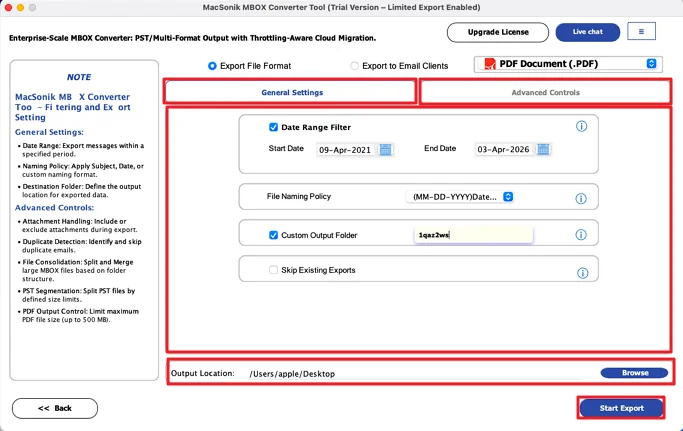
- At last, use the filters, set the path to save, and click Start Export.
Which Option Works for You
Apple Mail doesn’t give you a built-in way to convert Apple Mail to PDF with attachments and proper formatting. If you only have a few emails, the manual method works fine. But once you’re dealing with a bigger mailbox, it starts to break down pretty quickly.
That’s where a dedicated tool makes more sense. It gets the job done faster, and the output is cleaner. Formatting stays in place, attachments come through, and you’re not spending an hour on something that should take five minutes.
Frequently Asked Questions
Ans: Not really with the built-in options. Apple Mail only lets you save one email at a time using the print method, which becomes slow if you have a lot to deal with. A tool like MacSonik MBOX Converter Tool makes it much easier by handling bulk conversion in one go.
Ans: The MacSonik MBOX Converter Tool is a reliable choice for Mac users. It keeps the email formatting intact, includes attachments, and doesn’t mess up your folder structure. Plus, it’s simple enough to use even if you’re not very technical.
Ans: Manual methods like the print option can save the email as a PDF, but they often miss attachments and sometimes change the layout. Using the MacSonik MBOX Converter Tool is a better option since it preserves both formatting and data during the conversion.
Ans: Yes, that’s actually where tools like the MacSonik MBOX Converter Tool are most useful. It’s built to handle large mailboxes without slowing down or crashing, so you can convert thousands of emails without having to do everything manually.
About The Author:
Amelia is the mistress of the webmail clients like Office 365, Gmail, Yahoo, Hotmail, and Opera Mail. Her research on downloading emails from webmail is outstanding. She has given the solution to download emails from webmail clients to a Mac device with all the mailbox items. She’s been into webmail solutions since 2010. In her free time, she reads books and writes technical blogs.
Related Post
