Directly Migrate Gmail to Zoho Mail – Quick Guide

Amelia James
August 14th, 2026
Introduction: Email migration is a common need for everyone, and every business now wants a service with better privacy, enhanced features, and better account management. While Gmail is still the most popular email service, many professionals and small businesses migrate Gmail to Zoho Mail for a safe, ad-free, and privacy-focused experience. When you are ready to make the switch, you will learn about several alternatives for manual migration as well as how to use the MacSonik Gmail Backup Tool to manage the transition without data loss.
User Query:
“I would like to change my business email service to Zoho Mail, but all my emails are still on Gmail. Is there a credible, legitimate way to migrate from Gmail to Zoho Mail without losing messages, attachments, or account data? I need a process that can completely and securely transfer all of my information from one account to the other.”
Why Users Import Emails from Gmail to Zoho Mail?
Gmail has been a dignified platform for a long time, but as the business needs expand and more cloud services arise, people switch. The reasons for it can vary:
- Zoho Mail focuses on a privacy and ad-free environment.
- It provides improved control over custom domains.
- Zoho Mail allows users to easily integrate with Zoho CRM and WorkDrive.
- It provides easy management of multiple email accounts from one dashboard.
In short, Gmail resembles a busted city, filled with integrations and infinite add-on options, as you can feel Google and its ecosystem in the background. While it’s great, it can also be daunting; ads resemble billboards everywhere. Whereas Zoho Mail feels more like a gated community: no distractions, no ads invading, and privacy is at the forefront. Hence, users migrate from Gmail to Zoho Mail.
>> Let’s find out how we can make the switch now!
Manual Method to Migrate Gmail to Zoho Mail
You can easily migrate the Gmail emails to your Zoho account by Zoho IMAP migration from the admin console. But before you proceed with the steps, ensure to fulfil these prerequisites:
- Add and verify your domain in Zoho by DNS and MX records.
- Next, create destination accounts in Zoho for every Gmail user to migrate.
- Alternatively, simply create a CSV for mapping at a later stage during migration.
- To create a CSV, use the fields (email address, username, password, etc.)
- Backup your source mailboxes beforehand to avoid any kind of loss.
- Lastly, ensure to have admin credentials for both Zoho and Gmail accounts with absolute permissions.
Free Transfer Emails from Gmail to Zoho Mail
Follow this step-by-step guide after meeting the pre-requirements to ensure a correct migration:
- First, activate IMAP for each Gmail account (Gmail Settings >> Forwarding and POP/IMAP >> Enable IMAP).
- If the Gmail account uses 2-Step Verification, generate an app password.
- Then, open the Zoho Mail Admin Console and go to the Data Migration tab.
- Further, click Create and add a New IMAP migration.
- Provide the server name: imap.gmail.com, port 993 using SSL, and specify the Gmail credentials.
- After that, add user mapping: single user or CSV for multiple users.
- Choose folder/filter settings, and choose which Gmail system folders to skip, such as All Mail, if you do not wish to migrate duplicates.
- Once the setup is finished, click Start Migration to migrate Gmail to Zoho Mail. (Check the job if it authenticates or fails due to quota).
- Validate that your emails were migrated, attachments included.
- Finally, when ready to finish, update MX records.
Limitations of the Manual Method
- This method is time-consuming for large mailboxes.
- Internet disconnection may interrupt migration.
- May not transfer contacts, calendars, or attachments perfectly.
- Also, it does not preserve original data formatting & structure.
Efficient Solution to Migrate Emails from Gmail to Zoho Mail
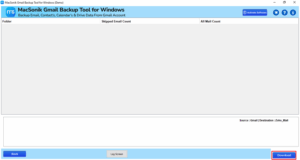
If you are looking for a reliable software to bulk migrate Gmail emails to Zoho Mail, use the MacSonik Gmail Backup Tool. With it, safely backup emails from large or multiple Gmail accounts. It supports migration of the complete Gmail email data from folders like Inbox, Sent Items, Drafts, etc. Additionally, the tool provides complete data security and preserves the folder structure. Moreover, it comes with advanced features like duplicate removal, intelligent email filtering, and attachment management.
Simple Steps to Migrate Gmail to Zoho Mail
- To begin, download and open the MacSonik Gmail to Zoho Migration Tool.
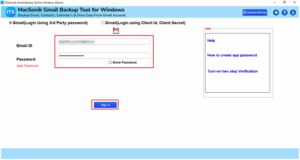
- Next, select Gmail (Backup Mails only) and sign in with your Gmail account.
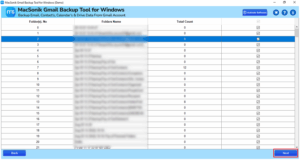
- Select the email folders you would like to archive, and then press the Next button.
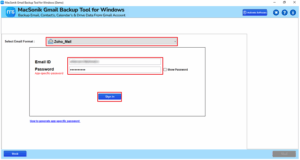
- After this, select save in the email client and choose Zoho Mail. Complete the sign-in.
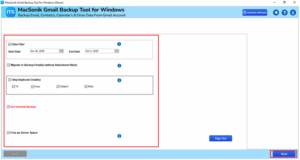
- Finally, apply the filters you need before the migration and click Download.
Features of the Gmail Backup Tool
These are some of the general benefits provided by this software that make users migrate from Gmail to Zoho Mail:
- Enables you to migrate emails selectively based on a specific data range.
- Download all emails, contacts, and calendars without any limitations in batches.
- Export Gmail Emails to CSV, PST, MSG, PDF, and more.
- Optional to delete duplicate emails based on the specified criteria value.
- Works on all Mac and Windows Operating Systems to store or backup Gmail emails locally with/without attached files.
“I utilized the MacSonik Gmail Backup Tool to import emails from Gmail to Zoho Mail swiftly, and the process went smoothly. The coolest part was not needing to download or convert emails manually. The Date Filter Option was particularly helpful, enabling me to transfer just the latest emails, plus keeping the same folder structure and attachments after the transfer.” – Verified User
Conclusion
This blog has discussed the simple yet reliable methods to migrate Gmail to Zoho Mail. Here, the manual method specified is best for users with small migrations. On the other hand, the specialized Gmail Backup Software is capable of handling bulk migrations. Therefore, users can choose any of these methods to satisfy their interests. However, it’s highly recommended to use the tool (Demo Version or Full) for reliable and safe migration.
Frequently Asked Questions
Ans: Yes. Zoho Mail retains the folder/label structure of your Gmail account during migration, ensuring all your emails stay organized as before.
Ans: No. If you are using the manual method for backup, you don’t have any option to filter emails based on their date. However, with the Date Range Filter in the MacSonik Gmail Backup Tool, you can selectively migrate only the required emails. Instead of transferring the entire mailbox, it saves time and space.
About The Author:
Amelia is the mistress of the webmail clients like Office 365, Gmail, Yahoo, Hotmail, and Opera Mail. Her research on downloading emails from webmail is outstanding. She has given the solution to download emails from webmail clients to a Mac device with all the mailbox items. She’s been into webmail solutions since 2010. In her free time, she reads books and writes technical blogs.
Related Post
