How to Import VCF Contacts to Yahoo Mail? Easy Solutions

Amelia James
August 10th, 2026
User-Query:
“I have all my email and phone contacts saved in a VCF file that I need to access with Yahoo Mail. Since it’s urgent and I lack time, suggest the best instant way to simply and securely import vCard contacts into Yahoo Mail at once.”
-Veronica Jones K
Introduction: Maintaining a unified contact database is essential when communication goes across devices, platforms, and geographies. Whether you are switching email providers, combining all the scattered contact lists, or restoring an exported backup. You must identify the ideal ways to follow to import VCF contacts to Yahoo Mail. This blog highlights a top-notch VCF to CSV Converter and other free solutions for a secure contacts transfer quickly and efficiently.
Yahoo supports VCF, but still importing multiple files at once isn’t easy. Errors can arise, the upload may freeze, and sometimes the formatting of contact fields breaks, too. But don’t worry, you can manage it all easily and simplify your contact import here. Before that, let’s just take a quick look at how this import is beneficial.
Why is it Important to Import VCF to Yahoo Mail?
Organizations and other everyday users transfer contacts in VCF format into Yahoo Mail because:
- Easily accessible when switching from Android, iCloud, or other platforms.
- Business continuity is maintained, and contact management is centralized.
- The backup VCF files are easily recoverable in case of accidental loss or due to a threat.
- Collaborative workflow with Yahoo’s smart features and constant support.
- Handling personal and professional contact address books becomes feasible.
- Unified visibility of the contacts improves communication and event scheduling.
Top Methods to Import VCF Contacts to Yahoo Mail
You can either manually move the VCF files into your Yahoo Mail or choose a trusted and verified professional software for this task. The step-by-step briefing of both methods is explained below in this section. Just go through them to ensure all your contacts are easily accessible on the cloud mail without worries.
DIY Approach to Import vCard to Yahoo Mail
Yahoo Mail has a built-in import feature that allows you to directly save contacts in a VCF file with the mail contacts. The steps are:
- Open your Yahoo Mail on a browser of your choice.
- Then, press the Contacts icon from the right panel.
- Further, click on the More option and choose Import from the list.
- Next, click Import from file or Upload a vCard (.vcf) file.
- Afterward, browse your PC for the VCF files.
- Select them from the system and lastly, press Import to upload.
Though this process is free, very simple, and easy to follow, it has some limitations.
Cons of the Manual Method
- Cannot upload large VCF contacts at once.
- Risk of missing important contact attributes.
- Suited only for small VCFs (upto 50 GB).
- May take time to load all the files without stable internet.
Expert Approach to Import VCF Contacts to Yahoo Mail
If you have 100s or 1000s of contacts in one or more VCF, then the manual route isn’t a feasible solution. In such cases, download the MacSonik vCard to CSV Converter Tool to directly convert VCF to CSV in bulk without loss. Additionally, it helps preserve the structure and attributes, and also offers additional features as:
- Merge multiple VCF contacts into a single CSV
- Works across both Windows and Mac OS (all versions)
- Ensures no contacts are duplicated or lost in the process
- Maintains 100% data accuracy, security, and confidentiality
- Allows you to preview the contacts before the conversion
- Has a simple and interactive interface that requires no expertise
Quick Steps to Transfer VCF Contacts to Yahoo Mail
- Launch the vCard to Yahoo CSV Converter Tool on your computer.
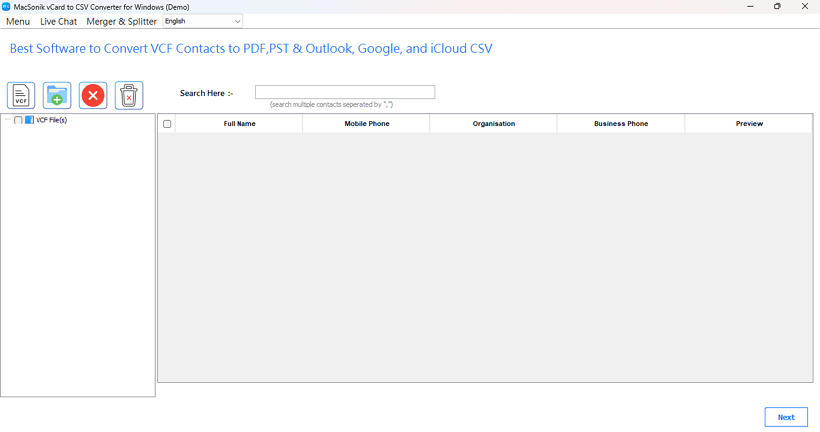
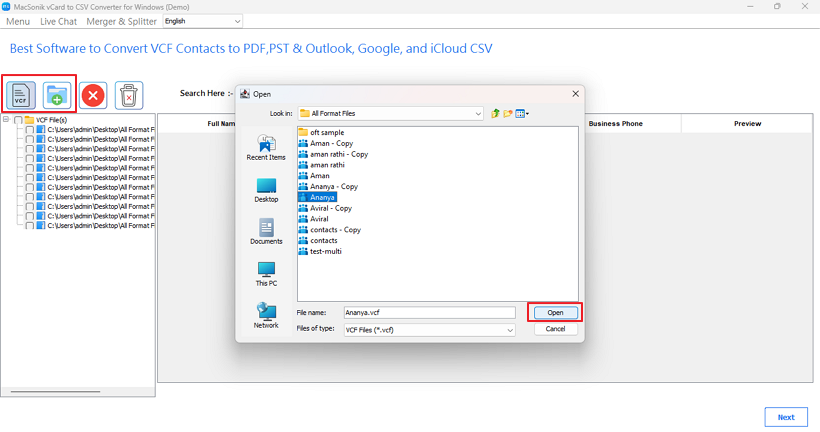
- Then, click the VCF file or folder icon and load your VCF files. Press Open.
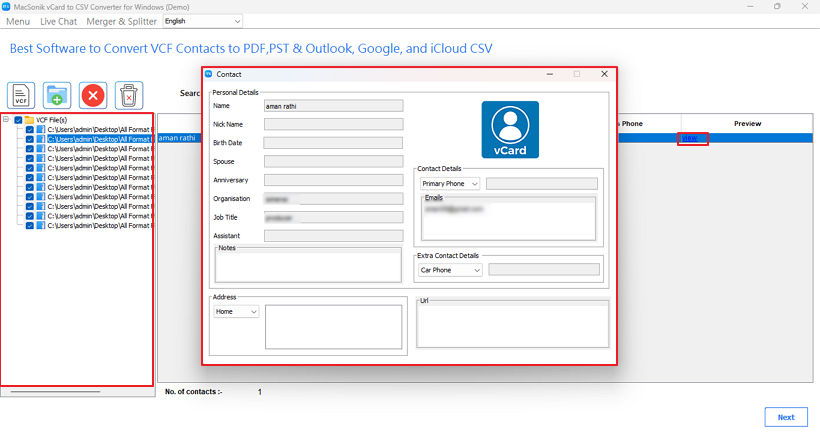
- Now, choose any contact file and double-click to see information. Click View in Preview to check details.
- Now, click Next and choose Yahoo CSV from the list of saving options.
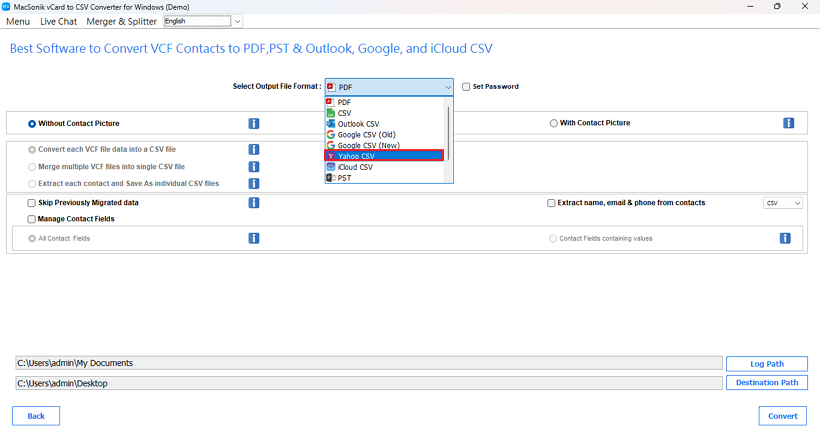
- Finally, apply the filters as needed, pick a Destination Path, and click Convert to save.
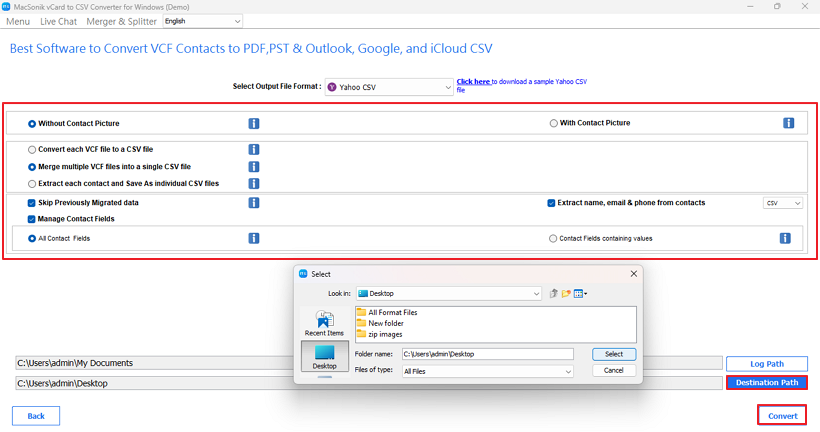
You have successfully saved the contacts. Now, just open this CSV file in your Yahoo account.
This excellent tool also offers a Demo Version to free convert upto 10 contacts and evaluate the performance and functionality
Conclusion
When contact accessibility drives productivity, managing them efficiently is like a key to the lock, i.e., very important. With the right approach to import VCF contacts to Yahoo Mail, you can make a big difference. The manual method is fine for a few contacts, but when you have large sets and less time, then downloading the VCF Converter Tool is the best choice. It optimizes the process with advanced features and effortlessly saves contacts in minimal time.
Frequently Asked Questions
Ans. You can either use the Yahoo built-in Import option or download the ideal VCF File Converter Tool to make the import of VCF contacts into Yahoo.
Ans. You should consider trying the following:
1. Check file size, formatting, and encoding
2. Split oversized VCFs
3. Repair corrupted VCF files
4. Use a third-party software like MacSonik VCF Import Tool
Ans. For the import of multiple VCFs, use the VCF to CSV Converter Software, which has no restriction on file size or count.
Ans. The best method is to use the professional vCard to CSV Importer. It supports batch processing, provides unique filters, and saves data directly in Yahoo CSV format, all at once with no loss and zero effort.
About The Author:
Amelia is the mistress of the webmail clients like Office 365, Gmail, Yahoo, Hotmail, and Opera Mail. Her research on downloading emails from webmail is outstanding. She has given the solution to download emails from webmail clients to a Mac device with all the mailbox items. She’s been into webmail solutions since 2010. In her free time, she reads books and writes technical blogs.
Related Post
