Import Google Takeout to New Account: A Simple Steps Guide

Amelia James
August 10th, 2026
Summary: After losing access to years of important email data because the old Google account was deactivated, the user got worried. The deactivation must have occurred due to inactivity or security measures. But fortunately, the user has a Google Takeout backup. Now, the user faces challenging to import Google Takeout to new account. This technical blog will provide easy solutions, manual and automated, using the MacSonik MBOX Converter Tool. We will also highlight scenarios where this import process is needed.
User-Query: “Hi, I recently exported my data from my old Google account using Google Takeout, and now I want to import it into my new Google account. Can someone guide me on the best way to transfer emails, Drive files, contacts, calendar events, and photos without losing any data?”
How to Effectively Import Google Takeout to New Account?
There are two different methods to import the Google Takeout data to a new account. One, it can be done manually, and the other is to use a professional tool. This converter tool also import MBOX to Office 365.
Method 01: Import Google Takeout Data to New Account
In this manual approach, we will first export data from an old account and then download the archive .zip file. We will then import this data to the new Gmail account.
The following is the step-by-step process to begin the import:
Step 1: Export Data from Old Gmail Account
- First, sign in to your old Gmail account.
- Then, head to Google Takeout and select the services you want to export.
- After that, press Next Step, choose the file type, and the delivery method.
- Next, click on Create export and wait for the process to finish.
- Download and extract the ZIP file on your computer.
Step 2: Import Data to New Gmail Account
- Now, sign in with your new Gmail account.
- Navigate to Settings > See all settings > Accounts & Import > Import mail and contacts.
- Then, enter the old Gmail address and follow the on-screen instructions.
Limitations: Large Gmail mailboxes will take a considerable amount of time to import. To extract the archived .zip file, you must verify that there is enough room in your destination to hold the contents of the archived file. Some folders will not keep their original hierarchical view after being copied into the new account.
Method 02: Upload Google Takeout to New Account
Use an email client, Mozilla Thunderbird, to connect both your old and new Gmail accounts. You will set up both your email accounts through IMAP and then use drag and drop to copy your emails from one account into the other.
Use the following instructions to start the process:
Step 1: Enable IMAP in Both Gmail Accounts
- Log in to your current Gmail account.
- Then, head to Settings > See all settings > Forwarding and POP/IMAP.
- In the IMAP Access section, Enable IMAP and save the changes.
- Similarly, perform the same steps for the other new Gmail account.
Step 2: Configure Both Accounts in Thunderbird
- Open the Thunderbird application and go to Account Settings.
- Click on Add Mail Account and then add both old and new Gmail accounts.
- Now, wait for Thunderbird to sync the folders of both Gmail accounts.
Step 3: Drag and Drop Gmail Emails
- Select the folder or specific emails from the old Gmail account.
- Drag the selected items you want to import from the old account.
- Now, drop them into the new Gmail account.
Limitations: This method will only transfer the emails, not contacts, calendars, etc. Importing large mailboxes will make the entire process slow and will be time-consuming.
A Quick Solution to Import Google Takeout to New Account
The MacSonik MBOX Converter is a scalable utility that imports the Google Takeout MBOX files to a new Gmail account. This tool converts multiple MBOX files into various supported file formats. It retains the original folder hierarchy, email headers, and other attributes throughout the process. Moreover, the utility is engineered with advanced features that make the process simpler and more efficient. Also, the tool directly imports MBOX to Amazon Mail and other email services.
To download the Google Takeout MBOX files, refer to Method 01 Step (1). After downloading the MBOX file, proceed with the following steps.
Simplified steps to import Google Takeout data to new account:
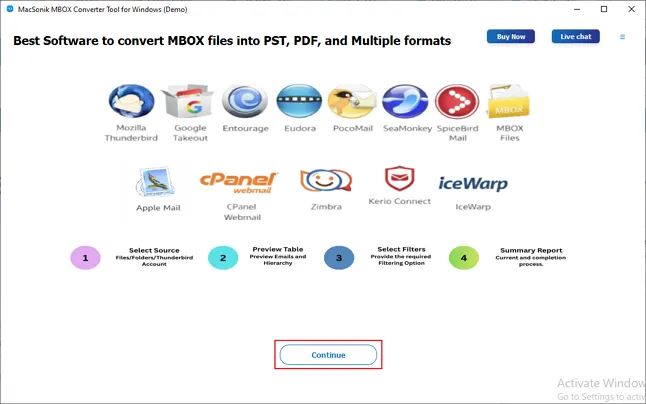
- Download and run the converter tool on your macOS. Then, tap Continue.
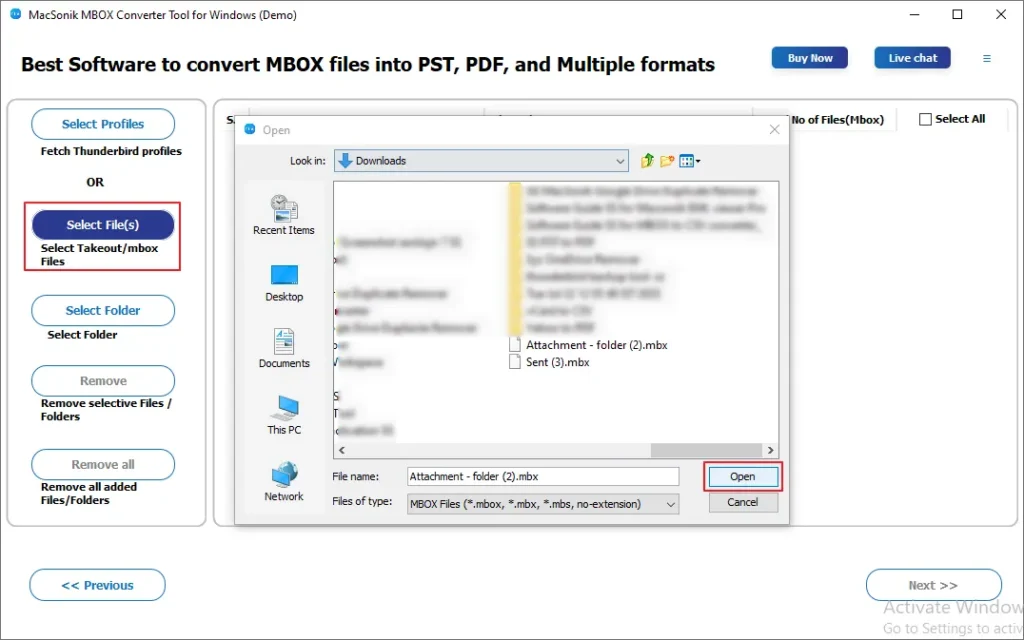
- Then, click on the Select File(s) option, locate the MBOX file, select it, and Open it.
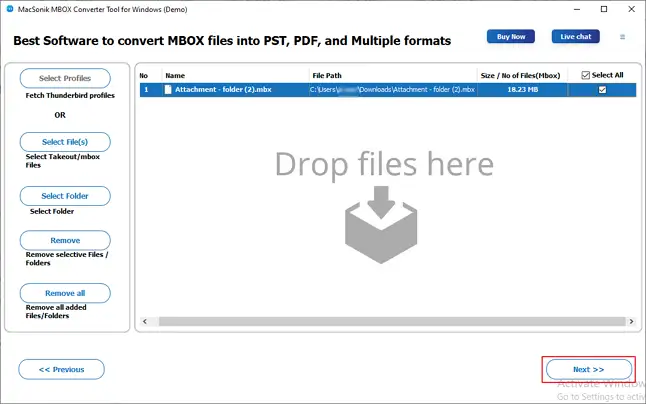
- After that, select the files, and then, click Next to continue.
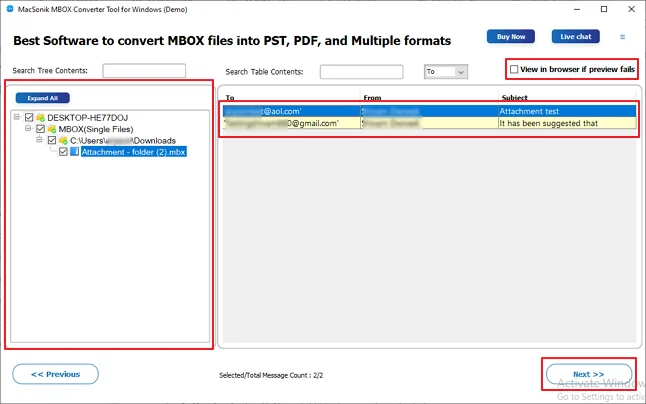
- Then, expand the tree-hierarchical structure, select the files, preview them, and click Next.
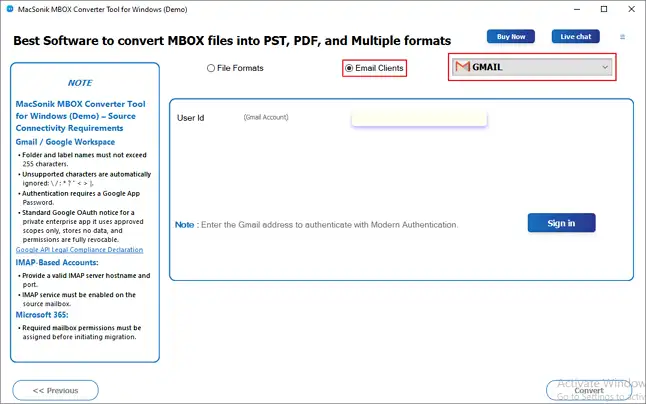
- Click on the Next button and choose Gmail as the Email Client from the available options.
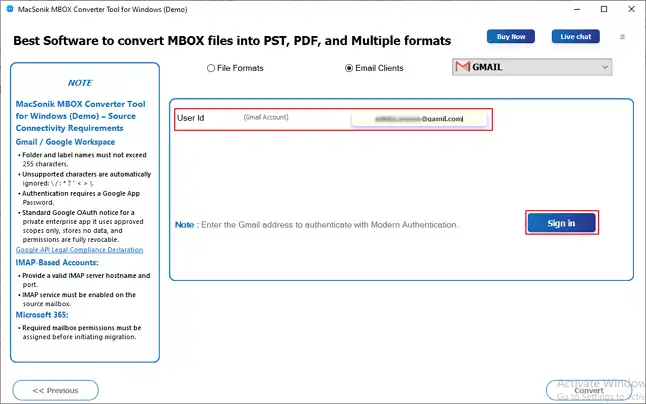
- Authenticate it with the valid Gmail account credentials.
- Next, apply the filters if needed, and finally, tap Convert to complete the process.
Real-life Scenario:
A user wanted to transfer emails from an old Gmail account to a new one. They exported the data using Google Takeout and imported the MBOX files using MacSonik MBOX Converter Tool. The tool preserved folder hierarchy, email metadata, and attachments, ensuring that the migration was smooth and complete. All previous emails became fully accessible in the new account without any loss.
Conclusion
To conclude, we have listed out various methods to import Google Takeout to new account. Users have to choose the desired method according to their business requirements. The manual method is a bit complex, technical, and involves many steps. This makes the process time-consuming and less reliable. Therefore, it is recommended to use the MacSonik MBOX Converter for an error-free and hassle-free conversion experience.
Frequently Asked Questions
Ans- You cannot directly import Google Takeout data into another Google account. Google doesn’t provide a built-in direct restore option. You must manually upload each service’s data via Google Takeout to the new account or use a specialized converter tool.
Ans- Yes. Google Takeout lets you export only selected services, so you can import just what you need into the new account. However, each data type must still be imported separately.
Ans- The most reliable approach is to import each service separately. For large or complex migrations, dedicated converter tools are usually faster and reduce manual effort.
Ans- Google Takeout allows users to create a complete backup of their Google account data, ensuring data security and portability. It supports multiple services and formats, enabling easy migration or selective restoration to another account or platform.
About The Author:
Amelia is the mistress of the webmail clients like Office 365, Gmail, Yahoo, Hotmail, and Opera Mail. Her research on downloading emails from webmail is outstanding. She has given the solution to download emails from webmail clients to a Mac device with all the mailbox items. She’s been into webmail solutions since 2010. In her free time, she reads books and writes technical blogs.
Related Post
