How to Extract Images from PDF Without Losing Quality

Mohd Kaif

April 22nd, 2026
User-Query:
“I have many PDF files that contain product photos, reports, scanned pages, and marketing graphics. I need to remove all images from PDF files without losing quality. Also, I want to save them in formats like JPG, PNG, or TIFF for editing and sharing. What is the easiest and safest way to extract images from PDF?”
— Posted by “Sophia Carter”
Summary: PDF files are widely used to store various types of data because they preserve the original layout. Many PDF files also contain high-quality images, such as graphics. However, manually separating those images can reduce image quality, resolution, or waste valuable time. That is why users often search for a method to extract pictures from PDF. In this guide, you will learn the best ways to do this while keeping their originality. Also, highlights how the MacSonik PDF Data Extraction Tool helps users complete the task quickly and professionally.
PDF or JPG? How to Pick the Best Format Every Time?
|
Major Features |
PDF File |
JPG/PNG/TIFF |
|
Document format |
Image formats |
|
Stores text + images |
Stores pictures only |
|
Limited |
Easy image editing |
|
Full document sharing |
Quick image sharing |
|
Good inside file |
Depends on the export method |
|
Reports, manuals, invoices |
Design, editing, web, printing |
Better Quality, Better Use: The Advantages of Individual Image Extraction
There are the following reasons why users want to extract images from PDF:
- Reuse product photos for websites or catalogs.
- For saving charts and graphics from reports.
- To edit images in Photoshop or design tools.
- Share pictures separately without sending the full PDF.
- Recovering scanned pages as image files.
- Also, to archive visual content in JPG, PNG, or TIFF format.
No Software: Manual PDF Image Extraction Tips
If you are tired of using the external software, you can try this manual conversion to extract photos from PDF. But it is most important to note that this method has its own restrictions. Moreover, it did not give the expected output as well.
Method 1: Take a Screenshot
- Firstly, open the PDF file on a Mac.
- Go to the page containing the image.
- Use the screenshot shortcut.
- Crop the image manually.
- Save it in PNG or JPG format.
Method 2: Copy and Paste Image
- First of all, open PDF in Preview.
- Select the image if allowed.
- Afterwards, copy the image.
- Paste it into an image editor.
- Lastly, save in the desired format.
Restrictions to Manually Extract Images from PDF
- Sometimes the image quality may be reduced.
- This process is time-consuming for multiple files.
- It is not suitable for bulk extraction.
- Some PDFs block image copying.
- Also, the manual cropping may affect dimensions.
Instant Extraction: How to Pull Original-Quality Images from Any PDF?
Want maximum and 100% accurate output? Use the MacSonik PDF Data Extraction Tool. This solution helps users to remove images from multiple files simultaneously while keeping the originality. It supports multiple image formats like JPG, PNG, TIFF, etc. Therefore, this software is designed for Mac users with a smooth interface and high–end security. Along with this, it allows users to extract text from PDF as well.
One-Time Conversion Advantage
If you do not want to perform the process manually, choose a one-time conversion service. Just contact our support team and share your files. They will extract images from PDF securely and deliver them in your required format with zero data loss. This saves time and avoids technical effort. Furthermore, this option is best suited for business professionals, individuals, and enterprise users.
The Simple Way to Remove Images from a PDF Document
- Firstly, start getting the MacSonik PDF Data Extractor Tool.
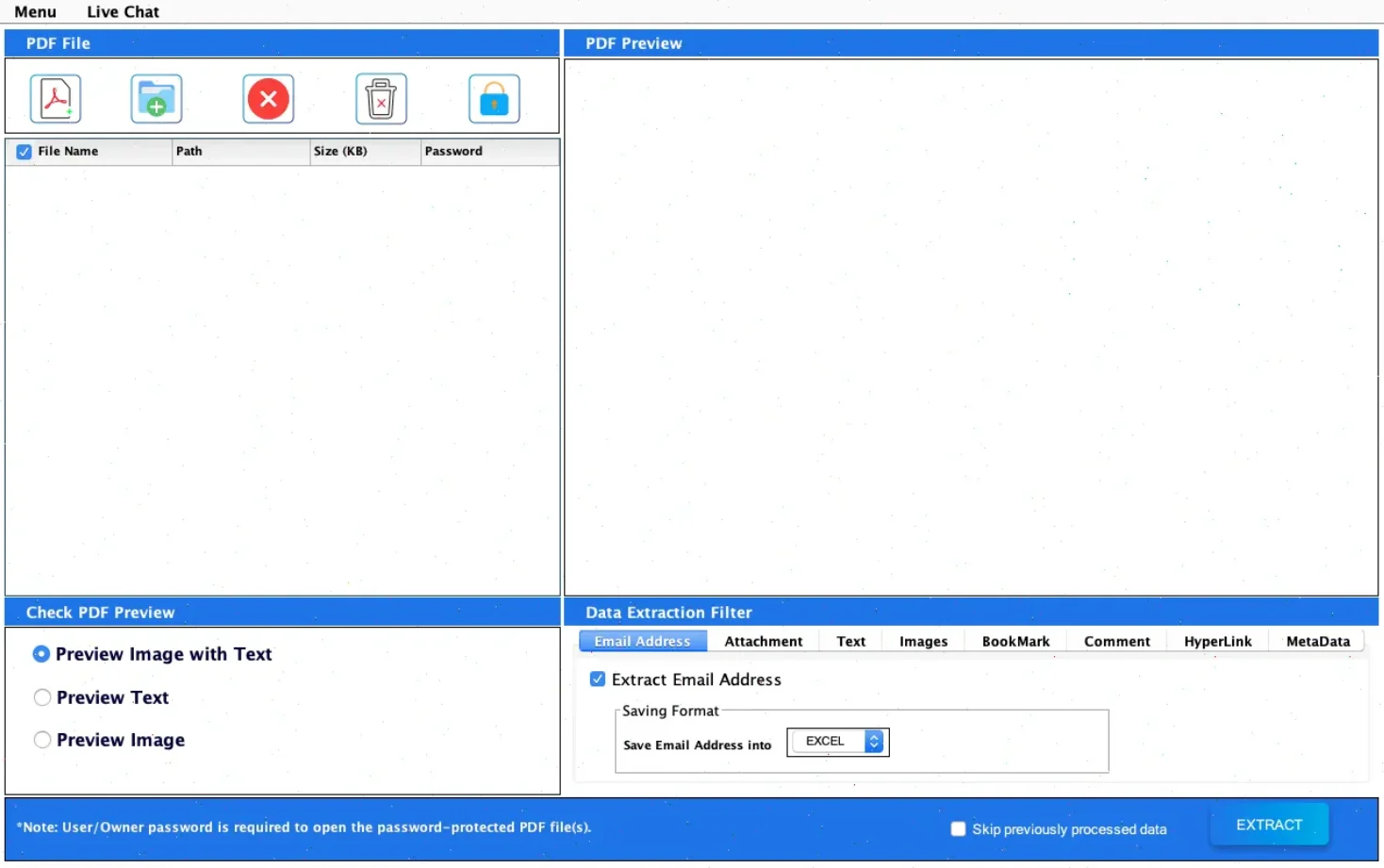
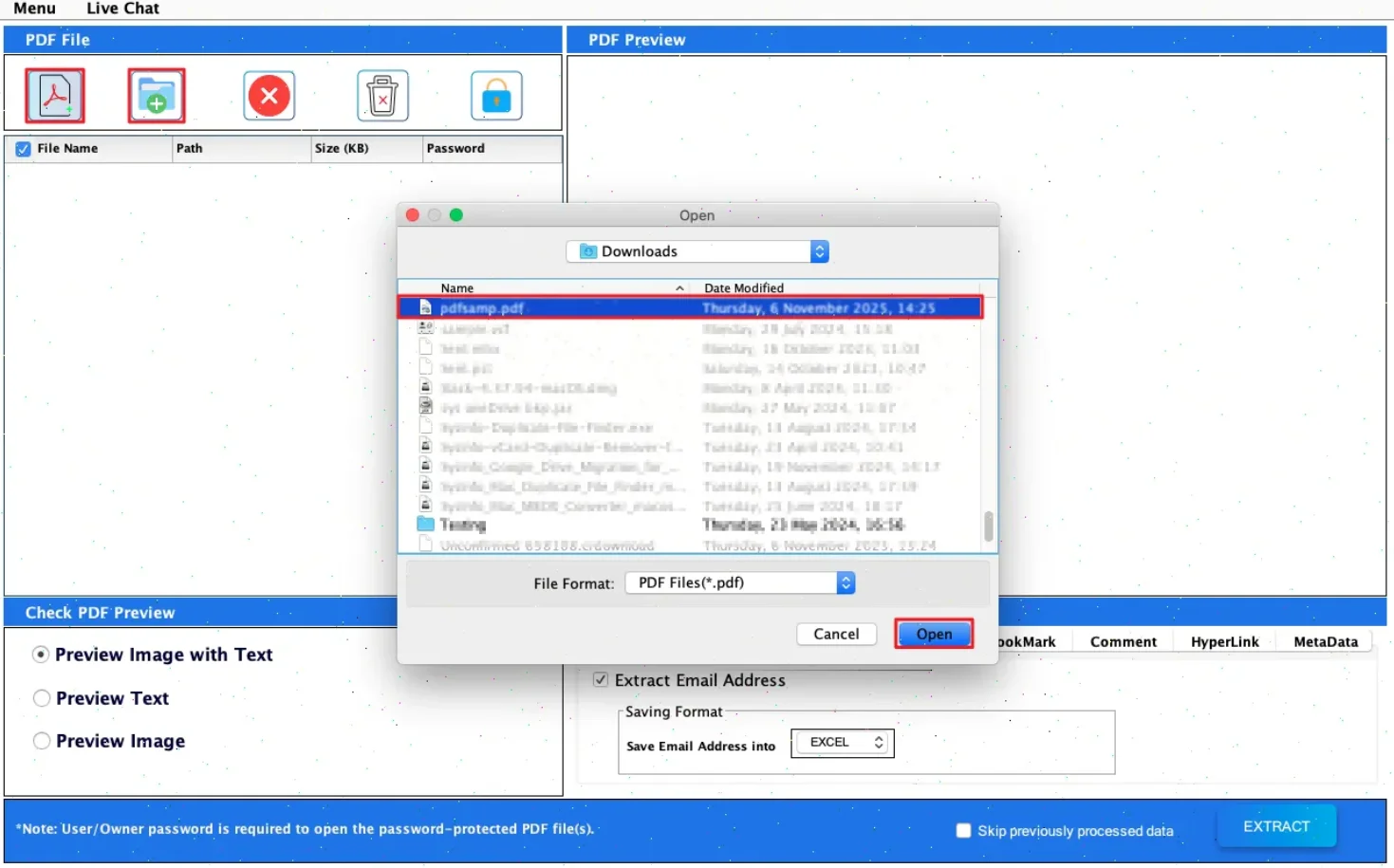
- Click Select Files/Folders to add the PDF file from which you want to separate the data, and tap Open.
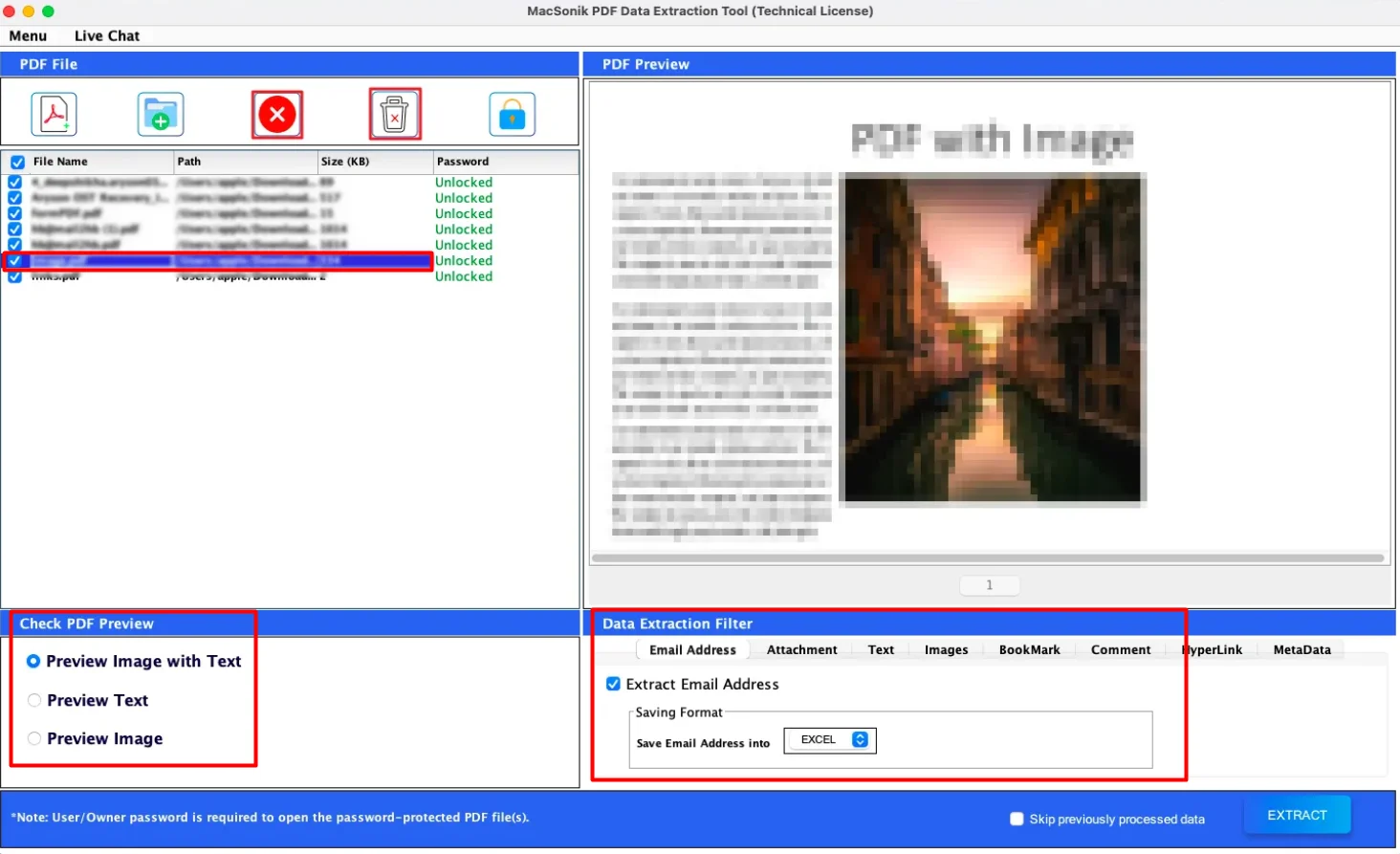
- Double-click the PDF file that you have selected, select the preview option accordingly, and apply the data extraction filters.
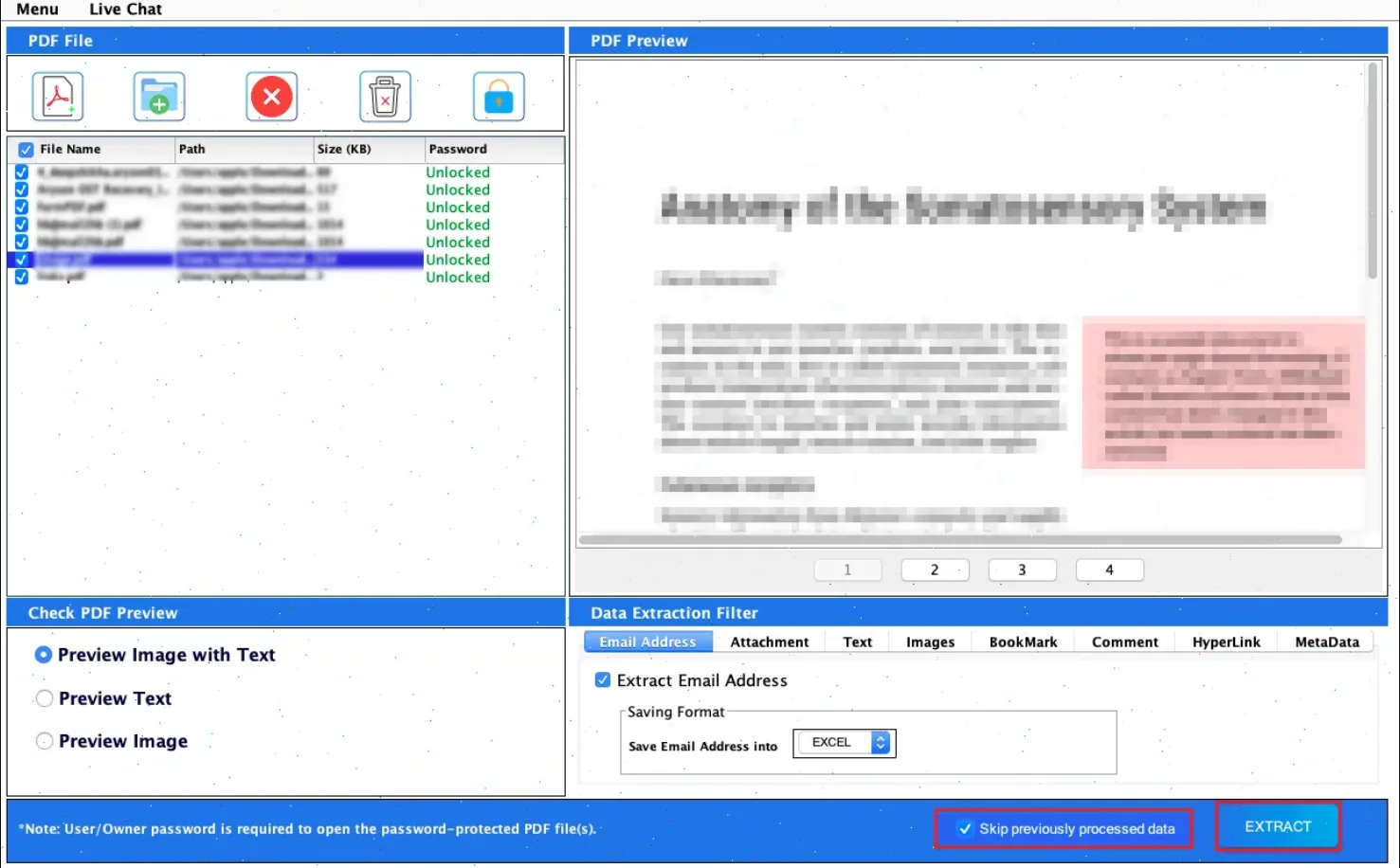
- Finally, skip the files that have already been removed, and click Extract to start the rest of the process.
Real-Life Case Study: Marketing Agency Asset Recovery
Client: Digital Marketing Company, Managing Brand Brochures.
Challenge: They had hundreds of PDF brochures containing product images and banners.
Problem Faced: Manual taking screenshots reduced the quality and wasted hours. Still didn’t give the expected output. Also, consumes a lot of time and effort.
Solution: After that, they used the MacSonik PDF Extractor Tool to extract all images from PDF.
Result:
- Extracted all images in original resolution.
- Saved files in a reliable format for design editing.
- Reduced manual work significantly.
- Improved campaign workflow speed.
Now, the agency reuses old visual assets easily.
Why Choose MacSonik PDF Data Extractor Tool?
- Easy-to-use interface for beginners and professionals.
- Fast processing speed with accurate results.
- Supports multiple file formats without any loss.
- Maintains original data structure and quality.
- Secure conversion process with privacy protection.
- Dedicated customer support for instant assistance.
Conclusion
In this blog post, we have seen that there are many ways to extract images from PDF. But manual methods are slow and often reduce image quality. They are useful only for one or two files. If you need to extract multiple images without losing quality, using the PDF Extractor Tool is the best option. It offers speed, accuracy, security, and the best results. You can also choose the one-time service option for error-free extraction. Additionally, if you found any issues, kindly contact our support team.
Frequently Asked Questions
Ans. You can extract pictures from PDF using manual methods like screenshots or copy-paste. But these are slow and may reduce quality. For faster and better results, use MacSonik PDF Extractor Tool to extract images in bulk without losing clarity.
Ans. After extracting images from a PDF, you can save them in popular formats such as JPG, PNG, TIFF, BMP, and more. The best format depends on whether you need web sharing, editing, printing, or archiving.
Ans. Yes, images can be extracted from password-protected PDF files if you know the correct password. Once unlocked, you can safely extract the images using a trusted solution like MacSonik software.
Ans. Basic image properties like dimensions and quality are usually maintained during extraction. However, advanced metadata depends on how the image was originally embedded in the PDF and the tool used for extraction.
About The Author:
Mohd Kaif is an experienced technical content writer who specializes in researching and presenting dependable solutions to user problems. He offers practical guidance on email migration, data backup, and file conversion for users of all skill levels.
Related Post
