How to Export Thunderbird Emails to EML Files in Bulk (Easy Guide)

Mohd Kaif

April 20th, 2026
User-Query:
“So I’ve been using Thunderbird for years, and I recently found out that I need to move my emails to another client that only supports EML files. I got confused with all the different methods out there. Is there a straightforward way to export Thunderbird emails to EML format?
Why Export Emails From Thunderbird to EML?
- Moving to a new email app is way less painful when your emails are already in EML format.
- You can save emails straight to your computer and read them without ever opening Thunderbird.
- Storing old emails as EML keeps your main inbox clean without actually deleting anything.
- Courts and compliance teams sometimes ask for emails in a format anyone can open and verify.
- If something goes wrong with Thunderbird one day, your EML backups keep everything safe.
- EML files are small, simple to name, and easy to access without any special software.
Cost-Free Solution to Export Thunderbird to EML
If you don’t want to use any paid tool, Thunderbird does give you a couple of simple ways to save emails as EML files. Just keep in mind, these methods are fine for small tasks, but not really built for handling a large number of emails.
Export Thunderbird Email to EML Via Thunderbird “Save As”
- Open Thunderbird on your system.
- Go to the folder where your emails are stored (Inbox, Sent, etc.).
- Select the email (or a few emails) you want to export.
- Right-click and click on Save As.
- Choose the destination folder.
- The emails will be saved one by one in .eml format.
Convert Thunderbird to EML Using ImportExportTools NG Add-on
- Firstly, open Thunderbird.
- Install the ImportExportTools NG add-on from the Add-ons section.
- Restart Thunderbird once it’s installed.
- Furthermore, right-click on the email folder to export.
- Click on ImportExportTools NG.
- Choose Export folder -> EML format.
- Select the location and save the files.
Major Drawbacks of the Manual Method
- Saving emails through Save As quickly turns into a repetitive job if you have more than a handful of messages.
- There’s no proper way to keep your folder structure the same during export.
- The ImportExportTools NG add-on helps, but it can feel a bit confusing if you’re using it for the first time.
- There’s always a chance of missing emails if you don’t double-check what you selected.
How to Export Thunderbird to EML in Bulk?
The MacSonik Thunderbird Email Backup Software lets you export Thunderbird emails to EML. You don’t need to be technical to use it. It pulls emails directly from Thunderbird and saves them in EML files that you can open in other email clients. It also supports a few other formats. You can use this utility to export Thunderbird contacts to CSV, PDF, or other formats.
Steps to Export Thunderbird Email to EML
- Download the Thunderbird Backup Tool.
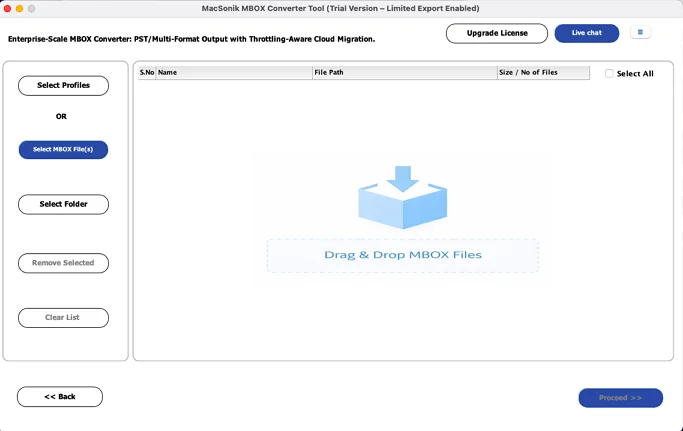
- Then, fetch your Thunderbird profile or add MBOX files and click Proceed.
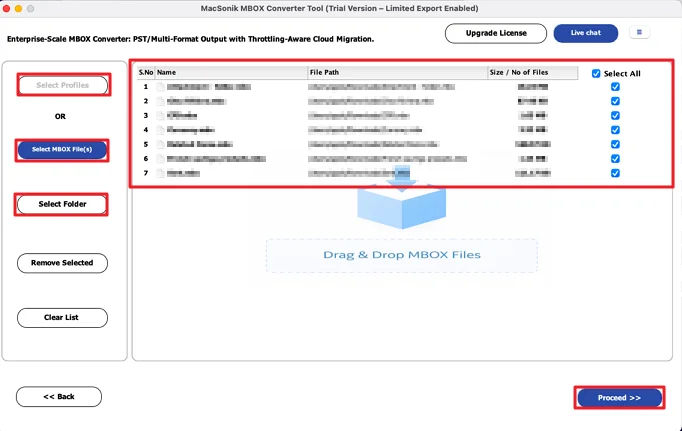
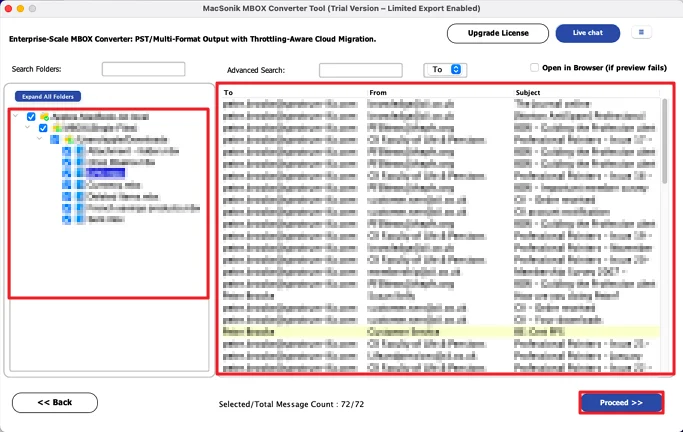
- After that, preview and select files and click Proceed.
- Thereafter, choose the EML file format from the list.
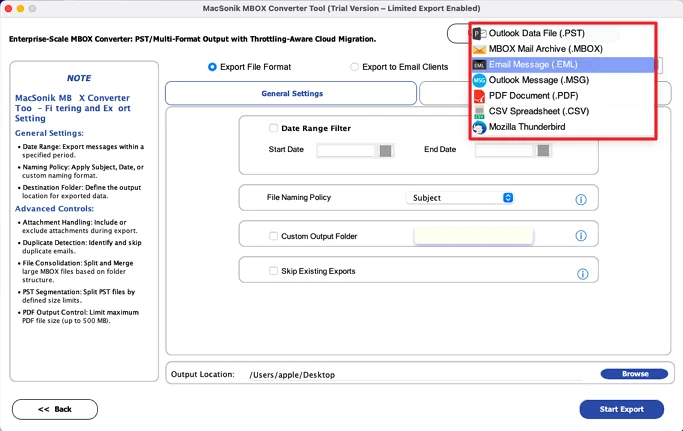
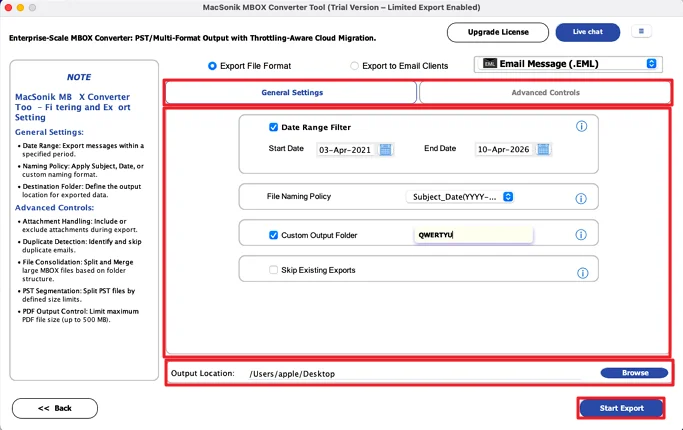
- Finally, apply the filters, set the destinations, and click Start Export.
Your Next Step
Getting your Thunderbird emails into EML format just makes life a bit easier. You have a copy of everything that doesn’t depend on Thunderbird staying installed or working properly. If you only have a few emails, the manual method can export Thunderbird to EML. For anything larger, a dedicated tool saves you a lot of time and frustration. Either way, once your emails are in EML, you can open them anywhere and share them easily.
Frequently Asked Questions
Ans: Yes, but it depends on the method you use. Even if you select multiple emails, the Save As option still saves them one by one. The ImportExportTools NG add-on does a better job of exporting multiple emails together. The MacSonik Thunderbird Email Backup Software handles multiple emails in one go.
Ans: The MacSonik Thunderbird Email Backup Software keeps the original folder hierarchy, so everything stays in place after export.
Ans: Manual methods don’t offer any extra control or protection during export. Using a tool like the MacSonik Thunderbird Email Backup Software gives you a more controlled process, especially when handling important or sensitive data.
Ans: No, manual methods require Thunderbird to be installed and running. You can’t use the Save As option or add-ons without it. But with the MacSonik Thunderbird Email Backup Software, you can load MBOX files or profiles and export emails even without actively using Thunderbird.
Ans: Yes, that’s one of the useful features. The MacSonik Thunderbird Email Backup Software lets you preview emails and choose only the ones you actually need. This way, you don’t have to export everything if you’re only looking for specific emails.
About The Author:
Mohd Kaif is an experienced technical content writer who specializes in researching and presenting dependable solutions to user problems. He offers practical guidance on email migration, data backup, and file conversion for users of all skill levels.
Related Post
