Simple Methods to Export Hotmail to MBOX Files in Bulk

Neeru Kuchhal

May 26th, 2026
User-Query:
“I want to export my Hotmail emails into MBOX format for backup and migration purposes. I have a large mailbox with important emails and attachments, so I need a bulk solution that preserves data integrity. What is the easiest way to export Hotmail to MBOX on Mac?”
— Posted by “Sophia Bennett”
Introduction: Hotmail is now integrated with Microsoft 365 and Outlook services. It has been a widely used email platform for personal and professional communication. However, cloud-based mailboxes may not always be ideal for offline access or long-term backup requirements. While MBOX is a popular mailbox format supported by various email applications. Therefore, exporting Hotmail emails into MBOX format allows users to create portable mailbox archives and migrate emails easily between platforms. This guide explains the various methods to export Hotmail Emails to MBOX in bulk on Mac. Also, covers how the MacSonik Outlook.com Backup Tool simplifies the process.
Hotmail vs MBOX: A Direct Comparison of Mail Storage Systems
|
Important Factors |
Hotmail |
MBOX |
|
Cloud mailbox |
Local mailbox file |
|
Internet dependent |
Offline access |
|
Daily communication |
Backup and migration |
|
Outlook ecosystem |
Multiple email clients |
|
Supported |
Supported |
|
Account dependent |
Highly portable |
Moving from Hotmail to Thunderbird? Why MBOX is the Answer
There are various reasons why MBOX is mostly preferred by users to export Hotmail to MBOX:
- To create secure offline mailbox backups.
- Migrate to Thunderbird or Apple Mail.
- Preserve important communication records.
- For maintaining a portable email archive.
- Access emails without internet dependency.
- Also, to improve long-term email management.
Manual Solution to Export Emails from Hotmail to MBOX
If you are tired of using the external applications, try using the manual solution to complete this task. But make sure that this method is very time-consuming and has some limitations.
Solution: Configure Hotmail Through IMAP and Save Mailbox
- Firstly, enable IMAP access for the Hotmail account.
- Open an email client such as Apple Mail.
- Add the Hotmail account using IMAP settings.
- Afterwards, sync mailbox folders and emails.
- Lastly, export or save mailbox data into MBOX–supported format where available.
Disadvantages: Export Hotmail to MBOX Manually
- This process is slow for large mailboxes.
- It requires technical configuration.
- Manual mailbox management is needed.
- There is a high risk of incomplete export.
- Difficult to process multiple accounts.
- Moreover, it is time-consuming for bulk export.
A Reliable Solution to Convert Hotmail Emails to MBOX
For a secure process, use the MacSonik Hotmail Backup Tool. This professional software helps users share Hotmail emails directly into MBOX format while preserving attachments, formatting, folder hierarchy, and metadata. The tool is specially designed for Mac and enterprise users handling bulk mailbox exports. Additionally, it comes with a simple and intuitive interface that allows users to export Hotmail Emails to PST as well.
Quick Steps to Export Hotmail to MBOX
- Firstly, launch the ‘MacSonik Outlook.com Backup Software’.
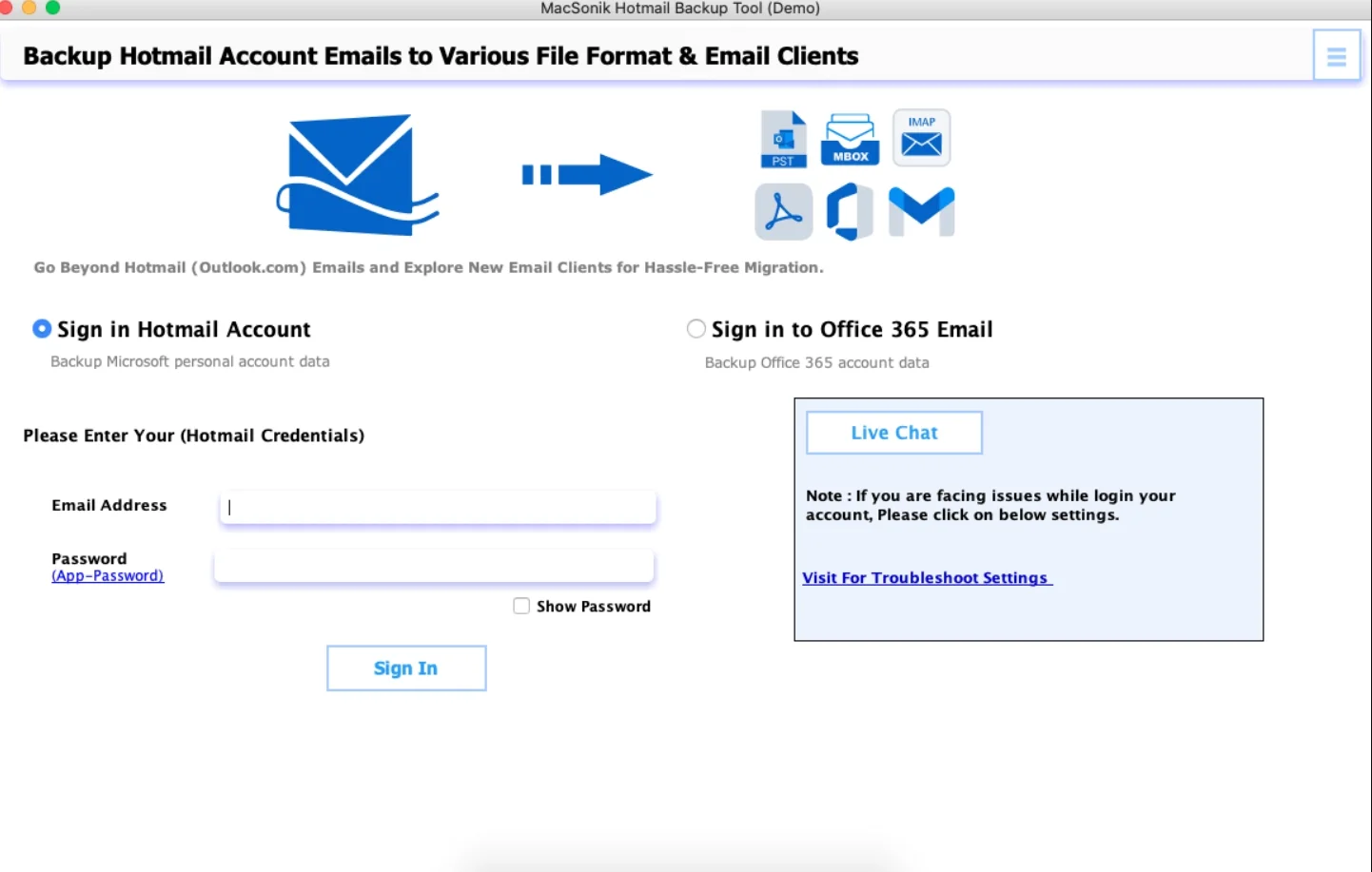
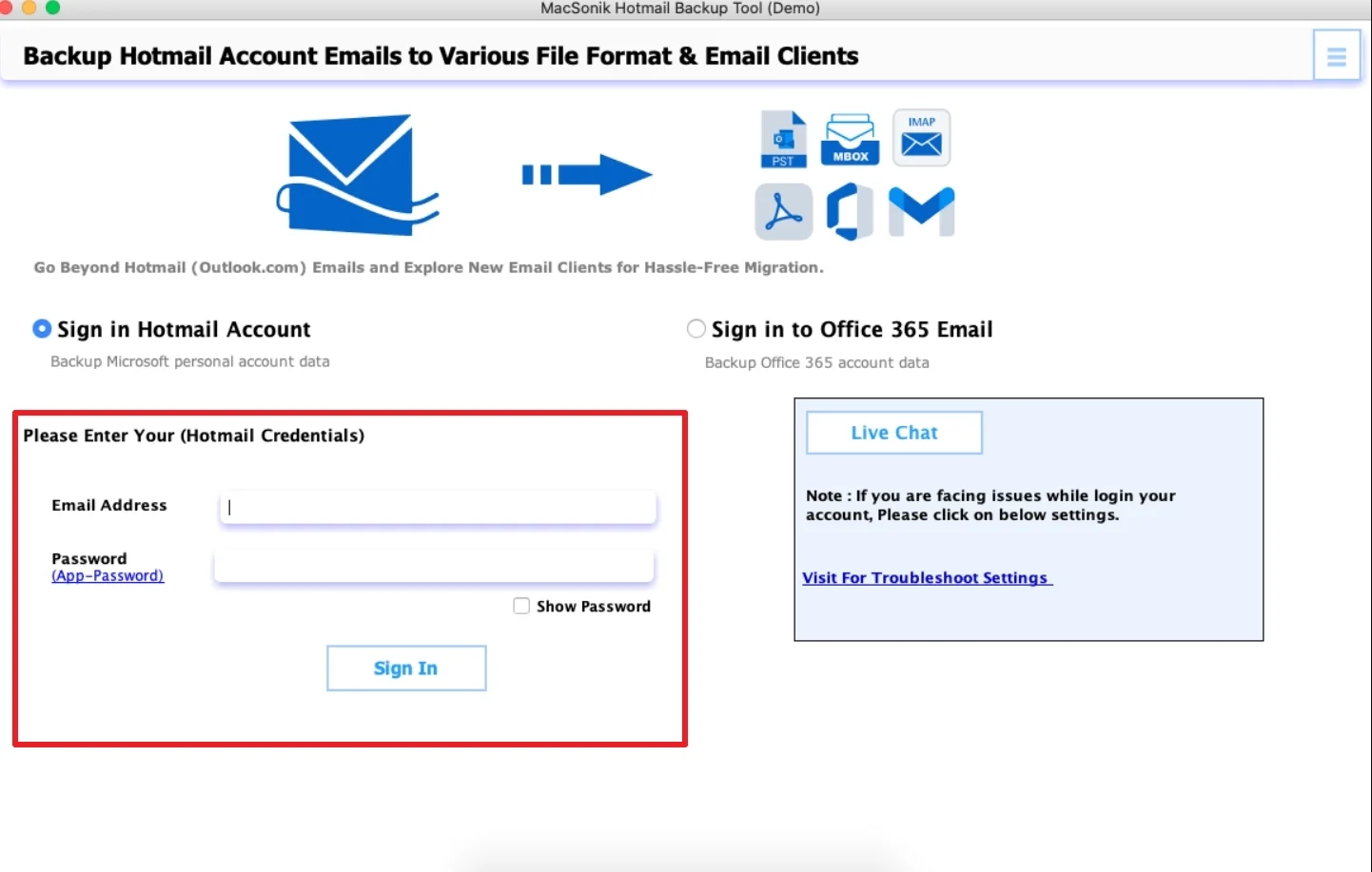
- ‘Sign in’ using the correct ‘Hotmail account’ username and password.
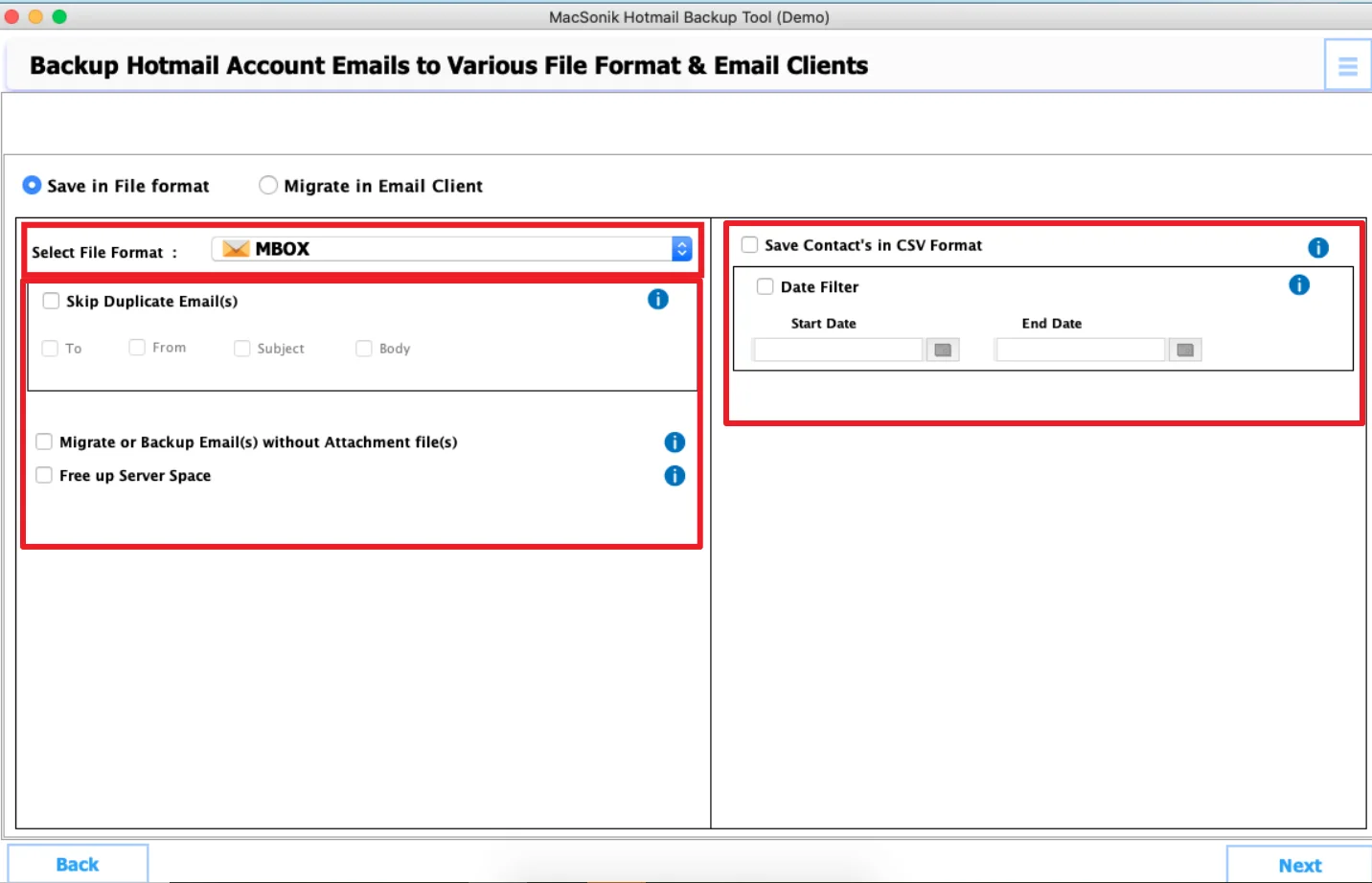
- Now, choose ‘MBOX’ as the saving file format and ‘apply filters’ as needed.
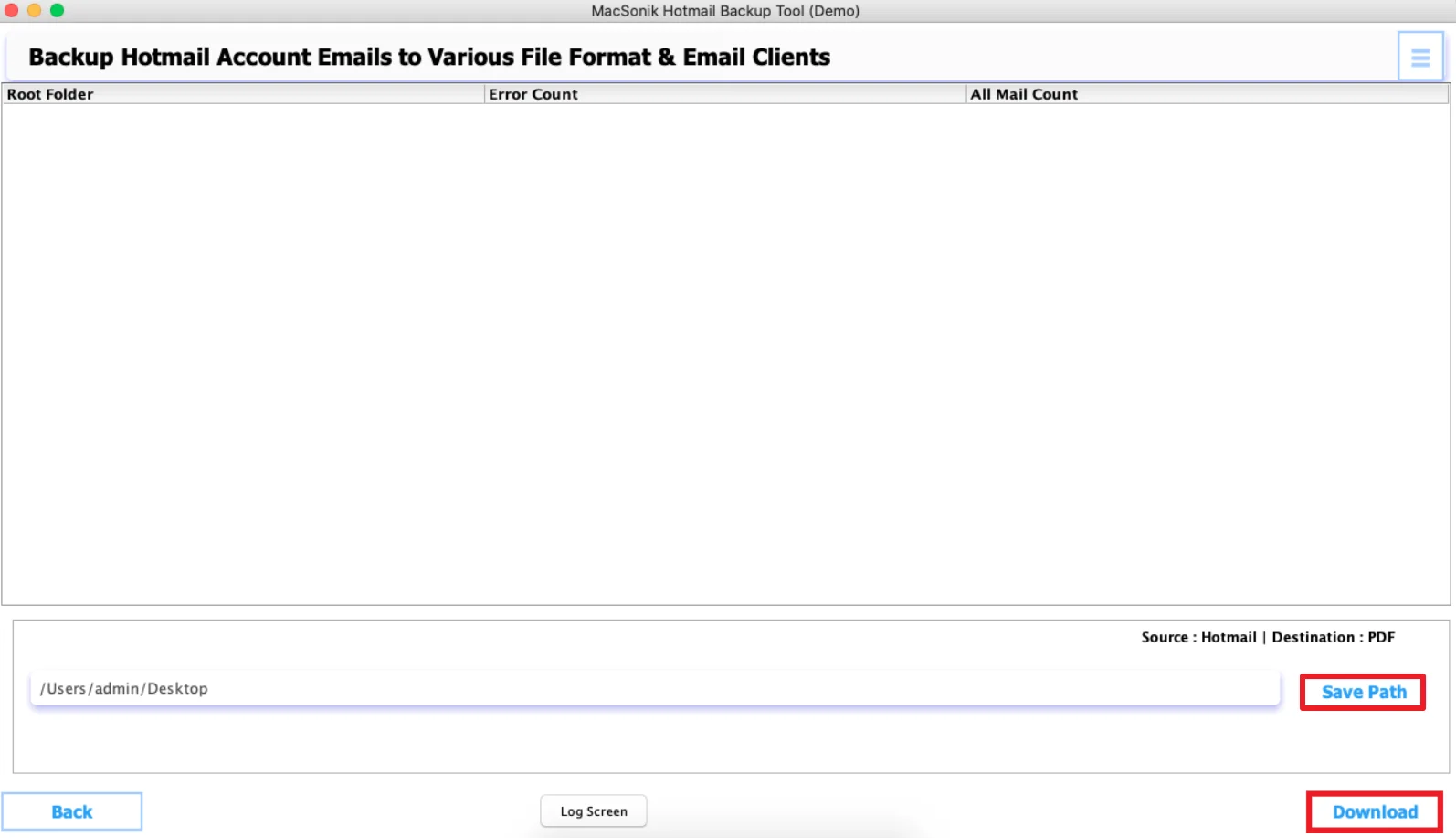
- Select the ‘destination’ to save the file and click ‘Download’.
Real-Life Scenario: Business Mailbox Archiving
A small legal firm had years of important client communication stored in Hotmail accounts and wanted secure offline access for compliance purposes. However, the manual export methods proved slow and difficult for handling large amounts of mailbox data. The firm then used the MacSonik export solution to convert emails into MBOX files. As a result, all emails and attachments were preserved properly, and the organization created portable mailbox archives for future access.
Final Words
At last, exporting Hotmail emails into MBOX format is an excellent solution for backup, migration, and long-term email preservation. However, the manual methods may work for smaller mailboxes, but often become difficult for bulk export tasks. The most recommended solution is to use Outlook.com backup software to export Hotmail to MBOX. This solution ensures an accurate Hotmail to MBOX conversion on Mac. Apart from this, if you face any kind of issues related to the software or process, kindly reach out to our support team directly.
Frequently Asked Questions
Ans. Yes, Hotmail emails can be exported directly into MBOX format using a reliable Outlook.com backup tool. Direct export helps preserve mailbox data, folder hierarchy, and attachments while avoiding complicated manual processes. This method is especially useful for large mailbox backups and migrations.
Ans. You can convert Hotmail emails to MBOX without using Microsoft Outlook by using IMAP-based methods or professional MacSonik backup software. It connects directly with the Hotmail account and exports emails into MBOX format securely. This simplifies the process and reduces technical effort.
Ans. Yes, MacSonik export solution preserves email attachments during the Hotmail to MBOX conversion process. Files such as PDFs, images, and documents remain associated with their respective emails. This helps maintain complete mailbox integrity and ensures no important information is lost.
Ans. Yes, MacSonik’s advanced backup tool supports selective folder export. Users can choose only required folders, date ranges, or specific mailbox data instead of exporting the complete account. This saves storage space and reduces export time.
Ans. The export time depends on mailbox size, internet speed, and the migration method being used. Small mailboxes may complete quickly, while larger accounts containing years of emails and attachments can take longer. The MacSonik backup tool generally speeds up the process through optimized bulk export features.
About The Author:
I am Neeru Kuchhal, a Technical Content Writer who focuses on turning complex ideas into clear, engaging, and impactful content. I combine creativity with strategy to write blogs, web content, and technical articles that connect with the right audience and support brand goals. I believe great content is not just written. It is thoughtfully created to inform, build trust, and drive action.
Related Post
