Fastest Method to Convert PDF to EML in Bulk with Attachments

Amelia James
August 11th, 2026
User-Query:
“I have hundreds of PDF files containing email records and important documents. I need to convert them into EML format in bulk with attachments. So I can open them in email clients like Thunderbird, Apple Mail, and Outlook. What is the fastest and safest way to convert PDF to EML?”— Posted by “Andrew Jackson”
Introduction: PDF files are commonly used for storing invoices, reports, archived messages, and business documents because they preserve formatting across devices. EML is a standard email file format supported by many email clients. Converting PDF to EML helps users store records as email messages, organize data in mail folders, and access files. However, PDF files are not ideal when users need to manage content inside email applications. That’s why this guide explains the fastest methods to convert PDF file to EML in bulk with attachments on Mac. Also, covers the MacSonik PDF Converter Tool for seamless conversion.
Are You Using the Right File? PDF vs. EML Explained
It is important to know if you are walking on the correct path for your conversion.
|
Major Factors |
PDF File |
EML File |
|
Portable document format |
Standard email message format |
|
Opens in PDF readers |
Opens in email clients |
|
Static document |
Email body with metadata |
|
Embedded or separate files |
Native email attachments |
|
Documents, archives |
Email storage and migration |
The Top Reasons to Convert PDF to EML
Here are the main reasons why people are choosing EML over PDF:
- Open converted files directly in email applications.
- Preserves business records in mailbox format.
- To organize documents as emails in folders.
- Easy sharing and migration between email clients.
- Also, for better management of attachments and message data.
No Software Required: Manual Ways to Save PDF to EML
You can try a manual approach for a few files. But don’t forget that this method has several limitations that make it time-consuming.
Method: Create New Email & Attach PDF
- Firstly, open an email client such as Apple Mail.
- Now, create a new email message.
- Add subject, sender, and body text manually.
- Then, attach the PDF file.
- After that, save the email as EML format.
- Lastly, repeat for each file.
Limitations to Manually Convert PDF to EML
- It is very slow for multiple PDF files.
- Requires manual creation of each email.
- Metadata must be entered manually.
- High chance of errors in bulk tasks.
- Moreover, it is not suitable for business or enterprise use.
Scaling Your Workflow: The Fastest Way to Transform PDF to EML
Want to get rid of manual limitations? Use the MacSonik PDF Converter Tool now to securely complete the migration. This software can convert multiple files together in one go with complete accuracy, with zero data loss. It maintains the original structure and formatting intact. Also, provides high security and confidentiality so that no data can be exposed. Along with this, it is used to convert PDF to Word and supports more formats and email platforms.
Advanced Features of Using the MacSonik Software
- Bulk conversion of multiple PDF files at once.
- Maintain original formatting and structure.
- It has a fast processing speed for large data.
- User-friendly interface for Mac users.
- Safe and secure conversion process.
One-Time Conversion Advantage
If you don’t want to handle the process yourself, you can opt for a one-time conversion option. Instead of repeating manual steps for every file, you can complete the entire conversion in one go. You just have to get in touch with our support team. They will complete the entire process on your behalf. Once converted, your EML files can be opened in multiple email clients, moved into mail folders, shared with teams, or archived for future reference.
How to Convert PDF to EML?: An Easy Tutorial
- Firstly, start getting the MacSonik PDF Converter Tool.
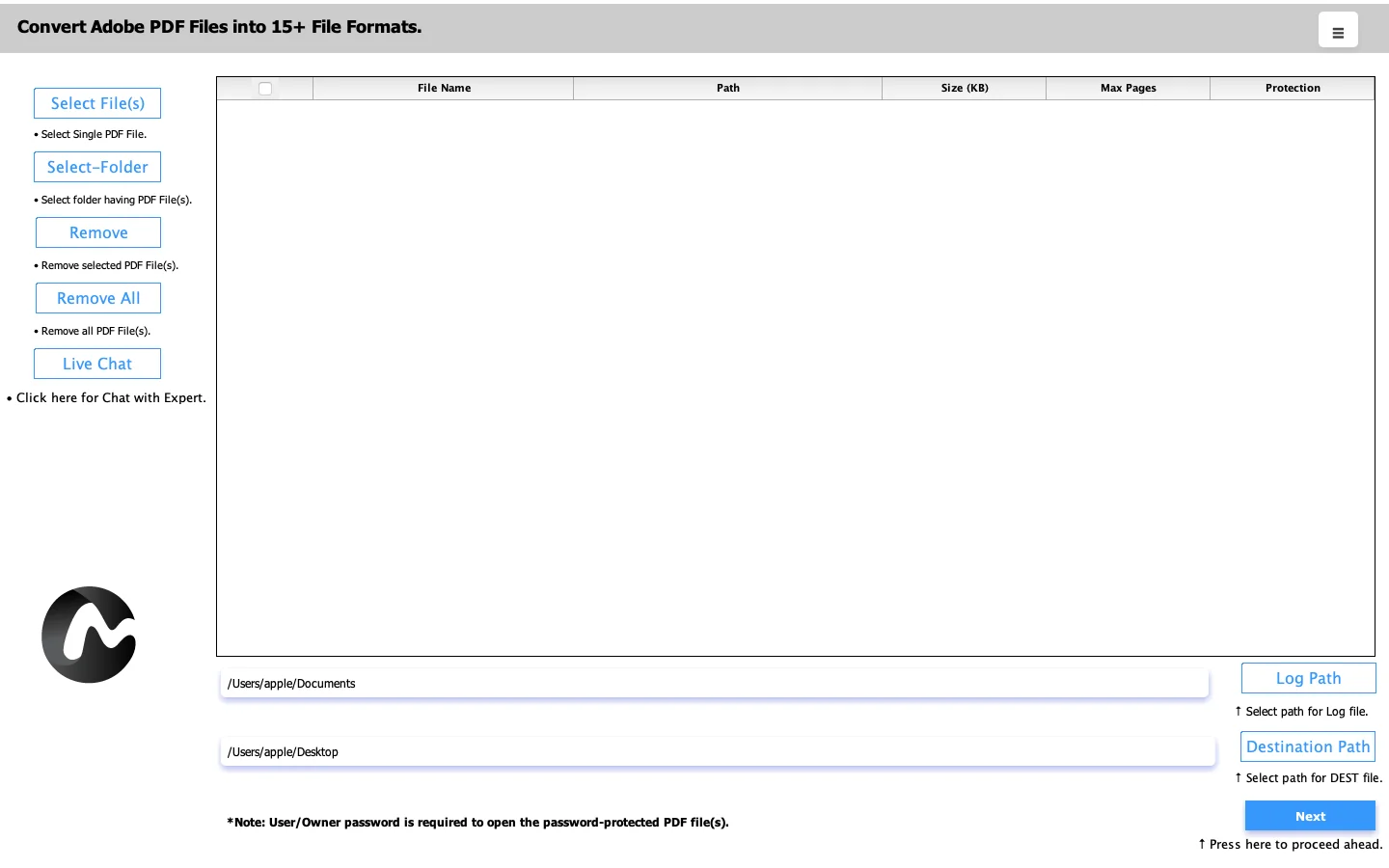
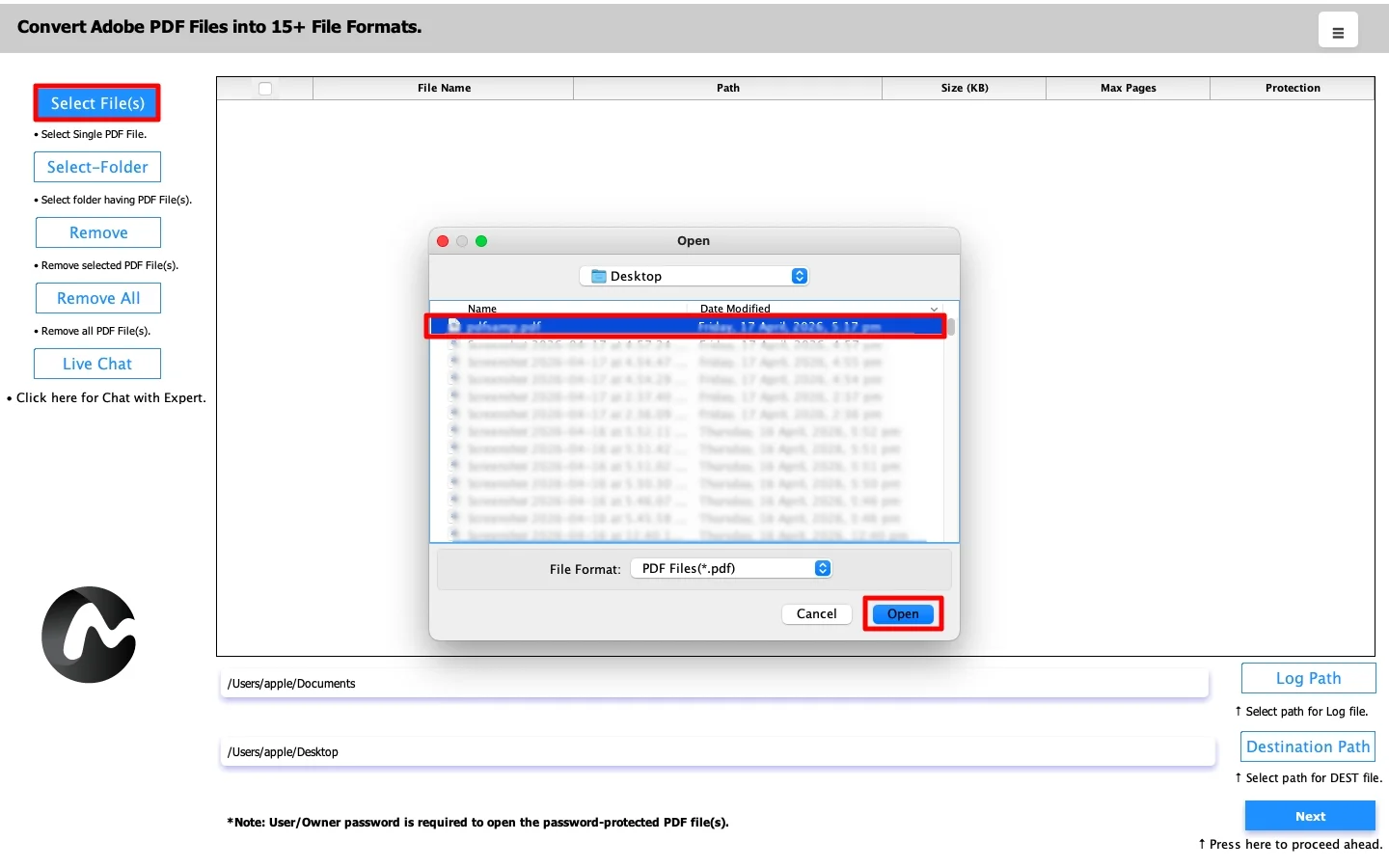
- Select Files or Folders, upload the PDF file, and click Open.
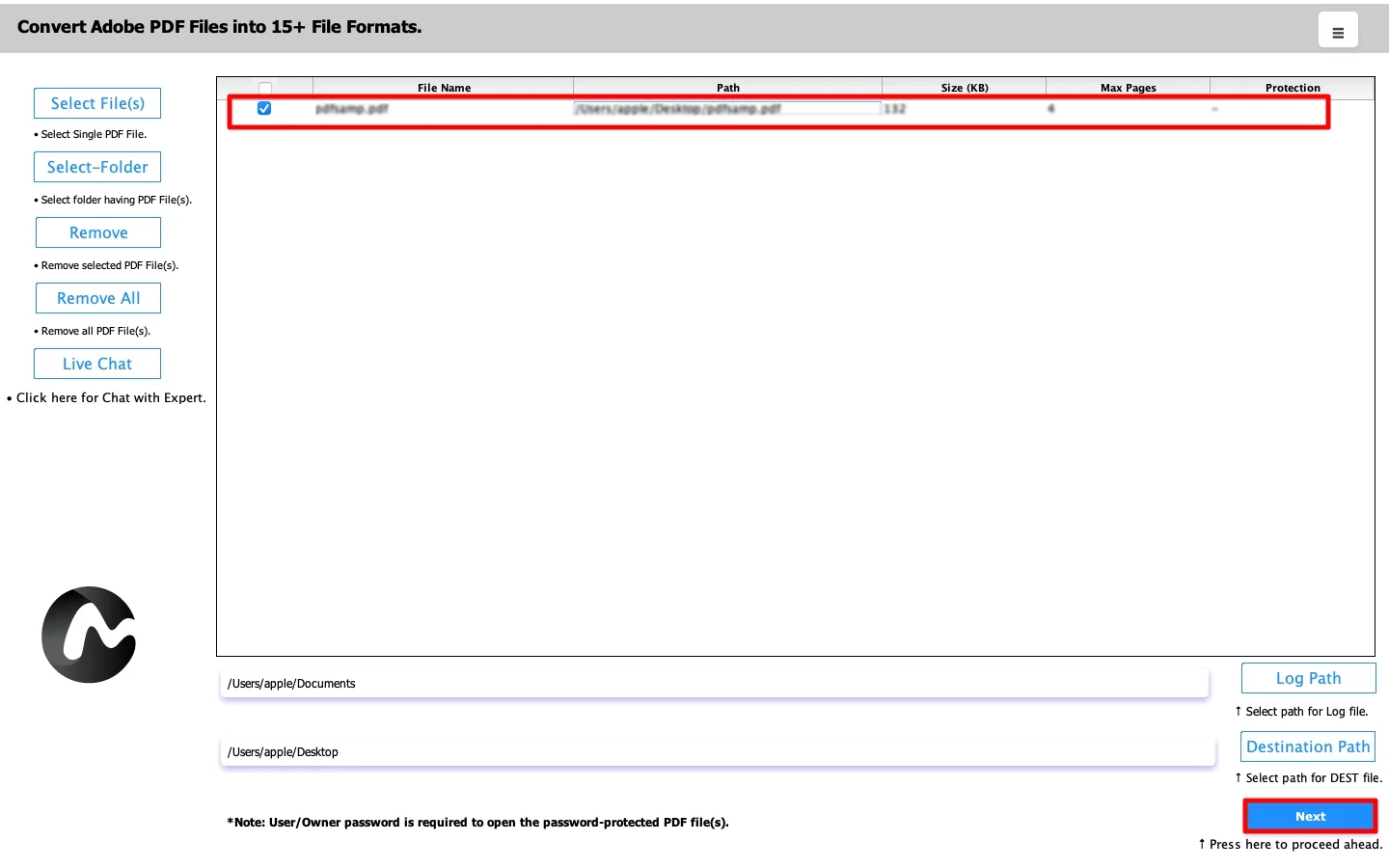
- Now, select the PDF file that you want to convert, and click Next.
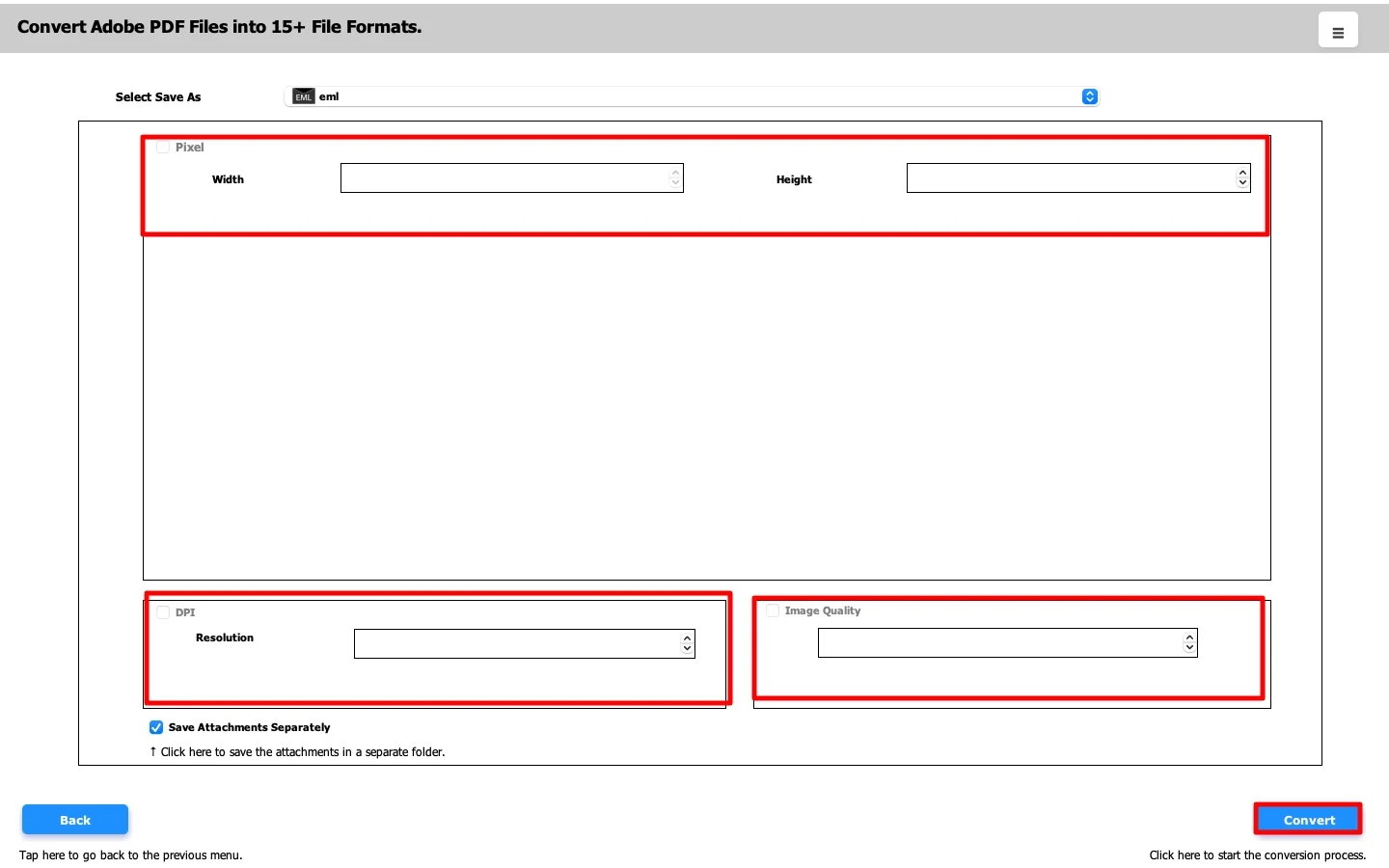
- Furthermore, choose EML as the saving file format.
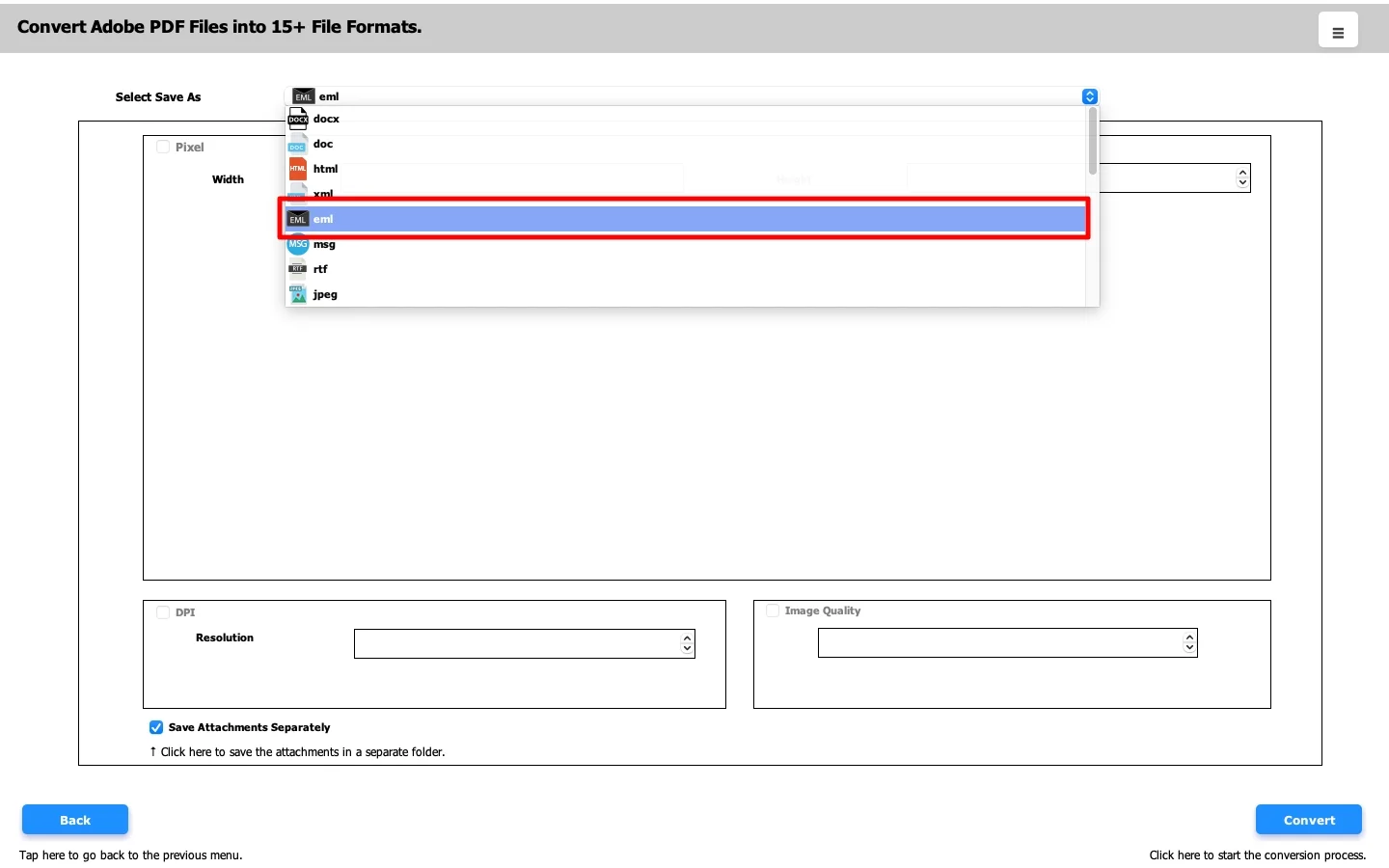
- Finally, apply advanced filters, and click Convert to start the process.
Real-Life Case Study: Legal Archive Migration
Client: Legal consultant managing case records
Challenge: They needed old PDF communication records inside an email client.
Problem Faced: Manual creation of emails was too slow and time-consuming. Also, it didn’t provide exact results.
Solution: Then, they used MacSonik PDF Converter Tool to complete the process.
Result:
- Hundreds of PDF files converted into EML in bulk.
- Easy import into Mozilla Thunderbird.
- Faster document access and search.
Now, the consultant manages all records in a structured mailbox environment.
Conclusion
In the end, we have seen that there are various ways to convert PDF to EML. There are manual approaches, but they are slow, time-consuming, and prone to errors. Also, they are not suitable for large datasets. Alternatively, using a PDF converter tool is highly recommended for large datasets. It is the fastest and most reliable method to complete this task. You can also go for a one-time service option. Additionally, if you face any issues during the process, you can connect to our support team anytime.
Frequently Asked Questions
Ans. No, a professional MacSonik PDF converter tool is designed with a simple and user-friendly interface, so even beginners can convert PDF to EML without technical expertise.
Ans. Yes, the reliable PDF converter tool supports bulk conversion, allowing you to convert multiple PDF files to EML in a single process.
Ans. Manual methods can be slow, error-prone, and difficult to manage for large volumes of files. They may also lead to missing attachments, inconsistent formatting, or incomplete data transfer.
Ans. Yes, the MacSonik PDF to EML converter tool offers a free demo or trial version so users can evaluate features and performance before buying the full license.
Ans. Yes, the advanced MacSonik PDF converter tool is designed to preserve important email properties such as subject, date, sender, recipient details, and attachments during the conversion process.
About The Author:
Amelia is the mistress of the webmail clients like Office 365, Gmail, Yahoo, Hotmail, and Opera Mail. Her research on downloading emails from webmail is outstanding. She has given the solution to download emails from webmail clients to a Mac device with all the mailbox items. She’s been into webmail solutions since 2010. In her free time, she reads books and writes technical blogs.
Related Post
